How to Deploy a Paper Minecraft Server on Ubuntu 20.04
Paper is a high-performance Minecraft server implementation that extends Spigot with patches for improved tick performance, configurable gameplay mechanics, and an expanded plugin API. It remains compatible with Bukkit and Spigot plugins while correcting mechanics inconsistencies present in the vanilla server.
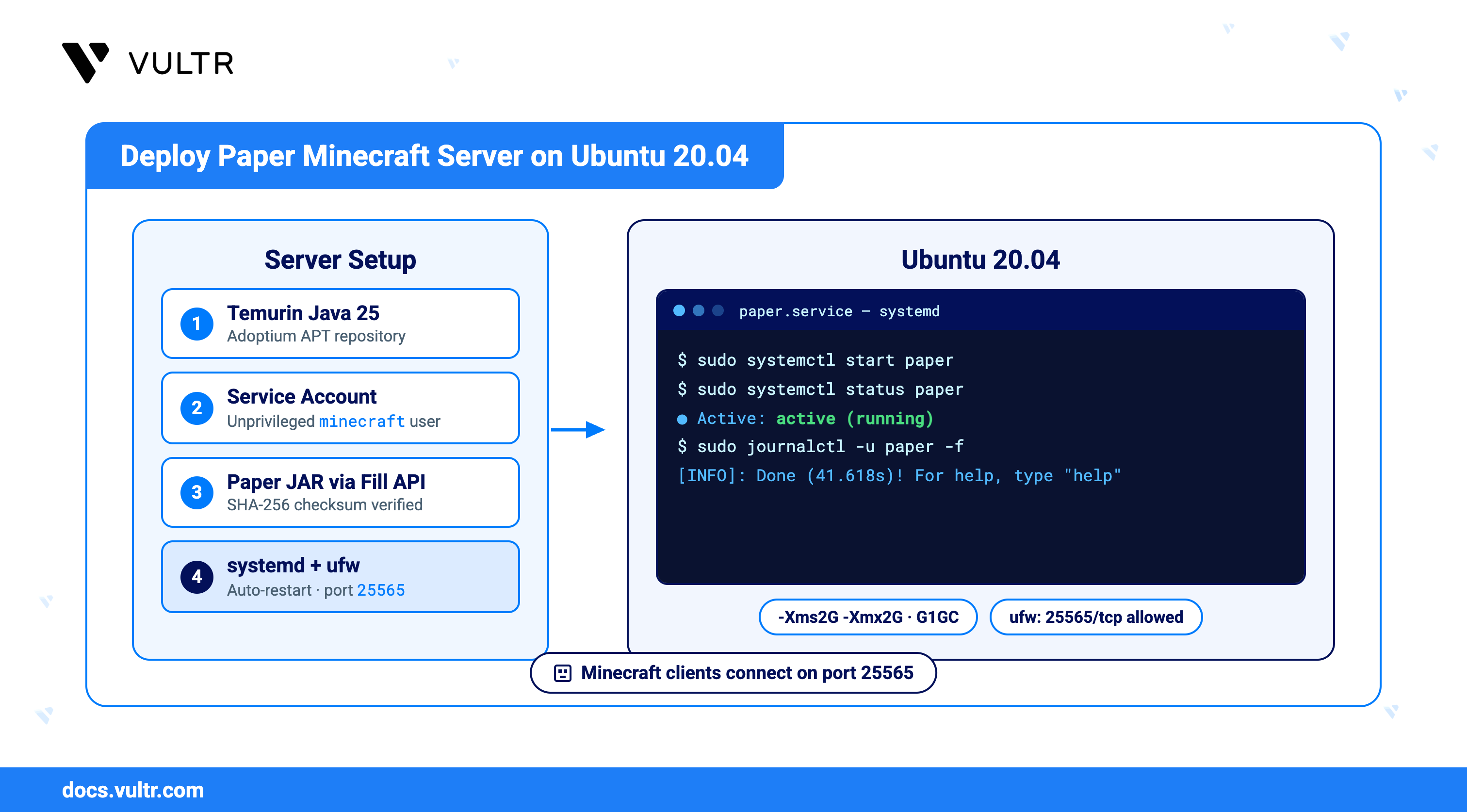
This article explains how to deploy Paper on an Ubuntu 20.04 server. It covers installing the Eclipse Temurin Java runtime from the Adoptium package repository, downloading a verified Paper build through the PaperMC Fill API, running the server under a dedicated system account managed by systemd, and opening the required firewall port.
Note
Ubuntu 20.04 LTS reached the end of its standard five-year support window on 31 May 2025. It no longer receives security updates through the normal channels, so a server running it accumulates unpatched kernel and package vulnerabilities and is not suitable for a host exposed to the public internet.
Prerequisites
Before you begin, you need to:
- Have access to an Ubuntu 20.04 server instance as a non-root user with sudo privileges.
- Allocate at least 4 GB of RAM to the instance. Paper reserves a fixed Java heap at startup, and a 4 GB instance supports a 2 GB heap.
Install the Java Runtime
Paper requires Java 25 or later starting with Minecraft 26.1. Eclipse Temurin provides supported OpenJDK builds through the Adoptium package repository at packages.adoptium.net.
Update the package index.
CONSOLEInstall the packages required to fetch the repository key and query the Paper API.
CONSOLECreate the keyring directory.
CONSOLEDownload the Adoptium signing key and convert it to a binary keyring.
CONSOLEGrant read access to the keyring so that APT can verify the repository.
CONSOLEAdd the Adoptium repository and bind it to the keyring.
CONSOLEThe
awkexpression resolves the release codename from/etc/os-release, which returnsfocalon Ubuntu 20.04. Thesigned-byoption scopes the key to this repository alone, unlike the deprecatedapt-key addcommand, which trusted a key across every configured repository.Refresh the package index to include the new repository.
CONSOLEInstall Temurin 25.
CONSOLEVerify the installed runtime.
CONSOLEThe output confirms a Temurin LTS build:
Create a Service Account
Running a public-facing game server under a dedicated unprivileged account limits the damage a compromised plugin or exploit can cause. The account requires no login shell because systemd starts the process directly.
Create a system user with a home directory and no interactive shell.
CONSOLECreate the server directory and assign ownership to the new account.
CONSOLE
Deploy Paper
PaperMC distributes builds through the Fill API at fill.papermc.io. The previous api.papermc.io/v2 endpoint now returns HTTP 410 Gone and cannot supply builds. Every Fill response includes a SHA-256 checksum, which lets you confirm the download before running it.
Query the API for the current version identifier.
CONSOLEDisplay the resolved version.
CONSOLEThe output shows the newest release, such as
26.2.Fetch the metadata for the latest build of that version.
CONSOLEExtract the download URL and its checksum.
CONSOLEIn the above command:
PAPER_URL: The signed object URL onfill-data.papermc.iothat serves the server JAR.PAPER_SHA: The SHA-256 digest published alongside the build.
Download the server JAR.
CONSOLEVerify the download against the published checksum.
CONSOLEThe output reports
OK. Stop and download the file again if the check reports a mismatch.Transfer ownership of the JAR to the service account.
CONSOLE
Accept the End User License Agreement
Mojang requires explicit acceptance of the Minecraft End User License Agreement before a server accepts connections. The first launch writes a template eula.txt and exits without binding a port.
Run the server once to generate the configuration files.
CONSOLEThe server writes its default files and exits with a notice:
Open the generated agreement file.
CONSOLEChange the
eulavalue totrueafter reading the agreement.INISave and close the file.
Run Paper as a systemd Service
A systemd unit starts Paper at boot, restarts it after a crash, and routes its console output to the journal. Stopping the unit sends SIGINT, which Paper traps to save every loaded world before exiting.
Create the unit file.
CONSOLEAdd the following configuration:
INISave and close the file.
ExecStart: Launches Paper with the G1 garbage collector tuned for a fixed heap. Match-Xmsand-Xmxto each other, and leave at least 2 GB of system memory outside the heap for the operating system and Java metadata.KillSignal=SIGINT: Delivers the interrupt that Paper handles as a graceful shutdown, saving all dimensions before the process exits.SuccessExitStatus=0 130 143: Treats the exit codes produced bySIGINT(130) andSIGTERM(143) as clean. Without130, a normalsystemctl stopleaves the unit in afailedstate.Restart=on-failure: Recovers the server after a crash, but leaves it stopped after a deliberatesystemctl stop.ProtectSystem=full: Mounts/usrand/bootread-only for the service, restricting writes to the server directory.
Reload the systemd manager configuration.
CONSOLEEnable the service to start at boot.
CONSOLEStart the service.
CONSOLEConfirm the service is running.
CONSOLEVerify that the output reports
Active: active (running).Follow the startup log until the server reports readiness.
CONSOLEWorld generation on a new server takes roughly 20 to 45 seconds:
Press
Ctrl+Cto stop following the log. The server keeps running.
Configure the Firewall
Paper listens on TCP port 25565. Ubuntu ships with ufw inactive, so enable it and permit both SSH and the game port before locking the host down.
Allow SSH so that enabling the firewall does not end your session.
CONSOLEAllow Minecraft client traffic.
CONSOLEEnable the firewall.
CONSOLEThe command warns that it may disrupt existing SSH connections and asks for confirmation. Enter
yto proceed. The preceding rule keeps your session open.Review the active rules.
CONSOLEThe output lists both services:
Verify the Server
Confirm that Paper holds the port locally and answers connections from outside the instance.
Verify that the Java process is listening.
CONSOLEThe output shows the listening socket owned by
java:Test the port from your local machine, replacing
SERVER-IPwith your instance's public IP address.CONSOLEOpen the Minecraft Java Edition client, select Multiplayer, click Add Server, and enter your instance's public IP address in the Server Address field.
Note
The server binds port
25565only after the log printsDone. A connection attempt during world generation fails even though the service is already active.
Manage the Server
The service exposes standard systemd controls, and the journal retains the full server console history.
Stop the server, allowing it to save all worlds.
CONSOLERestart the server after changing a configuration file.
CONSOLEReview recent console output.
CONSOLE
To issue in-game commands from a terminal, enable RCON by setting enable-rcon=true, rcon.password, and rcon.port in /opt/minecraft/paper/server.properties, then restart the service. Restrict the RCON port to trusted addresses in ufw, because the protocol transmits its password without encryption.
Conclusion
You have successfully deployed Paper on your Ubuntu 20.04 server using the supported Adoptium repository for Java, a checksum-verified build from the PaperMC Fill API, and a systemd service that runs the server under a dedicated account. Adjust gameplay settings in server.properties, tune Paper-specific behavior in config/paper-global.yml, and add plugins to the plugins directory before restarting the service. For more information, visit the official Paper documentation.


0 Comments
Be the first to comment and share your perspective with the community.