How to Install Apache, MySQL, PHP (LAMP Stack) on Ubuntu 26.04
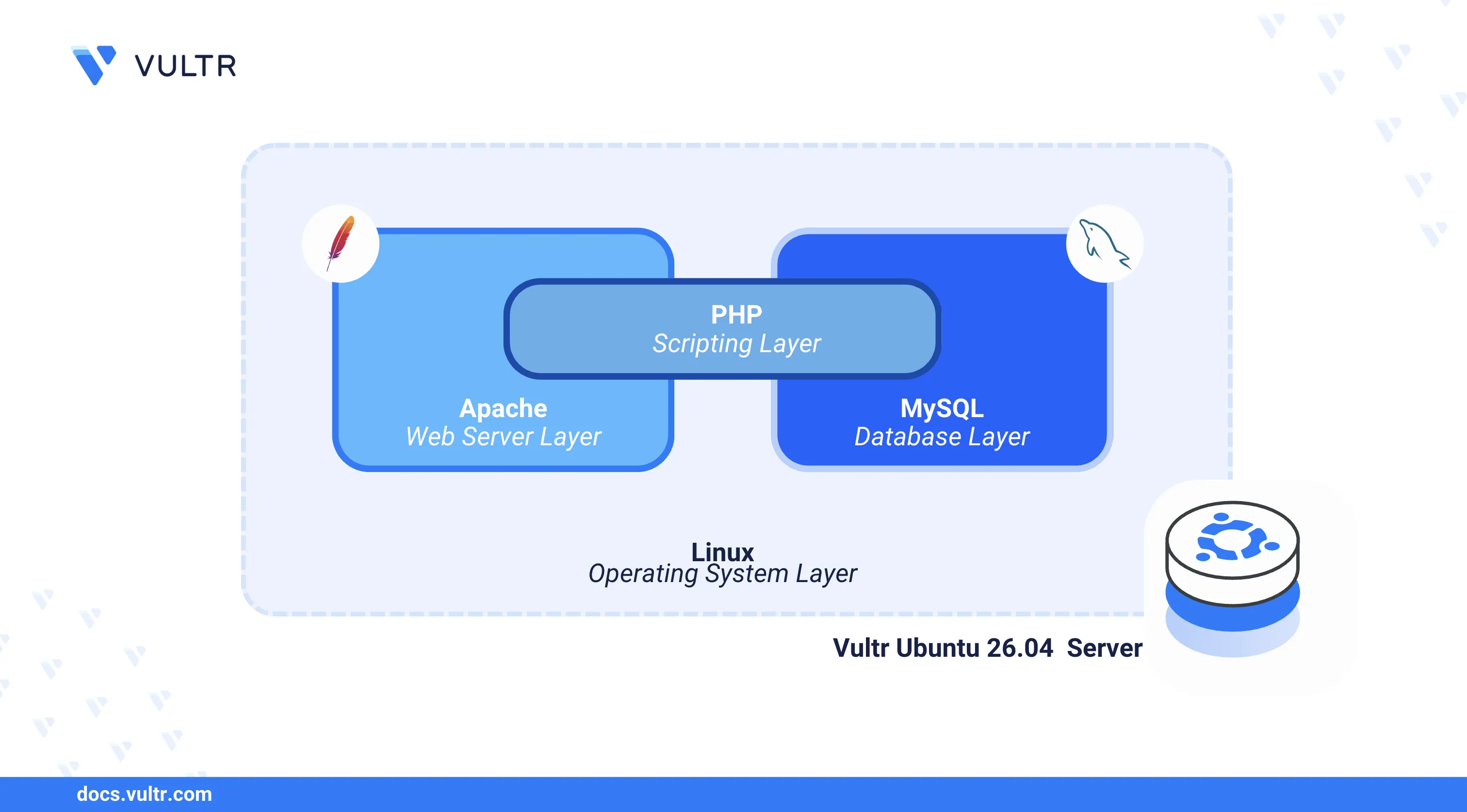
LAMP is a web application stack consisting of Linux, Apache, MySQL, and PHP. Apache serves as the HTTP web server, MySQL provides the relational database backend, and PHP processes server-side scripts to generate dynamic content. Together, these components form a widely used platform for hosting content management systems, e-commerce applications, and custom web services.
This article explains how to install the LAMP stack on an Ubuntu 26.04 server, configure Apache to process PHP requests through PHP-FPM, secure the server with firewall rules and a Let's Encrypt SSL certificate, and test the stack with a sample PHP application that queries a MySQL database.
Prerequisites
Before you begin, you need to:
- Have access to an Ubuntu 26.04 server instance as a non-root user with sudo privileges.
- Have a domain A record pointing to the server's public IP address. For example,
app.example.com.
Install Apache
The default Ubuntu 26.04 APT repositories include the Apache web server package. The following steps install Apache and verify that the service is running.
Update the APT package index.
CONSOLEInstall Apache.
CONSOLEEnable Apache to start automatically at boot time.
CONSOLEStart the Apache service.
CONSOLEVerify that Apache is active and running.
CONSOLEThe output should display
active (running), confirming that the Apache web server is operational.
Install MySQL
MySQL is included in the default Ubuntu 26.04 repositories. The following steps install the database server, enable the service, and run the secure installation script to harden the default configuration.
Install the MySQL server package.
CONSOLEEnable MySQL to start automatically at boot time.
CONSOLEStart the MySQL service.
CONSOLEVerify that MySQL is active and running.
CONSOLEThe output should display
active (running), confirming that the MySQL server is operational.Run the MySQL secure installation script to remove insecure defaults.
CONSOLERespond to each prompt as described below:
- VALIDATE PASSWORD COMPONENT: Enter Y and press Enter to activate password validation.
- Password Validation Policy: Enter 2 to require strong passwords.
- Remove anonymous users?: Enter Y to delete anonymous database accounts.
- Disallow root login remotely?: Enter Y to restrict root access to the local server.
- Remove test database and access to it?: Enter Y to drop the default test database.
- Reload privilege tables now?: Enter Y to refresh the privilege tables and apply all changes.
Open the MySQL server configuration file.
CONSOLEAdd the following directive under the
[mysqld]section to activate themysql_native_passwordauthentication plugin.INISave and close the file.
Restart MySQL to load the updated configuration.
CONSOLEAccess the MySQL console as the
rootsystem user.CONSOLESet a strong password for the root account. Replace
your_strong_passwordwith a secure password that meets your validation policy.SQLReload the privilege tables.
SQLExit the MySQL console.
SQL
Install PHP
PHP-FPM (FastCGI Process Manager) enables Apache to process PHP scripts by forwarding requests through a Unix socket. The following steps install PHP, PHP-FPM, and essential modules for the LAMP stack.
Install PHP, PHP-FPM, and common extensions.
CONSOLEThe command installs the following packages:
php-fpm: Manages PHP worker processes for handling web server requests.php-mysql: Enables PHP to connect to MySQL databases.php-opcache: Caches precompiled PHP scripts in memory for faster execution.php-cli: Provides the PHP command-line interpreter.libapache2-mod-php: Enables Apache to process PHP scripts directly.
Confirm the installed PHP version.
CONSOLEYour output should be similar to the one below:
Enable PHP-FPM to start automatically at boot time.
CONSOLEStart the PHP-FPM service.
CONSOLEVerify that PHP-FPM is active and running.
CONSOLEThe output should display
active (running), confirming that PHP-FPM is operational.
Configure Apache with PHP-FPM
Apache requires additional modules to forward PHP requests to PHP-FPM. The following steps enable the required modules and activate the PHP-FPM configuration.
Enable the Apache proxy and environment modules.
CONSOLEEnable the PHP-FPM configuration for Apache.
CONSOLERestart Apache to apply the module changes.
CONSOLE
Set Up Firewall Rules
Uncomplicated Firewall (UFW) is active by default on Ubuntu 26.04. The following steps open ports for HTTP and HTTPS traffic.
Allow HTTP traffic on port
80.CONSOLEAllow HTTPS traffic on port
443.CONSOLE
Configure Apache Virtual Host
Apache uses virtual host configurations to serve content based on the requested domain name. The following steps remove the default configuration, create a virtual host for your domain, and connect it to PHP-FPM.
Unlink the default Apache virtual host configuration.
CONSOLECreate a new virtual host configuration file. Replace
app.example.comwith your actual domain.CONSOLEAdd the following configuration to the file. Replace
app.example.comwith your actual domain.INISave and close the file.
Within the configuration:
ServerName: Defines the domain that triggers this virtual host.DocumentRoot: Sets the directory from which Apache serves files.<FilesMatch \.php$>: Forwards all PHP file requests to the PHP-FPM socket for processing.ErrorLogandCustomLog: Store virtual host-specific error and access logs.
Create the web root directory for the virtual host.
CONSOLEEnable the new virtual host configuration.
CONSOLETest the Apache configuration for syntax errors.
CONSOLEThe output should display
Syntax OK.Restart Apache to activate the virtual host.
CONSOLE
Secure the Server with SSL
SSL certificates encrypt communication between the client browser and the Apache web server over HTTPS. The following steps install Certbot and generate a trusted Let's Encrypt SSL certificate for your domain.
Install the Certbot Let's Encrypt client and the Apache plugin.
CONSOLEGenerate an SSL certificate for your domain. Replace
app.example.comwith your actual domain.CONSOLEFollow the on-screen prompts to complete the certificate generation. Certbot automatically updates the Apache virtual host configuration to enable HTTPS.
Verify that the automatic renewal process is configured correctly.
CONSOLE
Test the LAMP Stack
A working LAMP stack allows PHP to query data from MySQL and return dynamic content through Apache. The following steps create a sample database, insert a test record, and build a PHP application that retrieves and displays the data in a web browser.
Log in to the MySQL console as the
rootuser.CONSOLEEnter the root password you configured earlier.
Create a new database named
example_db.SQLCreate a database user named
example_userwith a strong password. Replacestrong_passwordwith your desired password.SQLGrant the user full privileges on the
example_dbdatabase.SQLReload the privilege tables.
SQLSwitch to the
example_dbdatabase.SQLCreate a table named
messageswith an auto-incrementing ID and a text column.SQLInsert a sample record into the table.
SQLVerify that the record exists.
SQLYour output should be similar to the one below:
Exit the MySQL console.
SQLCreate a PHP test file in the web root directory.
CONSOLEAdd the following PHP code to the file. Replace
strong_passwordwith theexample_userpassword you set earlier.PHPSave and close the file.
This script connects to the
example_dbdatabase, queries themessagestable, and displays the result as an HTML heading.Access the test page in a web browser. Replace
app.example.comwith your actual domain.The browser displays the message Hello World from LAMP Stack, confirming that Apache, MySQL, and PHP are working together.
Conclusion
You have deployed and secured the LAMP stack on an Ubuntu 26.04 server. Apache serves web requests, PHP-FPM processes dynamic content, and MySQL manages the application data. This stack supports multiple virtual hosts and integrates with frameworks such as Laravel and WordPress. For more configuration options, refer to the following resources:
Tags:Ubuntu 26.04


0 Comments
Be the first to comment and share your perspective with the community.