How to Install Apache Web Server on Ubuntu 26.04
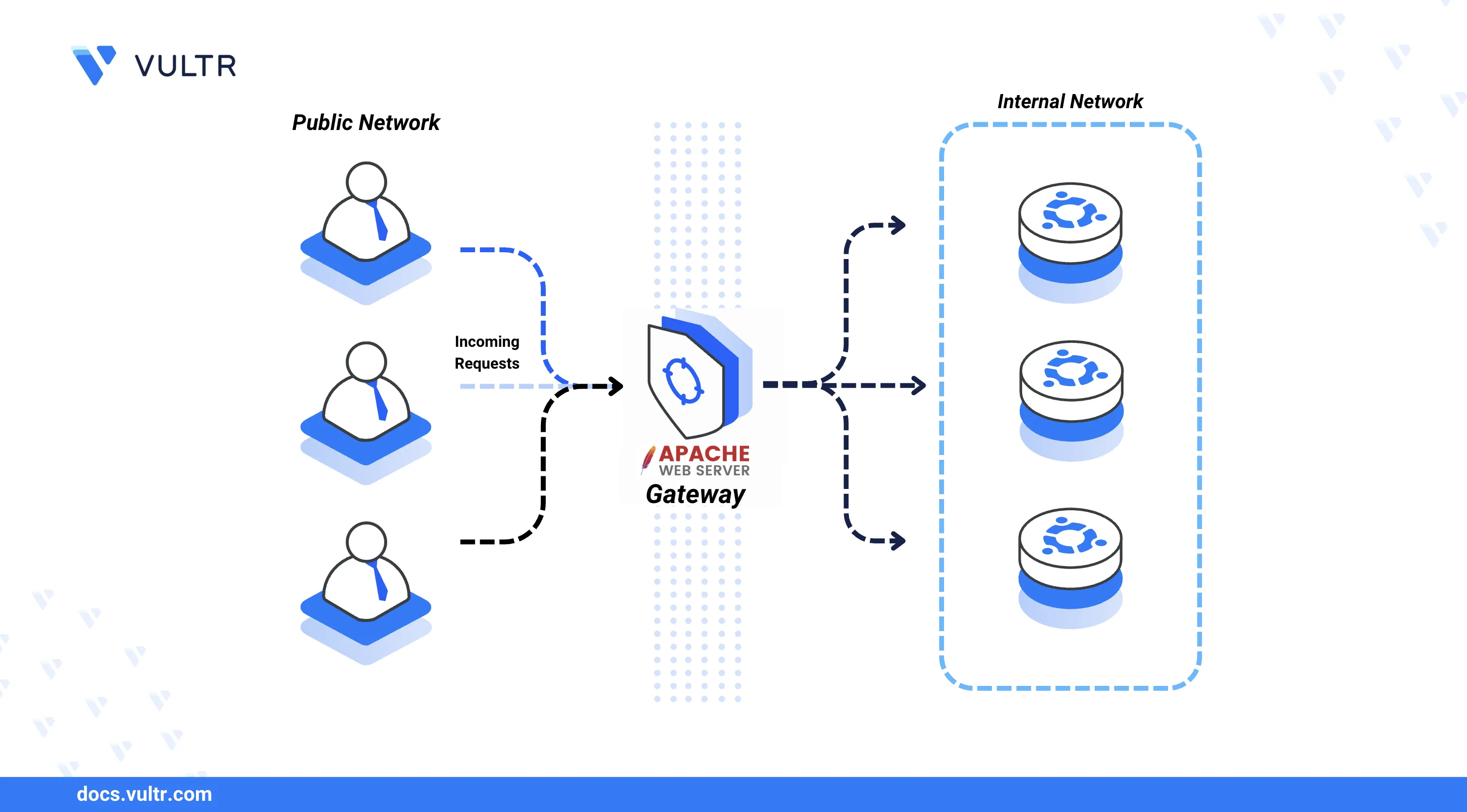
Apache is an open-source HTTP web server that supports static and dynamic content delivery through a modular architecture. It functions as a web server, reverse proxy, or load balancer, and integrates with backend processors such as PHP through modules like mod_proxy_fcgi. Apache is one of the most widely deployed web servers for hosting websites, APIs, and web applications.
This article explains how to install the Apache web server on an Ubuntu 26.04 server, configure a virtual host to serve a sample web application, and secure the server with a trusted Let's Encrypt SSL certificate.
Prerequisites
Before you begin, you need to:
- Have access to an Ubuntu 26.04 server instance as a non-root user with sudo privileges.
- Have a domain A record pointing to the server's public IP address. For example,
app.example.com.
Install Apache
The default Ubuntu 26.04 APT repositories include the Apache web server package. The following steps install Apache and verify the installed version.
Update the APT package index.
CONSOLEInstall Apache.
CONSOLEConfirm the installed Apache version.
CONSOLEYour output should be similar to the one below:
Manage the Apache System Service
The apache2 systemd service controls the Apache web server process. The following steps enable automatic startup on boot and demonstrate the core service management commands.
Enable Apache to start automatically at boot time.
CONSOLEStart the Apache service.
CONSOLEVerify that Apache is active and running.
CONSOLEThe output should display
active (running), confirming that the Apache web server is operational.Stop the Apache service.
CONSOLERestart the Apache service.
CONSOLE
Set Up Firewall Rules
Uncomplicated Firewall (UFW) is active by default on Ubuntu 26.04. The following steps open ports for HTTP and HTTPS traffic so that Apache can serve web applications.
Allow HTTP traffic on port
80.CONSOLEAllow HTTPS traffic on port
443.CONSOLE
Create a Web Root Directory
The web root directory stores the files that Apache serves when a client requests the domain. The following steps create the directory structure and a sample HTML page.
Create the web root directory for the virtual host.
CONSOLECreate a sample
index.htmlfile in the web root directory.CONSOLEAdd the following HTML content to the file.
HTMLSave and close the file.
Grant the Apache user
www-dataownership of the web root directory.CONSOLE
Create a New Apache Virtual Host
Virtual host configurations direct Apache to serve specific content based on the requested domain name and the corresponding document root directory. The following steps disable the default configuration, create a virtual host for a sample domain, and verify that Apache serves the expected content.
Disable the default Apache virtual host configuration.
CONSOLECreate a new virtual host configuration file. Replace
app.example.comwith your actual domain.CONSOLEAdd the following configuration to the file. Replace
app.example.comwith your actual domain.INISave and close the file.
Within the configuration:
ServerName: Defines the domain that triggers this virtual host.DocumentRoot: Sets the directory from which Apache serves files.DirectoryIndex: Specifies the default files to serve when the domain is accessed.<Directory>: Defines access permissions for the web root.AllowOverride Allenables.htaccessoverrides.ErrorLogandCustomLog: Store virtual host-specific error and access logs.
Enable the new virtual host configuration.
CONSOLETest the Apache configuration for syntax errors.
CONSOLEThe output should display
Syntax OK.Restart Apache to activate the virtual host.
CONSOLEVerify the virtual host by sending a request to the domain using
curl.CONSOLEA successful response returns the HTML content including the Hello World from Apache heading.
Secure the Apache Web Server
SSL certificates encrypt traffic between a client browser and the Apache web server over HTTPS. The following steps install Certbot and generate a trusted Let's Encrypt SSL certificate to enable HTTPS on your virtual host.
Install the Certbot Let's Encrypt client and the Apache plugin.
CONSOLEGenerate an SSL certificate for your domain. Replace
app.example.comwith your actual domain.CONSOLEFollow the on-screen prompts to complete the certificate generation. Certbot automatically updates the Apache virtual host configuration to enable HTTPS.
Verify that the automatic renewal process is configured correctly.
CONSOLEAccess your domain over HTTPS in a web browser to verify the SSL configuration. Replace
app.example.comwith your actual domain.The browser displays the Hello World from Apache heading with a valid SSL certificate.
Conclusion
You have installed and configured the Apache web server on an Ubuntu 26.04 server with a virtual host and secured it with a Let's Encrypt SSL certificate. Apache supports multiple virtual hosts and integrates with dynamic content processors such as PHP through modules like mod_proxy_fcgi. For more configuration options, refer to the official Apache documentation.
Tags:Ubuntu 26.04


0 Comments
Be the first to comment and share your perspective with the community.