How to Install Caddy Web Server on Ubuntu 26.04
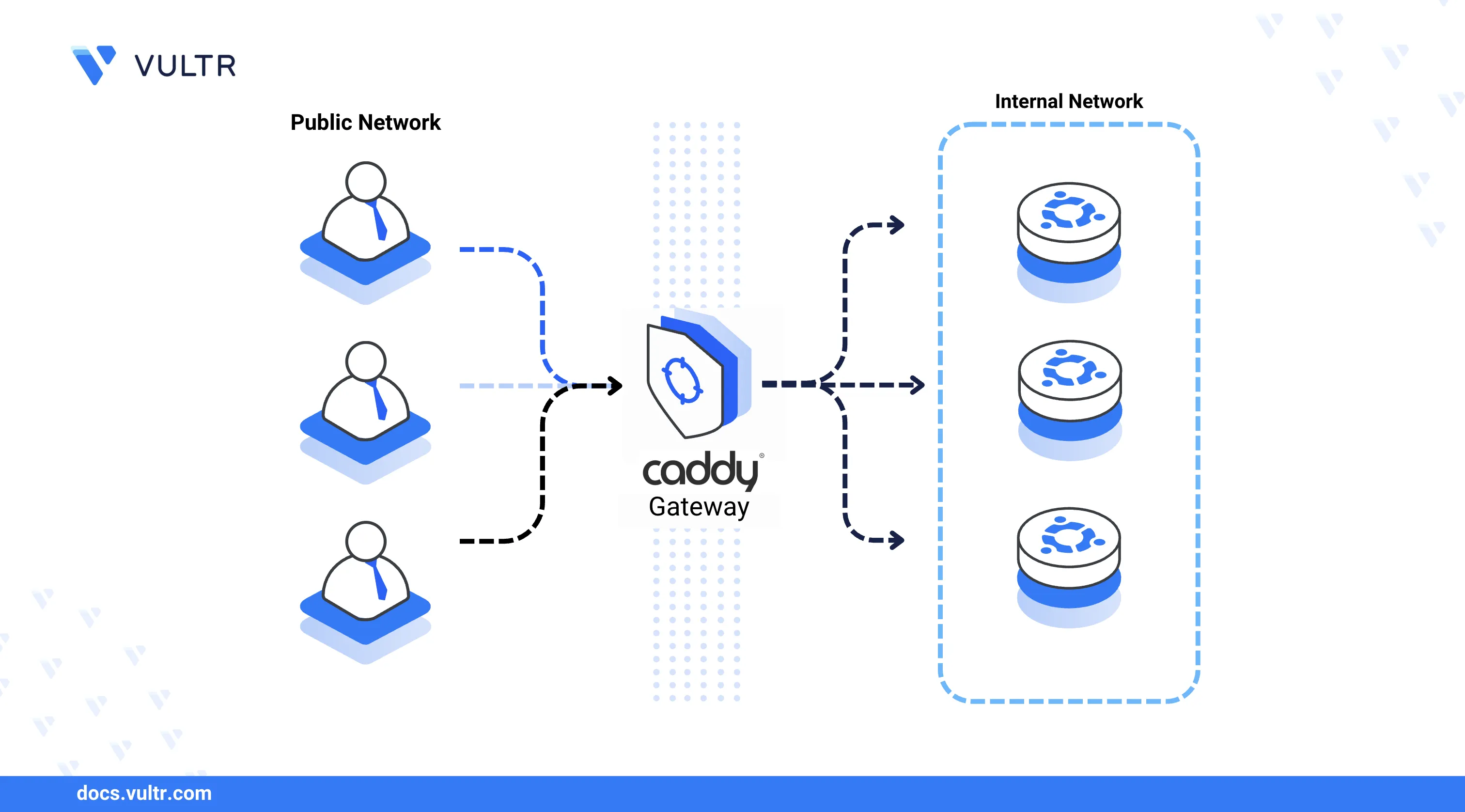
Caddy is an open-source web server written in Go that provides automatic HTTPS for all configured domains using Let's Encrypt certificates. It supports static file serving, reverse proxying, and load balancing through a simple configuration syntax called Caddyfile. Caddy handles TLS certificate provisioning and renewal without manual intervention.
This article explains how to install the Caddy web server on an Ubuntu 26.04 server, create a virtual host with automatic HTTPS, and configure firewall rules for HTTP and HTTPS traffic.
Prerequisites
Before you begin, you need to:
- Have access to an Ubuntu 26.04 server instance as a non-root user with sudo privileges.
- Have a domain A record pointing to the server's public IP address. For example,
app.example.com.
Install Caddy
Caddy is not included in the default Ubuntu 26.04 APT repositories. The official Caddy repository provides the latest stable release. The following steps add the repository and install the web server.
Update the APT package index.
CONSOLEAdd the Caddy GPG key to the server's keyring.
CONSOLEAdd the Caddy repository to the APT sources.
CONSOLEUpdate the package index to include the new repository.
CONSOLEInstall Caddy.
CONSOLEConfirm the installed Caddy version.
CONSOLEYour output should be similar to the one below:
Manage the Caddy System Service
The caddy systemd service controls the web server process. The following steps enable automatic startup and demonstrate the core service management commands.
Enable Caddy to start automatically at boot time.
CONSOLEStart the Caddy service.
CONSOLEVerify that Caddy is active and running.
CONSOLEThe output should display
active (running), confirming that the Caddy web server is operational.
Set Up Firewall Rules
Uncomplicated Firewall (UFW) is active by default on Ubuntu 26.04. Caddy requires open ports for HTTP and HTTPS traffic. HTTP port 80 is needed for the ACME challenge during automatic certificate provisioning.
Allow HTTP traffic on port
80.CONSOLEAllow HTTPS traffic on port
443.CONSOLE
Create a Caddy Virtual Host
Caddy uses a configuration file called Caddyfile located at /etc/caddy/Caddyfile. Each server block defines a virtual host with a domain, document root, and optional directives. Caddy automatically provisions and renews Let's Encrypt SSL certificates for all configured domains.
Create the web root directory for the virtual host.
CONSOLECreate a sample HTML file in the web root directory.
CONSOLEAdd the following content to the file.
HTMLSave and close the file.
Back up the default Caddyfile configuration.
CONSOLECreate a new Caddyfile configuration. Replace
app.example.comandadmin@example.comwith your actual domain and email address.CONSOLEAdd the following configuration to the file.
INISave and close the file.
Within the configuration:
app.example.com: Defines the virtual host domain. Caddy automatically provisions an SSL certificate for this domain.tls: Specifies the email address for Let's Encrypt certificate registration.root: Sets the document root directory for serving files.file_server: Enables the static file server withindex.htmlas the default file.log: Writes access and error logs to the specified file.
Create the log directory and assign ownership to the Caddy user.
CONSOLEFormat the Caddyfile to ensure consistent indentation and syntax.
CONSOLEValidate the Caddyfile configuration for errors.
CONSOLEThe output should display
Valid configuration.Reload Caddy to apply the new configuration.
CONSOLE
Secure the Caddyfile
Restricting file permissions on the Caddyfile prevents unauthorized modifications to the web server configuration. The following steps assign ownership to the Caddy system user and limit access to the configuration file.
Set the Caddy user as the owner of the configuration directory.
CONSOLERestrict Caddyfile permissions to the owner only.
CONSOLEAccess your domain in a web browser to verify the virtual host and automatic HTTPS. Replace
app.example.comwith your actual domain.The browser displays the Hello World from Caddy heading with a valid SSL certificate.
Conclusion
You have installed the Caddy web server on an Ubuntu 26.04 server and configured a virtual host with automatic HTTPS using Let's Encrypt. Caddy handles certificate provisioning and renewal without additional tools or configuration. For more information, refer to the official Caddy documentation.
Tags:Ubuntu 26.04


0 Comments
Be the first to comment and share your perspective with the community.