How to Install Docker on Ubuntu 26.04
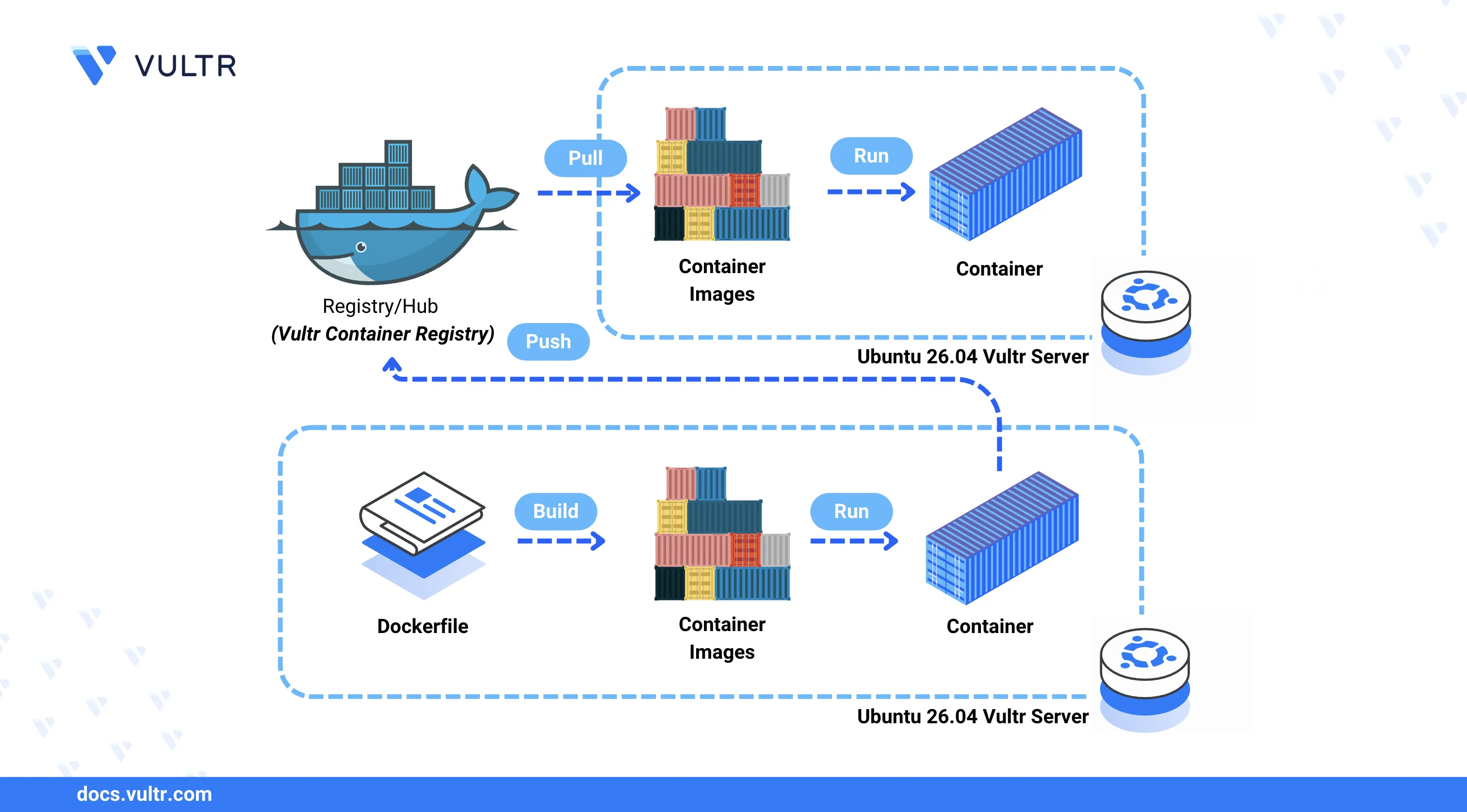
Docker is an open-source container platform that packages applications with their dependencies into portable, isolated units called containers. Containers share the host operating system kernel, making them lightweight and fast to start compared to traditional virtual machines. Docker is widely used for application deployment, microservices architectures, and CI/CD pipelines.
This article explains how to install Docker on an Ubuntu 26.04 server, manage the Docker service, and run a containerized application.
Prerequisites
Before you begin, you need to:
- Have access to an Ubuntu 26.04 server instance as a non-root user with sudo privileges.
Install Docker
The official Docker repository provides the latest Docker Engine packages. The following steps add the Docker GPG key and repository to APT, then install the Docker Engine with its companion plugins.
Install the required dependency packages.
CONSOLEAdd the Docker GPG key to the server's keyring.
CONSOLEAdd the Docker repository to the APT sources.
CONSOLEUpdate the APT package index to include the new repository.
CONSOLEInstall Docker Engine and its plugins.
CONSOLEThe command installs the following packages:
docker-ce: The Docker Engine community edition.docker-ce-cli: The Docker command-line interface.containerd.io: The container runtime that manages container lifecycles.docker-buildx-plugin: Extends Docker's build capabilities for multi-platform images.docker-compose-plugin: Enables multi-container application management using YAML configuration files.
Confirm the installed Docker version.
CONSOLEYour output should be similar to the one below:
Manage the Docker System Service
The docker systemd service controls the Docker Engine process. The following steps enable automatic startup and demonstrate the core service management commands.
Enable Docker to start automatically at boot time.
CONSOLEVerify that Docker is active and running.
CONSOLEThe output should display
active (running), confirming that the Docker Engine is operational.Stop the Docker service.
CONSOLERestart the Docker service.
CONSOLE
Add User to the Docker Group
By default, Docker commands require sudo privileges. Adding your user to the docker group allows running Docker commands without sudo.
Add the current user to the
dockergroup.CONSOLEApply the group membership changes by logging out and back in, or run the following command.
CONSOLEVerify that Docker commands work without
sudo.CONSOLEThe command returns an empty container list without a permission error, confirming that the group membership is active.
Run a Containerized Application
Docker pulls container images from registries such as Docker Hub and runs them as isolated containers. The following steps pull an Nginx image, run it as a container, and verify access to the application.
Pull the latest Nginx image from Docker Hub.
CONSOLEList all Docker images on the server.
CONSOLEVerify that the
nginximage with thelatesttag is listed in the output.Run a container using the Nginx image and map host port
80to container port80.CONSOLEWithin the command:
--name example-nginx: Assigns the nameexample-nginxto the container.-d: Runs the container in detached mode as a background process.-p 80:80: Maps the host port80to the container port80.
List all running containers.
CONSOLEVerify that the
example-nginxcontainer is listed with a status ofUp.Allow HTTP traffic on port
80through the firewall.CONSOLEAccess the server's public IP address in a web browser. The default Nginx welcome page confirms that Docker is serving the container.
Conclusion
You have installed Docker on an Ubuntu 26.04 server, configured the service for automatic startup, and deployed a containerized Nginx application. Docker supports building custom images, multi-container deployments with Docker Compose, and integration with container registries for image distribution. For more information, refer to the official Docker documentation.
Tags:Ubuntu 26.04


0 Comments
Be the first to comment and share your perspective with the community.