How to Install Harshicorp Vault on Ubuntu 24.04
Modern applications rely on secrets, including API keys, database passwords, TLS certificates, and encryption keys. When hardcoded, stored in plain files, or distributed insecurely, these secrets pose serious security risks. HashiCorp Vault addresses this challenge by providing a secure, centralized solution for managing sensitive information. It delivers secret storage, dynamic credential generation, encryption as a service, and fine-grained access control.
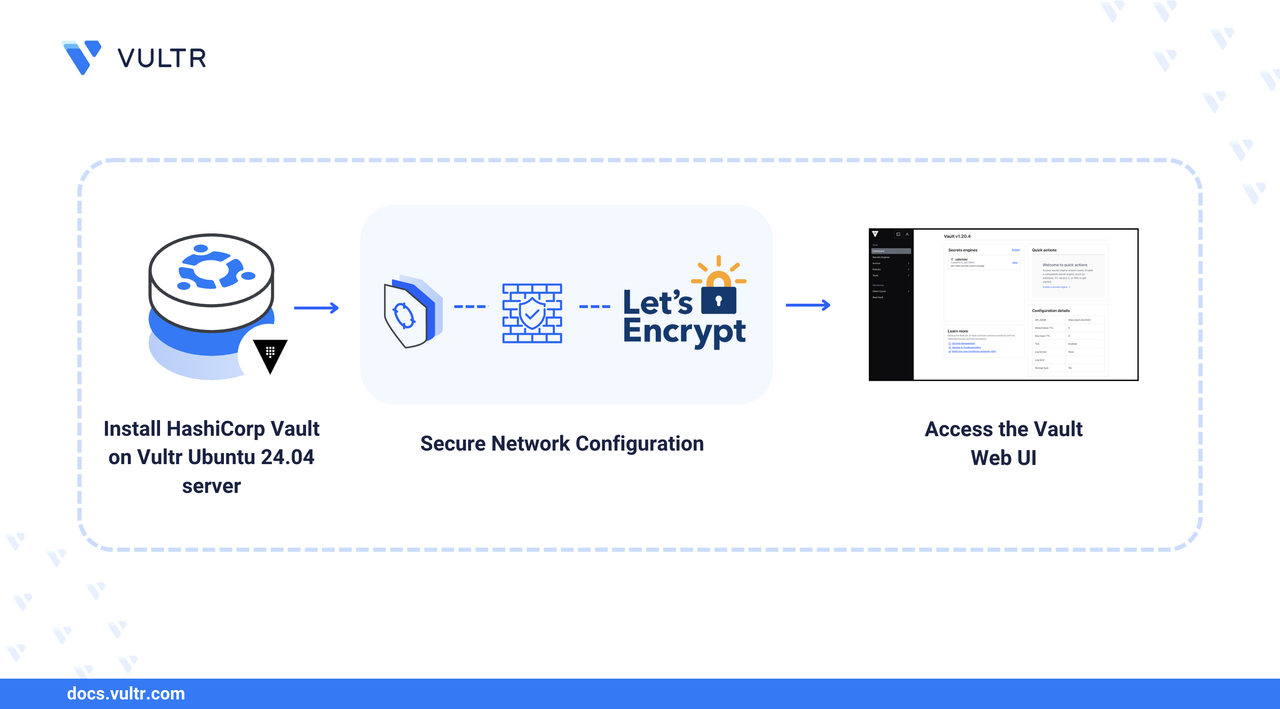
This article shows how to set up a production-ready Vault server on Ubuntu 24.04. It covers installing Vault from HashiCorp's official repository, generating TLS certificates with Let's Encrypt, configuring Vault for secure operation, initializing it with unseal keys, and accessing the CLI and web UI.
Prerequisites
Before you begin, ensure you:
- Have access to an Ubuntu 24.04 server as a non-root sudo user.
- Configure a domain A record pointing to your server's IP address.
Install Vault from HashiCorp Repository
This section covers adding HashiCorp's official APT repository to your system and installing Vault. HashiCorp maintains its own repository which gives you access to the latest stable releases directly from the vendor.
Update your package list.
CONSOLEInstall the required packages.
CONSOLEAdd HashiCorp's GPG key. This key verifies that packages actually come from HashiCorp.
CONSOLEAdd the HashiCorp repository to your system sources.
CONSOLEUpdate the package index.
CONSOLEInstall Vault.
CONSOLEVerify the installation.
CONSOLEOutput:
Enable shell autocompletion for vault.
CONSOLEReload your shell to apply the autocompletion.
CONSOLE
Configure Firewall Access
In this section, open the necessary ports in the firewall for Vault to be accessible. The steps configure UFW to allow HTTPS access to Vault.
Allow HTTPS access on port 8200 where Vault web UI runs.
CONSOLEOpen port 80 temporarily to allow Certbot to issue TLS certificates.
CONSOLEReload firewall.
CONSOLE
Generate TLS Certificates with Let's Encrypt
This section covers obtaining TLS certificates using Certbot. Install and use Certbot to get free certificates from Let's Encrypt.
Install Certbot.
CONSOLEObtain a certificate for your domain. Replace
vault.example.comwith your actual domain andyour-email@example.comwith your email address.CONSOLERemove the port 80 rule from your firewall after obtaining the TLS certificates.
CONSOLEReload the firewall.
CONSOLECreate a directory for Vault certificates.
CONSOLECopy the Let's Encrypt certificates to Vault's directory. Replace
vault.example.comwith your domain name.CONSOLECopy the private key. Replace
vault.example.comwith your domain name.CONSOLESet proper ownership for the certificates.
CONSOLESet restrictive permissions on the certificate files.
CONSOLECreate an automatic certificate renewal script.
CONSOLEMake the renewal script executable.
CONSOLE
Configure Vault for Production
This section covers configuring Vault for production use. The configuration file controls how Vault operates, including storage backend, network listeners, and security settings.
Back up the original configuration file.
CONSOLECreate a production configuration. Replace
vault.example.comwith your actual domain.CONSOLEEnable the Vault service to start at boot.
CONSOLERestart the Vault service with the new configuration.
CONSOLECheck that Vault started successfully.
CONSOLEOutput should show:
Set Up Vault Environment
This section shows how to configure environment variables that tell the CLI where to find your Vault server.
Set the Vault address environment variable. Replace
vault.example.comwith your domain.CONSOLEReload your shell configuration.
CONSOLEVerify the variable is set correctly.
CONSOLEOutput:
Test connectivity to Vault.
CONSOLEOutput:
Initialize and Unseal Vault
This section covers initializing Vault to generate encryption keys and unsealing it to make it operational. Vault starts in a sealed state where it knows where its data is stored but can't decrypt it.
Understanding the Unseal Process
When you initialize Vault, it creates:
- Master key: Encrypts all your secrets
- Unseal keys: Parts of the master key split using Shamir's Secret Sharing algorithm
- Root token: Your initial admin access
The default setup creates 5 keys with a threshold of 3. This means you need any 3 of the 5 keys to unseal Vault. This prevents any single person from having complete access.
Initialize Vault with the default configuration.
CONSOLEOutput:
Note
Save these keys in separate, secure locations, as you'll never see them again.
Start unsealing Vault with the first key. You need to run this command 3 times with 3 different keys.
CONSOLEPaste the first key when prompted. Output shows progress:
Continue with the second key.
CONSOLEOutput:
Use the third key to complete unsealing.
CONSOLEWhen successful, you'll see:
Note
If unsealing fails, make sure you're using 3 different keys and not the same ones.
Log in with the root token.
CONSOLEEnter the Initial Root Token when prompted.
Access the Vault Web UI
This section shows how to access Vault's web interface, which provides a visual and intuitive way to manage secrets alongside the CLI.
Open your browser and navigate to your Vault URL:
You'll see the Vault login screen. Select Token as the method.
Enter your root token and click Sign In.
The dashboard shows your Vault's status and available secrets engines.
Conclusion
You now have a production-ready Vault installation on Ubuntu 24.04 with proper TLS encryption and both CLI and web access. Your Vault server is ready to securely store and manage secrets for your infrastructure. Refer to the Vault Documentation for more information.
Tags:Ubuntu 24.04


0 Comments
Be the first to comment and share your perspective with the community.