How to Install MariaDB on Ubuntu 26.04
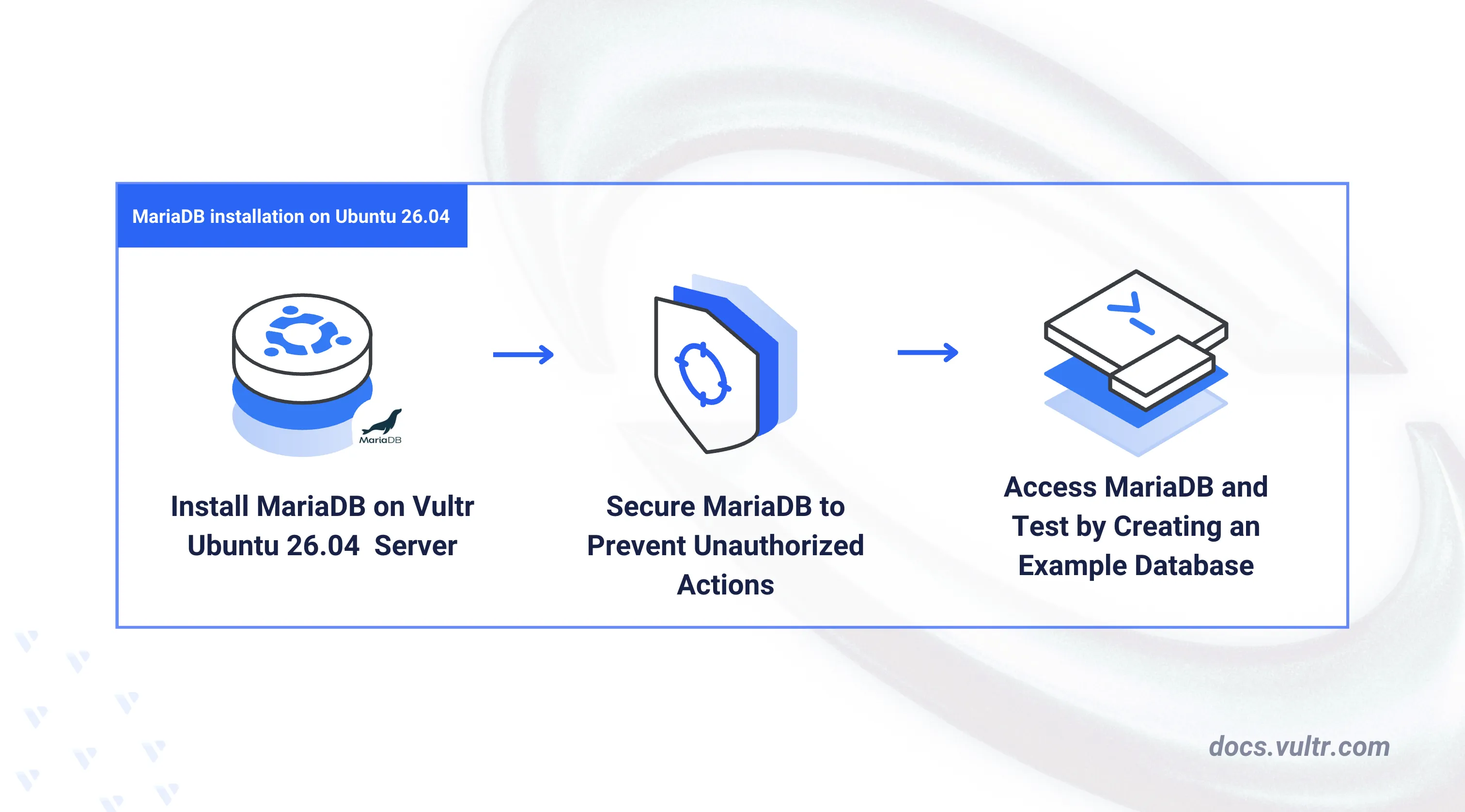
MariaDB is an open-source relational database management system built as a drop-in replacement for MySQL. It offers improved performance, additional storage engines, and enhanced security features while maintaining full compatibility with MySQL syntax and tools. MariaDB is commonly used in web application stacks, data analytics platforms, and enterprise environments.
This article explains how to install MariaDB on an Ubuntu 26.04 server. It covers the database server setup, service management, security hardening, and basic database operations including user creation and privilege management.
Prerequisites
Before you begin, you need to:
- Have access to an Ubuntu 26.04 server instance as a non-root user with sudo privileges.
Install MariaDB on Ubuntu 26.04
The default Ubuntu 26.04 APT repositories include the MariaDB server package. The following steps install the database server and verify the service status.
Update the APT package index.
CONSOLEInstall the MariaDB server package.
CONSOLEConfirm the installed MariaDB version.
CONSOLEYour output should be similar to the one below:
Enable MariaDB to start automatically at boot time.
CONSOLEStart the MariaDB service.
CONSOLEVerify that MariaDB is active and running.
CONSOLEThe output should display
active (running), confirming that the MariaDB server is operational.
Secure the MariaDB Server
A default MariaDB installation allows the root user to access the database console without a password. The mysql_secure_installation script assigns a root password, removes anonymous accounts, disables remote root login, and drops the test database.
Run the MariaDB security script.
CONSOLERespond to each prompt as described below:
- Enter current password for root: Press Enter to proceed with no current password.
- Switch to unix_socket authentication: Enter N and press Enter to use password-based authentication.
- Change the root password?: Enter Y and press Enter to set a new root password.
- New password: Enter a strong password for the root account.
- Re-enter new password: Re-enter the password to confirm.
- Remove anonymous users?: Enter Y to delete anonymous database accounts.
- Disallow root login remotely?: Enter Y to restrict root access to the local server.
- Remove test database and access to it?: Enter Y to drop the default test database.
- Reload privilege tables now?: Enter Y to refresh the privilege tables and apply all changes.
Restart MariaDB to apply the new security settings.
CONSOLE
Access MariaDB
The mariadb command-line client provides direct access to the database console. It is also compatible with the mysql command and graphical tools such as phpMyAdmin. The following steps log in as the root user, create a database, and configure a dedicated user with appropriate privileges.
Log in to the MariaDB console as the
rootuser.CONSOLEEnter the root password you configured in the previous section.
Create a new database named
example_db.SQLVerify that the database exists.
SQLYour output should be similar to the one below:
Create a database user named
example_userwith a strong password. Replacestrong_passwordwith your desired password.SQLGrant the user full privileges on the
example_dbdatabase.SQLReload the privilege tables to activate the new user permissions.
SQLExit the MariaDB console.
SQL
Create a Sample Database Table
The example_user account has the privileges required to create and manage tables within the example_db database. The following steps log in as that user, create a table, insert sample records, and query the data.
Log in to MariaDB as the
example_user.CONSOLEEnter the
example_userpassword when prompted.Switch to the
example_dbdatabase.SQLCreate a table named
employeeswith columns for an auto-incrementing ID, a name, a department, and a hire date.SQLInsert sample records into the
employeestable.SQLQuery the table to verify the inserted data.
SQLYour output should be similar to the one below:
Exit the MariaDB console.
SQL
Conclusion
You have installed and secured MariaDB on an Ubuntu 26.04 server, configured password-based authentication, and created a dedicated database user. MariaDB integrates with web application stacks such as LAMP and LEMP, and supports replication for high-availability deployments. For more information, refer to the official MariaDB documentation.
Tags:Ubuntu 26.04


0 Comments
Be the first to comment and share your perspective with the community.