How to Install Memcached on Ubuntu 26.04
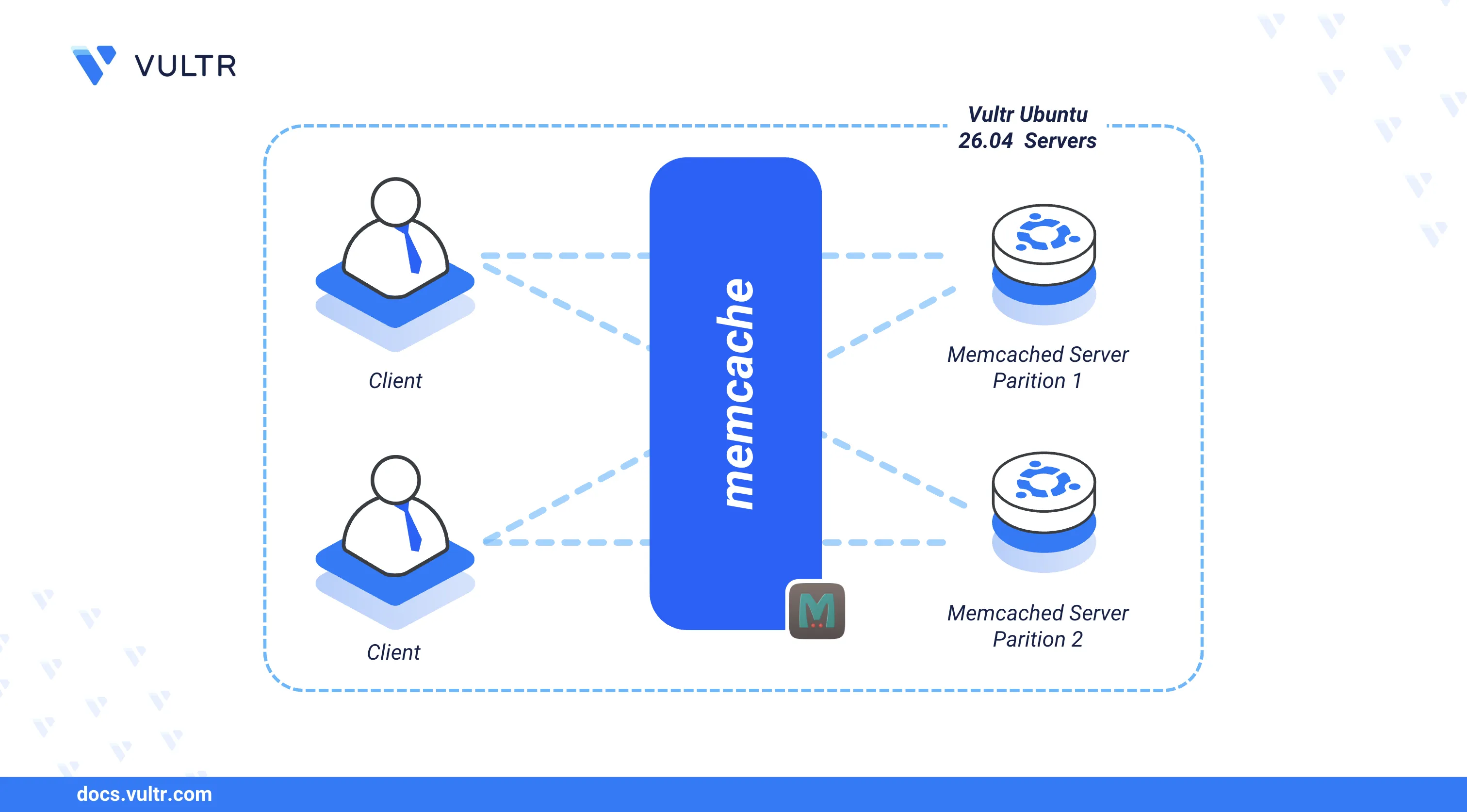
Memcached is an open-source, high-performance distributed memory caching system that stores frequently accessed data such as database query results, API responses, and session tokens in RAM. It reduces the load on backend databases by serving repeated requests directly from memory, improving application response times.
This article explains how to install Memcached on an Ubuntu 26.04 server, configure core settings, enable SASL authentication for secure access, and test the connection using a PHP script.
Prerequisites
Before you begin, you need to:
- Have access to an Ubuntu 26.04 server instance as a non-root user with sudo privileges.
Install Memcached
The default Ubuntu 26.04 APT repositories include the Memcached package. The following steps install Memcached along with its management tools and start the service.
Update the APT package index.
CONSOLEInstall Memcached and the client utilities.
CONSOLEConfirm the installed Memcached version.
CONSOLEYour output should be similar to the one below:
Enable Memcached to start automatically at boot time.
CONSOLEStart the Memcached service.
CONSOLEVerify that Memcached is active and running.
CONSOLEThe output should display
active (running), confirming that the Memcached service is operational.
Configure Memcached
Memcached stores its configuration in /etc/memcached.conf. The following directives control the listening address, port, connection limits, and logging behavior.
Open the Memcached configuration file.
CONSOLE
Find the
binddirective and verify that Memcached listens on the localhost address only.INIFind the port directive and verify the default connection port.
INIUncomment the
-vdirective to enable verbose logging.INIUncomment the
-cdirective to set the maximum number of simultaneous connections.INIAdd
-Sat the end of the file after-P /var/run/memcached/memcached.pidto enable SASL authentication.INI
Save and close the file.
Secure Memcached with SASL Authentication
Memcached does not require authentication by default, allowing unrestricted access from any local process. The SASL (Simple Authentication and Security Layer) protocol adds username and password verification to restrict access. The following steps install the SASL package, create an authentication database, and test the secured connection.
Install the SASL authentication package.
CONSOLECreate the SASL configuration directory.
CONSOLECreate the SASL configuration file for Memcached.
CONSOLEAdd the following configuration to the file.
INISave and close the file.
Within the configuration:
log_level: Sets the logging detail level. The value5enables detailed diagnostic logs.mech_list: Defines the authentication mechanism. The valueplainuses plain-text username and password.sasldb_path: Specifies the path to the SASL user database file.
Create a SASL user for Memcached authentication. Replace
example_userwith your desired username.CONSOLEEnter and confirm a strong password when prompted.
Grant the Memcached system user ownership of the SASL database file.
CONSOLERestart Memcached to activate SASL authentication.
CONSOLEVerify that Memcached is active after the restart.
CONSOLEThe output should display
active (running), confirming that SASL authentication is enabled.List all users in the SASL authentication database.
CONSOLEYour output should be similar to the one below:
Test the authenticated connection using
memcstat. Replaceexample_user@ubuntu2604andstrong_passwordwith your actual credentials from the output above.CONSOLEA successful connection displays server statistics including the version, uptime, and connection count.
Test Memcached with PHP
Memcached integrates with application frameworks such as PHP, Python, Ruby, and Java. The following steps install the PHP Memcached extension and verify the connection using a sample script.
Install PHP and the Memcached extension.
CONSOLECreate a sample PHP script.
CONSOLEAdd the following code to the file. Replace
example_user@ubuntu2604andstrong_passwordwith your actual SASL credentials.PHPSave and close the file.
Run the script using the PHP CLI.
CONSOLEA successful connection returns:
Conclusion
You have installed and secured Memcached on an Ubuntu 26.04 server with SASL authentication and verified the connection using PHP. Memcached integrates with dynamic web applications as a caching layer to reduce database load and improve response times. For more information, refer to the Memcached wiki.
Tags:Ubuntu 26.04


0 Comments
Be the first to comment and share your perspective with the community.