How to Install MySQL on Ubuntu 26.04
MySQL is an open-source Relational Database Management System (RDBMS) that uses Structured Query Language (SQL) to organize, query, and manage data. It powers a wide range of applications, from content management systems and e-commerce platforms to analytics dashboards. MySQL supports features such as transactions, replication, and indexing, making it suitable for both development and production workloads.
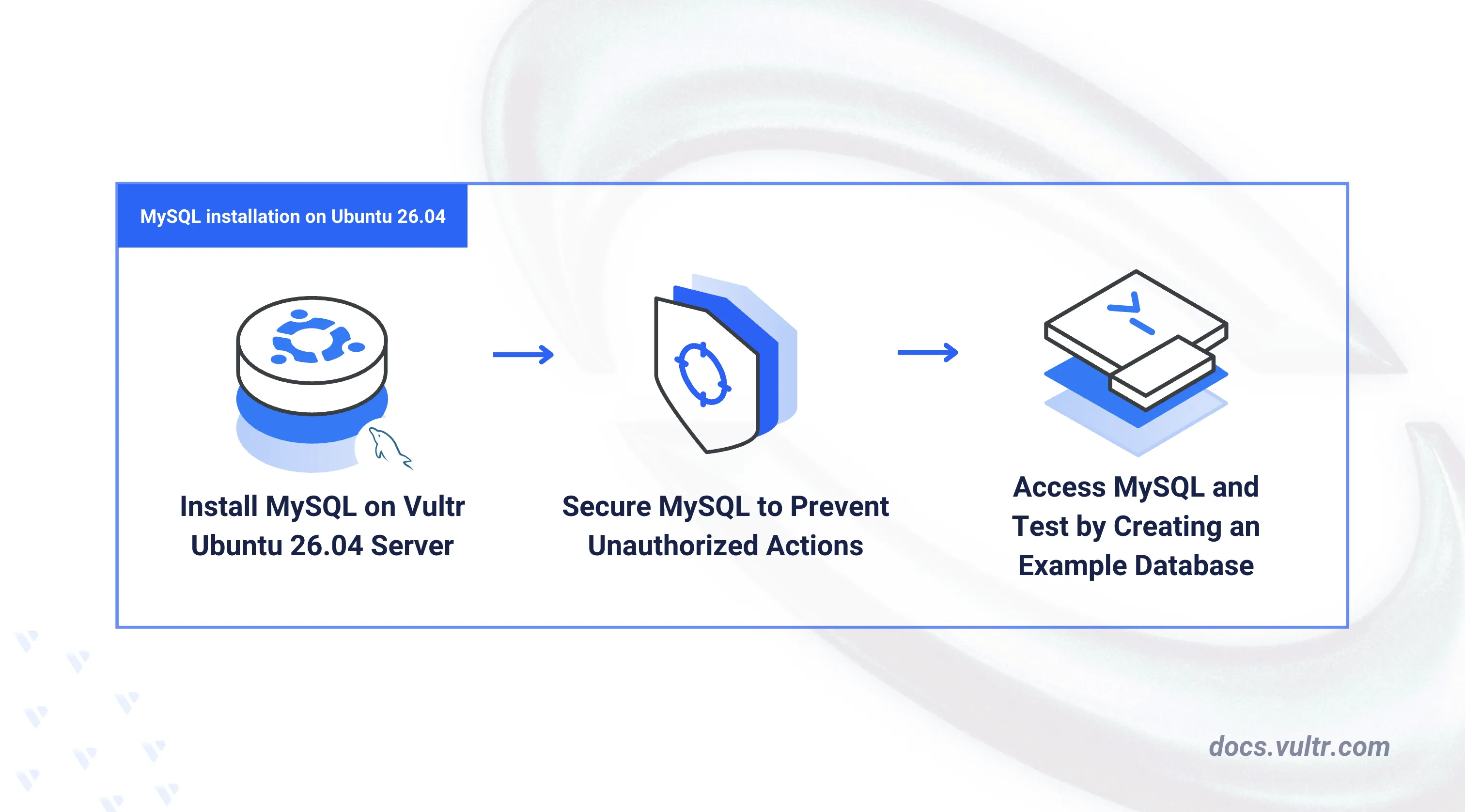
This article explains how to install MySQL on an Ubuntu 26.04 server. It covers the database server setup, service management, security hardening through the built-in secure installation script, and basic database operations including user creation and table management.
Prerequisites
Before you begin, you need to:
- Have access to an Ubuntu 26.04 server instance as a non-root user with sudo privileges.
Install MySQL on Ubuntu 26.04
The default Ubuntu 26.04 APT repositories include the MySQL server package. The following steps refresh the package index and install the latest available MySQL version from the official repositories.
Refresh the APT package index.
CONSOLEInstall the MySQL server package.
CONSOLEConfirm the installed MySQL version.
CONSOLEYour output should be similar to the one below:
Manage the MySQL System Service
The mysql systemd service controls the MySQL database server process. Enable the service to persist across reboots and verify that the server is running.
Enable MySQL to start automatically at boot time.
CONSOLEStart the MySQL server.
CONSOLEVerify that the MySQL service is active and running.
CONSOLEYour output should be similar to the one below:
Secure the MySQL Server
A fresh MySQL installation allows the root user unrestricted console access without a password. The mysql_secure_installation script removes insecure defaults, and a separate configuration change enables the mysql_native_password authentication plugin so you can assign a password to the root account.
Run the MySQL secure installation script.
CONSOLERespond to each prompt as described below to harden the server:
- VALIDATE PASSWORD COMPONENT: Enter Y and press Enter to activate password validation.
- Password Validation Policy: Enter 2 to require strong passwords.
- Remove anonymous users?: Enter Y to delete anonymous database accounts.
- Disallow root login remotely?: Enter Y to restrict root access to the local server.
- Remove test database and access to it?: Enter Y to drop the default test database.
- Reload privilege tables now?: Enter Y to refresh the privilege tables and apply all changes.
Open the MySQL server configuration file using a text editor such as Nano.
CONSOLEAdd the following directive under the
[mysqld]section to activate themysql_native_passwordauthentication plugin.INIThe
[mysqld]section should look similar to the one below:INISave and close the file.
Restart MySQL to load the updated configuration.
CONSOLEAccess the MySQL console as the
rootsystem user.CONSOLEAssign a strong password to the root account. Replace
your_strong_passwordwith a secure password that meets your validation policy.SQLReload the privilege tables to apply the password change.
SQLExit the MySQL console.
SQL
Access MySQL
The MySQL command-line client provides an interface for database administration and query execution. The following steps log in as the root user, create a database, and configure a dedicated user with the necessary privileges.
Log in to the MySQL server as the
rootuser.CONSOLEThe system prompts for a password. Enter the root password you set in the previous section.
Create a new database named
example_db.SQLCreate a database user named
example_userwith a strong password. Replacedbuser_passwordwith your desired password.SQLGrant the user full privileges on the
example_dbdatabase.SQLGrant the user permission to create new databases.
SQLGrant the user permissions to perform read and write operations across all databases.
SQLReload the privilege tables to activate the new user permissions.
SQLExit the MySQL console.
SQL
Create a Sample MySQL Database
The example_user account has the privileges required to create and manage databases independently. The following steps log in as that user, create a new database with a sample table, and populate it with test data.
Log in to the MySQL server as
example_user.CONSOLEEnter the
example_userpassword when prompted.List all databases accessible to the current user.
SQLYour output should be similar to the one below:
Create a new database named
example_demo.SQLSwitch to the new database.
SQLCreate a table named
serviceswith columns for an auto-incrementing ID, a name, a description, and a timestamp.SQLInsert sample records into the
servicestable.SQLQuery the table to verify that the data was inserted correctly.
SQLYour output should be similar to the one below:
Exit the MySQL console.
SQL
Conclusion
You have installed and secured MySQL on an Ubuntu 26.04 server, created a dedicated database user, and performed basic table operations. MySQL integrates with application stacks such as LAMP and LEMP, and supports replication for high-availability deployments. For more information, refer to the official MySQL documentation.
Tags:Ubuntu 26.04


0 Comments
Be the first to comment and share your perspective with the community.