How to Install Node.js and npm on Ubuntu 26.04
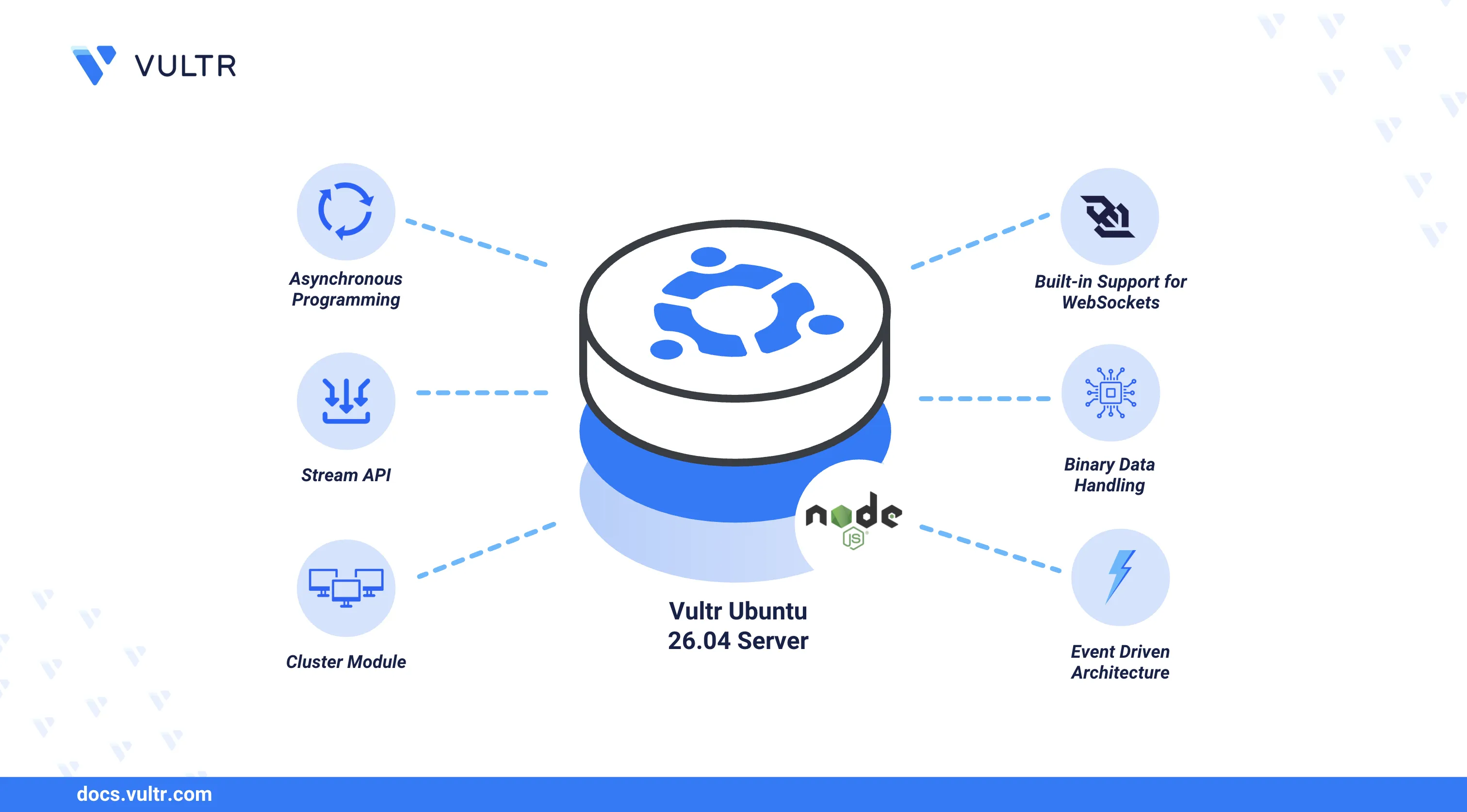
Node.js is an open-source, cross-platform JavaScript runtime built on the V8 engine that enables server-side application development. npm (Node Package Manager) ships with Node.js and provides access to a registry of over two million packages for managing project dependencies, scripts, and build tools.
This article explains how to install Node.js and npm on an Ubuntu 26.04 server using the NodeSource repository, test the installation with a sample Express application, and manage multiple Node.js versions using NVM (Node Version Manager).
Prerequisites
Before you begin, you need to:
- Have access to an Ubuntu 26.04 server instance as a non-root user with sudo privileges.
Install Node.js
The default Ubuntu 26.04 repositories include a Node.js package, but it may not be the latest version. Two installation methods are available: the NodeSource PPA for system-wide installation, or NVM for per-user version management.
The NodeSource PPA provides up-to-date Node.js releases for specific major versions. This method installs Node.js and npm system-wide.
Update the APT package index.
CONSOLEDownload the NodeSource setup script for your desired major version. For example, Node.js 24.x.
CONSOLERefer to the NodeSource distributions page to view all available Node.js versions.
Run the setup script to add the repository.
CONSOLEInstall Node.js and npm.
CONSOLEConfirm the installed Node.js version.
CONSOLEYour output should be similar to the one below:
Confirm the installed npm version.
CONSOLEYour output should be similar to the one below:
Test the Installation
The following steps create a sample Express web application to verify that Node.js and npm are functioning correctly.
Create a new project directory and navigate into it.
CONSOLEInitialize a new Node.js project.
CONSOLEInstall the Express framework.
CONSOLECreate the application file.
CONSOLEAdd the following code to the file.
JSSave and close the file.
This Express application starts an HTTP server on port
3000that returns a plain text response.Allow port
3000through the firewall.CONSOLEStart the application.
CONSOLEThe terminal displays
Application listening on port 3000.Open a new terminal session and test the application using
curl.CONSOLEA successful response returns:
Press
Ctrl + Cin the original terminal to stop the application.
Conclusion
You have installed Node.js and npm on an Ubuntu 26.04 server using the NodeSource repository, tested the setup with an Express application, and configured NVM for managing multiple Node.js versions. NVM enables switching between versions without affecting system-wide packages. For more information, refer to the official Node.js documentation.
Tags:Ubuntu 26.04


0 Comments
Be the first to comment and share your perspective with the community.