How to Install Podman on Ubuntu 26.04
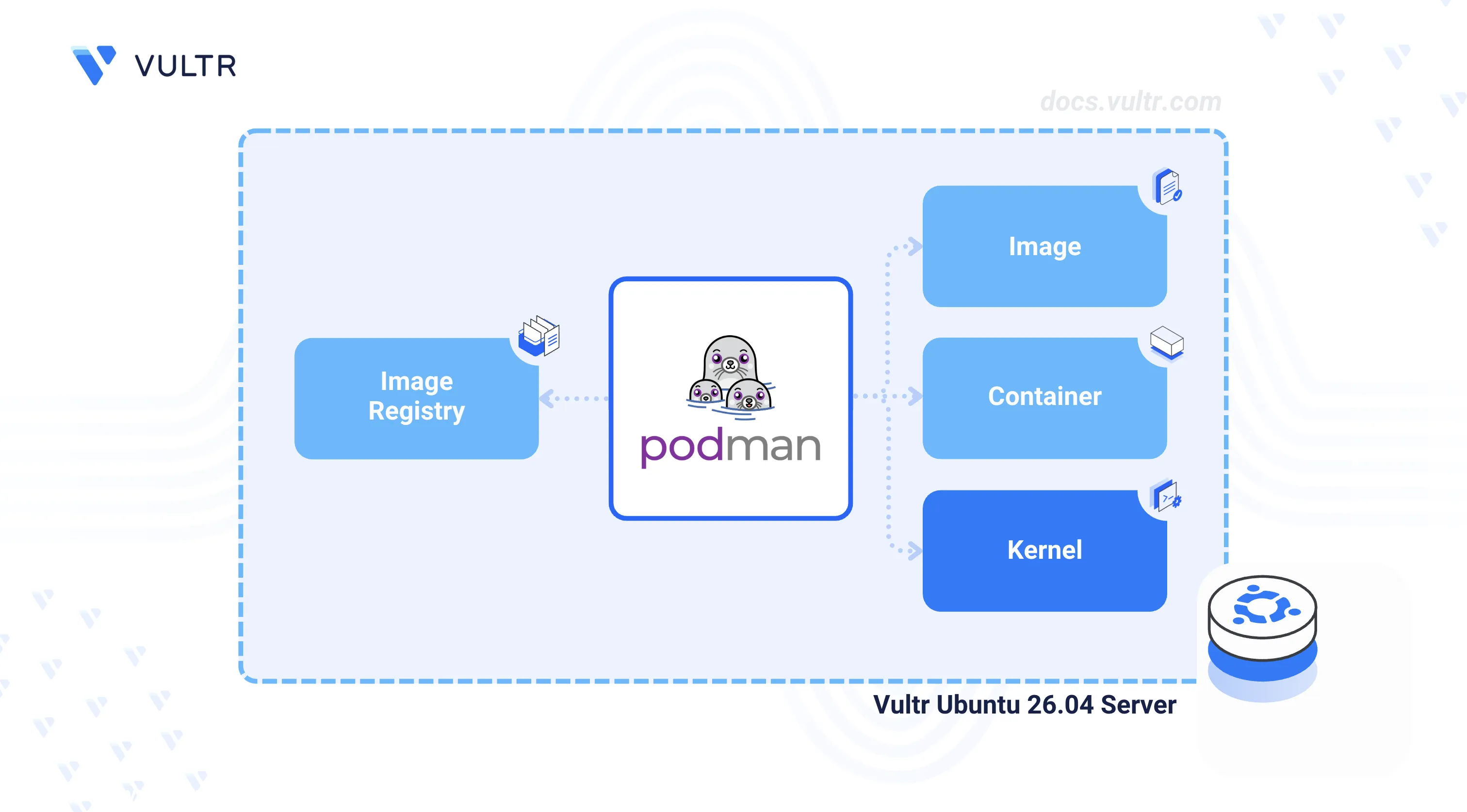
Podman is an open-source container engine that builds, runs, and manages Open Container Initiative (OCI) containers without requiring a background daemon process. Its daemonless architecture improves security by running containers under the user's own privileges, and it provides a Docker-compatible command-line interface for seamless migration from existing container workflows.
This article explains how to install Podman on an Ubuntu 26.04 server, manage the Podman service, deploy a containerized application, and build a custom container image from a sample Python application.
Prerequisites
Before you begin, you need to:
- Have access to an Ubuntu 26.04 server instance as a non-root user with sudo privileges.
Install Podman
The default Ubuntu 26.04 APT repositories include the Podman package. The following steps install Podman and verify the installed version.
Update the APT package index.
CONSOLEInstall Podman.
CONSOLEConfirm the installed Podman version.
CONSOLEYour output should be similar to the one below:
Manage the Podman System Service
Podman provides two systemd components: the podman CLI for direct container management and podman.socket for remote API access through a Unix socket. The following steps enable and manage the socket-based service.
Enable the Podman socket to start automatically at boot time.
CONSOLEStart the Podman socket service.
CONSOLEVerify that the Podman socket is active and listening.
CONSOLEThe output should display
active (listening), confirming that the Podman API socket is operational.
Deploy a Containerized Application
Podman pulls container images from registries defined in /etc/containers/registries.conf, including Docker Hub. The following steps pull an Nginx image, run it as a container, and verify access to the application.
Pull the Nginx Alpine image from Docker Hub.
CONSOLEList all container images available on the server.
CONSOLEVerify that the
docker.io/library/nginximage with thealpinetag is listed in the output.Run a container using the Nginx image and map host port
9090to container port80.CONSOLEList all running containers.
CONSOLEVerify that the
example-nginxcontainer is listed with a status ofUp.Test access to the containerized application.
CONSOLEA successful response returns the default Nginx welcome page HTML content.
Build a Custom Container Image
Podman builds container images from a Dockerfile using the same syntax as Docker. The following steps create a sample Python web application, define a Dockerfile, build the image, and run it as a container.
Create a new project directory and navigate into it.
CONSOLECreate a new Python application file.
CONSOLEAdd the following code to the file.
PYTHONSave and close the file.
This FastAPI application starts a web server on port
5000that returns a plain text response.Create a
Dockerfilefor the application.CONSOLEAdd the following configuration to the file.
DOCKERFILESave and close the file.
Build the container image.
CONSOLEPodman builds the image and displays
Successfully tagged localhost/example-fastapi-app:lateston completion.Run a container from the newly built image.
CONSOLETest access to the application.
CONSOLEA successful response returns:
Conclusion
You have installed Podman on an Ubuntu 26.04 server, deployed a container from a public registry image, and built a custom container image from a Python application. Podman supports rootless containers, pod management, and integration with container registries for storing and distributing images. For more information, refer to the official Podman documentation.
Tags:Ubuntu 26.04


0 Comments
Be the first to comment and share your perspective with the community.