How to Install PostgreSQL on Ubuntu 26.04
PostgreSQL is an open-source relational database management system known for its extensibility, standards compliance, and support for advanced features such as complex queries, JSON data types, and full-text search. It handles workloads ranging from single-server applications to large-scale data warehouses, making it a preferred choice for analytics platforms, geographic information systems, and dynamic web applications.
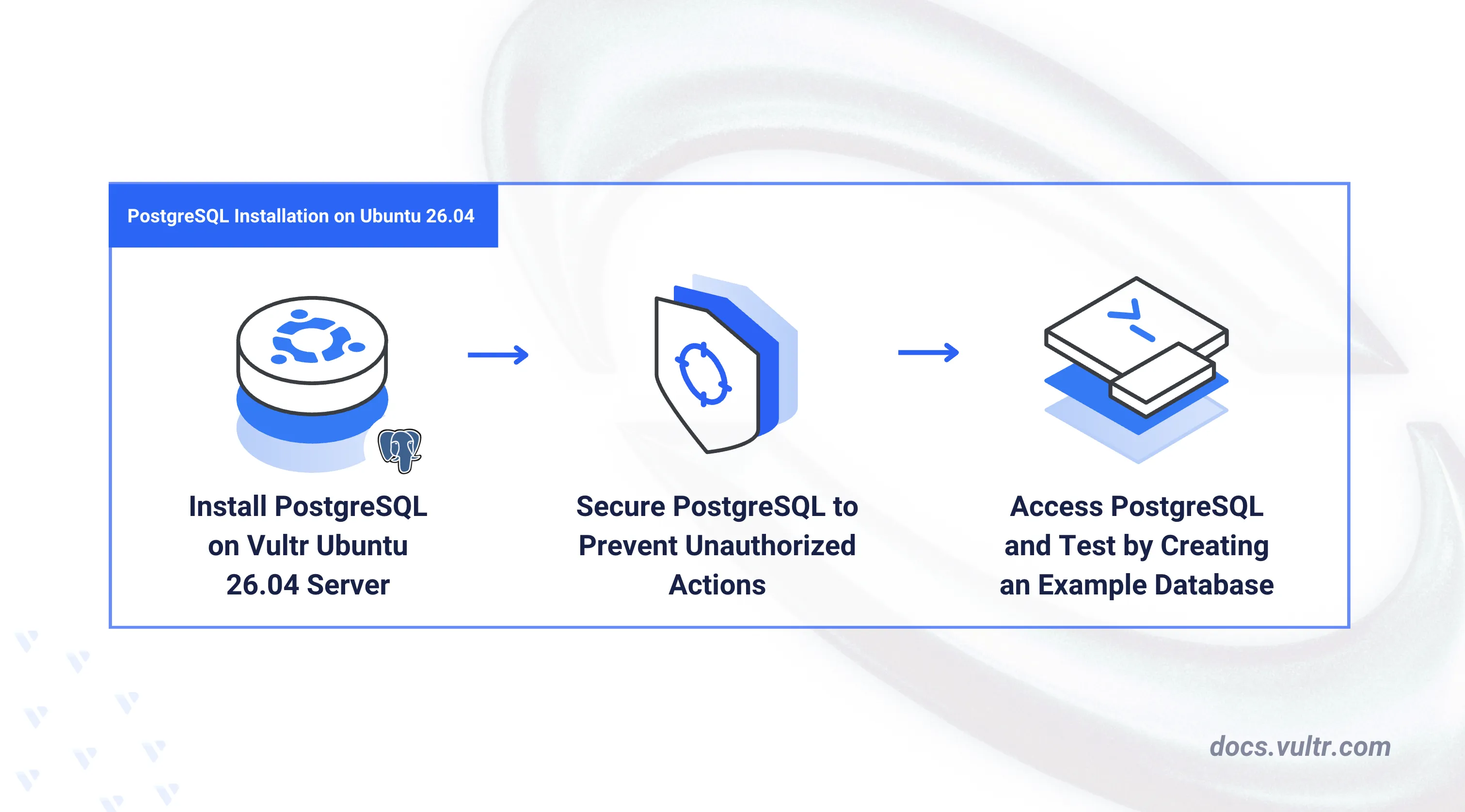
This article explains how to install PostgreSQL on an Ubuntu 26.04 server. It covers adding the official PostgreSQL APT repository, enabling the database service, configuring password-based authentication, and creating a sample database with test records.
Prerequisites
Before you begin, you need to:
- Have access to an Ubuntu 26.04 server instance as a non-root user with sudo privileges.
Install PostgreSQL
The postgresql-common package provides shared utilities and a setup script that adds the official PostgreSQL APT repository to your system. After adding the repository, install the server package and configure the service to start automatically on boot.
Update the APT package index.
CONSOLEInstall the
postgresql-commonpackage, which contains shared utilities and the repository setup script.CONSOLERun the setup script to add the official PostgreSQL APT repository.
CONSOLEThe script displays the repository details. Press Enter to confirm and proceed:
Install the PostgreSQL server package.
CONSOLEStart the PostgreSQL service.
CONSOLEEnable PostgreSQL to start automatically at boot time.
CONSOLEVerify that the PostgreSQL service is active.
CONSOLEYour output should be similar to the one below:
Secure the PostgreSQL Database Server
PostgreSQL ships with a default superuser account named postgres that manages all administrative operations. Ubuntu configures peer authentication by default, which allows local system users to connect without a password. The following steps switch to password-based authentication using scram-sha-256, set a password for the postgres account, and create a dedicated database user.
Check the installed PostgreSQL version.
CONSOLEYour output should be similar to the one below:
Log in to the PostgreSQL console as the
postgressuperuser.CONSOLESet a strong password for the
postgresaccount. Replacestrong_passwordwith a secure password.PSQLCreate a new database user named
example_adminwith an encrypted password. Replacestrong_passwordwith a secure password.PSQLExit the PostgreSQL console.
PSQLSwitch from peer authentication to
scram-sha-256password authentication by updating thepg_hba.conffile. Replace17with your installed PostgreSQL major version if it differs.CONSOLERestart PostgreSQL to apply the authentication changes.
CONSOLEVerify that the PostgreSQL service is active after the restart.
CONSOLEYour output should be similar to the one below:
Access the PostgreSQL Database Server
The psql command-line utility ships with the PostgreSQL server package and provides direct access to the database console. The following steps create a sample database owned by the example_admin user, build a table, and populate it with test records.
Create a new database named
example_storeand assign ownership to theexample_adminuser.CONSOLEEnter the
postgresuser password when prompted.Log in to the
example_storedatabase as theexample_adminuser.CONSOLEEnter the
example_adminpassword and press Enter to access the database.Create a new table named
productsto store sample records.PSQLThe SQL statement creates a table with the following columns:
product_idis aPRIMARY KEYthat uniquely identifies each record.SERIALauto-generates a newproduct_idfor each inserted row.product_nameandcategorystore text values describing the product.pricestores the product price as a numeric value with two decimal places.
Insert sample records into the
productstable.PSQLQuery the
productstable to verify the inserted data.PSQLYour output should be similar to the one below:
Exit the PostgreSQL console.
PSQL
Conclusion
You have installed PostgreSQL on an Ubuntu 26.04 server, enabled password-based authentication, and created a dedicated user with a sample database. PostgreSQL integrates with a wide range of application frameworks and supports replication for high-availability deployments. For more information, refer to the official PostgreSQL documentation.
Tags:Ubuntu 26.04


0 Comments
Be the first to comment and share your perspective with the community.