How to Install Webmin on Ubuntu 26.04
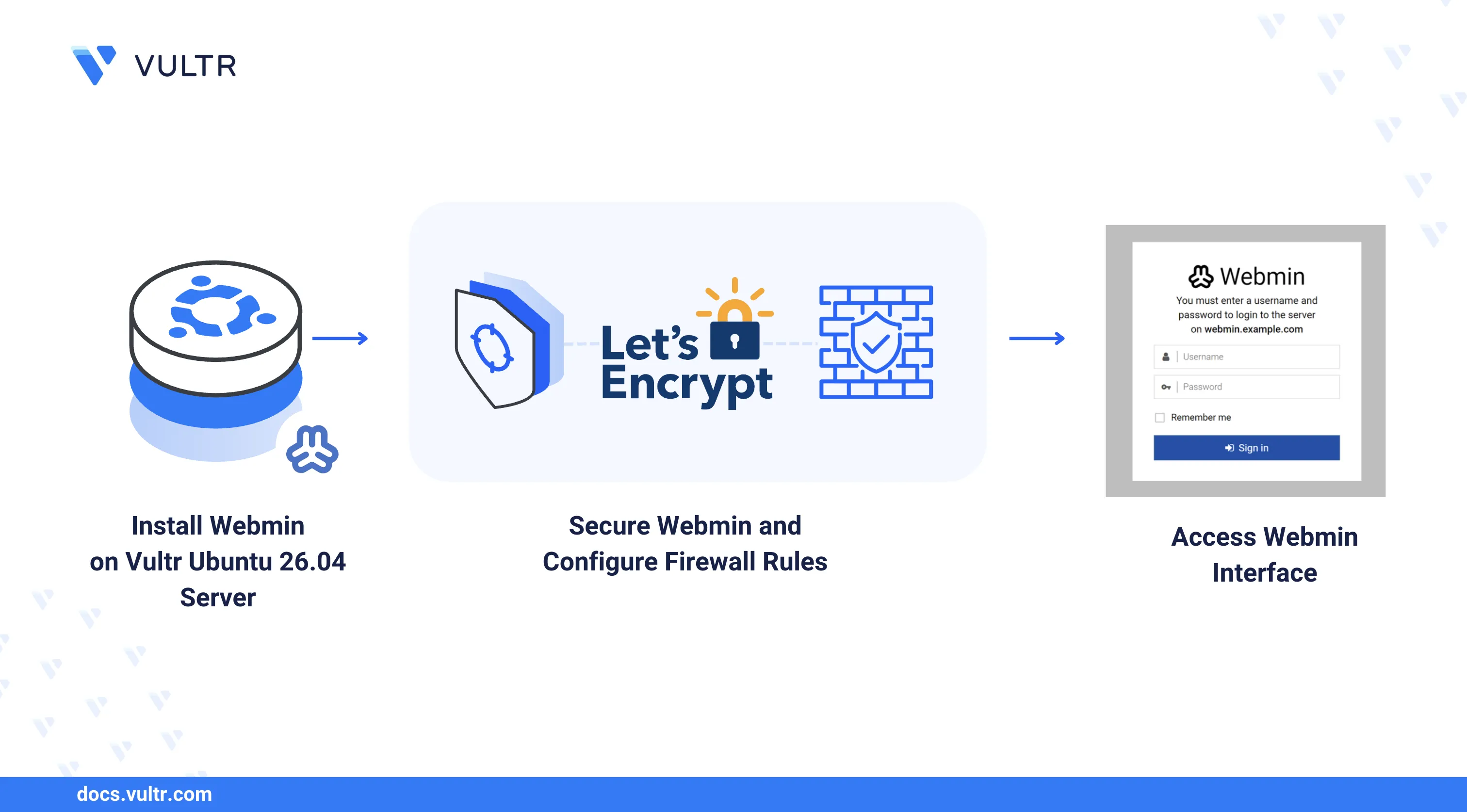
Webmin is an open-source, web-based server administration panel that provides a graphical interface for managing Linux systems. It supports modules for user management, disk quotas, firewall configuration, package updates, and service monitoring, eliminating the need to manually edit configuration files for routine tasks.
This article explains how to install Webmin on an Ubuntu 26.04 server, secure the control panel with a trusted SSL certificate, and configure firewall rules to allow access to the Webmin interface.
Prerequisites
Before you begin, you need to:
- Have access to an Ubuntu 26.04 server instance as a non-root user with sudo privileges.
- Have a subdomain A record pointing to the server's public IP address. For example,
webmin.example.com.
Install Webmin
Webmin is not included in the default Ubuntu 26.04 APT repositories. The official Webmin repository setup script adds the package source to APT, allowing installation through the standard package manager.
Update the APT package index.
CONSOLEDownload the Webmin repository setup script.
CONSOLERun the script to add the Webmin repository.
CONSOLEInstall Webmin with all recommended packages.
CONSOLEVerify that the Webmin service is active and running.
CONSOLEThe output should display
active (running), confirming that the Webmin server daemon is operational.
Set Up Firewall Rules
Uncomplicated Firewall (UFW) is active by default on Ubuntu 26.04. Webmin listens on port 10000 by default. The following steps open the required ports for Webmin access, HTTPS traffic, and HTTP for certificate validation.
Allow HTTP traffic on port
80for SSL certificate validation.CONSOLEAllow HTTPS traffic on port
443.CONSOLEAllow connections on the Webmin port
10000.CONSOLEVerify the active firewall rules.
CONSOLEVerify that ports
80,443, and10000are listed asALLOWin the output.
Secure Webmin
Webmin uses HTTPS by default with a self-signed certificate. Replacing it with a trusted Let's Encrypt certificate eliminates browser security warnings and encrypts all traffic to the control panel. The following steps generate a certificate, merge it into the format Webmin expects, and update the configuration.
Install the Certbot Let's Encrypt client.
CONSOLEGenerate an SSL certificate for your Webmin domain. Replace
webmin.example.comwith your actual domain.CONSOLEFollow the on-screen prompts to complete the certificate generation.
Merge the SSL certificate and private key into a single
.pemfile that Webmin can use. Replacewebmin.example.comwith your actual domain.CONSOLEOpen the main Webmin configuration file using a text editor such as Nano.
CONSOLEFind the
keyfiledirective and update its value to point to the new certificate file.INISave and close the file.
Restart Webmin to apply the SSL configuration.
CONSOLE
Access Webmin
The Webmin control panel is accessible through a web browser on port 10000 using HTTPS. Any system user with login privileges can access the interface, but only users with sudo privileges can perform administrative tasks.
Open a web browser and navigate to your Webmin domain on port
10000. Replacewebmin.example.comwith your actual domain.Enter your system username and password, then click Sign In to access the Webmin dashboard.
The dashboard displays system information including CPU usage, memory consumption, disk space, running processes, and network statistics.
Expand System in the navigation menu and select Software Package Updates to view and install available package updates.
Select Tools and click File Manager to browse and manage files on the server.
Select Tools and click Terminal to open a command-line session directly from the Webmin interface.
Conclusion
You have installed Webmin on an Ubuntu 26.04 server and secured the control panel with a trusted Let's Encrypt SSL certificate. Webmin provides a graphical interface for managing users, services, packages, and system configurations without direct command-line access. For more information, refer to the official Webmin documentation.
Tags:Ubuntu 26.04


0 Comments
Be the first to comment and share your perspective with the community.