How to Install WireGuard VPN on Ubuntu 26.04
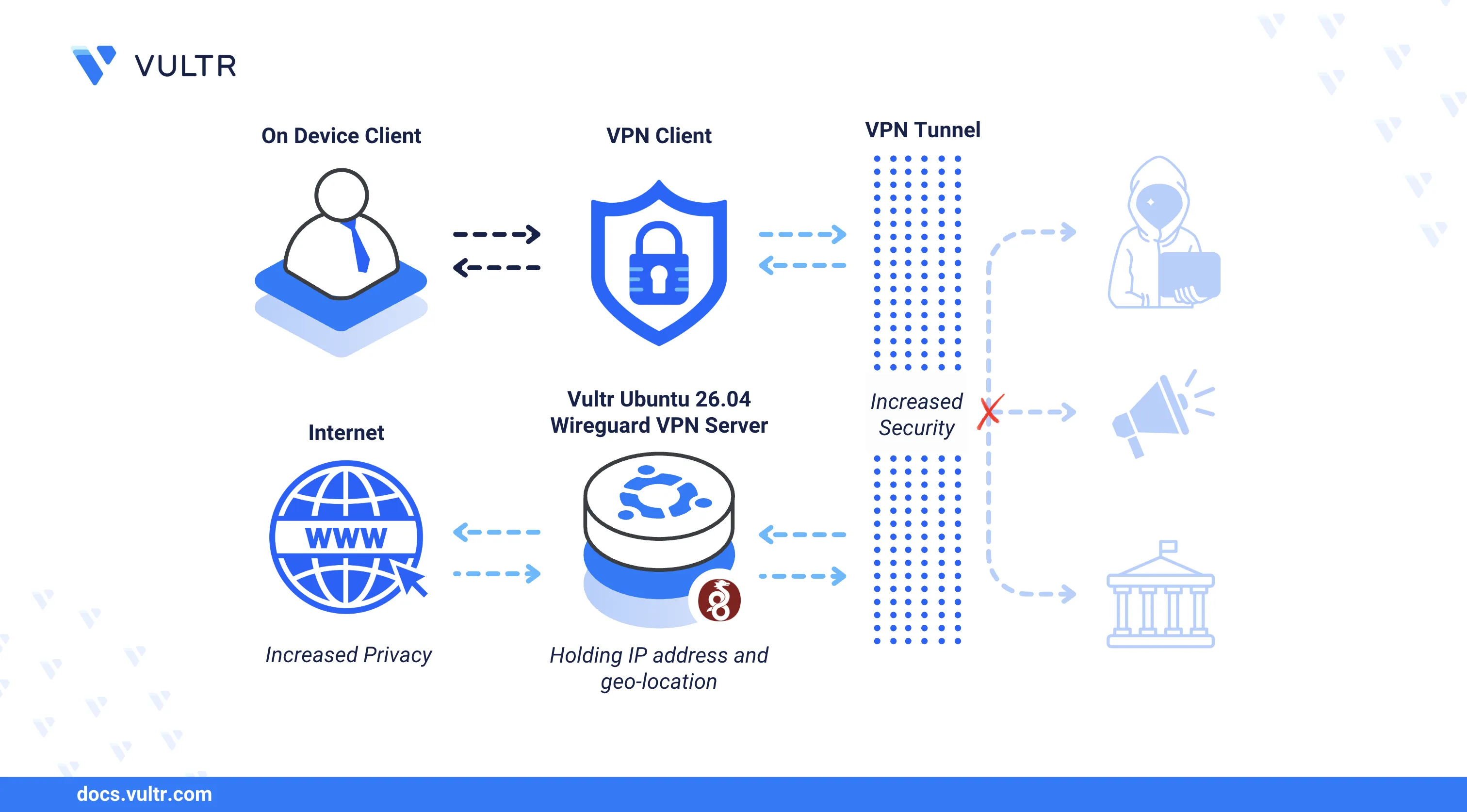
WireGuard is a modern, open-source VPN protocol that uses state-of-the-art cryptography to create secure point-to-point tunnels between a server and client devices. Its minimal codebase and kernel-level implementation deliver faster connection speeds and lower overhead compared to traditional VPN solutions such as OpenVPN and IPsec.
This article explains how to install and configure WireGuard VPN on an Ubuntu 26.04 server, generate server and client key pairs, set up firewall rules with IP forwarding, and connect a client device to the VPN tunnel.
Prerequisites
Before you begin, you need to:
- Have access to an Ubuntu 26.04 server instance as a non-root user with sudo privileges.
Install WireGuard
The default Ubuntu 26.04 APT repositories include the WireGuard package. The following steps install WireGuard and verify the installed version.
Update the APT package index.
CONSOLEInstall WireGuard.
CONSOLEConfirm the installed WireGuard version.
CONSOLEYour output should be similar to the one below:
Configure the WireGuard Server
WireGuard uses Cryptokey Routing to authenticate peers through public-private key pairs. Each interface requires a unique private key, and peers identify each other using the corresponding public keys. The following steps generate the server key pair, identify the main network interface, and create the WireGuard tunnel configuration.
Generate a server private key and save it to
/etc/wireguard/server_private.key.CONSOLECopy the generated private key from the output.
Restrict the private key file permissions to the
rootuser only.CONSOLEDerive the corresponding public key and save it to
/etc/wireguard/server_public.key.CONSOLECopy the generated public key from the output.
Identify the main network interface name on your server.
CONSOLENote the interface name in the output (for example,
enp1s0). WireGuard uses this interface to route traffic to the internet.Create the WireGuard server interface configuration file.
CONSOLEAdd the following configuration to the file. Replace
SERVER_PRIVATE_KEYwith your generated server private key andenp1s0with your main network interface name.INISave and close the file.
Within the configuration:
Address: Assigns the private IP subnet10.8.0.1/24to the WireGuard interface.SaveConfig: Preserves the runtime configuration when the interface shuts down.PrivateKey: Specifies the server private key for authentication.PostUp: Adds iptables rules when the interface starts —FORWARDaccepts traffic from the WireGuard interface andMASQUERADEenables NAT so clients access the internet through the server's public IP.PreDown: Removes the iptables rules when the interface stops.ListenPort: Sets the UDP port WireGuard listens on for incoming connections.
Generate a Client Configuration
Each WireGuard client requires its own key pair and a configuration file containing the server's public key and endpoint address. The following steps generate client keys and build a configuration file that can be imported on any WireGuard client application.
Generate a client private key.
CONSOLECopy the generated private key from the output.
Derive the client public key from the private key.
CONSOLECopy the generated public key from the output.
View the server public key (generated earlier) for use in the client configuration.
CONSOLECreate the client configuration file.
CONSOLEAdd the following configuration to the file. Replace
CLIENT_PRIVATE_KEYwith the client private key,SERVER_PUBLIC_KEYwith the server public key, andSERVER-IPwith your server's public IP address.INISave and close the file.
Within the configuration:
PrivateKey: Specifies the client private key for authentication.Address: Assigns the tunnel IP10.8.0.2to the client.DNS: Sets the DNS resolver the client uses while connected to the VPN.PublicKey: Specifies the server public key for peer verification.AllowedIPs: Routes all client traffic (0.0.0.0/0) through the VPN tunnel.Endpoint: Defines the server's public IP and WireGuard port.PersistentKeepalive: Sends a keepalive packet every 15 seconds to maintain the connection.
Register the client as a peer in the server configuration. Open the server configuration file.
CONSOLEAdd the following peer block at the end of the file. Replace
CLIENT_PUBLIC_KEYwith the client public key.INISave and close the file.
Copy the client configuration to your home directory for easy download.
CONSOLE
Set Up Firewall Rules
Uncomplicated Firewall (UFW) is active by default on Ubuntu 26.04. The following steps allow WireGuard traffic through the firewall and enable IPv4 packet forwarding so that VPN clients can access the internet through the server.
Allow the WireGuard UDP port
51820through the firewall.CONSOLEEnable IPv4 forwarding to allow traffic to pass between the WireGuard interface and the server's public interface.
CONSOLEApply the sysctl changes.
CONSOLE
Manage the WireGuard Service
The wg-quick systemd service controls the WireGuard interface lifecycle. The following steps start the interface, enable it to persist across reboots, and verify the tunnel status.
Start the WireGuard
wg0interface.CONSOLEEnable the interface to start automatically at boot time.
CONSOLEVerify that the WireGuard service is active.
CONSOLEThe output should display
active (exited), confirming that the WireGuard interface is up.View the WireGuard interface details and registered peers.
CONSOLEThe output displays the server public key, listening port, and any connected peers with their allowed IP addresses.
Connect a Client to the VPN
WireGuard client applications are available for Windows, macOS, Linux, iOS, and Android. The following steps transfer the client configuration to a device and establish the VPN tunnel.
Download the client configuration from the server to your local device using
scp. ReplaceUSERwith your server username andSERVER-IPwith the server's public IP address.CONSOLEDownload and install the WireGuard client application on your device.
Open the WireGuard application and import the
client1.conffile using the Add Tunnel or Import tunnel(s) from file option.Click Activate to connect to the VPN server.
Test the VPN connection by pinging the server's WireGuard interface IP from your device.
CONSOLEA successful response confirms that the VPN tunnel is active and the client can communicate with the server.
Conclusion
You have installed and configured WireGuard VPN on an Ubuntu 26.04 server with a client tunnel configuration. WireGuard supports multiple peer connections on a single interface, allowing you to generate additional client configurations for different devices. For more information, refer to the official WireGuard documentation.
Tags:Ubuntu 26.04


0 Comments
Be the first to comment and share your perspective with the community.