How to Migrate Azure Managed Disks to Vultr Block Storage
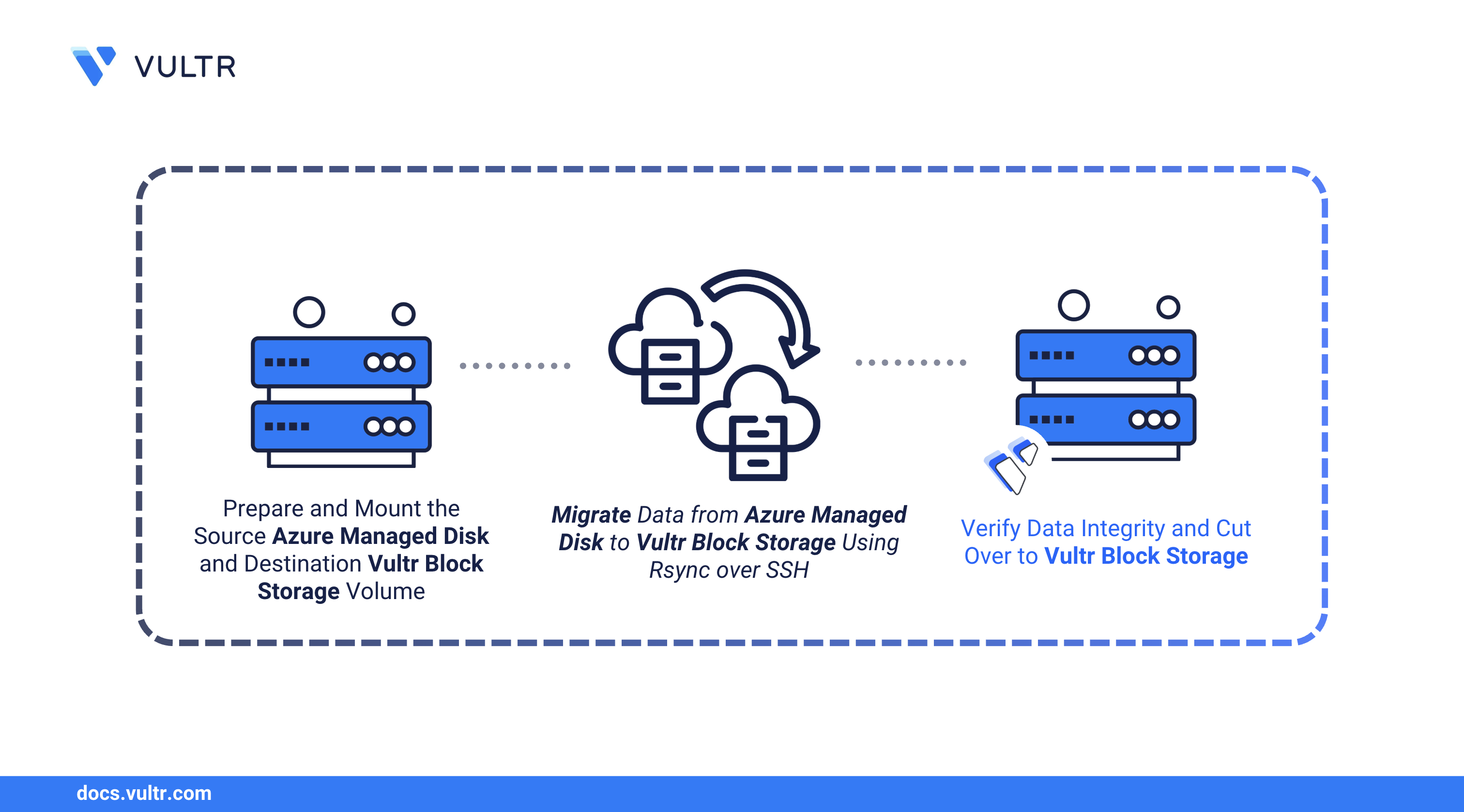
Azure Managed Disks are durable block storage volumes designed for Azure Virtual Machines, offering various performance tiers from Standard HDD to Ultra Disk. Organizations migrating away from Azure often need to transfer data from these disks to alternative providers. Vultr Block Storage provides high-performance SSD and NVMe storage options with straightforward pricing, making it an attractive destination for workloads requiring persistent storage.
This guide explains how to migrate data from an Azure Managed Disk to Vultr Block Storage using Rsync over SSH, including verification steps to ensure data integrity.
Prerequisites
Before you begin, you need to:
- Have a Linux-based Azure Virtual Machine with an attached Managed Disk containing the data to migrate.
- Deploy an Ubuntu 24.04 Vultr Cloud Compute instance and access it as a non-root user with
sudoprivileges. - Attach a Vultr Block Storage volume to the Vultr instance with capacity equal to or greater than your source disk.
Set Up the Migration Environment
Prepare both the source Azure VM and destination Vultr instance for the data transfer. This involves mounting the disks and ensuring both are ready to send and receive data.
Set Up the Source Azure Managed Disk
Identify and mount your Azure Managed Disk that contains the data to migrate. Azure VMs typically have a temporary disk that should not be confused with your data disk.
Connect to your Azure VM via SSH. Replace
USERNAMEandAZURE-VM-IPwith your credentials.CONSOLEList attached block devices to identify your data disk.
CONSOLEOutput:
sdais the OS disksdbis the Azure temporary disk (mounted at/mntby default. Do not use this for persistent data)sdcis the attached Managed Disk containing your data to migrate
Note
Azure temporary disks (
/dev/sdb) are ephemeral and lose data on VM deallocation. Always verify you're working with the correct data disk.If your data disk is not already mounted, create a mount point and mount it.
CONSOLEVerify the filesystem and mount.
CONSOLEOutput:
Note the filesystem type (
ext4) to use when formatting the destination volume.Check disk usage.
CONSOLEOutput:
Note
If your Managed Disk has multiple partitions, verify each partition's size and filesystem type. You'll need to repeat the mount and transfer steps for each partition, ensuring the destination Vultr Block Storage volume has sufficient capacity.
Set Up the Destination Vultr Block Storage Volume
Format and mount the destination Vultr Block Storage volume to receive the migrated data.
Connect to your Vultr instance via SSH. Replace
VULTR-IPwith your credentials.CONSOLEList attached block devices.
CONSOLEOutput:
vdbis the attached Vultr Block Storage volume. Additional volumes appear asvdc,vdd, etc.Create a GPT partition table on the volume.
CONSOLECreate a primary partition that uses the entire disk.
CONSOLEFormat the partition with the same filesystem as the source disk.
CONSOLECreate a mount point and mount the partition.
CONSOLESet ownership so your user can write to the volume.
CONSOLEVerify the mount.
CONSOLEOutput:
(Optional) Add the volume to
/etc/fstabfor persistent mounting across reboots.CONSOLENote
If your source Azure Managed Disk has multiple partitions, configure matching partitions on the Vultr Block Storage volume with the same filesystem format and equal or greater capacity.
Migrate Azure Managed Disk Data to Vultr Block Storage
Use Rsync to copy files from the Azure Managed Disk to the Vultr Block Storage volume. Rsync transfers data over SSH, compresses during transit, and can resume interrupted transfers.
Verify Rsync is installed on both instances.
CONSOLEIf not installed on either system:
CONSOLEFrom the Azure VM, start the transfer. Replace
VULTR-IPwith your Vultr instance credentials.CONSOLE-a: Archive mode (preserves permissions, timestamps, symbolic links)-v: Verbose output-z: Compress data during transfer--progress: Show transfer progress--exclude="lost+found": Skip the system recovery directory
Output:
Note
Transfer time depends on data size and network speed. For large volumes, consider running the command in a
screenortmuxsession to prevent interruption if your SSH connection drops.If the transfer is interrupted, re-run the same command. Rsync automatically resumes by transferring only the remaining files.
Test the Vultr Block Storage Volume
After migrating the data, verify integrity by comparing checksums between the source and destination volumes to ensure no files were corrupted during transfer.
On the Azure VM, generate checksums for all files.
CONSOLETransfer the checksum file to the Vultr instance.
CONSOLEOn the Vultr instance, generate checksums for the migrated files.
CONSOLENormalize paths in the Azure checksum file to match Vultr paths.
CONSOLECompare the checksum files.
CONSOLENo output indicates all files match. If differences appear, re-run Rsync to transfer any missing or corrupted files.
Verify directory sizes match.
On Azure VM:
CONSOLEOn Vultr instance:
CONSOLE
The sizes should be nearly identical (minor differences may occur due to filesystem overhead).
Cutover to Vultr Block Storage
After you verify data integrity, complete the transition by performing a final sync and updating your application configurations.
Final sync: Capture any changes made since the initial transfer.
CONSOLEUpdate application configurations to reference the new storage path on the Vultr instance.
Update DNS records to point to the Vultr instance's public IP address if your applications are publicly accessible.
Test thoroughly to ensure applications function correctly with the migrated data.
Conclusion
You have successfully migrated data from an Azure Managed Disk to Vultr Block Storage using Rsync. This guide walked through preparing both storage volumes, transferring data securely over SSH, and validating integrity with checksum comparison. Your data now resides on Vultr's high-performance block storage infrastructure. For more information on managing Vultr Block Storage, including resizing and snapshots, visit the Vultr Block Storage documentation.


0 Comments
Be the first to comment and share your perspective with the community.