How to Remove Commits from A Git Commit History
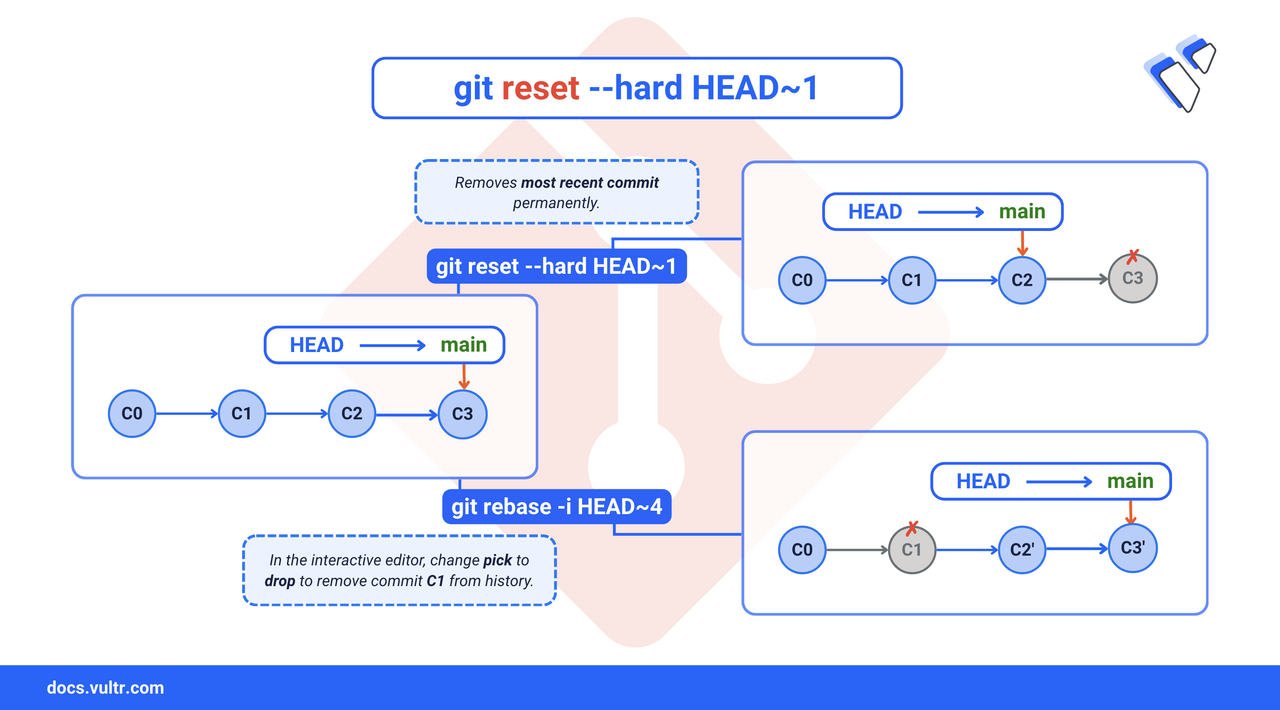
Occasionally, you may push unwanted changes or sensitive data to a Git repository, whether local or remote. Git provides flexible tools to rewrite commit history, allowing you to remove sensitive information, undo mistakes, and clean up your commit log. This article demonstrates how to remove commits from your Git history using safe and effective techniques for both local and shared repositories.
The Short Answer Version
View Git Commit History
You can view the commit history in Git either in a compact single-line format or a detailed full log. This helps you inspect previous commits and decide which ones to remove or recover.
Command Syntax
git log: Displays the full commit history with commit hashes, author, date, and commit message.[OPTIONS]--oneline: Condenses each commit to a single line showing the commit hash and commit message.
Command Demonstration
View compact commit history.
CONSOLEOutput:
View detailed commit history.
CONSOLEOutput:
Use the arrow keys to scroll through the log and press
qto quit the view.
Remove the Most Recent Commit
Use the git reset command to undo your most recent commit by moving HEAD backward. You can choose whether to keep, unstage, or discard your changes depending on the reset mode you use.
Command Syntax
--soft: Keep changes staged.--mixed: Unstage changes, leave them in working directory (default).--hard: Discard all changes (permanently resets working directory and index).HEAD~N: MovesHEADback byNcommits (e.g.,HEAD~1targets the last commit).
Command Demonstration
Keep changes staged.
CONSOLEUnstage changes.
CONSOLEDiscard changes entirely.
CONSOLE
Remove a Specific Commit History
To remove a specific commit that is not the most recent one, use an interactive rebase. This allows you to review a range of recent commits and selectively remove (drop) individual ones.
Command Syntax
git rebase -i: Starts an interactive rebase.HEAD~N: Specifies how many commits beforeHEADto display for editing (for example,HEAD~8shows the last 8 commits).
Command Breakdown
- The command opens an editor listing the commits in the range.
- You can choose to
dropany commit you want to remove. - Git will rewrite your history accordingly.
Command Demonstration
Start an interactive rebase to edit the last 8 commits.
CONSOLEOutput.
In the editor:
- Press
ito enter insert mode. - Change
picktodropfor the commit you want to remove:
- Press
To save:
- Press
Escto exit insert mode. - Type
:wqand pressEnter.
Git will process the rebase:
- Press
Recover a Removed Commit
If you accidentally remove a commit using git reset or git rebase, you can often recover it using the git reflog command. The reflog records where your HEAD and branch pointers have been, even after destructive changes.
However, recovery depends on:
- How soon you attempt to recover the commit (reflog entries eventually expire).
- How the commit was removed (soft, mixed, or hard reset).
Recovery Guidelines
If you performed a hard reset, use:
If you performed a mixed reset, use:
If you performed a soft reset, use:
Command Demonstration
View the Reflog
First, display your reflog to locate the commit you want to recover.
CONSOLE
Output.
HEAD@{0}: CurrentHEAD.HEAD@{1},HEAD@{2}: Prior reflog entries.HEAD@{3}: Entry representing the state before the hard reset.
You can also preview a reflog entry before recovering:
CONSOLE
Recover Using a Reflog Entry
To reset your branch to a prior reflog state:
CONSOLE
Output.
Recover Using a Commit Hash
Alternatively, you can reset using the exact commit hash.
CONSOLE
You can preview it first:
CONSOLE
Remove a File or Directory from Commit History
In Git, you can remove a file or directory from future commits using:
CONSOLE
However, this does not erase the file or directory from your commit history, it only prevents it from appearing in future commits. To permanently remove a file or directory from all commits in your repository history, you must rewrite your commit history.
Use git filter-repo
git filter-repo is the modern replacement for git filter-branch. It is faster, safer, and more reliable for permanently removing files or directories from commit history. It is not included with Git by default but can be installed as a plugin.
Command Demonstration
Install
git filter-repo.CONSOLEBack up your repository.
CONSOLERemove a file from history.
CONSOLEVerify the file is gone.
CONSOLENo output indicates success.
Remove a directory from history.
CONSOLEVerify the directory is gone.
CONSOLENo output indicates success.
Conclusion
In this article, you explored multiple ways to remove commits from a Git commit history. You learned how to safely undo recent commits with git reset, remove specific commits using interactive rebase, and permanently rewrite history with tools like git filter-repo. You also saw how to recover removed commits using git reflog.
When working with shared repositories, always prefer git revert to create a new commit that undoes changes without altering history. Rewriting commit history should be used with caution, especially on branches that have already been pushed and shared with others.
Tags:Git




0 Comments
Be the first to comment and share your perspective with the community.