How to Upgrade From Ubuntu 24.04 to Ubuntu 26.04

Updated on 08 May, 2026
Upgrade Ubuntu 24.04 LTS to 26.04 LTS with package migration, kernel updates, and compatibility checks.
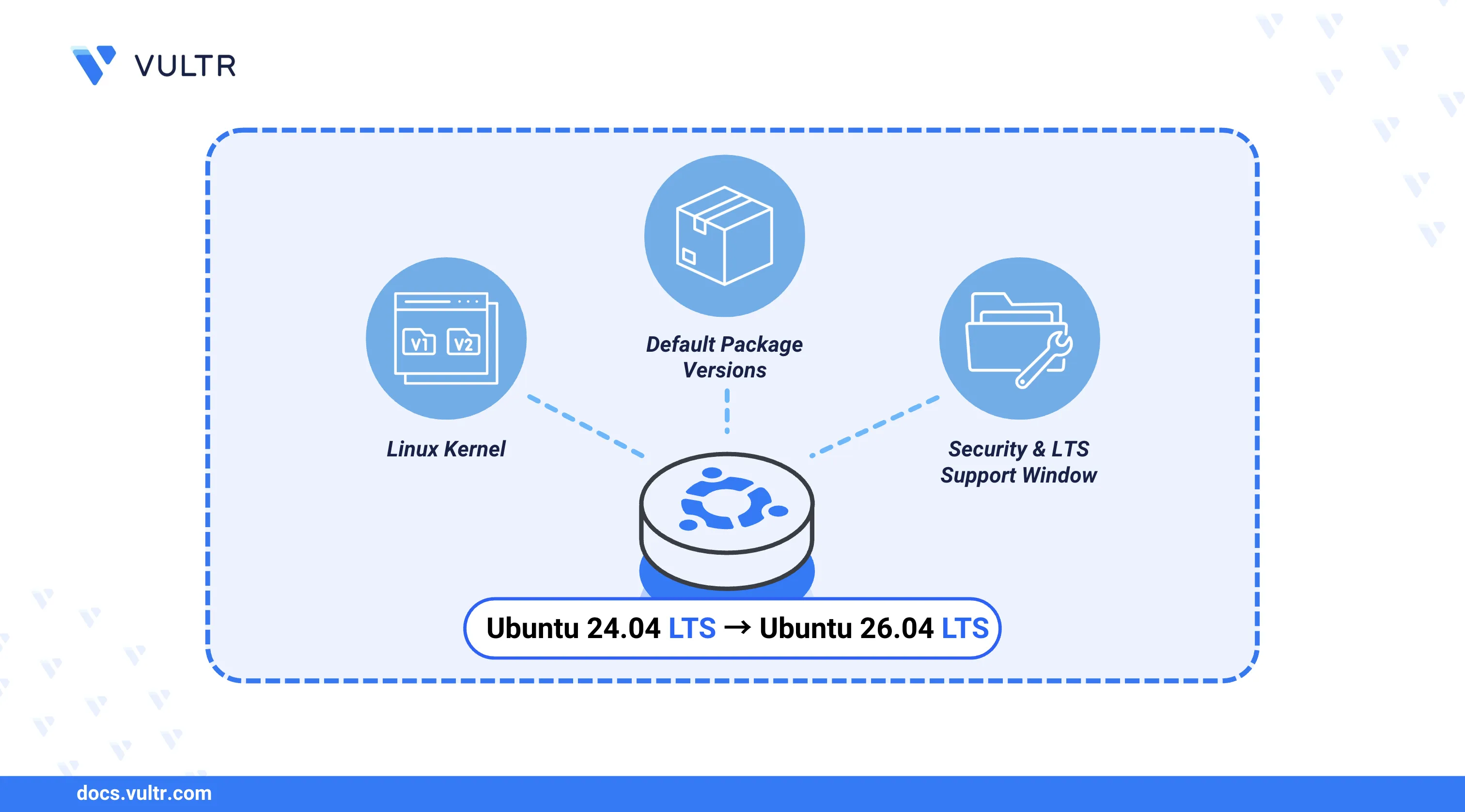
How to Upgrade From Ubuntu 24.04 to Ubuntu 26.04 header image

Ubuntu is a widely adopted open-source Linux distribution released on a predictable schedule, with Long Term Support (LTS) versions receiving security and maintenance updates for five years. Ubuntu 26.04 LTS, codenamed Resolute Raccoon, ships with the Linux 7.0 kernel, an updated set of default packages, and security improvements over Ubuntu 24.04. Upgrading an existing server carries forward your data and configurations to the newer release without requiring a fresh deployment.

This article explains how to upgrade a server from Ubuntu 24.04 LTS to Ubuntu 26.04 LTS. It covers verifying application compatibility, preparing the system, running the upgrade tool, testing the result, and resolving common post-upgrade issues.

Prerequisites

Before you begin, you need to:

  • Have access to an Ubuntu 24.04 server instance as a non-root user with sudo privileges.

  • Ensure at least 5 GB of free disk space is available. Run the command below to check.

    console
    $ df -h
    

    Output:

    Filesystem      Size  Used Avail Use% Mounted on
    tmpfs            96M  2.4M   93M   3% /run
    /dev/vda2        23G  6.5G   16G  30% /
    tmpfs           476M     0  476M   0% /dev/shm
    tmpfs           5.0M     0  5.0M   0% /run/lock
    /dev/vda1       511M  6.1M  505M   2% /boot/efi
    tmpfs            96M  4.0K   96M   1% /run/user/0

Verify Application Compatibility

Some packages installed on Ubuntu 24.04 may not be compatible with Ubuntu 26.04, which can cause dependency conflicts or runtime errors after the upgrade. Auditing your installed software before starting reduces the chance of post-upgrade failures. Follow the steps below to export and review your package list.

  1. Save a list of all installed packages to a file.

    console
    $ sudo dpkg --get-selections > packages-list.txt
    
  2. Browse the exported package list.

    console
    $ cat packages-list.txt | more
    
  3. Review the official Ubuntu 26.04 release notes to identify any known incompatible dependencies or removed packages.

Update System Packages

Upgrading all existing packages before starting the release upgrade minimizes the risk of conflicts introduced by outdated software. Follow the steps below to bring the system up to date and remove unnecessary packages.

  1. Confirm the server is running Ubuntu 24.04.

    console
    $ cat /etc/os-release
    
  2. Update the package information index.

    console
    $ sudo apt update
    
  3. Upgrade all installed packages to their latest available versions.

    console
    $ sudo apt upgrade -y
    

    If the system displays the following kernel warning after upgrading, restart the server before continuing.

    Pending kernel upgrade!
    Running kernel version:
      6.8.0-107-generic
    Diagnostics:
      The currently running kernel version is not the expected kernel version 6.8.0-111-generic.
    
    Restarting the system to load the new kernel will not be handled automatically, so you should consider rebooting.
    console
    $ sudo reboot
    
  4. Remove packages that are no longer needed.

    console
    $ sudo apt autoremove -y
    
  5. Clear the local package cache.

    console
    $ sudo apt autoclean
    

Enable the Temporary SSH Port

The do-release-upgrade tool starts an auxiliary SSH daemon on port 1022 during the upgrade. This fallback connection allows you to reconnect if the primary SSH session drops mid-upgrade. Follow the steps below to open this port in the firewall before launching the upgrade.

  1. Allow port 1022 through UFW.

    console
    $ sudo ufw allow 1022/tcp
    
  2. Reload UFW to activate the new rule.

    console
    $ sudo ufw reload
    
  3. Verify that port 1022 appears in the active ruleset.

    console
    $ sudo ufw status
    

    Output:

    Status: active
    
    To                         Action      From
    --                         ------      ----
    22/tcp                     ALLOW       Anywhere
    1022/tcp                   ALLOW       Anywhere
    22/tcp (v6)                ALLOW       Anywhere (v6)
    1022/tcp (v6)              ALLOW       Anywhere (v6)

Upgrade from Ubuntu 24.04 to 26.04

With the server prepared, launch the release upgrade tool to begin the transition to Ubuntu 26.04 LTS. The tool downloads updated packages, asks you to resolve configuration file conflicts, and restarts the server when the upgrade is complete. Follow the steps below to run the upgrade.

  1. Launch the release upgrade tool.

    console
    $ sudo do-release-upgrade -d
    
  2. Enter y and press Enter when prompted to confirm the upgrade to Ubuntu 26.04 LTS.

    Checking for a new Ubuntu release
    
    = Welcome to Ubuntu 26.04 LTS 'Resolute Raccoon' =
    
    The Ubuntu team is proud to announce Ubuntu 26.04 LTS 'Resolute Raccoon'.
    
    To see what's new in this release, visit:
    
      https://discourse.ubuntu.com/t/resolute-raccoon-release-notes
    
    Ubuntu is a Linux distribution for your desktop or server. It is fast
    and easy to install, it has regular releases, a tight selection of
    excellent applications installed by default, and almost any other
    software you can imagine available through the network.
    
    We hope you enjoy Ubuntu.
    
    
    == Feedback and helping ==
    
    To help shape Ubuntu, look at the list of ways to participate at:
    
      https://documentation.ubuntu.com/project/community/contribute/
    
    ...
    
    To sign up for future Ubuntu announcements, subscribe to Ubuntu's very
    low-volume announcement list:
    
      https://lists.ubuntu.com/mailman/listinfo/ubuntu-announce
    
    
    Continue [yN]
  3. Enter y and press Enter to allow the upgrade tool to open an auxiliary SSH daemon on port 1022.

    Reading cache
    
    Checking package manager
    
    Continue running under SSH?
    
    This session appears to be running under ssh. It is not recommended
    to perform a upgrade over ssh currently because in case of failure it
    is harder to recover.
    
    If you continue, an additional ssh daemon will be started at port
    '1022'.
    Do you want to continue?
    
    Continue [yN]
  4. Press Enter to acknowledge the auxiliary SSH daemon notice and proceed.

    Starting additional sshd
    
    To make recovery in case of failure easier, an additional sshd will
    be started on port '1022'. If anything goes wrong with the running
    ssh you can still connect to the additional one.
    If you run a firewall, you may need to temporarily open this port. As
    this is potentially dangerous it's not done automatically. You can
    open the port with e.g.:
    'iptables -I INPUT -p tcp --dport 1022 -j ACCEPT'
    
    To continue please press [ENTER]
  5. Enter y and press Enter to begin downloading and installing the upgrade packages.

    Reading package lists... Done
    Building dependency tree... Done
    Reading state information... Done
    
    Do you want to start the upgrade?
    
    
    7 packages are going to be removed. 164 new packages are going to be
    installed. 948 packages are going to be upgraded.
    
    You have to download a total of 1,712 M. This download will take
    about 5 minutes with a 40Mbit connection and about 45 minutes with a
    5Mbit connection.
    
    Fetching and installing the upgrade can take several hours. Once the
    download has finished, the process cannot be canceled.
    
     Continue [yN]  Details [d]
  6. Use the arrow keys to select the country of origin for your keyboard and press Enter when the Configuring keyboard-configuration dialog appears.

  7. Use the arrow keys to select the specific keyboard layout variant for your country and press Enter to confirm.

  8. Press Enter to select N and keep the existing /etc/systemd/journald.conf file when prompted.

    Configuration file '/etc/systemd/journald.conf'
    ==> Modified (by you or by a script) since installation.
    ==> Package distributor has shipped an updated version.
    What would you like to do about it ?  Your options are:
    Y or I  : install the package maintainer's version
    N or O  : keep your currently-installed version
    D     : show the differences between the versions
    Z     : start a shell to examine the situation
    The default action is to keep your current version.
    *** journald.conf (Y/I/N/O/D/Z) [default=N] ?
  9. Select keep the local version currently installed and press Enter when the upgrade tool prompts about /etc/ssh/sshd_config.

  10. Select keep the local version currently installed and press Enter when prompted about /etc/default/grub.

  11. Press Enter to select N and keep the current /etc/cloud/cloud.cfg file.

    Configuration file «/etc/cloud/cloud.cfg»
     ==> Modified (by you or by a script) since installation.
     ==> Package distributor has shipped an updated version.
       What would you like to do about it ?  Your options are:
        Y or I  : install the package maintainer's version
        N or O  : keep your currently-installed version
          D     : show the differences between the versions
          Z     : start a shell to examine the situation
     The default action is to keep your current version.
    *** cloud.cfg (Y/I/N/O/D/Z) [default=N] ?
  12. Enter d to review the list of obsolete packages, then enter y and press Enter to remove them.

    update-initramfs: Generating /boot/initrd.img-7.0.0-15-generic
    ...
    Reading package lists... Done
    Building dependency tree... Done
    Reading state information... Done
    
    Searching for obsolete software
    Reading state information... Done
    
    Remove obsolete packages?
    
    
    109 packages are going to be removed.
    
    Removing the packages can take several hours.
    
     Continue [yN]  Details [d]
  13. Wait for the upgrade to complete — the process typically takes 30 minutes or longer depending on the packages installed on the server. Enter y and press Enter when prompted to restart.

    All snaps up to date.
    
    System upgrade is complete.
    
    Restart required
    
    To finish the upgrade, a restart is required.
    If you select 'y' the system will be restarted.
    
    Continue [yN]

Test the Upgraded Ubuntu 26.04 Server

After the server restarts, confirm that the upgrade succeeded and the system is running Ubuntu 26.04 LTS. Follow the steps below to verify the distribution version, kernel, and firewall configuration.

  1. Display the active distribution information.

    console
    $ cat /etc/os-release
    

    Output:

    PRETTY_NAME="Ubuntu 26.04 LTS"
    NAME="Ubuntu"
    VERSION_ID="26.04"
    VERSION="26.04 (Resolute Raccoon)"
    VERSION_CODENAME=resolute
    ID=ubuntu
    ID_LIKE=debian
    HOME_URL="https://www.ubuntu.com/"
    SUPPORT_URL="https://help.ubuntu.com/"
    BUG_REPORT_URL="https://bugs.launchpad.net/ubuntu/"
    PRIVACY_POLICY_URL="https://www.ubuntu.com/legal/terms-and-policies/privacy-policy"
    UBUNTU_CODENAME=resolute
    LOGO=ubuntu-logo
  2. Check the running kernel version.

    console
    $ uname -mrs
    

    Output:

    Linux 7.0.0-15-generic x86_64
  3. Remove the temporary UFW rule for port 1022.

    console
    $ sudo ufw delete allow 1022/tcp
    

Fix Post-upgrade Repository Issues

Third-party APT repositories configured on the server may still reference the Ubuntu 24.04 (Noble Numbat) codename and fail to fetch updates until they are corrected. Follow the steps below to inspect repository sources and update all packages.

  1. List the files in the APT sources directory.

    console
    $ ls /etc/apt/sources.list.d
    

    Output:

    docker.list.disabled  ubuntu.sources  ubuntu.sources.curtin.orig

    Update any repository files that still reference the Ubuntu 24.04 codename to use the Ubuntu 26.04 sources instead.

  2. Refresh the package information index.

    console
    $ sudo apt update
    

    Output:

    Hit:1 http://ubuntu.mirror.constant.com resolute InRelease
    Hit:2 http://ubuntu.mirror.constant.com resolute-updates InRelease
    Hit:3 http://ubuntu.mirror.constant.com resolute-backports InRelease
    Hit:4 http://security.ubuntu.com/ubuntu resolute-security InRelease
    All packages are up to date.

    Verify that all repository entries reference resolute rather than noble.

  3. Apply any available package upgrades.

    console
    $ sudo apt upgrade
    

    Output:

    Summary:
      Upgrading: 0, Installing: 0, Removing: 0, Not Upgrading: 0
  4. Remove unused packages and clear the package cache.

    console
    $ sudo apt autoremove -y && sudo apt autoclean
    

    Output:

    Summary:
      Upgrading: 0, Installing: 0, Removing: 0, Not Upgrading: 0
    Del linux-headers-6.8.0-111 6.8.0-111.111 [13.7 MB]
    Del linux-modules-6.8.0-111-generic 6.8.0-111.111 [39.2 MB]
    Del linux-image-6.8.0-111-generic 6.8.0-111.111 [14.8 MB]
    Del linux-modules-extra-6.8.0-111-generic 6.8.0-111.111 [113 MB]
    ...

Conclusion

You have upgraded your server from Ubuntu 24.04 LTS to Ubuntu 26.04 LTS (Resolute Raccoon). The system now runs the Linux 7.0 kernel with updated packages, security patches, and the improvements introduced in this LTS release. For more information about new features and upgrade considerations, visit the official Ubuntu 26.04 release notes.

Comments