How to Deploy Dokploy – Self-Hosted PaaS for Docker Applications
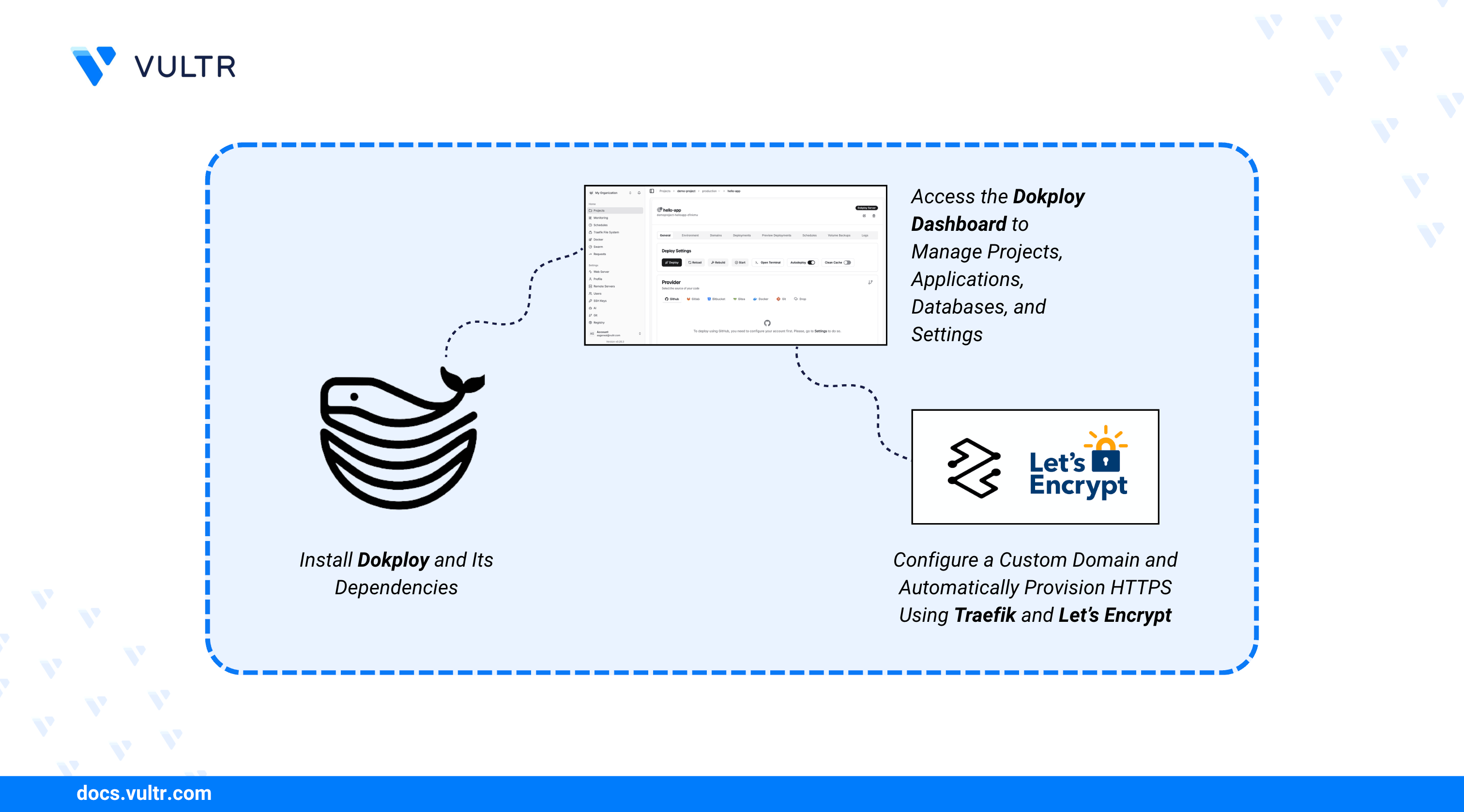
Dokploy is an open-source, self-hosted Platform as a Service (PaaS) that simplifies application deployment and management. It serves as a free alternative to platforms like Heroku, Vercel, and Netlify, using Docker for containerization and Traefik for automatic HTTPS routing. Dokploy provides a web-based dashboard where administrators can deploy applications from Git repositories, manage databases, configure environment variables, and monitor resource usage.
This article explains how to install Dokploy on Ubuntu 24.04 and deploy a sample application. It covers the installation process, initial configuration, deploying an application from a GitHub repository, configuring a custom domain with SSL certificates, and monitoring application performance through the Dokploy dashboard.
Prerequisites
Before you begin, you need to:
- Have access to an Ubuntu 24.04-based server as a non-root user with
sudoprivileges. - Configure a domain A record pointing to your server's IP address (for example,
dokploy.example.comandapp.example.com).
Install Dokploy
Dokploy provides a single installation script that installs Docker (if not present), configures Docker Swarm mode, and deploys the Dokploy application stack. The script requires root privileges and handles all dependencies automatically.
Update the server's package index.
CONSOLERun the Dokploy installation script with root privileges.
CONSOLEOutput:
The script installs and configures Dokploy and its dependencies.
Add your user to the
dockergroup to run Docker commands withoutsudo.CONSOLEVerify that the Dokploy services are running.
CONSOLEOutput:
You should see the
dokployservice and supporting services (for example, PostgreSQL and Redis). Depending on the Dokploy version and your configuration, you may also see a Traefik service (sometimes shown asdokploy-traefik) for HTTP/HTTPS routing.
Access the Dokploy Dashboard
The web interface runs on port 3000 by default. In this section, you access the dashboard and create the administrator account.
Open the Dokploy dashboard in your web browser. Replace
SERVER-IPwith your server's IP address.The setup page prompts you to enter your name, email address, and password for the initial administrator account. Click Register to complete the setup.
The dashboard displays the main project view after registration. From here, you can create projects, deploy applications, and manage databases.
Note
The initial setup uses HTTP on port 3000. This article shows how to configure a custom domain with HTTPS for the Dokploy dashboard later in the Secure the Dokploy Dashboard section.
Deploy a Sample Application
Dokploy supports multiple deployment methods including GitHub repositories, Git URLs, Docker images, and Docker Compose files. In this section, you deploy a sample Node.js application from a public GitHub repository.
Create a Project
Click Create Project from the dashboard.
Enter a project name (for example,
demo-project) and click Create.The project page opens, displaying options to add applications, databases, and Docker Compose stacks.
Add an Application
Click Create Service and select Application.
Enter an application name (for example,
hello-app) and click Create.Navigate to the General tab and configure the source settings:
- Provider: Select GitHub (or Git for custom repositories).
- Repository URL: Enter a public repository URL (for example,
https://github.com/dokploy/hello-world). - Branch: Enter
main.
Configure the build settings:
- Build Type: Select Nixpacks (automatically detects and builds most applications).
Dokploy supports multiple build types:
- Nixpacks: Auto-detects language and dependencies (recommended for most applications).
- Heroku Buildpacks: Compatible with Heroku-style applications.
- Paketo Buildpacks: Cloud-native buildpacks for production deployments.
- Dockerfile: Uses a custom Dockerfile from the repository.
Click Save to apply the configuration.
Deploy the Application
Click Deploy to start the build process.
Navigate to the Deployments tab to monitor the build progress.
The deployment log shows each build step including dependency installation, compilation, and container creation. A successful deployment displays a green status indicator.
Navigate to the Logs tab to view the application's runtime output.
Output:
The application is now running inside a Docker container managed by Dokploy.
Configure a Custom Domain with SSL
Dokploy uses Traefik to route traffic and automatically provision SSL certificates through Let's Encrypt. Traefik requires ports 80 and 443 to handle HTTP/HTTPS traffic and certificate provisioning.
Allow HTTP and HTTPS traffic through the firewall.
CONSOLEEnable UFW if it is not already enabled.
CONSOLEVerify the firewall status.
CONSOLE
Configure a Custom Domain
Navigate to the Domains tab for your application.
Click Add Domain.
Configure the domain settings:
- Host: Enter your domain (for example,
app.example.com). - Container Port: Verify this matches the port your application listens on (check the application logs).
- HTTPS: Enable to provision an SSL certificate.
- Certificate Provider: Select Let's Encrypt for automatic certificate management.
- Host: Enter your domain (for example,
Click Create to save the domain configuration.
Verify that your domain's DNS A record points to your server's IP address.
Install
digif it is not available.CONSOLEQuery the DNS A record for
app.example.com.CONSOLEOutput:
Verify the output matches your server's public IP address.
Access the application through your custom domain.
Traefik automatically provisions the SSL certificate on the first request. Certificate renewal occurs automatically before expiration.
Secure the Dokploy Dashboard
This section assigns a domain to the Dokploy dashboard, enables HTTPS, and disables IP:port access after confirming the domain works.
Navigate to Settings > Web Server in the Dokploy dashboard.
Configure a domain for the panel (for example,
dokploy.example.com).Enable HTTPS and select Let's Encrypt for certificate provisioning.
Verify the domain works correctly by accessing
https://dokploy.example.com.Disable IP:port access after confirming the domain works.
CONSOLEWarning
Verify that your domain is working correctly with HTTPS before disabling IP:port access. Otherwise, you lose access to the Dokploy dashboard.
Deploy a Database
Dokploy provides one-click database deployments with automatic backup configuration. In this section, you deploy a PostgreSQL database.
Navigate to your project and click Create Service.
Select Database and choose PostgreSQL.
Enter a database name (for example,
app-db) and click Create.Navigate to the General tab to view the database connection settings.
Dokploy displays internal connection details for application-to-database connections on the server:
- User
- Database Name
- Password
- Internal Port (Container): Container port for PostgreSQL (default
5432). - Internal Host: Hostname that applications use to reach the database over Dokploy's internal network.
- Internal Connection URL: Prebuilt connection string you can copy into your application configuration.
It also includes an External Port (Internet) field. Set this only if you need to connect from outside the server (for example, from your workstation).
Click Deploy to start the database container.
Optionally configure automated backups in the Backups tab:
- Set backup frequency (hourly, daily, weekly).
- Configure an S3-compatible destination for off-server storage.
Connect the Application to the Database
Navigate to the Environment tab for your application.
Copy the Internal Connection URL value from the database's General tab and save it as an environment variable.
INIReplace
INTERNAL-CONNECTION-URLwith the exact value displayed in Dokploy (use the copy button next to the field).Click Save and redeploy the application for the changes to take effect.
Monitor Application Resources
Dokploy provides real-time monitoring for CPU, memory, disk, and network usage. In this section, you access the monitoring dashboard.
Navigate to the Monitoring tab for your application.
Four graphs display resource utilization:
- CPU Usage: Processor usage percentage.
- Memory Usage: RAM consumption in megabytes.
- Block I/O: Storage I/O operations.
- Network I/O: Inbound and outbound traffic.
Use the monitoring data to identify performance bottlenecks and adjust resource limits.
Navigate to the Advanced tab to configure resource constraints:
- CPU Limit: Maximum CPU cores allocated to the container.
- Memory Limit: Maximum RAM allocated to the container.
Conclusion
You have installed Dokploy on Ubuntu 24.04 and deployed a sample application with a custom domain and SSL certificate. The platform provides a centralized dashboard for managing containerized applications, databases, and Docker Compose stacks with automatic HTTPS provisioning through Traefik. For advanced features including cluster deployments, remote servers, and custom Traefik configurations, refer to the official Dokploy documentation.
Tags:Ubuntu 24.04


0 Comments
Be the first to comment and share your perspective with the community.