How to Deploy Plausible Analytics – Self-Hosted Web Analytics Platform
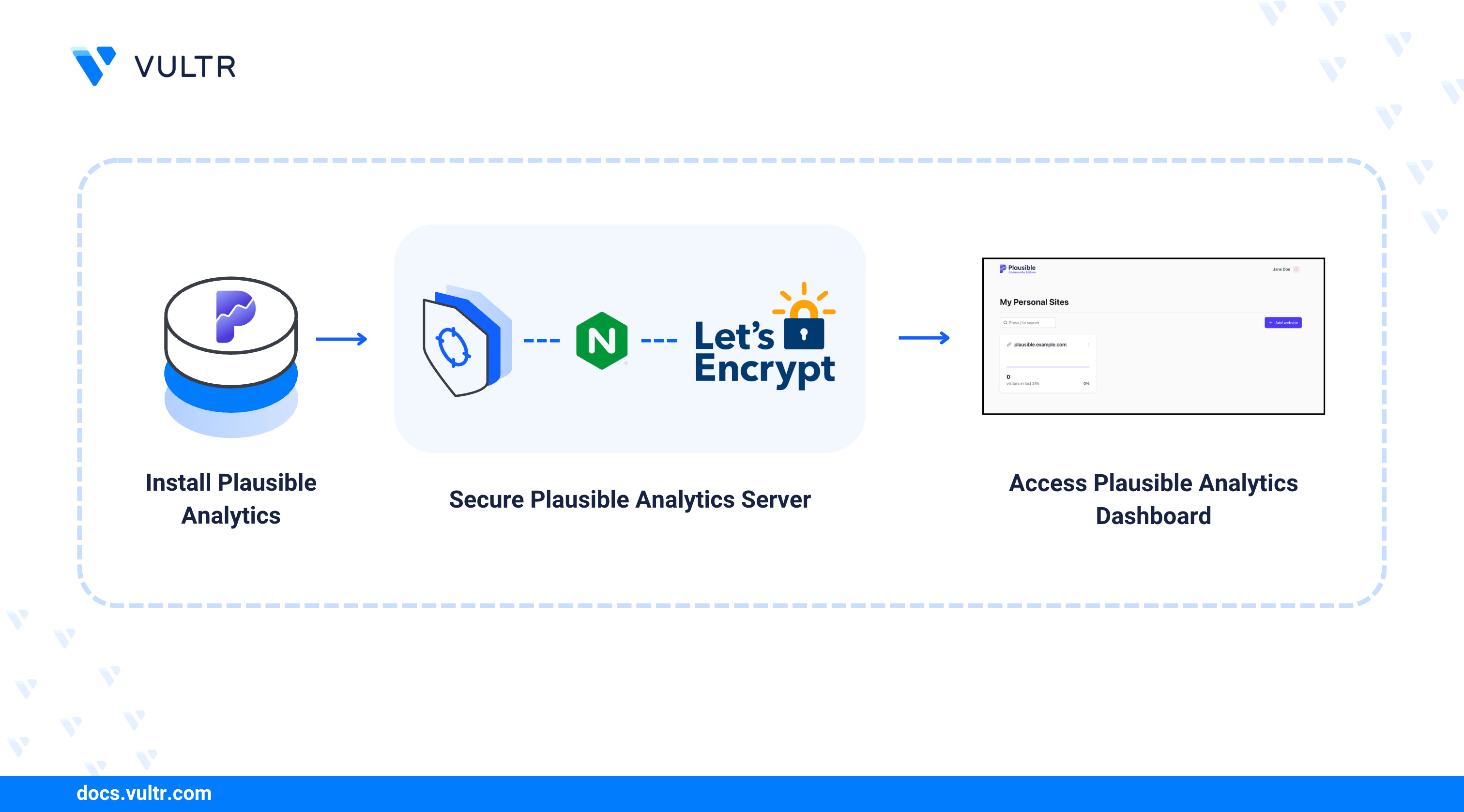
Plausible Analytics is an open-source, self-hosted web analytics tool that focuses on simplicity and privacy. It measures your website’s traffic and visitor activity without using cookies or tracking personal data. It’s a good option for developers and businesses that need website analytics while keeping user data private.
In this article, you deploy Plausible Analytics on a Linux server using Docker and Docker Compose. The setup includes installing required packages, configuring the Plausible environment, and running the application in containers. You also configure Nginx as a reverse proxy, enable HTTPS with Let's Encrypt, and secure the installation for production use.
Prerequisites
Before you begin, ensure you:
- Have access to a Linux server (such as Ubuntu, Debian, or Fedora) as a non-root user with sudo privileges.
- Install Docker and Docker Compose.
- Configure a domain name, such as
plausible.example.com, to point to your server's public IP address.
Configure Plausible Environment
Plausible uses environment variables to define the base URL, administrator account, and application settings. Follow the steps below to create the environment file and update the Docker Compose configuration.
Create a directory for Plausible.
CONSOLENavigate to the Plausible directory.
CONSOLEClone the Plausible Community Edition repository.
CONSOLENavigate to the project directory.
CONSOLEGenerate a random secret key for Plausible.
CONSOLECopy the generated value to use as the secret key in the environment file in the next step.
Create and open the environment configuration file.
CONSOLEAdd the following configuration to the file.
INIReplace:
admin@example.comwith your email address.ADMIN_PASSWORDwith a strong password.plausible.example.comwith the domain name that points to your server.YOUR_SECRET_KEY_BASEwith the random key you generated in the previous step.
Save the file and exit the editor.
Create a Docker Compose override file to expose the Plausible port.
CONSOLEAdd the following configuration.
YAMLSave the file and exit the editor. Docker Compose automatically merges this file with
compose.ymlwhen starting the containers.
Deploy Plausible Analytics
With the environment configured, the next step is to bring Plausible Analytics online. This section uses Docker Compose to launch the application, database, and event processing services and ensures they are running properly before enabling HTTPS.
Start the Plausible containers in detached mode.
CONSOLEVerify that all containers are running.
CONSOLENote
For more information on managing a Docker Compose stack, see the How To Use Docker Compose article.
Set Up Nginx Reverse Proxy and HTTPS
To make Plausible accessible over the internet and secure all traffic with HTTPS, you need to place Nginx in front of the application as a reverse proxy. Nginx forwards incoming requests to Plausible’s internal service, while Certbot issues and manages TLS certificates from Let’s Encrypt.
Configure Nginx as a Reverse Proxy
Update the server’s package information index.
CONSOLEInstall the Nginx web server.
CONSOLECreate a new Nginx configuration file for Plausible.
CONSOLEAdd the following configuration.
INIReplace
plausible.example.comwith your domain.Save the file and exit the editor.
Enable the configuration.
CONSOLETest the Nginx configuration.
CONSOLEYou should see:
Reload Nginx to apply the changes.
CONSOLE
Install Certbot and Enable HTTPS
Install Certbot and the Nginx plugin.
CONSOLEAllow traffic through your firewall to port 80 and 443. Port 80 is required for the ACME SSL challenge (used by Let's Encrypt), and port 443 is required to access the Plausible dashboard securely.
CONSOLERequest a TLS certificate and enable HTTPS with the command below. Replace
plausible.example.comwith your domain name, andadmin@example.comwith your email.CONSOLEThis command requests a Let’s Encrypt TLS certificate and automatically configures Nginx to use HTTPS for the specified domain.
Test and Access Plausible
In this section, you verify the deployment by creating an administrator account, adding a website, and confirming that analytics data is collected correctly.
Open your browser and navigate to the Plausible registration page by appending
/registerto your domain name.Replace
plausible.example.comwith the domain name that points to your server.On the Register page, enter your full name, email address, and password. Click Create my account to set up the initial administrator account.
Enter the domain you want to track, choose your reporting time zone, and click Install Plausible to continue.
On the next screen, Plausible provides a JavaScript tracking snippet. Install this script in the
<head>section of your website. Refer to the Installation guide for more information. Then click Verify Script installation to confirm that Plausible detects the script.Refresh the page or open your Plausible dashboard in a new browser tab after the first page view appears to confirm that the setup is complete.
After verification, the Plausible dashboard opens and lists your website with traffic stats.
Conclusion
You deployed Plausible Analytics on a Linux server and configured it to run securely in Docker containers. You installed all required packages, set up the Plausible environment, and enabled HTTPS using Nginx and Certbot. For more information, refer to the official Plausible Analytics documentation.
Tags:Ubuntu 24.04


0 Comments
Be the first to comment and share your perspective with the community.