How to Install R and RStudio Server on Ubuntu 24.04
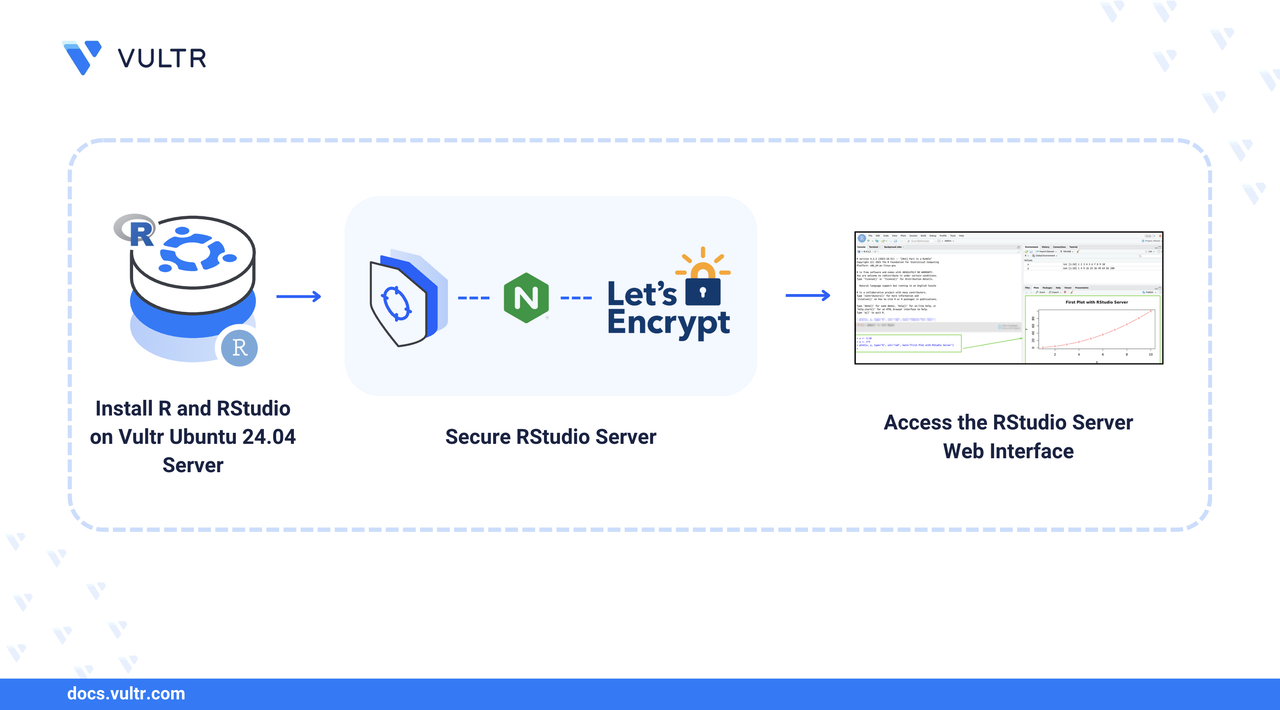
R is an open-source programming language designed for statistical computing, data analysis, and machine learning. It provides built-in statistical functions, powerful data visualization capabilities, and access to thousands of packages from the Comprehensive R Archive Network (CRAN). RStudio Server is a web-based integrated development environment (IDE) that enables you to write, debug, and run R code from any device through a browser interface.
In this article, you will install R from the CRAN official repository on Ubuntu 24.04, set up RStudio Server for remote access, secure the installation, and create user accounts for collaborative work.
Prerequisites
Before you begin, you need to:
- Have access to an Ubuntu 24.04-based server as a non-root user with
sudoprivileges. - Configure a domain A record pointing to your server's IP address (for example,
rstudio.example.com).
Install R from CRAN Official Repository
The Comprehensive R Archive Network (CRAN) is the central repository for R packages, versions, and documentation. Installing R from CRAN ensures you have the latest stable release with active community support. In this section, you add the CRAN repository to your system and install R.
Update the server's package index.
CONSOLEInstall the required packages for adding external repositories.
CONSOLEsoftware-properties-common: Enables adding external repositories to Ubuntu's trusted sources.dirmngr: Verifies the authenticity of software from external repositories.
Download and add CRAN's GPG key to Ubuntu's trusted key directory.
CONSOLEVerify the GPG key fingerprint.
CONSOLEOutput:
The fingerprint
E298A3A825C0D65DFD57CBB651716619E084DAB9confirms the authenticity of CRAN's official GPG key.Add the CRAN repository to the server's sources list.
CONSOLEPress
Enterwhen prompted to confirm the addition.Install R.
CONSOLE
Verify R Installation
In this section, you verify that R is installed correctly by checking the version and running basic R commands.
Display the installed R version.
CONSOLEOutput:
Launch the R interactive console.
CONSOLEOutput:
Run a test expression.
ROutput:
Perform a basic statistical calculation.
ROutput:
Exit the R console.
REnter
nwhen prompted to save the workspace image.
Install RStudio Server .deb Package
RStudio Server provides a browser-based IDE for R development. It enables you to access your R environment from any device without installing software locally. In this section, you download and install the RStudio Server package.
Install
gdebi-coreto handle package dependencies.CONSOLEDownload the RStudio Server
.debpackage.CONSOLENote
The Ubuntu 22.04 (Jammy) package is compatible with Ubuntu 24.04 (Noble Numbat) due to backward compatibility between LTS releases.
Install RStudio Server.
CONSOLEEnter
ywhen prompted to confirm the installation.Verify the installed RStudio Server version.
CONSOLEOutput:
Start and Enable RStudio Server
In this section, you configure RStudio Server to start automatically on boot and verify that the service is running.
Enable RStudio Server to start at boot.
CONSOLEStart the RStudio Server service.
CONSOLEVerify that RStudio Server is running.
CONSOLEOutput:
Secure RStudio Server
In this section, you configure Nginx as a reverse proxy with HTTPS to secure access to RStudio Server.
Install Nginx.
CONSOLEInstall Certbot and the Nginx plugin.
CONSOLECreate an Nginx configuration file for RStudio Server.
CONSOLEAdd the following configuration. Replace
rstudio.example.comwith your domain name.INISave and close the file.
Enable the configuration.
CONSOLETest the Nginx configuration.
CONSOLEOutput:
Restart Nginx.
CONSOLEAllow HTTP and HTTPS traffic through the firewall.
CONSOLEObtain an SSL certificate. Replace
rstudio.example.comwith your domain andadmin@example.comwith your email address.CONSOLEThis command requests a Let’s Encrypt TLS certificate and automatically configures Nginx to use HTTPS for the specified domain.
Access RStudio Server
In this section, you access the RStudio Server web interface securely over HTTPS using the domain name configured with Nginx.
Open your web browser and navigate to RStudio Server. Replace
rstudio.example.comwith your configured domain name.Sign in using your Linux user account credentials.
Note
Each RStudio user has an isolated R environment. Users can install packages in their personal library without affecting other users on the system.
Verify that the RStudio IDE loads successfully.
Run a Test R Program in RStudio Server
In this section, you create and run an R program in RStudio Server to verify that the IDE functions correctly.
In the RStudio console, create a vector and calculate its square.
RGenerate a plot to visualize the data.
RCreate a new R script by clicking File > New File > R Script.
Add the following code to the script.
RClick Run or press
Ctrl + Enterto execute the script.
Conclusion
You have successfully installed R from the official CRAN repository and configured RStudio Server on Ubuntu 24.04. You secured the installation with HTTPS using Nginx and Let’s Encrypt, enabling safe remote access and collaborative R development with isolated user environments. For advanced features and configuration options, refer to the RStudio Server Administration Guide.
Tags:Ubuntu 24.04


0 Comments
Be the first to comment and share your perspective with the community.