How to Migrate AWS EC2 Instances to Vultr Cloud Compute
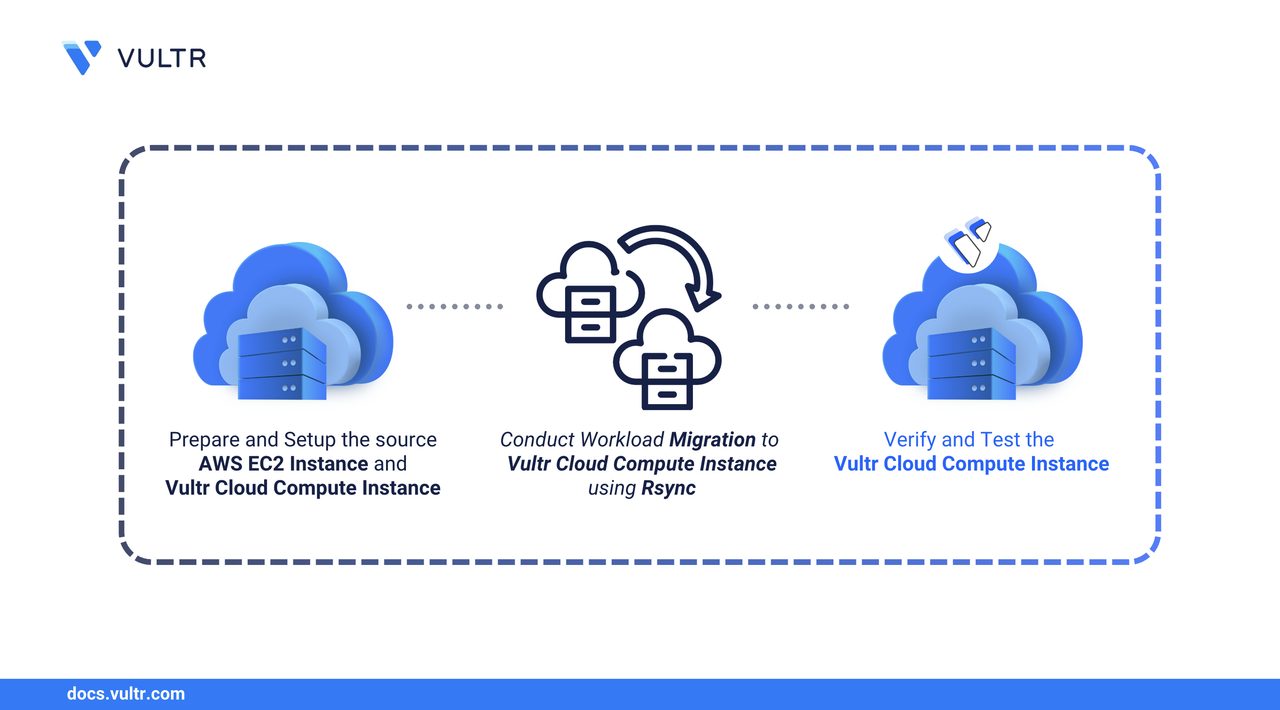
Vultr Cloud Compute is a virtual machine service offered by Vultr. It is available globally for various workloads, including those that demand GPU resources. It is easy to deploy and scalable. Migrating your workload from an Amazon Elastic Compute Cloud (Amazon EC2) instance to a Vultr Cloud Compute instance can offer several benefits, such as better performance, more control over your resources, better pricing, access to a wide selection of geographical regions, and other features offered by Vultr.
This guide provides general instructions to migrate an Amazon EC2 instance to a Vultr Cloud Compute Instance.
Note
This guide provides general instructions on migrating an Amazon EC2 instance to a Vultr Cloud Compute instance.
Prerequisites
Before you begin, you need to:
- Have administrative access to AWS console with permissions to view the instance details and network settings (e.g., security groups) for the Amazon EC2 instance you plan to migrate.
- Backup your Amazon EC2 instance to avoid data loss.
- Provision a Vultr Cloud Compute Instance, ideally based on the same operating system and version as your Amazon EC2 instance, having enough disk space to accommodate your migration data.
Key Considerations Before Migrating
- Identify all the data that is to be migrated, that can be directories holding application data and configuration files, locally running databases, user data, and other important data specific to your workload.
- Consult your team and account for things like how you can get your workload up and running on the new Vultr Cloud Compute instance after migration, what configurations it would need to run, what dependencies your workload has, or any other important detail.
- Review the Security Group associated with your Amazon EC2 instance and implement the necessary rules on your Vultr Cloud Compute instance, either internally or through Vultr Firewall.
- Consider any upgrade you can make in your Vultr Cloud Compute instance that would improve any aspect of your workload. For example, upgrading your operating system if your workload can run on it, or using a higher tier of Vultr Cloud Compute for better performance.
- You can use a blue-green deployment strategy during migration before cutting over to a Vultr Cloud Compute instance entirely.
- If you are migrating multiple instances, check if you can automate some parts of the process to save time and avoid human error.
- Have a plan to test your workload on your new Vultr Cloud Compute instance after migration to ensure it works as expected.
Migration Steps
This section covers the general steps to migrate your workload from your Amazon EC2 instance to a Vultr Cloud Compute instance. It involves syncing files and folders from the Amazon EC2 instance to your Vultr compute instance in real-time.
Prepare Amazon EC2 Instance
Access your Amazon EC2 instance, and follow the steps below.
Install the
rsynctool to transfer the required files to your Vultr Cloud Compute instance.On Ubuntu/Debian based systems:
CONSOLEOn CentOS/Redhat based systems:
CONSOLE
Check all the actively running services and note the ones you want to migrate. Export all the service names to a text file for reference.
CONSOLEYou can use the
service_list.txtfile to compare the services of your Vultr Cloud Compute instance after the migration process.Check all the users and user groups.
List all users.
CONSOLEList all groups.
CONSOLE
Review the output:
- Only recreate user accounts with a UID greater than 1000. These typically represent regular (non-system) users.
- Do not recreate system users (such as root, daemon, systemd-*) to avoid conflicts on the Vultr Cloud Compute instance.
- Use the same principle for groups only replicate non-system groups with GIDs over 1000.
Check services that are active on any network port.
CONSOLEThis command lists all the processes that are active on your Amazon EC2 instance's network ports. Analyze and note the port numbers required for your workload, and open these ports on your Vultr Cloud Compute instance before migration.
Check the version of any package that your workload uses. For example, to check the Nginx version, run:
On Debian/Ubuntu based systems:
CONSOLEOn CentOS/RHEL based systems:
CONSOLE
These commands display the installed version of Nginx on your Amazon EC2 instance. Based on the output, take appropriate steps to install the same or an updated version on your Vultr Cloud Compute instance.
Check scheduled cron jobs for the logged-in user.
CONSOLEReview the output to determine if any of the listed cron jobs need to be recreated on your Vultr Cloud Compute instance.
Check cron jobs for other users and system services.
CONSOLEReview the contents to identify any user-specific or system-wide cron jobs that should be migrated, excluding system-related entries unless explicitly required.
Select Amazon EC2 Data to Migrate
In your EC2 instance, identify directories or files to transfer. Common ones include:
- /home: User data.
- /var/www: Website files.
Transfer Data from Amazon EC2 to Vultr
You can use the rsync tool to transfer files and directories from your Amazon EC2 instance to a Vultr Cloud Compute instance. The file can be any application file, database backups, configuration files, or any other data related to your workload application. Follow the steps below on your Amazon EC2 instance.
Test run the migration command by specifying the --dry-run flag. This simulates a transfer without actually transferring any data. It's good practice as it helps you know how the operation will work without affecting any data.
CONSOLEIt prompts you to enter the password of your Vultr Cloud Compute instance's non root sudo user.
In the above command:
<LOCAL_DIRECTORY>is the directory or path of the file on your Amazon EC2 instance that you want to transfer.<REMOTE_DIRECTORY>is a destination location path on your Vultr Cloud Compute instance for the data migration.linuxuseris the non-root sudo user with access to the<REMOTE_DIRECTORY>location.<Vultr_IP>is the public IP address of your Vultr Cloud Compute instance.- -a flag (archive): Enables archive mode, which preserves permissions, symbolic links, timestamps, and directories. It's commonly used for accurate backups and migrations.
- -v flag (verbose): Provides detailed output, showing which files and directories are being transferred. It is useful for monitoring progress.
- -z flag (compress): Compresses data during transfer to reduce bandwidth usage, making the transfer fast.
Learn more about how to use the rsync command to transfer files.
Perform the Actual Data Transfer:
CONSOLENote
Ensure the
<REMOTE_DIRECTORY>exists on your Vultr Cloud Compute instance and that the target user has the necessary permissions to write to it before performing the transfer.Verify the data by checking the contents of your
<REMOTE_DIRECTORY>location.
Migrate Database Data
If your EC2 instance is running a database server, back up the database on your EC2 instance and transfer the dump to your Vultr Cloud Compute instance. The following example demonstrates the process for MySQL:
Dump Databases on EC2:
CONSOLETransfer Database Dumps:
CONSOLERestore Databases on your VultrCloud Compute instance:
CONSOLE
Note
The steps above apply to MySQL. If you're using a different database system (such as PostgreSQL or MongoDB), refer to its official documentation for proper backup and migration procedures.
Update Configuration Files
Update your configuration files post migration and adjust the required parameters to fit the new environment. You can restart necessary services using:
CONSOLE
Test Applications
Test your workload applications, databases, and services after everything is migrated to your Vultr Cloud Compute instance. Check logs for errors:
CONSOLE
Cutover Steps
- Update your Domain A record to point to the public IP address of your Vultr Cloud Compute instance.
- Update the firewall settings of any resources expecting incoming traffic from your Vultr Cloud Compute instance to allow it.
Conclusion
This guide has prepared you for migrating your Amazon EC2 instance to a Vultr Cloud Compute instance. You also know the important considerations and preparations you must make before and after migration. You know which tools and commands to use to migrate the data, and how to check and test your workload after migration. You can monitor logs for errors and fine-tune configurations for smooth operations.


0 Comments
Be the first to comment and share your perspective with the community.