How to Migrate Azure Blob Storage to Vultr Object Storage
Azure Blob Storage is Microsoft's object storage solution for the cloud, designed to store massive amounts of unstructured data such as images, videos, backups, and application data. Migrating from Azure Blob Storage to Vultr Object Storage allows you to benefit from simplified pricing, S3-compatible APIs, and flexible deployment options across multiple global regions. Vultr Object Storage provides several advantages:
- S3 Compatibility: Vultr Object Storage uses the industry-standard S3 API, enabling seamless integration with existing tools, SDKs, and applications.
- Multiple Locations: Choose from multiple data center locations worldwide to store your data closer to your users.
- Predictable Pricing: Vultr offers straightforward pricing without complex egress fees or tiered storage calculations.
- CDN Integration: Vultr Object Storage integrates with Vultr's CDN for low-latency content delivery.
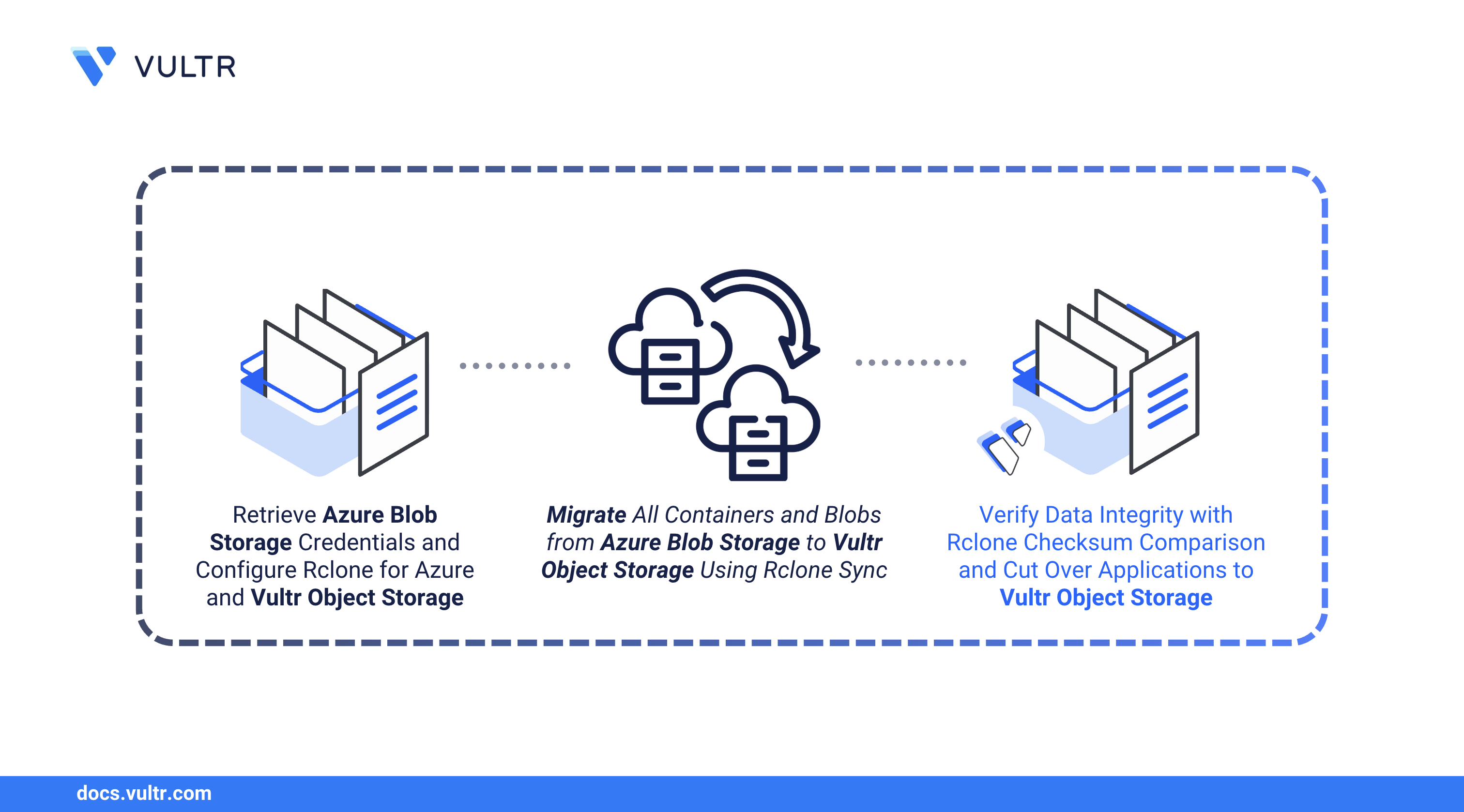
This guide explains how to migrate your containers and blobs from Azure Blob Storage to Vultr Object Storage using Rclone. You will configure authentication for both storage providers, transfer your data, verify integrity, and complete the cutover.
Prerequisites
Before you begin, you need to:
- Have an existing Azure Storage Account with Blob containers to migrate.
- Have access to your Azure Storage Account name and access key from the Azure Portal.
- Provision a Vultr Object Storage subscription and retrieve the S3 credentials from the Overview tab.
- Deploy an Ubuntu 24.04-based server on Vultr to use as the migration workstation and enable the Limited User Login feature.
- Access the instance using SSH.
Retrieve Azure Storage Account Credentials
Before configuring Rclone, gather the necessary credentials from your Azure Storage Account.
Log in to the Azure Portal.
Navigate to Storage accounts and select your storage account.
In the left menu, click Access keys under Security + networking.
Copy the Storage account name and one of the Key values. You will use these to authenticate Rclone with Azure Blob Storage.
Note
You can also use a Shared Access Signature (SAS) token for more granular access control. Generate a SAS token from the Shared access signature section if preferred.
Set Up the Migration Workstation
Rclone is an open-source command-line tool for managing cloud storage, supporting over 40 providers including Azure Blob Storage and S3-compatible services like Vultr Object Storage. In this section, you will install Rclone and configure it to authenticate with both Azure and Vultr.
Update the APT package index.
CONSOLEDownload the latest Rclone installation script.
CONSOLERun the script to install Rclone.
CONSOLEVerify the installed Rclone version.
CONSOLEYour output should be similar to the one below:
Generate a new Rclone configuration file.
CONSOLEYour output should be similar to the one below:
Configure Rclone with Azure Blob Storage
Configure Rclone to authenticate with your Azure Storage Account using your account name and access key.
Open the Rclone configuration file.
CONSOLEAdd the following Azure Blob Storage configuration block. Replace
YOUR_AZURE_STORAGE_ACCOUNTandYOUR_AZURE_ACCESS_KEYwith your actual credentials.INISave and close the file.
The above configuration creates a remote named
azurethat connects to your Azure Blob Storage using account key authentication.List all configured Rclone remotes to confirm the Azure configuration is active.
CONSOLEOutput:
List all containers in your Azure Storage Account to verify the connection.
CONSOLEYour output should be similar to the one below:
Configure Rclone with Vultr Object Storage
Configure Rclone to authenticate with your Vultr Object Storage subscription using your S3 credentials.
Open the Rclone configuration file.
CONSOLEAdd the following Vultr Object Storage configuration block. Replace
YOUR_VULTR_ACCESS_KEY,YOUR_VULTR_SECRET_KEY, andYOUR_VULTR_ENDPOINTwith your actual Vultr Object Storage credentials and endpoint (e.g.,ewr1.vultrobjects.com).INISave and close the file.
List all configured Rclone remotes to confirm both configurations are active.
CONSOLEOutput:
View the full Rclone configuration to verify your credentials.
CONSOLEYour output should be similar to the one below:
List all buckets in your Vultr Object Storage subscription to verify the connection.
CONSOLEIf your subscription has no buckets yet, the output will be empty.
Migrate Azure Blob Storage to Vultr Object Storage
You can migrate all containers or specific containers from Azure Blob Storage to Vultr Object Storage. Rclone handles the translation between Azure's container/blob structure and S3's bucket/object structure automatically. Follow the steps below to transfer your data.
List all containers in your Azure Storage Account.
CONSOLEYour output should be similar to the one below:
List all blobs in a specific container to review its contents.
CONSOLEYour output should be similar to the one below:
Migrate all containers and blobs from Azure to Vultr Object Storage.
CONSOLEMonitor the transfer and wait for it to complete. Your output should be similar to the one below when successful:
The transfer duration depends on the total size of your Azure Blob Storage. Verify the
100%prompt to confirm a complete migration.To migrate a specific container, specify the source and destination. Replace
media-assetswith your container name.CONSOLEOutput:
For large migrations, run Rclone in a screen or tmux session to prevent interruption if your SSH connection drops.
Set Up Automatic Synchronization with Cron (Optional)
If your Azure Blob Storage is actively in use during migration, set up automatic synchronization to capture ongoing changes before the final cutover.
Open the system crontab file.
CONSOLEAdd the following cron entry to synchronize every 30 minutes.
INISave and close the file.
This cron job runs every 30 minutes as the
linuxuseruser and logs all output to/var/log/azure-vultr-migration.log.Verify the cron job is active.
CONSOLE
Verify the Migrated Data
Verify that all your data has been migrated correctly and matches the source Azure Blob Storage.
List all buckets in your Vultr Object Storage subscription to confirm containers were migrated.
CONSOLEOutput:
Run a checksum comparison to verify data integrity between Azure and Vultr.
CONSOLEYour output should be similar to the one below:
The
0 differences foundmessage confirms that all blobs in Azure match the objects in Vultr Object Storage.Verify a specific container/bucket. Replace
media-assetswith your container name.CONSOLEOutput:
Compare the total size of source and destination.
CONSOLEBoth commands should return similar total sizes.
Cutover to Vultr Object Storage
After verification confirms data integrity, update your applications to use Vultr Object Storage.
Update application configurations: Replace Azure Blob Storage connection strings with Vultr Object Storage S3 credentials.
- Azure SDK calls should be replaced with S3-compatible SDK calls
- Update environment variables or configuration files with Vultr endpoint and credentials
Update CDN or static hosting: If you use Azure CDN, configure Vultr CDN to serve content from your new Vultr Object Storage buckets.
Perform a final sync: Capture any last-minute changes before cutover.
CONSOLERemove the cron job if you configured automatic synchronization.
CONSOLEDelete the Rclone sync line and save the file.
Monitor applications for several days to ensure they function correctly with Vultr Object Storage.
Conclusion
You have migrated your data from Azure Blob Storage to Vultr Object Storage using Rclone. This guide covered retrieving Azure credentials, configuring Rclone for both providers, transferring containers and blobs, verifying data integrity, and completing the cutover. Your applications now benefit from Vultr's S3-compatible storage with predictable pricing and global availability. For more information on managing your Vultr Object Storage subscription, visit the product documentation page.


0 Comments
Be the first to comment and share your perspective with the community.