How to Migrate Azure Container Registry Artifacts to Vultr Container Registry
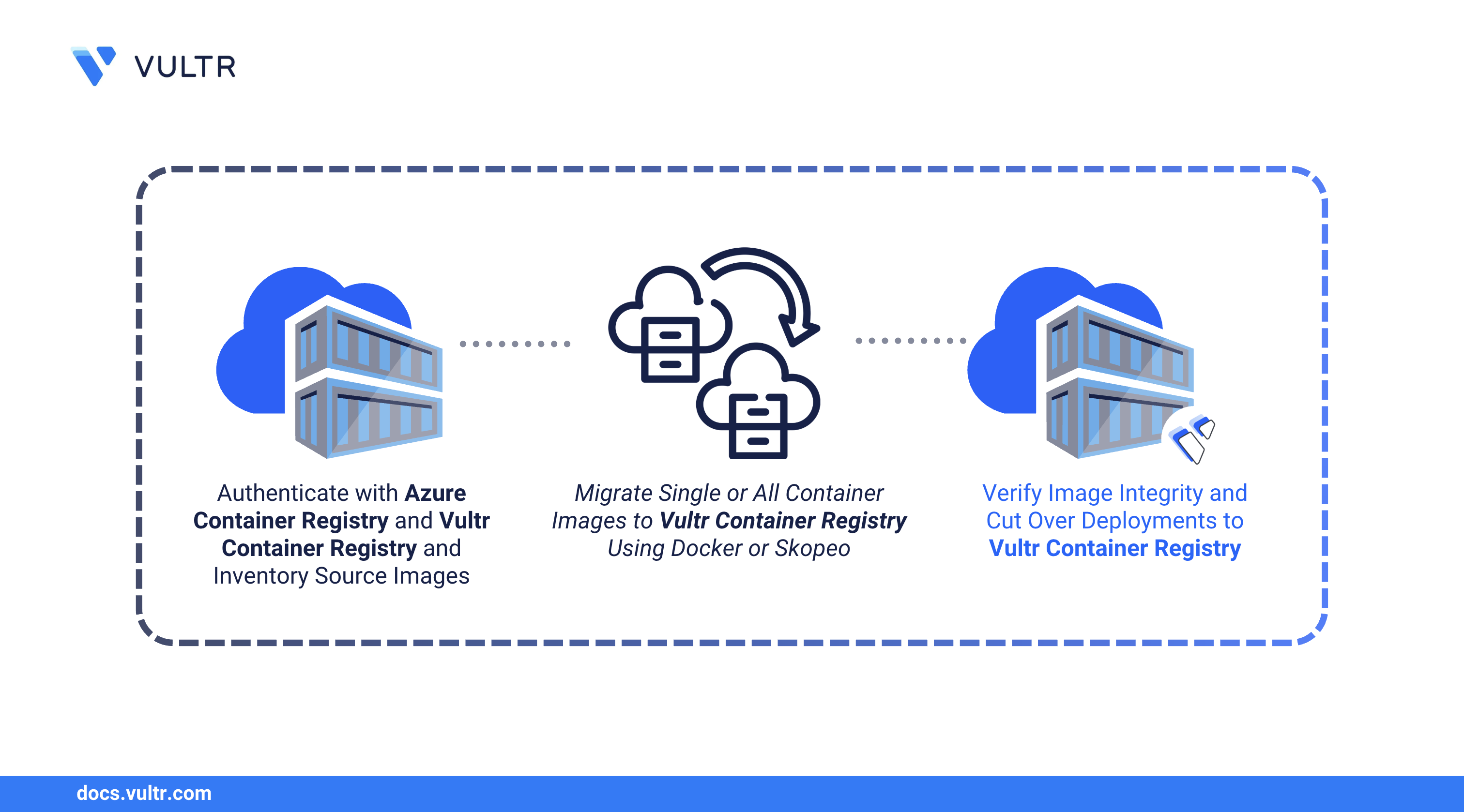
Azure Container Registry (ACR) is Microsoft's managed Docker registry service built on the open-source Docker Registry 2.0. While ACR integrates tightly with Azure services, organizations often migrate to alternative registries for cost optimization, multi-cloud flexibility, or simpler management. Vultr Container Registry offers a straightforward, globally distributed solution with predictable pricing and easy integration with container orchestration platforms.
This guide explains how to migrate container images from Azure Container Registry to Vultr Container Registry using Docker and Skopeo, covering authentication, transfer, verification, and cutover.
Prerequisites
Before you begin, you need to:
- Deploy an Ubuntu 24.04 instance to use as your migration workstation.
- Install Docker on the workstation.
- Install the Azure CLI and authenticate with an account that has pull access to your ACR.
- Provision a Vultr Container Registry and note the registry URL, username, and API key.
Authenticate with Azure Container Registry
Connect your workstation to ACR so Docker can pull images. Azure offers multiple authentication methods depending on your security requirements.
Sign in to Azure CLI.
CONSOLEFollow the browser prompts to complete authentication.
Authenticate Docker with your ACR instance. Replace
ACR-NAMEwith your registry name (without the.azurecr.iosuffix).CONSOLEOutput:
Note
If you prefer token-based authentication or need to authenticate from CI/CD pipelines, you can enable the admin user or use a service principal.
Inventory Your ACR Repositories
Before migrating, catalog all repositories and their tags in your ACR. This inventory helps you track progress and ensures no images are missed during the transfer.
List all repositories in your ACR.
CONSOLEOutput:
View tags for a specific repository.
CONSOLEOutput:
List all images with their tags across repositories.
CONSOLEDocument this inventory before proceeding with migration.
Authenticate with Vultr Container Registry
Configure Docker to push images to your Vultr registry. You'll need the registry URL and API credentials from the Vultr Console.
Log in to the Vultr Console.
Navigate to Products.
Select Container Registry.
Select your registry and note the Registry URL, Username, and API Key from the overview page.
Authenticate Docker with the Vultr registry. Replace
VULTR-REGISTRY-URL,USERNAME, andAPI-KEYwith your credentials. The registry URL should not includehttps://.CONSOLEOutput:
Migrate Images Using Docker
The standard migration workflow involves pulling images from ACR to your workstation, retagging them with the Vultr registry URL, and pushing to the destination. You can migrate individual images or automate the entire registry transfer with a script.
Migrate a Single Image
Pull an image from ACR. Replace
ACR-NAMEwith your Azure registry name.CONSOLETag the image for Vultr. Replace
VULTR-REGISTRY-URLwith your Vultr registry URL.CONSOLEPush the image to Vultr.
CONSOLE
Migrate All Repositories
Automate the migration of all images using a shell script.
Create a migration script.
CONSOLEAdd the following content. Replace
ACR-NAMEandVULTR-REGISTRY-URLwith your values.BASHSave and close the file.
Make the script executable and run it.
CONSOLE
Verify Migrated Images
After migration, validate that images transferred without corruption by comparing SHA256 digests between registries and running test containers from Vultr.
Open the Vultr Container Registry in the Vultr Console and verify your repositories appear under the Repositories tab.
Compare image digests between ACR and Vultr to confirm integrity.
Get the digest from ACR:
CONSOLEGet the digest from Vultr:
CONSOLE
The digests should match, confirming the image transferred without corruption.
Run a test container from the Vultr registry.
CONSOLEOutput:
Cutover to Vultr Container Registry
After images are verified on Vultr, update your Dockerfiles, orchestration configs, and CI/CD pipelines to use the new registry. This section covers common deployment scenarios including Docker Compose and Kubernetes.
Update Dockerfiles
Change base image references from ACR to Vultr.
Before:
DOCKERFILEAfter:
DOCKERFILE
Update Docker Compose Files
Update the image references in your compose file.
YAMLRedeploy the services.
CONSOLE
Update Kubernetes Deployments
Modify your deployment manifests.
YAMLIf your cluster requires authentication, create an image pull secret. Replace the placeholders with your Vultr registry credentials.
CONSOLEReference the secret in your deployment.
YAMLApply the updated manifests.
CONSOLE
Update CI/CD Pipelines
Replace ACR authentication and image references in your pipeline configurations.
Before (Azure DevOps / GitHub Actions):
YAMLAfter:
YAML
Conclusion
You have successfully migrated your container images from Azure Container Registry to Vultr Container Registry. This guide covered authenticating with both registries, transferring images using Docker and Skopeo, verifying integrity through digest comparison, and updating your deployments for the cutover. Your container workloads now benefit from Vultr's predictable pricing and global infrastructure. For more details on managing your registry, see the Vultr Container Registry documentation.


0 Comments
Be the first to comment and share your perspective with the community.