How to Migrate Google Cloud Compute Engine Instances to Vultr Cloud Compute
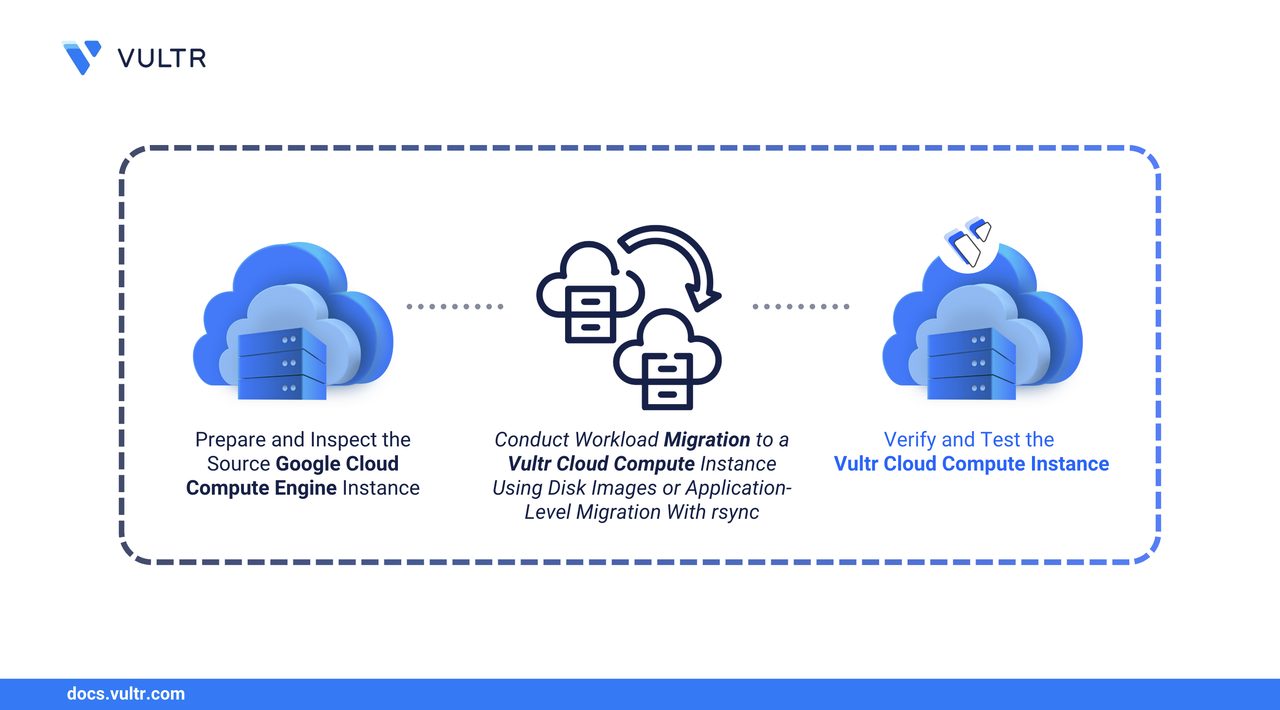
Vultr Cloud Compute provides virtual servers that run applications, host websites, and support workloads in the cloud. Migrating an instance from Google Cloud Compute (GCP) to Vultr offers benefits such as modern hardware for improved performance, an intuitive Vultr Console for management, and predictable, competitive pricing.
This guide explains the application-level migration process from GCP to Vultr. It shows how to back up the source instance, inspect system configuration, migrate user accounts and groups, transfer applications and data using rsync, migrate databases, and validate functionality after cutover. This approach avoids GCP-specific configurations that may not work on Vultr and provides a clean, controlled migration path.
Prerequisites
Before you begin, you need to:
- Have access to a Google Compute Engine instance as a non-root user with
sudoprivileges. - Have access to a Vultr Cloud Compute instance with equal or greater resources (CPU, memory, disk).
- Ensure SSH key-based authentication is configured between the source and destination instances for secure, password-less rsync transfers.
- Record critical application details such as installed packages, configuration paths, and active services before starting migration.
Why Application-Level Migration?
This guide uses application-level migration rather than raw disk image migration. Raw images from GCP often include cloud-specific configurations (network settings, Cloud Init scripts, APT repositories) that may not work properly on Vultr, leading to boot failures or misconfigurations. Application-level migration provides:
- Clean environment: Start with a fresh Vultr instance, avoiding GCP-specific settings.
- Selective transfer: Migrate only necessary applications, users, and data.
- Flexibility: Upgrade to a newer OS version or restructure during migration.
- Minimal downtime: Move workloads incrementally and test before cutover.
Backup the Source GCP Instance
Before starting migration, create a backup of the source instance to protect against data loss or mistakes during the process.
Create a snapshot of the GCP instance disk using the Google Cloud Console or the
gcloudcommand.CONSOLEReplace
<DISK_NAME>,<SNAPSHOT_NAME>, and<ZONE>with your values.Alternatively, create a machine image that includes all attached disks and metadata.
CONSOLEReplace
<IMAGE_NAME>,<INSTANCE_NAME>, and<ZONE>with your values.Verify the backup was created successfully.
CONSOLE
Keep this backup until migration is complete and the Vultr instance is stable in production.
Inspect Your GCP Instance Before Migration
Before starting the migration, collect details about the current GCP instance. Record active services, open ports, cron jobs, user accounts, groups, installed packages, and important configuration paths. This information helps verify that all components work correctly after migration.
List running services to identify those that must be migrated.
CONSOLEList ports used by applications.
CONSOLEView user-specific cron job files.
CONSOLEEach file corresponds to the active cron jobs of a Linux user.
Check the system-wide cron job file.
CONSOLEIf the file contains entries, include them in the migration plan.
View existing user accounts.
CONSOLEEach line follows the format:
UID: Unique user ID number.GID: Primary group ID number.
Normal user accounts typically have UID values above
1000.View existing user groups.
CONSOLEEach line follows the format:
GID: Unique group ID number.member_list: Comma-separated users in the group.
List installed packages.
Debian/Ubuntu:
CONSOLECentOS/RHEL:
CONSOLE
Record critical data and configuration paths, such as
/etc/nginx/,/var/www/,/opt/app/, and database directories.Note
The above files and configuration directories depend on your application setup. Refer to the official application documentation to identify other important directories specific to your environment.
If the instance uses GCP VPC firewall rules, recreate them on Vultr by configuring a Firewall Group and linking it to the target instance.
Migrate User Accounts and Groups
Migrate user accounts with UID values above 1000 (normal user accounts). Avoid migrating system users (UID < 1000) or cloud-specific accounts (e.g., google-sudoers). Do not migrate application-specific users; most applications recreate their own user accounts during installation.
On the GCP instance, list user accounts with UID >= 1000.
CONSOLEOutput:
On the GCP instance, export user and group information to text files, excluding
nobodyand cloud-specific accounts.CONSOLEReview all four exported files and confirm that only the intended user accounts are included. Manually remove any unwanted or inconsistent entries before proceeding.
Transfer these files to the Vultr instance.
CONSOLEReplace
<VULTR_IP>with your Vultr instance IP address.On the Vultr instance, append the user and group entries to the appropriate files.
CONSOLETransfer user home directories from the GCP instance to the Vultr instance. Replace
<USERNAME>with the actual username.CONSOLERepeat this command for each user directory you need to migrate.
On the Vultr instance, move the directories to
/home/and set correct ownership and permissions.CONSOLEVerify that each migrated home directory exists under
/home/, is owned by the correct user and group, and has secure permissions.
Migrate Applications
Application migration steps vary based on the type of application. Follow these general steps to migrate any web or server-based application. Refer to the official documentation for application-specific best practices.
On the Vultr instance, install all necessary runtime components, such as web servers, application runtimes, and databases.
For Debian/Ubuntu servers:
CONSOLEFor RHEL/CentOS/Fedora servers:
CONSOLE
Copy the complete application directory from the source instance to the destination instance using
rsyncor another secure transfer tool.CONSOLEReplace
/path/to/application/with the actual application directory path.Move the application directory to the destination path.
CONSOLEOn the Vultr instance, ensure that the application files are owned by the appropriate user and group, and have correct permissions.
CONSOLEExport the database from the source instance, transfer it, and import it into the database server on the destination instance. Refer to the Migrate Database section for detailed steps.
Edit configuration files to reflect the new environment for example, updating database connection details, file paths, or API endpoints.
Set up your web server (e.g., Nginx, Apache) or application process manager (e.g., Gunicorn, PM2) to serve the application.
On the GCP instance, list existing cron jobs.
CONSOLEOn the Vultr instance, add the same cron jobs.
CONSOLEIf any cron jobs reference custom scripts, copy those scripts from the GCP instance to the Vultr instance first. Ensure the scripts retain their original paths and permissions before re-creating the cron jobs.
Open the necessary ports in the firewall on the Vultr instance to allow required traffic. Use one of the following tools based on your instance's firewall configuration.
UFW (Ubuntu/Debian):
CONSOLEfirewalld (RHEL/CentOS/Fedora):
CONSOLEiptables (generic):
CONSOLE
Note
The above example exposes HTTP (port
80) and HTTPS (port443). Modify the commands as needed to open the specific ports required by your application.Enable the site configuration and restart the necessary services.
CONSOLEAccess the application using the Vultr instance's IP or temporary domain to verify that it functions correctly before updating DNS records.
Migrating a Database
To migrate databases, use tools such as mysqldump to export data from the source instance, transfer the dump file to the destination, and restore it. The example below demonstrates the process with MySQL or MariaDB.
Note
This guide demonstrates MySQL and MariaDB server migration. For other database systems such as PostgreSQL or MongoDB refer to the official backup and restore documentation for those platforms.
Check the database versions on both instances.
CONSOLEVerify the versions match or are compatible.
Export all databases from the GCP instance. Replace
db_userwith the actual username.CONSOLEThe command prompts for the user's password before creating
all_databases_backup.sql.Transfer the dump file to the Vultr instance using
rsync. Replace192.0.2.1with the destination IP.CONSOLEImport the dump into the target database server.
CONSOLEThis restores all databases, users, and privileges from the backup file.
Test Service Functionality After Migration
After completing migration, verify that applications and services run as expected.
Check that all relevant services are active.
CONSOLEReplace
<service_name>with your service names such asnginx,apache2,mysql, or other application services.Verify cron jobs are configured correctly.
CONSOLEReplace
<username>with the relevant user account.View server performance and resource usage.
CONSOLEPress
qto exit. Review CPU usage, load averages, and running processes.Check RAM utilization.
CONSOLEInspect application logs for warnings or errors.
CONSOLEReplace
<application>with the relevant log path for your services.Test web applications and API endpoints. If using temporary domains or hosts file overrides, expect certificate warnings.
Run application health checks and confirm endpoints respond correctly.
Monitor system resources for anomalies using the Vultr Console or command-line tools.
Cutover Checklist
- Lower DNS TTL at least 30min hours before migration to speed propagation.
- Test the new instance using a temporary subdomain or local hosts file entry before updating DNS records.
- Update DNS records to point production domains to the Vultr instance and monitor application logs, health checks, and system metrics after traffic shifts.
- Keep the GCP instance online for a fallback period, then decommission it after confirming stable operation on Vultr.
Conclusion
You have successfully migrated a Google Cloud Compute instance to Vultr using application-level migration. This approach avoids GCP-specific configurations that may cause issues on Vultr and provides a clean, controlled migration path. Your applications now run on Vultr's modern infrastructure with predictable pricing and global availability.


0 Comments
Be the first to comment and share your perspective with the community.