How to Rename a Directory in Linux
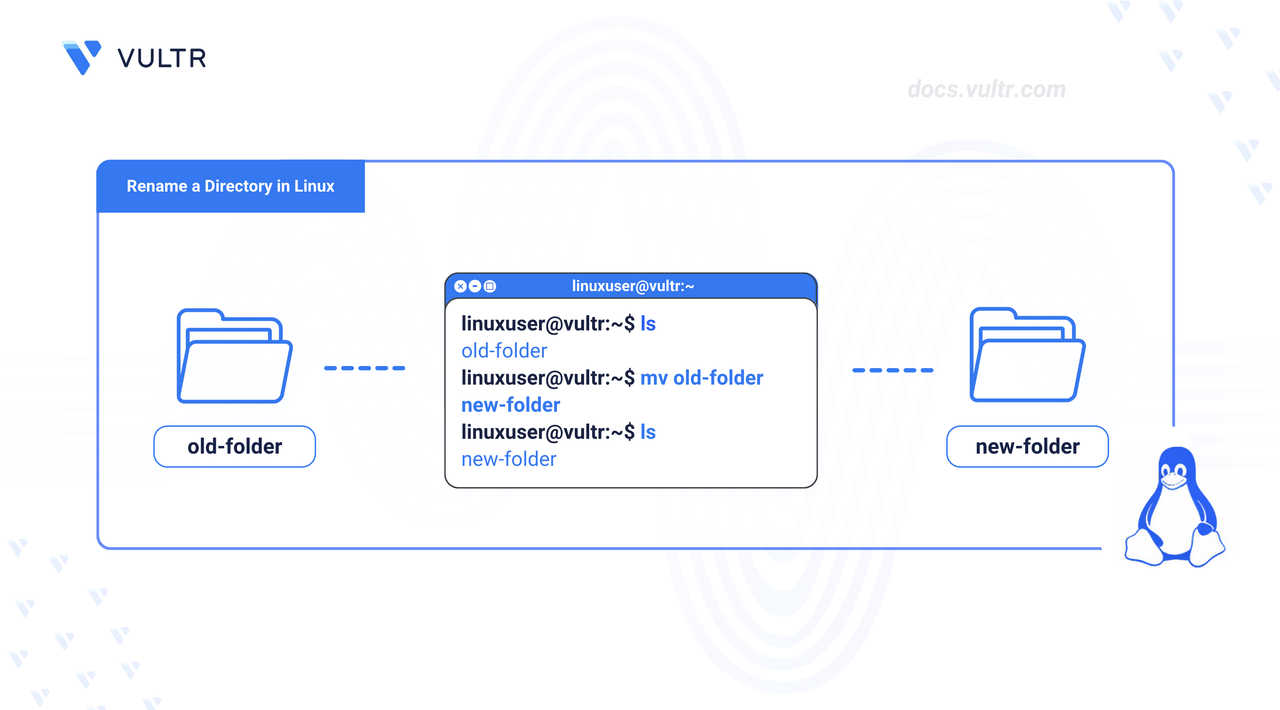
In Linux, managing files and directories often involves operations such as renaming, organizing, and moving them across locations. One of the most common and efficient ways to rename a directory is by using the mv (move) command. This command allows you to rename files or directories by moving them to a new name within the same path.
This article explains how to rename a files and directories in Linux using the mv command.
Prerequisites
Before you begin, you need to:
- Have access to a Linux-based instance as a non-root user with sudo privileges.
mv Command Syntax
The mv (move) command in Linux is used to move or rename files and directories. When used for renaming, it changes the name of a file or directory without altering its content or location.
Syntax:
Parameters
SOURCE: The current name of the file or directory that you want to move or rename.DEST: The new name that you want to assign to the file or directory.
Common Options
[OPTIONS]: Flags that modify the behavior of themvcommand. Below are the commonly used options:-ior--interactive: Prompts for confirmation before overwriting an existing file or directory.-nor--no-clobber: Prevents overwriting an existing file or directory.-vor--verbose: Displays a verbose output of the operation.-Tor--no-target-directory: Treats the target as a normal directory and not as a destination directory into which the source should be moved.
Rename a Directory Using the mv Command
In Linux, renaming a directory is done using the mv (move) command. You only need to specify the source name of the directory followed by the new name you want to assign. This section explains how to rename a directory in Linux, along with the flags that modify the behavior of the command.
Rename a Directory
Use the mv command to rename the current_dir directory to renamed_dir.
CONSOLE
The above command renames the directory current_dir to renamed_dir, only if the renamed_dir directory does not already exist. If the renamed_dir directory does exist, the command will move the current_dir directory inside the renamed_dir directory instead of renaming it.
Force Target as a Normal Directory
If there is already a directory with your target name, use the -T option to treat the target as a normal directory and not as a destination directory.
CONSOLE
The above command replaces the renamed_dir directory with the contents of the current_dir directory. Note that the -T option only works if the renamed_dir directory is empty.
Prompt Before Overwriting
Use the mv command with the interactive flag -i to prompt before overwriting an existing directory, and -T flag to ensure the target is treated as a normal directory name rather than a directory to move into.
CONSOLE
If renamed_dir directory already exists, the terminal prompts you for confirmation before proceeding with the operation. Output:
Enter Y to overwrite the directory, or enter N to cancel the operation.
Prevent Overwriting
Use the mv command with the no-clobber flag -n to prevent overwriting an existing directory, and -T flag to ensure the target is treated as a normal directory name rather than a directory to move into.
CONSOLE
The command above will rename current_dir to renamed_dir only if renamed_dir does not already exist. If renamed_dir exists, the -n flag will prevent the operation from proceeding, ensuring that the existing directory is not overwritten.
Show Verbose Output
Use the mv command with the verbose flag -v to display a verbose output of the operation, and -T flag to ensure the target is treated as a normal directory name rather than a directory to move into.
CONSOLE
Output:
Note
If you are not the owner of a directory or if you are trying to rename a system file or directory, you must prefix the command with sudo to gain the necessary permissions:
CONSOLE
However, do not rename critical system directories such as /etc, /var, /usr, or any application-specific configuration directories unless you are absolutely sure of the consequences. Incorrect renaming can break your system or render your server unusable.
Rename a Subdirectory Using the mv Command
Renaming a subdirectory in Linux works the same way as renaming a top-level directory. Use the mv (move) command with either a relative path from your current working directory or an absolute path starting from the root. This section demonstrates how to rename a subdirectory using both approaches.
Rename Using a Relative Path
Assuming that your current working directory is /home/user/project. To rename the subdirectory sub_dir inside parent_dir using the relative path.
CONSOLE
This command renames sub_dir to renamed_sub_dir within parent_dir.
Rename Using an Absolute Path
Using the absolute path, you can rename the subdirectory regardless of your current working directory.
CONSOLE
This method is useful when working from a different location or within scripts that rely on full paths.
Note
Whether you use a relative or absolute path, ensure that the target path (renamed_sub_dir) does not already exist unless you're intentionally overwriting or moving the source into it. Use the -i, -n, -T, or -v options with mv for safer and more controlled operations.
Rename Files Using the mv Command
Renaming files in Linux uses the same syntax as renaming directories. Use the mv (move) command by specifying the current filename followed by the new name you want to assign. This section explains how to rename files using the mv command along with optional flags to control the behavior.
Rename a File
Use the mv command to rename the file file.txt to new_filename.txt.
CONSOLE
The command above renames the file file.txt to new_filename.txt if the new_filename.txt file does not already exist. When renaming files, preserve the file extension unless you specifically intend to change it.
Warning
If a file named new_filename.txt already exists, it will be overwritten without warning unless you use the interactive flag -i to prompt for confirmation before overwriting.
Prompt Before Overwriting
To avoid accidentally overwriting an existing file when renaming, use the interactive flag -i.
CONSOLE
The command above prompts you for confirmation before replacing new_filename.txt if it already exists.
Prevent Overwriting
To prevent overwriting an existing file without prompting, use the no-clobber flag -n.
CONSOLE
The command above skips the renaming operation if new_filename.txt already exists, preventing it from being overwritten.
Show Verbose Output
To display a detailed output of the operation, use the verbose flag -v.
CONSOLE
Output:
Use sudo for Restricted Files
Use sudo with the mv command if you do not have permission to rename a file.
CONSOLE
Warning
Use sudo with caution. Renaming system or configuration files without understanding their function can cause system errors or break applications.
Conclusion
You have learned how to rename directories, subdirectories, and files in Linux using the mv (move) command. This includes applying commonly used flags like interactive (i), verbose (-v), no-clobber (-n), and no-target-directory (-T) to modify the command's behavior. You also learned how to use both relative and absolute paths when renaming subdirectories, and when to use sudo for operations requiring elevated permissions. For more information, run the man mv command to view the manual page of the mv (move) command on your Linux workstation.
Tags:Linux Commands


0 Comments
Be the first to comment and share your perspective with the community.