How to Rename Files and Directories in Linux
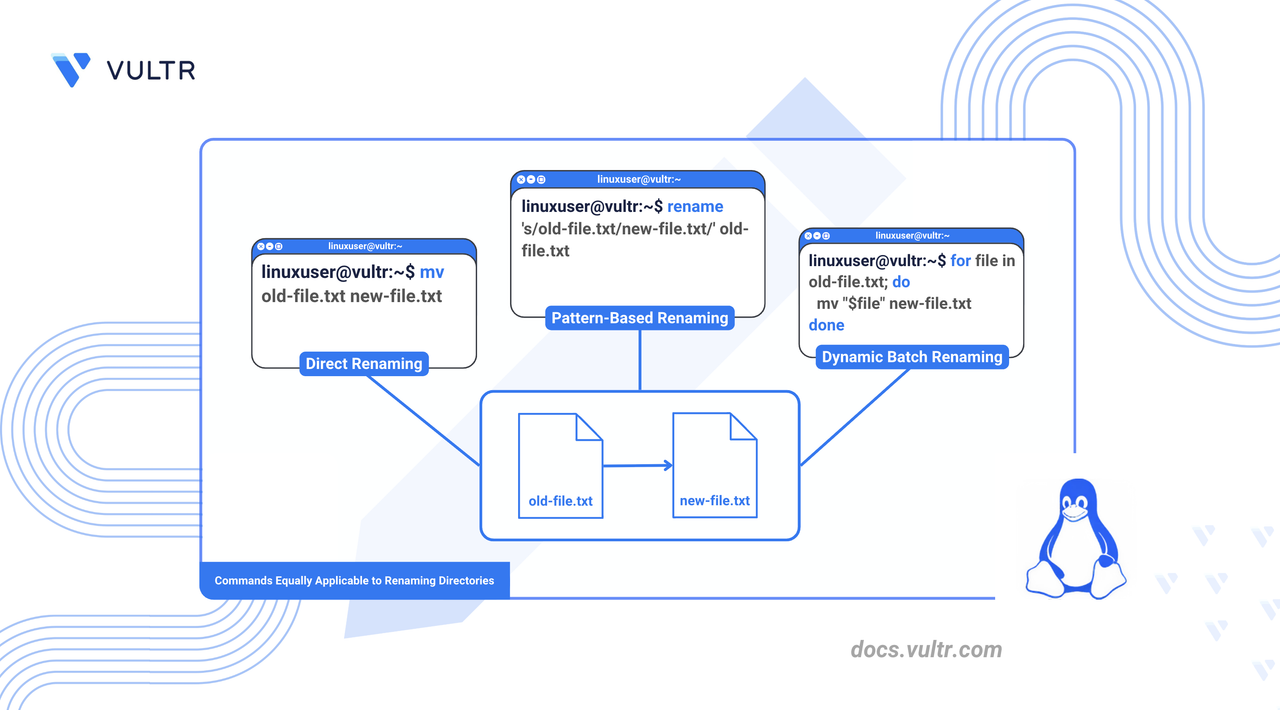
Renaming files and directories is a routine but essential task when managing Linux systems. Whether you're organizing documents, restructuring a project, or automating workflows, Linux provides powerful command-line tools to simplify the process.
This article explains multiple ways to rename files and directories using the mv and rename commands. You’ll also learn how to perform bulk renaming with shell loops and apply best practices to avoid overwriting files or introducing naming errors.
Prerequisites
Before you begin, you need to:
- Have access to a Linux instance as a non-root user with sudo privileges.
Commands for Renaming Files and Directories in Linux
Linux offers multiple ways to rename files and directories using command-line tools. The most commonly used methods include:
mv: Renames or moves files and directories.rename: Renames multiple files using Perl-compatible expressions.- Bash loops: Automates bulk renaming with flexible logic.
Each method serves different use cases, which the following sections cover in detail.
Rename Files in Linux
Renaming files in Linux helps organize content, improve clarity, and ensure consistent naming across your projects.
Using the mv Command
Command Syntax
old_filename: The current name of the file.new_filename: The new name to assign.-i: Prompt before overwrite.-n: Prevent overwriting an existing file.
Command Demonstration
Rename
document.txttoreport.txt.CONSOLEVerify the result.
CONSOLEOutput.
Prompt before overwriting.
CONSOLEPrevent overwriting with
-n.CONSOLEmvoverwrites files silently unless you use-ior-n.If the filename includes spaces, wrap it in double quotes.
CONSOLE
Using the rename Command
This article uses the Perl-based rename utility (also called prename), which is default on Debian-based distributions like Ubuntu. On other distributions, such as CentOS or Fedora, rename may refer to a different C-based implementation with different syntax.
CONSOLE
Command Syntax
's/old/new/': Perl-style substitution pattern.files_to_rename: One or more files that match the pattern.
Command Demonstration
Rename
.txtfiles to.md.CONSOLEConvert all filenames to lowercase.
CONSOLETo preview changes before renaming, use the
-nflag withrenamefor a dry run.CONSOLEOr use a loop with
echoto simulate:CONSOLE
Using Bash Loops
Command Syntax
*.txt: All files ending in.txt.mv -- "$f": Rename each file individually."${f%.txt}.pdf": Change the extension from.txtto.pdf.
Command Demonstration
Batch rename all
.txtfiles to.pdf.CONSOLEAdd the
-nflag to prevent overwriting files if they already exist.CONSOLE
Rename Directories in Linux
Renaming directories helps improve project organization, enforce naming conventions, and maintain a clean directory structure. This section explores multiple methods to rename directories in Linux.
Using the mv Command
Command Syntax
old_directory: The current name of the directory.new_directory: The new name to assign.-T: Treat the destination as a regular file or directory, not a target location.
Command Demonstration
Rename the
projectsdirectory towork.CONSOLEIf
workalready exists and you want to overwrite it directly rather than moveprojectsinsidework/, use the-Tflag.CONSOLE
Using the rename Command
Command Syntax
's/old/new/': Perl-style substitution pattern.*/: Targets all directories in the current path.
Command Demonstration
Replace
oldwithnewin all directory names.CONSOLE
Bulk Renaming Directories with Loops
Command Syntax
*/: Matches all directories in the current path.${dir%/}_backup: Appends_backupto the directory name after removing the trailing slash.
Command Demonstration
Append
_backupto all directories.CONSOLEAlways preview loop-based renaming with
echobefore running destructive changes.CONSOLE
Conclusion
In this article, you learned how to rename files and directories in Linux using various command-line tools. You used the mv command for simple renames, the rename command for pattern-based bulk operations, and Bash loops for custom renaming logic. These techniques help you maintain a clean file structure, automate repetitive tasks, and manage large directories efficiently. For additional options and examples, explore the official man pages for mv and rename.
Tags:Linux Commands


0 Comments
Be the first to comment and share your perspective with the community.