How to Deploy OpenAI Codex CLI Projects on Vultr Using Dokploy
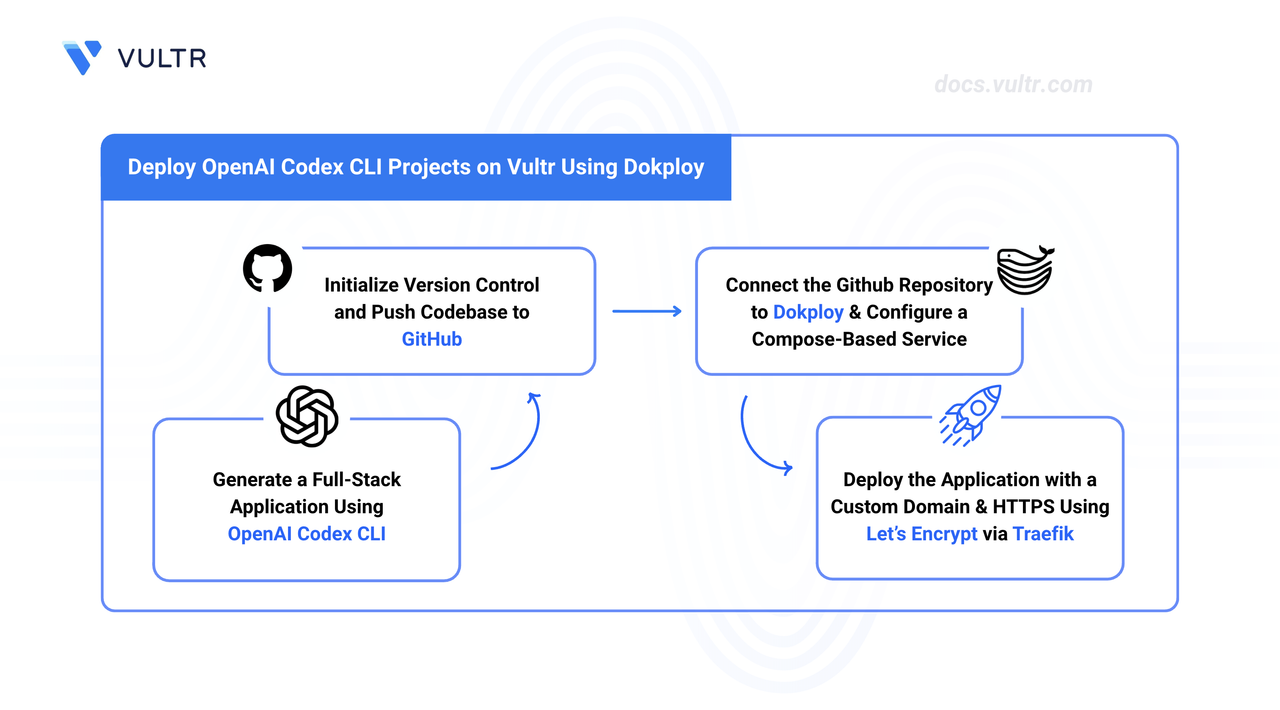
OpenAI Codex CLI is an AI developer terminal tool for creating full-stack production-ready applications. Dokploy is an open-source platform-as-a-service that automates infrastructure provisioning and Docker orchestration for self-hosted environments.
This guide explains how to install the Codex CLI, create a full-stack application, and deploy it on Vultr using Dokploy.
Prerequisites
- Have an active OpenAI account, or an API key from the OpenAI developer platform.
- Install Node.js on your local machine.
- Have access to an Ubuntu 24.04 server as a non-root user with sudo privileges.
- Install Dokploy and create your administrator account.
- Set up a domain name, such as
app.example.com, and point it to your server's public IP address using an A record.
Set Up Codex CLI
Install the Codex CLI and authenticate with your OpenAI account to prepare the development environment.
Install the Codex CLI globally using npm.
CONSOLEAuthenticate the CLI. If you have a ChatGPT subscription, run the following command and complete the browser login flow.
CONSOLEIf you use an API key instead, set it as an environment variable. Replace
YOUR_API_KEYwith the key from your OpenAI dashboard.CONSOLECreate a new project directory.
CONSOLENavigate into the directory.
CONSOLELaunch the Codex CLI.
CONSOLE
Create an Application Using AI
Prompt the Codex agent to generate the project files and container configuration.
In the prompt field, describe your application and instruct the agent to make it compatible with Dokploy. Include all required features and the desired service stack. Request a
docker-compose.ymlif the application involves multiple services.Wait for the Codex agent to generate the application files.
Optionally, test the application on your local machine using the generated Docker configuration. The generated
README.mdfile contains local setup instructions.Press Ctrl + C to exit Codex.
Create a new empty repository on GitHub.
Initialize the local Git repository.
CONSOLEStage the generated files for commit.
CONSOLECommit the files to the local repository.
CONSOLESet the default branch to main.
CONSOLEAdd your GitHub repository as a remote. Replace
YOUR_REPOSITORY_URLwith your repository's URL.CONSOLEPush the source code to GitHub.
CONSOLE
Connect GitHub Repository
Connect your GitHub account with Dokploy to grant it access to pull code from your repositories.
- Navigate to your instance's IP address on port
3000, for example192.0.2.1:3000, in a web browser to open the Dokploy dashboard. - Log in to the administrator account.
- Select Git under Settings in the left sidebar.
- Click GitHub, then click Create GitHub App.
- Follow the GitHub OAuth prompts to authorize the app and select the repositories Dokploy can access.
Create a New Project
Projects in Dokploy isolate different application environments.
- Click Projects in the left sidebar.
- Click Create Project, enter a project name, and click Create.
- Click on the newly created project to open it.
Connect the Code Repository
Deploy the application by specifying the source repository and creating a new Docker Compose service.
On your project page, click Create Service and select Compose.
Enter a name for your service and click Create.
Open your new Compose service.
Locate the Github configuration section.
Select your GitHub account and repository.
Set the correct Branch.
Click Save to apply the repository settings.
Open the
docker-compose.ymlfile in your local repository and make the following two adjustments to the web service before deploying:- Remove any
ports:mappings. Dokploy routes traffic through Traefik, so the web service does not need to bind a port on the host. - Add
dokploy-networkto the service's networks so Traefik can reach the container:
YAMLReplace
webwith the actual service name from your compose file.- Remove any
Commit and push the changes to your repository.
Start the Deployment
Dokploy fetches the source code and builds the Docker containers when you trigger a deployment. If your application requires environment variables such as API keys or database credentials, set them under the Environment tab before deploying.
- Switch to the General settings tab.
- Click Deploy, then click Confirm.
- Click View to monitor the real-time deployment logs.
Verify Deployment
Connect your domain for a production-ready URL and encrypted traffic. Dokploy provisions a Let's Encrypt SSL certificate through Traefik when you enable HTTPS.
- Navigate to the Domains tab and click Add Domain.
- Select the name of your web service container in the Service Name field, for example
web. - Type your custom domain into the Host field.
- Enable the HTTPS toggle.
- Select Let's Encrypt from the Certificate Provider dropdown.
- Click Create.
- Click Validate DNS to verify your domain's DNS configuration.
Add a Database
Dokploy supports deploying managed database containers within the same project. The internal connection URL connects the database directly to your application over Docker's internal network without exposing it to the internet.
- Navigate to your project page.
- Click Create Service and select Database.
- Select the database type that matches your application's requirements.
- Enter a name for the database and click Create.
- Open the database service page and click Deploy.
- Copy the Internal Connection URL.
- Go to the Environment tab in your application's configuration page.
- Create or update the
DATABASE_URLvariable and paste the copied connection URL as the value. - Click Save.
Conclusion
You have successfully created a full-stack application using Codex CLI, pushed the source code to GitHub, and deployed it on Vultr using Dokploy. The application now serves traffic over a custom domain secured with a Let's Encrypt TLS certificate. For more information and advanced configuration options, refer to the official Dokploy documentation.
Tags:Dokploy


0 Comments
Be the first to comment and share your perspective with the community.