How to Install Caddy Webserver on Debian 12
Introduction
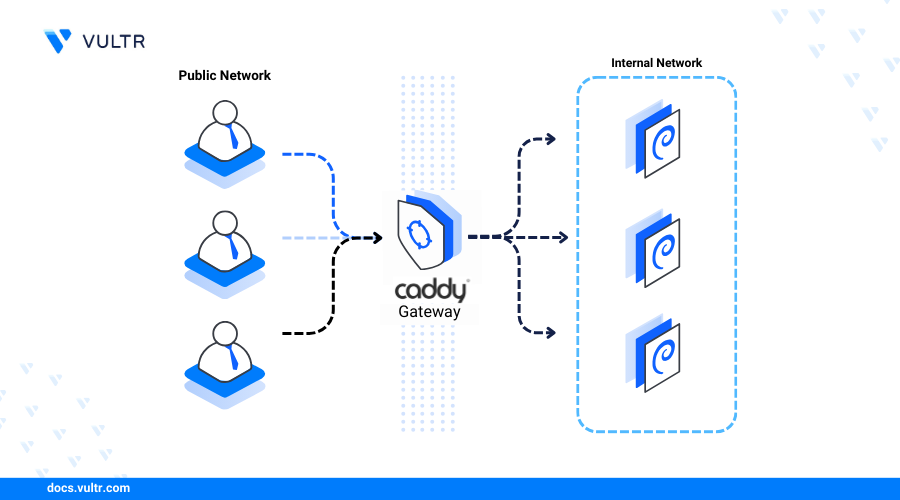
Caddy is an open-source webserver that enables the deliver of dynamic web applications with automatic TLS/SSL termination. Caddy can work as a webserver, reverse proxy, load balancer, or API gateway to securely deliver applications or services using site block configurations.
This article explains how to install the Caddy webserver on Debian 12.
Prerequisites
Before you begin:
- Deploy a Debian 12 server on Vultr.
- Create a domain name A record pointing to the server IP address.
- Securely access the server using SSH as a non-root sudo user.
- Update the server.
Install Caddy
Caddy is not available in the Debian 12 package repositories by default but can be installed from source files or through the latest repository information on your server. Follow the steps below to download the latest Caddy repository information and install the application on your server.
Update the server's package index.
CONSOLEInstall all necessary dependency packages.
CONSOLEImport the Caddy repository GPG key.
CONSOLEAdd the Caddy repository to your APT sources.
CONSOLEUpdate the server's package index again.
CONSOLEInstall Caddy.
CONSOLEView the installed Caddy version on your server.
CONSOLEYou output should be similar to the one below.
Allow incoming connections to the HTTP port
80through the firewall.CONSOLERestart the firewall to apply changes.
CONSOLEAccess your Server IP using a web browser such as Chrome and verify that Caddy delivers the default web application page.
Manage the Caddy System Service
Follow the steps below to manage Caddy as a system service on your server.
Enable the Caddy system service to automatically start at boot.
CONSOLEStart the Caddy service.
CONSOLEView the Caddy service status and verify that it's running.
CONSOLEYour output should look like the one below:
Create a New Caddy Virtual Host
Caddy stores configuration files in the /etc/caddy directory by default and supports Caddyfile configurations from any location on your server. Follow the steps below to create a new Caddy virtual host to serve web application files from the /var/www/example.com directory on your server.
Create a new
/var/www/example.comweb application files directory.CONSOLECreate a new HTML application file
index.html.CONSOLEAdd the following contents to the
index.htmlfile.HTMLSave and close the file.
Switch to the Caddy configuration files directory.
CONSOLEBack up the default Caddyfile configuration.
CONSOLECreate a new Caddyfile configuration.
CONSOLEAdd the following configurations to the file. Replace
example.comwith your actual domain.INISave and exit the file.
The above Caddy configuration creates a new virtual host and delivers web application files using your domain
example.com. Within the configuration:example.com: Defines a new virtual host entry for your domain or IP address.tls: Specifies the email address to associate with Let's Encrypt SSL certificate generation requests.root: Specifies the directory where your web application files are stored.file_server: Activates the file server for your web application. Within the directive,indexspecifies the default file to serve when your domain is accessed.log: Enables logging of access and error details to a specific file such as/var/log/caddy/example.log.
Test the Caddy configuration for errors.
CONSOLEOutput:
Reload the Caddy service to apply the configuration changes.
CONSOLE
Secure the Caddy Webserver
Caddy automatically generates and renews trusted Let's Encrypt SSL certificates from for all site blocks with domain values. Follow the steps below to secure access to the Caddyfile configuration and allow network connections to all necessary network connection ports.
Grant the Caddy user full privileges to the
/etc/caddydirectory.CONSOLEGrant the Caddy user full permissions to the Caddyfile while disabling access for other system users.
CONSOLELong list the
/etc/caddydirectory to verify the permission changes.CONSOLEOutput:
Set Up Firewall Rules
Caddy uses the HTTP port 80 and HTTPS port 443 to serve web application files on your server. Follow the steps below to configure the default firewall to allow connections to all network ports required by the Caddy webserver.
View the UFW status and verify that it's active.
CONSOLEIf the status is
inactive, allow the SSH port22and enable UFW.CONSOLEAllow incoming connections to the HTTPS port
443.CONSOLEReload the firewall to apply changes.
CONSOLEView the firewall status.
CONSOLEAccess your domain using a browser such as Chrome to verify that Caddy serves your virtual host's web application files.
Conclusion
You have installed Caddy on a Debian 12 server and managed the application service to securely deliver web applications. Caddy can work as a webserver or a reverse proxy to securely deliver applications or services. For more information and configuration options, visit the Caddy documentation.


0 Comments
Be the first to comment and share your perspective with the community.