How to Install MySQL on Ubuntu 22.04
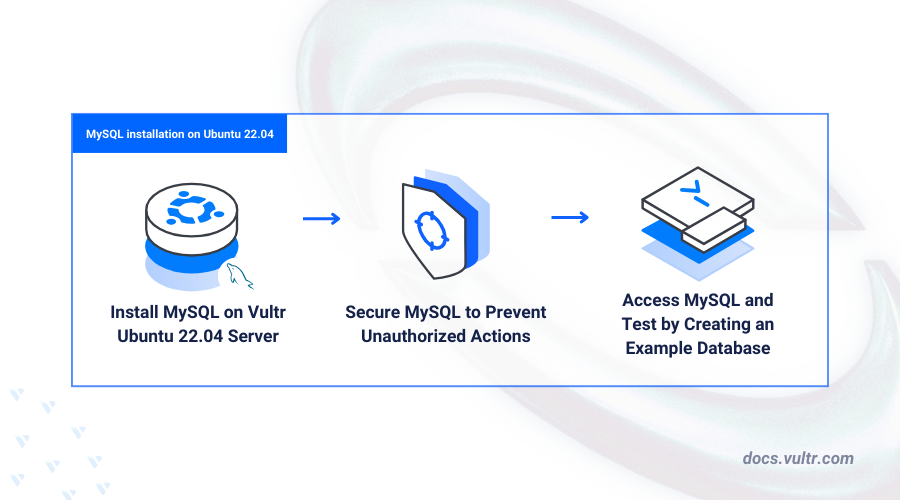
MySQL is a popular open-source relational database management system (RDBMS) that uses SQL to store, manage, and retrieve data efficiently. It’s widely used for web applications, data storage, and complex data management. Installing MySQL on Ubuntu 22.04 provides a stable environment for building and securing databases.
In this article, you’ll learn how to install and configure MySQL on Ubuntu 22.04, from system updates to securing your database. If you’re working with other Linux distributions, you can check out our article on installing MySQL on Debian 12 for a similar approach.
Prerequisites
Before you begin:
Have an Ubuntu 22.04 server.
Access the server using SSH as a non-root user with sudo privileges.
Install MySQL on Ubuntu 22.04
MySQL is available in the default APT repositories on Ubuntu 22.04. You can install the latest version directly or use a PPA for a specific release. Follow the steps below to update your server and install MySQL.
Update the server package index.
CONSOLEInstall the MySQL server package.
CONSOLEView the installed MySQL version on your server.
CONSOLEOutput:
Manage the MySQL System Service
MySQL runs under the mysql system service to manage database processes on Ubuntu 22.04. Follow the steps below to enable the service to start at boot and verify its status.
Enable MySQL to automatically start at boot time.
CONSOLEOutput:
Start the MySQL database server.
CONSOLEView the MySQL server status and verify that it's running.
CONSOLEOutput:
Secure the MySQL Server
Securing the MySQL server is essential to protect databases from unauthorized access. By default, privileged users like root can access the MySQL console without a password. Follow the steps below to set a new root password and disable insecure defaults to secure your database server.
Run the following command to start the MySQL secure installation script.
CONSOLEFollow the script prompts below to set up a new root user password, remove anonymous users, disallow remote root login, and remove test databases on your MySQL database server.
- VALIDATE PASSWORD component: Enter Y and press Enter to enable password validation on your server.
- Password Validation Policy: Enter 2 to enable the usage of strong passwords on your server.
- Do you wish to continue with the password provided?: Enter Y to apply the new user password.
- Remove anonymous users?: Enter Y to revoke MySQL console access to unknown database users.
- Disallow root login remotely?: Enter Y to disable remote access to the MySQL root user account on your server.
- Remove test database and access to it?: Enter Y to delete the MySQL test databases.
- Reload privilege tables now?: Enter Y to refresh the MySQL privilege tables and apply your new configuration changes.
Log in to the MySQL database server as
root.CONSOLESet a strong password for the root user.
SQLReplace
your_strong_passwordwith a strong password depending on your password strength policy.Reload the MySQL Privilege tables to apply changes.
SQLExit the MySQL console.
SQLRestart the MySQL service to apply your configuration changes.
CONSOLE
Access MySQL
Log in to the MySQL database server as
root.CONSOLEEnter the root user password you set earlier when prompted.
Create a new sample MySQL database. For example,
my_database.SQLCreate a new MySQL database user with a strong password. For example,
my_userand replacemy_passwordwith your desired password depending on your password strength policy.SQLGrant the database user
my_userfull privileges to your sample databasemy_database.SQLGrant the user
my_userpermission to create databases on the server.SQLGrant the user
my_userpermission to perform CRUD operations (SELECT, INSERT, UPDATE, DELETE) on all databases.SQLRefresh the MySQL privilege tables to apply the new user changes.
SQLExit the MySQL database console.
SQL
Create a Sample MySQL Database
By default, non-privileged MySQL users have CREATE privileges on the database server. In the following steps, we’ll create an example database using the non-privileged user my_user and add new records to the database tables.
Log in to the MySQL database console using the database user
my_useryou created earlier.CONSOLEEnter the
my_userpassword you set earlier when prompted.List all databases available to the MySQL user
SQLOutput:
Create another sample MySQL database. For example,
bookstore_db.SQLSwitch to the new database.
SQLCreate a new sample table with the 3 columns to store different data types.
SQLInsert sample data into the
sample_tabletable.SQLSelect all table records to verify that the new table data is available.
SQLOutput:
Conclusion
In this article, you installed MySQL on your Ubuntu 22.04 server and secured the database to ensure authenticated access for valid users. MySQL integrates seamlessly with modern web applications, and you can use your server as a dedicated remote database server or as the database backend for dynamic application stacks such as LAMP.


0 Comments
Be the first to comment and share your perspective with the community.