How to Install Nginx UI on Ubuntu 24.04- An Opensource WebUI for Nginx
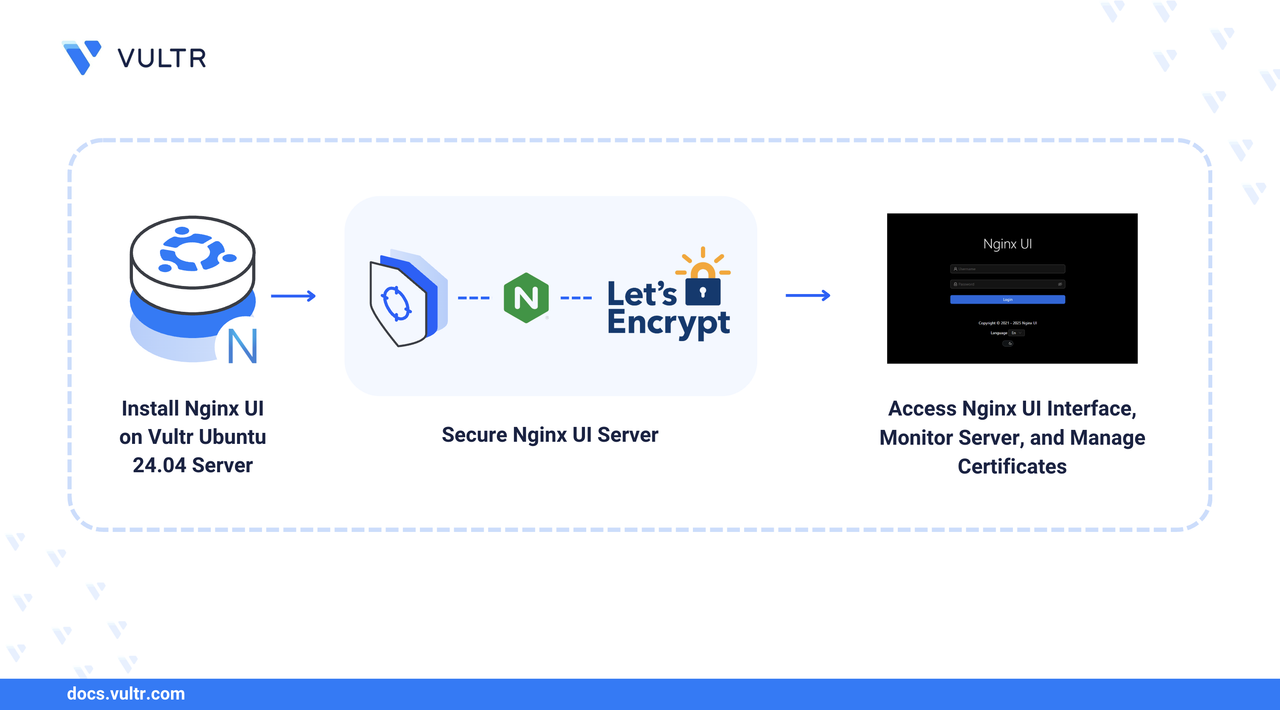
Nginx UI is an open-source web-based configuration management GUI for Nginx. It supports single-node and cluster node configurations with real-time server statistics, automatic TLS certificates with Let's Encrypt, Nginx performance monitoring, and integration with large language models (LLMs) to manage configurations on a server.
In this article, you will install Nginx UI on Ubuntu 24.04 to create and manage Nginx web server configurations using a web-based management interface. You will create virtual host configurations and configure Nginx UI to use a trusted certificate authority (CA) such as Let's Encrypt to manage TLS certificates for secure connections on your server.
Prerequisites
Before you start, you need to:
- Access an Ubuntu 24.04 instance as a non-root user with sudo privileges.
- Create a new domain A record pointing to the instance's public IP address. For example,
nginx-ui.example.com. - Install Docker on your server if you want to install Nginx UI using Docker.
Install Nginx UI
Nginx UI is not available in the default package repositories on Ubuntu. You can install Nginx UI using Docker or the latest stable release script. Choose one of the two methods covered in this section.
Update your system package index.
CONSOLEInstall Nginx.
CONSOLE
Follow the steps below to download the latest installation script and install Nginx UI to manage web server configurations. This method installs Nginx UI as a system service.
Download the latest Nginx UI installation script.
CONSOLEExecute the script using Bash with the
installoption.CONSOLEVerify the installed Nginx UI version.
CONSOLEOutput:
Start the Nginx UI service.
CONSOLECheck the Nginx UI service status and verify it's active.
CONSOLEOutput:
Configure Nginx Reverse Proxy
Nginx UI listens on localhost port 9000 by default. Follow these steps to create a reverse proxy configuration with HTTPS using Let's Encrypt.
Navigate to the Nginx sites-available directory.
CONSOLECreate a new Nginx UI virtual host configuration.
CONSOLEAdd the following reverse proxy configuration. Replace
nginx-ui.example.comwith your domain.INISave and close the file.
Remove the default configuration from sites-enabled.
CONSOLEEnable the Nginx UI virtual host configuration.
CONSOLETest the Nginx configuration for errors.
CONSOLEOutput:
Restart Nginx to apply the configuration.
CONSOLE
Secure Nginx UI with Let's Encrypt TLS
Install Certbot and the Nginx plugin.
CONSOLEConfigure the firewall to allow HTTP and HTTPS traffic.
CONSOLEReload the firewall.
CONSOLEGenerate a Let's Encrypt TLS certificate. Replace
nginx-ui.example.comwith your domain andadmin@example.comwith your email.CONSOLERestart the nginx-ui service.
CONSOLE
Access Nginx UI
You can now access the Nginx UI web interface using HTTPS on your domain. Follow these steps to complete the initial setup.
Access your domain using a web browser.
Verify the system information page displays without errors, then click Next.
Create an administrator account by entering:
- Your email address
- A username
- A strong password
Click Install to apply the configuration.
Log in with your administrator credentials.
Verify the dashboard displays server statistics, including uptime, memory, storage, and network information.
Click Nginx in the navigation menu to monitor web server performance.
Toggle Enable stub_status module to enable Nginx monitoring.
Manage TLS Certificates
Nginx UI supports automatic TLS certificate management with Let's Encrypt and other certificate authorities. To configure certificate management, follow these steps.
Navigate to Certificates in the main menu.
Click Certificates List to view existing certificates.
Click Import to add existing certificates or Issue Certificate to generate new ones.
Navigate to DNS Credentials to configure DNS provider APIs for wildcard certificates.
Click Add to configure your DNS provider.
Navigate to ACME User to manage certificate authority accounts.
Click Add to create an ACME user:
- Enter a username
- Enter your email address
- Select
https://acme-v02.api.letsencrypt.org/directoryfrom the CA Dir dropdown - Keep Proxy and EAB fields empty
Toggle Register on Startup to enable automatic registration.
Click Save to create the ACME user.
Verify the ACME user status shows Valid.
Click View to check the ACME user details.
Create Virtual Host Configurations
Follow these steps to create new virtual host configurations using Nginx UI.
Create a new subdomain DNS record pointing to your server's IP address. For example,
app.example.com.Navigate to Terminal in Nginx UI.
Create a directory for your web application.
CONSOLECreate a sample HTML file.
CONSOLEAdd the following HTML content.
HTMLSave and close the file.
Set proper ownership permissions.
CONSOLENavigate to Manage Sites in the main menu.
Click Sites List to view existing configurations.
Click Add to create a new virtual host.
Configure the virtual host:
- Enter a configuration name
- Verify IPv4 and IPv6 listening ports (80)
- Enter your domain in the
server_namefield - Enter
/var/www/app.example.comin therootfield
Set the index file order:
index.html,index.htm,index.php.Click Next to configure TLS.
Toggle Enable TLS and click OK.
Toggle Encrypt website with Let's Encrypt and click OK.
Configure Let's Encrypt settings:
- Keep HTTP01 as the challenge method
- Select EC256 as the key type
- Select your ACME user
Click Next and monitor the certificate generation.
Close the Let's Encrypt dialog and verify the certificate details.
Click Next to apply the configuration.
Verify the virtual host status shows Enabled.
Click Edit to modify the configuration if needed.
Toggle Basic Mode to switch to Advanced Mode for raw configuration access.
Access your virtual host domain to verify the configuration.
Conclusion
In this article, you have installed Nginx UI on Ubuntu 24.04 and managed Nginx configurations on your server. You can use Nginx UI to manage users, advanced Nginx configurations, virtual host configurations, create backups, and monitor the Nginx web server performance using logs. In addition, you can integrate Nginx UI with MCP and use large language models (LLMs) to manage your configurations using the chat feature within the web dashboard. For more information and configurations, visit the Nginx UI documentation.


0 Comments
Be the first to comment and share your perspective with the community.