How to Install OpenFaaS CLI on a Vultr Cloud Server
Introduction
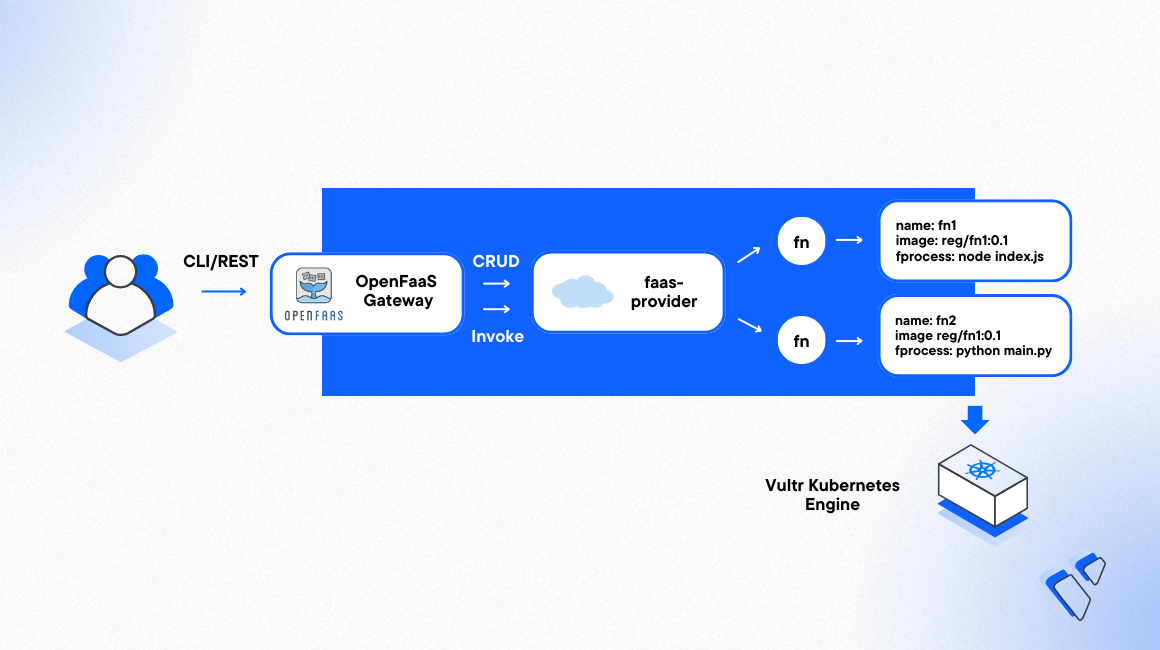
Open Functions as a Service (OpenFaas) is an open-source serverless computing framework that allows you to build and deploy code as functions in containerized environments. OpenFaas CLI faas-cli is a command line tool used to prepare, package, deploy, and invoke functions on any platform.
This article explains how you can install OpenFaas CLI on a Vultr Cloud Server and create new functions for deployment on your target platform such as Docker or a Vultr Kubernetes Engine (VKE) cluster. You will set up a new Node.Js template function, push it to the Vultr Container Registry, and test access to the new function.
Prerequisites
Before you begin:
Deploy a One Click Docker instance using the Vultr marketplace application to test the OpenFaas CLI operations.
Using SSH, access the server as a non-root user with sudo privileges
Add the non-root user to the Docker group.
CONSOLESwitch to the user.
CONSOLE
Install OpenFaas CLI
To install faas-cli on your system, you can either build the tool using the latest source file available on the OpenFaas CLI releases page or use a package manager. For fast deployments, use the OpenFaas CLI installation script or download the latest faas-cli version using your package manager as described in the system sections below.
Linux
Using the Curl utility, download the latest OpenFaas CLI script and execute it on your server.
CONSOLEOutput:
Verify the installed OpenFaas CLI version.
CONSOLEOutput:
Windows
Install the Chocolatey Package Manager.
Open a new Windows Powershell session as an administrator.
Using Chocolatey, install the latest OpenFaas CLI version.
CONSOLEOutput:
Verify the installed
faas-cliversion.CONSOLE
MacOS
Install the Homebrew Package Manager.
Open a new Mac terminal session.
Using
brew, install the latest OpenFaas CLI version.CONSOLEVerify the installed
faas-cliversion.CONSOLEOutput:
Deploy Functions using OpenFaas CLI
faas-cli contains a collection of function templates you can modify and deploy on your platform. To test the tool operations, create a new Node.js function, deploy it to your Vultr Container Registry, and run it locally using Docker as described in the steps below.
Using Docker, log in to your Vultr Container Registry. Replace
/example,example-user, andregistry-passwordwith your actual values.CONSOLECreate a new functions directory.
CONSOLESwitch to the directory.
CONSOLECreate a new function using the Node.js template.
CONSOLEWhen successful, list files in the directory to verify the template files.
CONSOLEOutput:
Using a text editor such as Nano, edit the
function-js.ymlfile.CONSOLEChange the
imagevalue to include your registry URL, target image name, and version. For example,sjc.vultrcr.com/example/function-js:latest.YAMLSave and close the file.
Edit the
handler.jsfile in thefunction-jsdirectory.CONSOLEChange the status value from
donetoHello World! This is a new function.JSSave and close the file.
Using
faas-cli, build your new function Docker image.CONSOLEPush the image to your Vultr Container Registry.
CONSOLEOutput:
To deploy your new function to an OpenFaas cluster, run the following command to use your
kubectlconfiguration to connect to the cluster.CONSOLEFor purposes of this article, run the following command to locally test your new function using Docker as a background process.
CONSOLEWhen successful, verify that the new function Docker container is active and running.
CONSOLEOutput:
Using Curl, query the function on the localhost port
8080defined in yourfunction-js.ymlfileCONSOLEOutput:
To handle invoke operations, modify your function code to include Input values.
Each time you modify the template files, deploy the function to build your image and synchronize changes to your cluster
CONSOLETo stop the background
faas-clifunction process, verify the Job IDCONSOLEOutput:
Kill the target Job ID. For example
1.CONSOLE
Conclusion
You have installed the OpenFaas CLI tool on a Vultr Cloud Server. Depending on your environment, you can use faas-cli to package, deploy, and invoke serverless functions on your OpenFaas cluster. For more information and advanced CLI options, visit the following resources:


0 Comments
Be the first to comment and share your perspective with the community.