How to Delete a Branch in Git
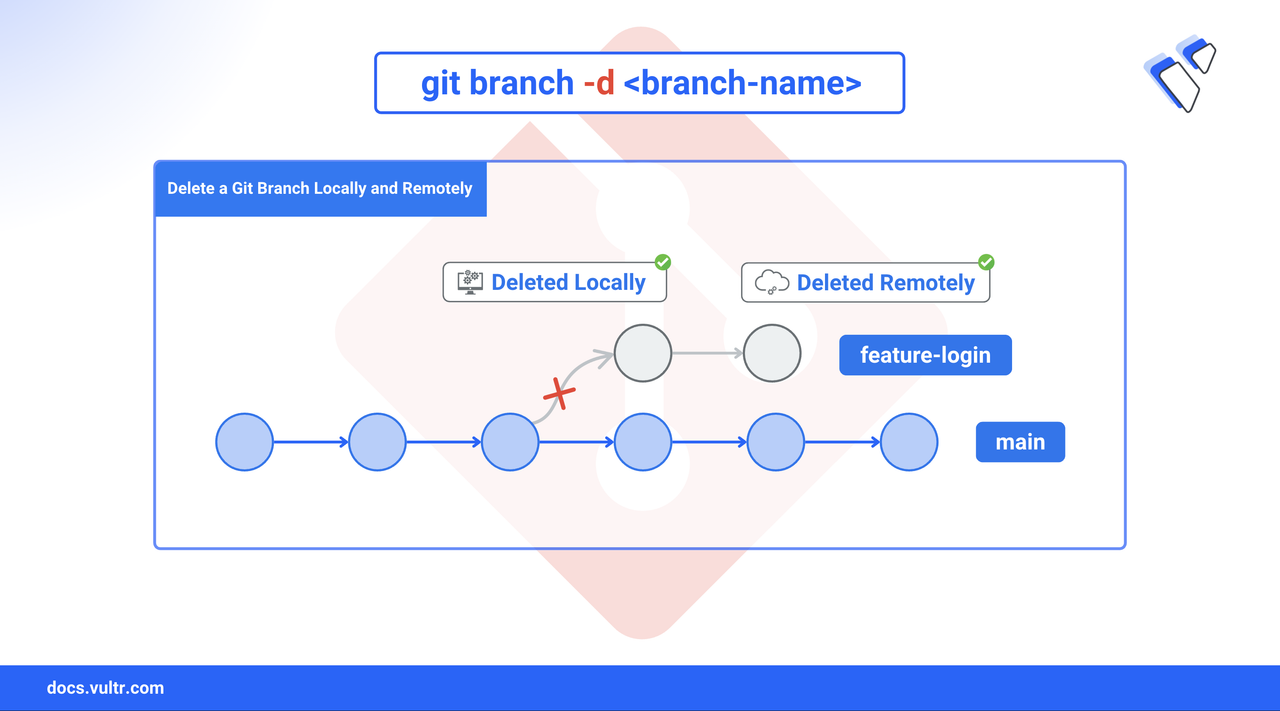
Git branches create isolated environments for development, allowing you to work on features, fixes, or experiments without affecting the main codebase. Each branch tracks a unique commit history, helping you test changes safely before merging. However, as your project grows, unused or merged branches can clutter the repository and make collaboration harder. Regularly deleting outdated branches, whether after a merge, a failed experiment, or a completed milestone, keeps your repository clean, focused, and easier to manage. This article explains how Git branches work and guides you in deleting them locally and remotely.
The Short Answer Version
If you're familiar with Git and just need quick reference commands for branch deletion:
Continue reading for detailed explanations and examples of each command.
Delete A Branch In Git Locally
After merging a feature branch into your main branch, you can safely delete the feature branch to keep your local repository clean. Git provides simple commands for this task, along with safeguards to prevent accidental deletion.
Command Explanation (Local)
Use the git branch command with either the -d or -D flag to delete a local branch. Git blocks deletion if the branch has unmerged changes unless you force it using -D.
Command Syntax (Local)
The basic syntax for deleting a local branch is:
git branch: Manages branch operations-d: Deletes the branch only if it has been merged<branch_name>: The name of the branch to delete
To force deletion, use the capital -D flag:
Command Flags Overview (Local)
In addition to the basic -d and -D flags for branch deletion, Git offers several useful options for listing or filtering branches. The table below summarizes the most relevant flags for managing local branches:
Use these flags to verify merge status, check last commits, or manage remote and local branches together.
Command Demonstration (Local)
Follow this typical workflow to safely delete local Git branches.
List all local branches to identify which one you want to delete.
CONSOLEYour output should be something similar to:
In this example, you have four branches and you're on the
mainbranch (indicated by the asterisk).Check which branches are already merged into the current branch.
CONSOLEYour output should be something similar to:
Here,
feature-loginanddevelopmentare safe to delete.hotfix-headeris not merged yet.Delete the merged
feature-loginbranch.CONSOLEOutput.
Attempt to delete the unmerged
hotfix-headerbranch.CONSOLEOutput.
Gitprevents the deletion and suggests using the force-delete option if you're certain about deleting this unmerged branch. Force-deletehotfix-headersince it's unmerged.CONSOLEOutput.
After these operations, recheck your remaining branches.
CONSOLEYour output should be something similar to:
Deleting a branch only removes its reference. If it wasn’t merged, its commits may become unreachable and eventually purged by Git's garbage collector.
Delete A Branch In Git Remotely
When you've deleted a branch locally, you might also want to delete its corresponding branch on the remote repository. This helps maintain consistency across all copies of the project and keeps remote servers free from obsolete branches.
Command Overview (Remote)
To delete a remote branch, use the git push command with either:
- the
--deleteflag (preferred modern syntax), or
Unlike local deletion, remote branch removal does not include safety checks for merge status. If you have permission, the deletion will proceed.
Command Syntax (Remote)
The modern syntax for deleting a remote branch is:
git push: Updates the remote repository.<remote>: Remote name (typicallyorigin).--delete: Requests deletion of the specified branch.<branch_name>: The branch you want to remove.
Git also supports an older, legacy alternative:
The colon before the branch name means “delete this branch from remote”.
Command Flags Overview (Remote)
Git provides two ways to delete branches on a remote repository: the modern --delete flag and the older colon-based syntax. While remote deletions don’t include built-in safety checks for unmerged branches, both methods achieve the same result. Below is a breakdown of useful flags when performing remote deletions.
Command Demonstration (Remote)
Follow this workflow to safely delete a remote Git branch and clean up your local references.
List all remote branches.
CONSOLEYour output should be something similar to:
Delete the
feature-loginbranch from the remote repository.CONSOLEOutput.
Prune deleted references from your local clone.
CONSOLEOutput.
The
--pruneoption removes any remote-tracking references that no longer exist on the remote.Confirm the branch has been removed.
CONSOLEOutput.
Delete your local copy of the removed remote branch.
CONSOLEIf other team members have cloned the repository, they'll need to update their local copies to reflect the deleted remote branch. They can do this by running:
CONSOLE
Deleting a remote branch requires proper permissions on the repository. If you see an error, verify your access rights or contact the repository owner.
Conclusion
You now understand how to delete branches in Git—both locally and remotely. Whether you're cleaning up merged feature branches or removing obsolete remote branches, using commands like git branch -d, git branch -D, and git push origin --delete helps you maintain a clean and efficient repository.
You also explored when branch deletion is appropriate and learned how to avoid common pitfalls such as force-deleting unmerged work.
For more details and advanced configuration options, refer to the official Git documentation.
Tags:Git


0 Comments
Be the first to comment and share your perspective with the community.