How to Rename a Branch in Git
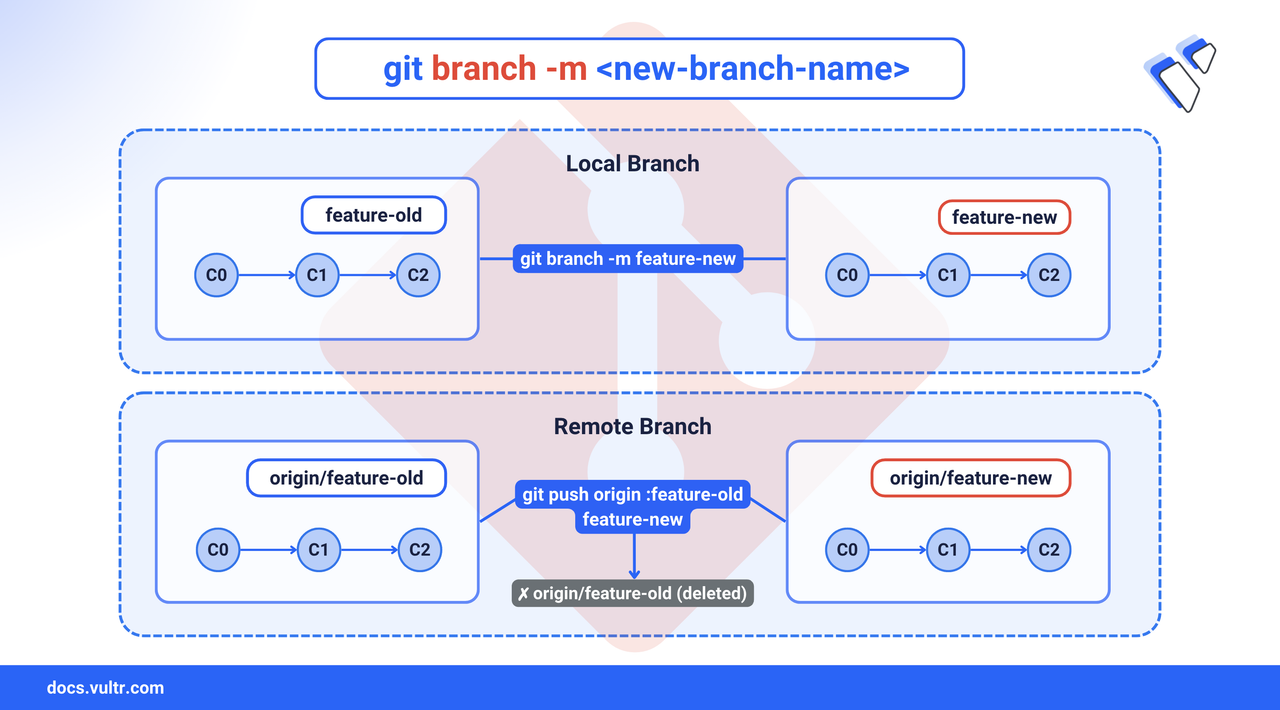
Git is an open-source distributed version control system that helps developers track changes, manage code history, and work together efficiently. One of Git's core features is branching, which allows you to create isolated environments for new features, bug fixes, or experiments without impacting the main codebase. As development progresses, it's common to rename branches to reflect updated feature scopes or to follow consistent naming conventions. For instance, changing a branch name from bugfix/login to fix/login-auth can improve clarity and project organization.
This article explains how to rename a Git branch locally and remotely, including how to do it without performing a git checkout.
The Short Answer Version
If you're familiar with Git and just need quick reference commands:
Rename a Local Git Branch
A local Git branch exists only on your system and is not shared with any remote repository. Renaming a local branch improves clarity, maintains naming consistency, and aligns with updated naming conventions as a project evolves.
Command Syntax (Local)
The basic syntax for renaming a local branch is:
In the above command syntax:
git branch: Manages branch operations[OPTIONS]:-m: Renames the branch. Fails if<new_branch_name>already exists. Safe mode to prevent accidental overwrites.-M: Force renames the branch even if<new_branch_name>already exists. Overwrites the existing branch name without prompting.
[BRANCH NAMES]: Specifies the existing and/or new branch names involved in the rename operation.
Command Demonstration (Local)
Follow the steps below to rename a local Git branch:
Run the following command inside a Git-initialized directory to list all the local branches.
CONSOLEYour output should be similar to the one below:
The asterisk
*marks the active branch in your repository.Switch to the branch you want to rename.
CONSOLERename the branch using the
-moption.CONSOLEThis renames
feature-authtofeature-login. The-mflag stands for "move" and will fail if the new name already exists.Verify that the branch has been renamed.
CONSOLEYour output should be similar to the one below:
Rename a Remote Git branch
A remote Git branch refers to a branch hosted on a remote repository such as GitHub. Git does not allow direct renaming of remote branches. Instead, you must rename the branch locally, push the new branch to the remote, and delete the old one.
Command Syntax (Remote)
The syntax for renaming a remote branch is:
In the above command syntax:
git push: Pushes changes to a remote repository.[REMOTE]: The name of the remote repository (commonly origin).:[OLD BRANCH NAME]: Deletes the old branch name from the remote.[NEW BRANCH NAME]: Pushes the renamed local branch to the remote.
Command Demonstration (Remote)
Follow the steps below to rename a remote Git branch.
Run the following command to list all the local branches.
CONSOLEYour output should be similar to the one below:
The asterisk
*marks the active branch isfeature-2fa.Switch to the branch you want to rename.
CONSOLERename the local branch using the
-mflag.CONSOLEPush the renamed branch to the remote and delete the old branch using the below command.
CONSOLEThis pushes the
feature-mfaand deletes thefeature-2fafrom the remote repository.Set the upstream for the renamed local branch.
CONSOLEThe
-uflag sets the upstream tracking branch so futuregit pushandgit pullcommands will default toorigin/feature-mfa.Verify that the branch was renamed on the remote.
CONSOLEThis lists all remote branches. The
feature-2fashould be gone, andfeature-mfashould appear.
Rename a Git Branch Without Git Checkout
You can rename a local Git branch directly without switching to it with git branch -m, which is useful for renaming branches other than the one actively checked out.
Command Syntax
The syntax for renaming a local branch without using git checkout is:
In the above command syntax:
git branch: Manages branch operations.-m: Renames the branch. Fails if the new name already exists.[OLD BRANCH NAME]: The name of the branch to rename.[NEW BRANCH NAME]: The desired new name for the branch.
Command Demonstration
Follow the steps below to rename a local Git branch without switching to it.
Run the following command to list all the local branches.
CONSOLERun the following command to rename the target branch.
CONSOLEPush the renamed branch to the remote and delete the old one.
CONSOLESet the upstream tracking reference for the new branch.
CONSOLEVerify the change by listing remote branches.
CONSOLEThe old branch name should no longer appear in the list, and the new one should be present.
Conclusion
You have successfully renamed Git branches locally and remotely using safe, structured commands. Whether renaming your active branch or another without switching, you applied the correct syntax to update branch names cleanly. On the remote side, you pushed renamed branches, removed outdated references, and set upstream tracking to keep synchronization. These steps ensured better project clarity, consistent naming, and a more maintainable Git workflow. For more information on git branches, visit the official Git documentation.
Tags:Git


0 Comments
Be the first to comment and share your perspective with the community.