How to Deploy Activepieces - Open-Source Business Automation Platform
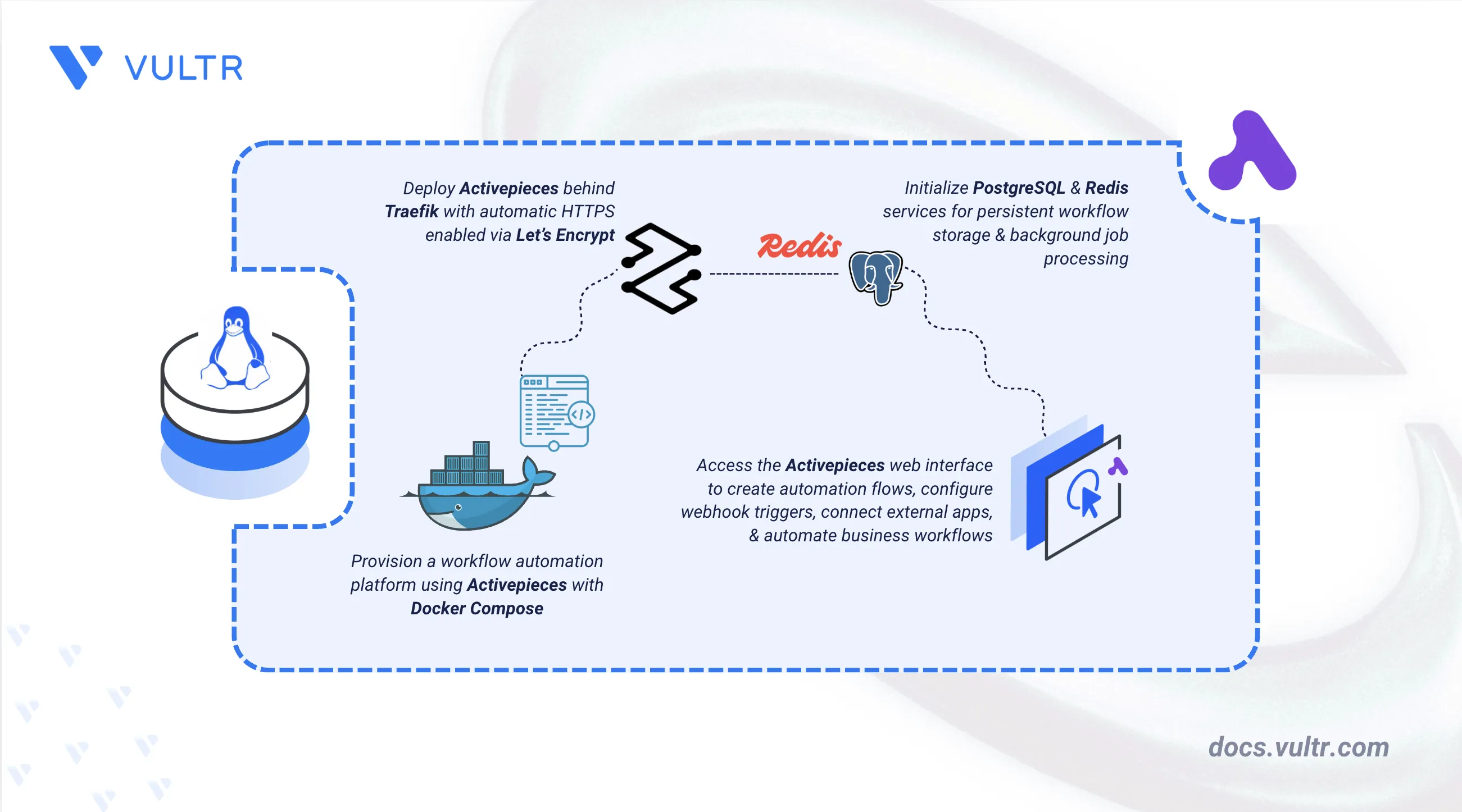
Activepieces is an open-source business automation platform that connects different apps and automates repetitive tasks without writing code. It provides a visual web interface for building flows that move data between tools automatically. Activepieces is widely used for lead management, marketing automation, and streamlining internal business operations.
This article explains how to deploy Activepieces on a Linux server using Docker Compose, PostgreSQL, Redis, and Traefik as a reverse proxy with HTTPS. It covers directory setup, environment variable configuration, deployment using Docker Compose, creating an administrator account, and building a sample automation flow through the web interface.
Prerequisites
Before you begin, you need to:
- Have access to a Linux-based server (with at least 2 CPU cores and 4 GB of RAM) as a non-root user with sudo privileges.
- Install Docker and Docker Compose.
- Create a DNS A record pointing to your server's IP address (for example,
active.example.com).
Set Up the Project Directory and Environment
Activepieces requires a configuration file to define environment variables, database connections, and application settings. The setup includes persistent storage for workflow data and execution logs, and uses Traefik to automatically secure the web interface with HTTPS.
Create the project directory with subdirectories for configuration and data persistence.
CONSOLEactivepieces: The directory that holds your.envanddocker-compose.ymlfiles.cache: Provides persistent storage for cached pieces and application execution data.letsencrypt: Stores SSL/TLS certificates.postgres: Persists PostgreSQL database files.redis: Persists Redis data.
Navigate to the project directory.
CONSOLEGenerate a 32-character encryption key for the Activepieces application.
CONSOLEGenerate a 64-character secret key for JWT authentication.
CONSOLECreate an environment file to store configuration variables.
CONSOLEAdd the following content, replacing the placeholder values with your own:
INIReplace the following:
active.example.comwith your registered domain name.admin@example.comwith your email address for Let's Encrypt certificate notifications.PASTE_YOUR_32_CHARACTER_STRING_HEREwith the 32-character output from the firstopensslcommand.PASTE_YOUR_64_CHARACTER_STRING_HEREwith the 64-character output from the secondopensslcommand.CREATE_A_STRONG_PASSWORD_HEREwith a secure database password.
The
AP_ENVIRONMENTandAP_FRONTEND_URLvariables set the application's runtime mode and public URL. TheAP_POSTGRES_HOSTandAP_REDIS_HOSTvariables match thepostgresandredisservice names defined in the Docker Compose file, allowing the containers to reach each other over the internal network.Save and close the file.
Deploy with Docker Compose
The deployment stack consists of Traefik for reverse proxy and certificate management, plus the Activepieces container with mounted configuration and databases. This configuration uses the official Activepieces Docker image.
Create the Docker Compose manifest.
CONSOLEAdd the following content.
YAMLSave and close the file.
This manifest defines:
services: Four containers work together to deliver an automation platform with HTTPS.traefik: Acts as a reverse proxy, routes incoming traffic to the application, and automatically obtains HTTPS certificates using Let's Encrypt. HTTP traffic on port 80 is automatically redirected to HTTPS.postgres: Stores the core database using the pgvector PostgreSQL extension, including workflow configurations, user accounts, and execution history.redis: Manages the background job queues, ensuring tasks pass efficiently between the app and workers.app: Runs the Activepieces web server and API, providing the visual user interface for building flows.
image: Uses official container images from GitHub Container Registry (GHCR) and Docker Hub.env_file: Links to your.envfile so that sensitive settings like passwords and secret keys are kept separate from the compose configuration.environment: Defines the role of the container and maps database credentials to the application settings.volumes:./postgres: A mapped local folder that stores database files across container restarts../redis: A mapped local folder that preserves the job queue data../cache: A mapped local folder that stores cached pieces and temporary application data../letsencrypt: A mapped local folder that stores SSL/TLS certificates.
ports: Ports 80 and 443 open HTTP and HTTPS traffic through Traefik for public access.labels: Tell Traefik how to route HTTPS traffic to the Activepieces web interface and which internal port to use.depends_on: Ensures that the application waits forpostgresandredisto be ready before starting.restart: unless-stopped: Ensures all services automatically restart if they crash or if the server reboots.networks: Creates a private internal network (activepieces) so the containers can communicate securely without exposing every service to the public internet. Thealiasesentry on thetraefikservice resolvesDOMAINto Traefik's internal network address, allowing theappcontainer to reach its own public URL directly over the Docker network. Without this alias, requests fromappback toDOMAINfail because most cloud providers do not route a server's own public IP back to itself.
Launch the containers.
CONSOLEVerify that the services are running.
CONSOLEThe output displays four running containers:
activepieces-app,postgres,redis, andtraefik, with ports 80 and 443 exposed.Check the application logs to confirm that Activepieces loaded the configuration successfully.
CONSOLEThe output includes a line confirming the application started and bound to the configured domain, similar to
The application started on https://active.example.com/api/, as specified by the AP_FRONTEND_URL variable.For more information on managing a Docker Compose stack, see the How to Use Docker Compose article.
Access Activepieces
Activepieces provides a visual web interface for building, managing, and monitoring automation flows. The first access requires creating an administrator account that has full permissions across all workflows, application connections, and system settings.
Open your web browser and navigate to
https://active.example.com, replacingactive.example.comwith your configured domain. The padlock icon in the address bar confirms that Traefik provisioned a Let's Encrypt certificate.On the sign-up screen, enter your first name, last name, email, and password, then click Sign Up.
Enter a Platform Name (for example,
My Automation Platform) to create your workspace.
Build an Automation Flow
A webhook-triggered flow verifies that Activepieces is running correctly, that PostgreSQL is persisting data, and that the background workers are functional. The following steps create a flow that accepts an HTTP request via a webhook and returns a JSON response.
Click Start from scratch under the Build a Flow section to create a new automation workflow.
Click the trigger block, search for
Webhook, and select Catch Webhook as the trigger.Click Test Trigger under Generate Sample Data.
When the Action Required prompt appears, click Generate Sample Data.
In the Send Sample Data to Webhook dialog that opens, click Send to dispatch a sample GET request to the webhook.
Verify that the trigger panel shows Tested Successfully and displays the captured request as Result #1. The sample data is now available for testing downstream actions.
Click the + button below the trigger to add an action, then select Return Response from the Sub Flows category.
In the Return Response panel, set Response Type to JSON.
Enter the following in the Body field:
JSONClick Publish to activate the workflow.
Click Test Flow to enter test mode.
Hover over the Catch Webhook trigger block on the canvas, and click trigger to simulate an incoming webhook request using the captured sample data.
Verify that both the Catch Webhook and Return Response steps show a Succeeded badge on the canvas. The execution time displayed under each step confirms that the flow ran end-to-end.
Conclusion
You have deployed Activepieces on your server using Docker Compose with Traefik for automatic HTTPS. This setup provides a self-hosted business automation platform with a visual interface for building custom workflows. The persistent PostgreSQL and Redis databases keep your workflow data and background queues safe across server restarts. For advanced features, including building custom pieces, configuring webhooks, and team collaboration, visit the official Activepieces documentation.
Tags:Open Source




0 Comments
Be the first to comment and share your perspective with the community.