How to Deploy AFFiNE - Open-Source Knowledge Management Platform
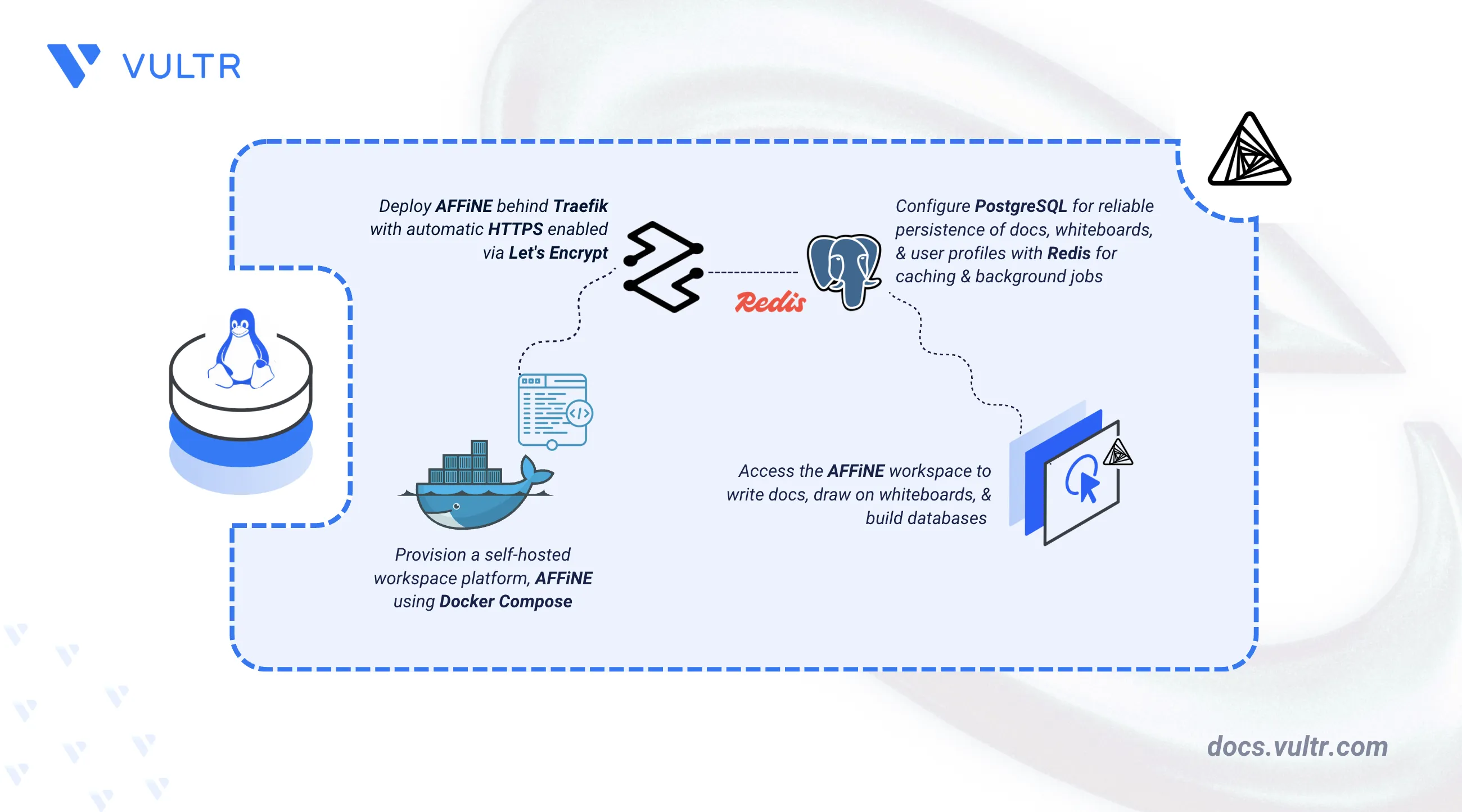
AFFiNE is an open-source workspace platform used to write docs, draw on whiteboards, and build databases. It provides a web interface for managing notes, tasks, and team projects in a single place. AFFiNE is widely used for personal note-taking, working together with teams, and organizing project data.
This article explains how to deploy AFFiNE on a Linux server using Docker Compose with PostgreSQL as the database, Redis for caching and background jobs, and Traefik for reverse proxy.
Prerequisites
Before you begin, you need to:
- Have access to a Linux-based server (with at least 4 CPU cores and 2 GB of RAM) as a non-root user with sudo privileges.
- Install Docker and Docker Compose.
- Create a DNS A record pointing to your server's IP address (for example,
affine.example.com).
Set Up the Directory Structure, Configuration, and Environment Variables
AFFiNE requires a configuration file to define environment variables, database connections, and application settings. The setup includes persistent storage for AFFiNE, PostgreSQL, Redis, and uploaded files to make sure data is saved when the server restarts. It also uses Traefik as a reverse proxy and to manage TLS certificates for secure HTTPS access.
Create the project directory with subdirectories for configuration and data persistence.
CONSOLEaffine-server: Holds environment and docker compose files, along with the data folders.letsencrypt: Stores TLS certificates.redis: Persists Redis data.
Navigate to the project directory.
CONSOLEGenerate a 64-character secret key for the AFFiNE application.
CONSOLESave the output for use in the environment file.
Create the environment file.
CONSOLEAdd the following configuration. Replace
affine.example.comwith your domain name,admin@example.comwith your email address,STRONG_PASSWORDwith a secure database password, andGENERATED_SECRET_KEYwith the generated secret key from the previous step.INISave and close the file.
Deploy with Docker Compose
The deployment stack uses Traefik to handle reverse proxying and TLS certificate management and deploys AFFiNE, PostgreSQL, and Redis containers with mounted configuration, storage, and database volumes. This configuration is based on the official AFFiNE Docker Compose file.
Create the Docker Compose file.
CONSOLEAdd the following configuration.
YAMLSave and close the file.
In the above manifest:
services: Four containers work together to deliver the workspace platform with HTTPS enabled.traefik: Serves as the reverse proxy and TLS termination point with automatic Let's Encrypt certificate provisioning.postgres: Stores the core database, including docs, whiteboards, and user profiles.redis: Acts as a fast memory store for real-time team collaboration.affine: Runs the AFFiNE web server and provides the user interface.
image: Uses official container images published by the upstream projects.environment (postgres): Defines the database name, username, and password using the values from the.envfile.environment (affine): Configures the public URLs, connects to Redis, and formats the connection string to link the app to the PostgreSQL database.volumes:Mapped folders: Local folders from your.envfile (like./postgresand./storage) that save database files and user uploads across container restarts../redis: A mapped local folder that stores Redis data../letsencrypt: A mapped local folder that stores the TLS certificates.
ports: Ports 80 and 443 open HTTP and HTTPS traffic through Traefik.labels (affine): These tell Traefik how to route HTTPS traffic to AFFiNE and how to set up the free TLS certificate for your specific domain.depends_on: Ensures the affine service waits for postgres to be fully healthy and redis to start before running.restart: unless-stopped: Ensures containers automatically restart if they fail or if the server reboots.
Start all services in detached mode.
CONSOLEVerify that the services are running.
CONSOLEThe output displays all the containers in
runningstate, withtraefiklisting ports 80 and 443 under PORTS.Check the service logs to confirm AFFiNE loaded the configuration successfully.
CONSOLEFor more information on managing a Docker Compose stack, see the How To Use Docker Compose article.
Access and Configure AFFiNE
AFFiNE provides a web interface to manage your docs, whiteboards, and projects. The first time you access the app, you need to create an administrator account and set up your initial workspace.
Open your web browser and navigate to the AFFiNE at
https://affine.example.com, replacingaffine.example.comwith your configured domain.The page displays the welcome message, confirming HTTPS routing through Traefik is working correctly.
On the screen, enter your Name, Email Address and a secure Password to create the initial administrator account.
Click Continue to access the admin dashboard.
Demonstrate Application Use Case by Performing Actions
A sample use case verifies that PostgreSQL is persisting data and that the application's core features are fully functional. The following steps demonstrate AFFiNE's core capabilities by creating a workspace, documenting information, and organizing content using the visual Edgeless canvas.
Create a New Workspace
A workspace groups related docs and whiteboards under a shared team or project.
After creating the administrator account, navigate again to
https://affine.example.com, replacingaffine.example.comwith your configured domain.Open the default Demo Workspace. Click Create Workspace.
Enter a workspace name such as
Team Knowledge Base. Under Workspace type, select AFFiNE SelfHosted Cloud.Click Create to create the workspace.
Write and Format a Note
Docs use a rich text editor for writing and structuring content within a workspace.
Open the
Team Knowledge Baseworkspace.Click the + icon in the sidebar to create a new page.
Enter a title such as
Project Planning Notes.Create a heading named
Project Overviewand add a brief description of the workspace purpose.Create another heading named
Key Objectives.Add a numbered list to organize project goals and tasks.
Switch to the Whiteboard or Edgeless View
Edgeless view turns a doc into a visual canvas for diagramming and freeform layout.
Open the
Project Planning Notesdocument in theTeam Knowledge Baseworkspace.Click the Edgeless View icon in the upper-left corner.
Use the canvas toolbar to access visual collaboration tools such as shapes, connectors, drawing tools, and text annotations.
Create Linked Content or Add Visual Blocks
Connectors on the canvas link related blocks together, making relationships between pieces of content visible.
Open the
Project Planning Notesdocument in Edgeless View.Use the canvas toolbar to add a new text block.
Enter a title such as
Project Resourcesto represent project information.Use the connector tool to create a visual link between the
Project Planning Notesdocument and theProject Resourcesblock.
Conclusion
You have successfully deployed AFFiNE on your server using Docker Compose. This creates a workspace for writing and formatting notes, switching to the Edgeless canvas, and linking visual content. It provides a unified workspace for documents, knowledge management, and visual collaboration, making it suitable for both individuals and teams. To learn more about advanced configuration options and features, refer to the official AFFiNE documentation.
Tags:Open Source



0 Comments
Be the first to comment and share your perspective with the community.