How to Deploy ClearML as a Self-Hosted AWS SageMaker Alternative

Updated on 16 April, 2026
Deploy ClearML as a self-hosted alternative to SageMaker for MLOps workflows and model serving.
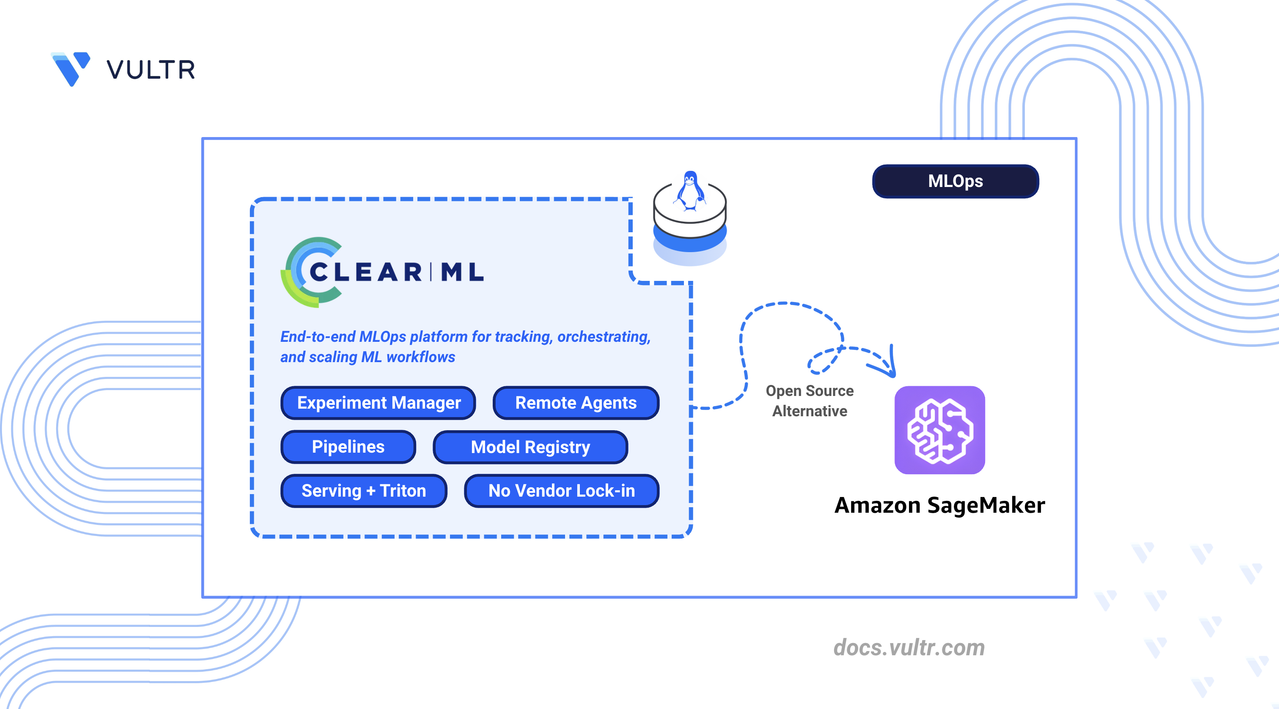
How to Deploy ClearML as a Self-Hosted AWS SageMaker Alternative header image

ClearML is an open-source Machine Learning Operations (MLOps) platform that provides experiment tracking, model management, pipeline orchestration, and compute resource allocation. It serves as a unified solution for AI development workflows with support for automatic logging, hyperparameter optimization, and model serving across diverse infrastructure setups.

This article explains how to deploy ClearML Server using Docker Compose with Traefik as a reverse proxy, configure agents for remote execution, and run machine learning workflows. It covers experiment tracking, pipeline creation, hyperparameter optimization, model serving with Triton, and migration strategies from AWS SageMaker.

Prerequisites

Before you begin, you need to:

Note
The ClearML Server does not require a GPU instance. Deploy ClearML Agents on GPU-enabled instances to handle compute-intensive training tasks.

Understanding ClearML Architecture

ClearML maps directly to AWS SageMaker components, providing equivalent functionality through a self-hosted, cloud-agnostic platform.

AWS SageMaker ClearML Equivalent Description
SageMaker Studio ClearML Web UI Browser-based interface for experiment monitoring, configuration, and visualization.
SageMaker Experiments ClearML Experiment Manager Automatic tracking of hyperparameters, metrics, code versions, and artifacts.
SageMaker Training Jobs ClearML Agent + Tasks Agent-based execution where any machine becomes a remote worker.
SageMaker Pipelines ClearML Pipelines Python-native DAG orchestration with caching and dependency management.
SageMaker Model Registry ClearML Model Repository Versioned model storage with lineage tracking to source experiments.
SageMaker Endpoints ClearML Serving Model deployment with Triton inference server support.
CloudWatch Metrics ClearML Scalars/Plots Real-time metrics visualization and hardware monitoring.

The ClearML architecture consists of:

  • ClearML Server: Central hub comprising the API server, web UI, and file server. Stores experiment metadata in MongoDB and Elasticsearch.
  • ClearML Agent: Worker daemon that pulls tasks from queues and executes them. Runs on any machine with Python and optionally GPU support.
  • ClearML SDK: Python library that instruments code for automatic logging and remote execution.
  • ClearML Serving: Model deployment stack using Triton inference server for production endpoints.

Deploy ClearML Server with Docker Compose

ClearML Server runs as a multi-container application with Elasticsearch for indexing, MongoDB for metadata, and Redis for caching. Traefik handles HTTPS termination and routes traffic to the appropriate service.

  1. Increase the virtual memory limit for Elasticsearch.

    console
    $ echo "vm.max_map_count=524288" | sudo tee /etc/sysctl.d/99-clearml.conf
    
  2. Apply the sysctl configuration.

    console
    $ sudo sysctl --system
    
  3. Restart the Docker service to apply memory changes.

    console
    $ sudo systemctl restart docker
    
  4. Create the directory structure for persistent storage.

    console
    $ sudo mkdir -p /opt/clearml/{data/elastic_7,data/mongo_4/db,data/mongo_4/configdb,data/redis,data/fileserver,logs,config}
    
    • data/elastic_7: Elasticsearch index storage
    • data/mongo_4: MongoDB database files
    • data/redis: Redis cache persistence
    • data/fileserver: Uploaded artifacts and models
    • logs: Service log files
    • config: Configuration files
  5. Set ownership to match the container user IDs.

    console
    $ sudo chown -R 1000:1000 /opt/clearml
    
  6. Create the project directory.

    console
    $ mkdir -p ~/clearml
    
  7. Navigate to the project directory.

    console
    $ cd ~/clearml
    
  8. Download the official ClearML Docker Compose file.

    console
    $ curl -fsSL https://raw.githubusercontent.com/clearml/clearml-server/master/docker/docker-compose.yml -o docker-compose.yml
    
  9. Open the Docker Compose file to modify port mappings and network configuration.

    console
    $ nano docker-compose.yml
    
  10. Locate each ports: block under the apiserver, webserver, and fileserver services and comment them out by adding # at the beginning of each line. Traefik handles external routing, so direct port exposure is not needed.

  11. Locate the networks block at the bottom of the file and update it to use named bridge networks:

    yaml
    networks:
      backend:
        name: clearml_backend
        driver: bridge
      frontend:
        name: clearml_frontend
        driver: bridge
    

    Save and close the file.

  12. Create the environment file for ClearML service URLs. Replace clearml.example.com with your domain.

    console
    $ nano .env
    

    Add the following configuration:

    ini
    CLEARML_WEB_HOST=https://app.clearml.example.com
    CLEARML_API_HOST=https://api.clearml.example.com
    CLEARML_FILES_HOST=https://files.clearml.example.com
    

    Save and close the file.

  13. Start the ClearML services.

    console
    $ docker compose up -d
    
  14. Verify all containers are running.

    console
    $ docker compose ps
    

    The output displays containers for clearml-webserver, clearml-apiserver, clearml-fileserver, clearml-mongo, clearml-elastic, and clearml-redis.

  15. Check the logs for startup errors.

    console
    $ docker compose logs --tail 50
    

    For more information on managing Docker Compose stacks, see the How To Use Docker Compose article.

Configure Traefik Reverse Proxy

Traefik routes HTTPS traffic to ClearML services using subdomain-based routing. Each ClearML component receives a dedicated subdomain with automatic Let's Encrypt certificate management.

  1. Create the Traefik directory.

    console
    $ mkdir -p ~/clearml/traefik
    
  2. Navigate to the Traefik directory.

    console
    $ cd ~/clearml/traefik
    
  3. Create the Let's Encrypt storage directory.

    console
    $ mkdir -p letsencrypt
    
  4. Create the certificate storage file.

    console
    $ touch letsencrypt/acme.json
    
  5. Restrict the file permissions so only the owner can read and write it. Let's Encrypt requires this permission level before it writes any certificate data.

    console
    $ chmod 600 letsencrypt/acme.json
    
  6. Create the Traefik environment file. Replace admin@example.com with your email address for Let's Encrypt notifications.

    console
    $ nano .env
    

    Add the following configuration:

    ini
    LETSENCRYPT_EMAIL=admin@example.com
    

    Save and close the file.

  7. Create the Traefik Docker Compose file.

    console
    $ nano docker-compose.yml
    

    Add the following configuration:

    yaml
    services:
      traefik:
        image: traefik:v3.6
        container_name: traefik
        command:
          - "--log.level=INFO"
          - "--providers.file.filename=/etc/traefik/dynamic_conf.yml"
          - "--entryPoints.web.address=:80"
          - "--entryPoints.websecure.address=:443"
          - "--entryPoints.web.http.redirections.entrypoint.to=websecure"
          - "--certificatesResolvers.le.acme.httpChallenge.entryPoint=web"
          - "--certificatesResolvers.le.acme.email=${LETSENCRYPT_EMAIL}"
          - "--certificatesResolvers.le.acme.storage=/letsencrypt/acme.json"
        ports:
          - "80:80"
          - "443:443"
        volumes:
          - "./letsencrypt:/letsencrypt"
          - "./dynamic_conf.yml:/etc/traefik/dynamic_conf.yml:ro"
        networks:
          - clearml-frontend
        restart: unless-stopped
    
    networks:
      clearml-frontend:
        name: clearml_frontend
        external: true
    

    Save and close the file.

  8. Create the Traefik dynamic configuration file. Replace clearml.example.com with your domain.

    console
    $ nano dynamic_conf.yml
    

    Add the following routing rules:

    yaml
    http:
      routers:
        clearml-web:
          rule: "Host(`app.clearml.example.com`)"
          entryPoints:
            - websecure
          service: clearml-web
          tls:
            certResolver: le
    
        clearml-api:
          rule: "Host(`api.clearml.example.com`)"
          entryPoints:
            - websecure
          service: clearml-api
          tls:
            certResolver: le
    
        clearml-files:
          rule: "Host(`files.clearml.example.com`)"
          entryPoints:
            - websecure
          service: clearml-files
          tls:
            certResolver: le
    
      services:
        clearml-web:
          loadBalancer:
            servers:
              - url: "http://clearml-webserver:80"
    
        clearml-api:
          loadBalancer:
            servers:
              - url: "http://clearml-apiserver:8008"
    
        clearml-files:
          loadBalancer:
            servers:
              - url: "http://clearml-fileserver:8081"
    

    Save and close the file.

  9. Start Traefik.

    console
    $ docker compose up -d
    
  10. Verify Traefik obtained the SSL certificates.

    console
    $ docker logs traefik 2>&1 | grep -i certificate
    

    The output indicates certificate generation for each subdomain.

Configure ClearML Server

The ClearML Web UI provides initial setup and ongoing configuration management through a browser-based interface.

  1. Open a web browser and navigate to the ClearML Web UI at https://app.clearml.example.com.

  2. Create the administrator account on first access:

    • Enter a username (for example, admin).
    • Enter your company name.
    • Click Create Account.
  3. Navigate to Settings in the left sidebar.

  4. Click Workspace to view the workspace configuration.

  5. Click Create new credentials to generate API credentials.

  6. Copy and save the credentials block. This contains the API access key and secret key required for agent and SDK configuration.

    The credentials block follows this format:

    ini
    api {
      web_server: https://app.clearml.example.com
      api_server: https://api.clearml.example.com
      files_server: https://files.clearml.example.com
      credentials {
        "access_key" = "YOUR_ACCESS_KEY"
        "secret_key" = "YOUR_SECRET_KEY"
      }
    }
    

Deploy ClearML Agents for Remote Execution

ClearML Agent transforms any machine into a remote worker that pulls tasks from queues and executes them with full environment reproducibility. The agent manages virtual environments, GPU allocation, and code versioning automatically.

Note
You can run the ClearML Agent on the same server as the ClearML Server or on a dedicated machine. For GPU workloads, deploy agents on GPU-enabled instances.
  1. Create the agent directory.

    console
    $ mkdir -p ~/clearml-agent
    
  2. Navigate to the agent directory.

    console
    $ cd ~/clearml-agent
    
  3. Install the Python virtual environment package.

    console
    $ sudo apt install python3.12-venv -y
    
  4. Create and activate a virtual environment.

    console
    $ python3 -m venv clearml_venv
    $ source clearml_venv/bin/activate
    
  5. Install the ClearML Agent package.

    console
    $ pip install clearml-agent
    
  6. Initialize the agent configuration.

    console
    $ clearml-agent init
    

    The command starts an interactive setup. When prompted:

    1. Paste the credentials block copied from the ClearML Web UI.
    2. Press Enter to accept the default output URI.
    3. Press Enter to skip Git username (uses SSH key authentication).
    4. Press Enter to skip additional artifact repository.

    The agent saves the configuration to ~/clearml.conf.

  7. Start the agent in daemon mode on the default queue.

    console
    $ clearml-agent daemon --queue default --detached
    

    For GPU workloads, specify GPU indices:

    console
    $ clearml-agent daemon --gpus 0,1 --queue default --detached
    
  8. Verify the agent registered in the ClearML Web UI by navigating to Workers & Queues and selecting the Workers tab.

Install ClearML SDK

The ClearML SDK instruments Python scripts for automatic experiment tracking, logging hyperparameters, metrics, code versions, and model artifacts without code changes.

  1. Ensure the virtual environment is active.

    console
    $ source ~/clearml-agent/clearml_venv/bin/activate
    
  2. Install the ClearML SDK and common data science dependencies.

    console
    $ pip install clearml scikit-learn joblib pandas
    
  3. Configure the SDK connection to your ClearML Server.

    console
    $ clearml-init
    
  4. Paste the credentials block from the ClearML Web UI when prompted. The configuration saves to ~/clearml.conf.

Create First ClearML Experiment

ClearML tracks every script execution as a task, automatically logging hyperparameters, metrics, code changes, and artifacts. The following experiment trains a Random Forest classifier to verify the server connection and demonstrate the tracking workflow.

  1. Create a directory for experiments.

    console
    $ mkdir -p ~/clearml/experiments
    
  2. Navigate to the experiments directory.

    console
    $ cd ~/clearml/experiments
    
  3. Create the experiment script.

    console
    $ nano 01_first_experiment.py
    

    Add the following code:

    python
    import joblib
    from clearml import Task
    from sklearn.datasets import load_iris
    from sklearn.model_selection import train_test_split
    from sklearn.ensemble import RandomForestClassifier
    from sklearn.metrics import accuracy_score, classification_report
    
    # Initialize the ClearML task. This registers the run in the project and
    # begins capturing code, environment, and hyperparameter information.
    task = Task.init(
        project_name='ClearML Tutorial',
        task_name='01_First_Experiment',
        tags=['tutorial', 'random-forest']
    )
    
    # Define hyperparameters and connect them to the task so they appear in
    # the Configuration tab and can be overridden for remote execution.
    hyperparams = {
        'n_estimators': 100,
        'max_depth': 5,
        'random_state': 42
    }
    task.connect(hyperparams)
    print(f"Training with hyperparameters: {hyperparams}")
    
    # Load and split the Iris dataset
    iris = load_iris()
    X_train, X_test, y_train, y_test = train_test_split(
        iris.data, iris.target, test_size=0.2, random_state=42
    )
    
    # Train the model using the connected hyperparameters
    clf = RandomForestClassifier(
        n_estimators=hyperparams['n_estimators'],
        max_depth=hyperparams['max_depth'],
        random_state=hyperparams['random_state']
    )
    clf.fit(X_train, y_train)
    
    # Evaluate and report metrics to the ClearML Scalars tab
    y_pred = clf.predict(X_test)
    accuracy = accuracy_score(y_test, y_pred)
    report = classification_report(y_test, y_pred, target_names=iris.target_names, output_dict=True)
    print(f"Model Accuracy: {accuracy:.4f}")
    
    logger = task.get_logger()
    logger.report_scalar(title='Performance', series='Accuracy', value=accuracy, iteration=1)
    
    for label, metrics in report.items():
        if isinstance(metrics, dict):
            for metric_name, value in metrics.items():
                logger.report_scalar(title=f'Class: {label}', series=metric_name, value=value, iteration=1)
    
    # Save the model locally and upload it as a tracked artifact
    model_path = 'iris_rf_model.pkl'
    joblib.dump(clf, model_path)
    task.upload_artifact(name='trained_model', artifact_object=model_path)
    print(f"Model saved and uploaded: {model_path}")
    
    task.close()
    print("Experiment completed.")
    

    Save and close the file.

  4. Run the experiment.

    console
    $ python3 01_first_experiment.py
    

    The output displays a task URL. Open the URL to view the experiment in the ClearML Web UI.

  5. Open the ClearML Web UI and navigate to the ClearML Tutorial project to view the experiment details.

    The web interface organizes experiment data into tabs:

    • Execution: Source code, Git commit, installed packages, and uncommitted changes.
    • Configuration: Hyperparameters, command-line arguments, and environment variables.
    • Artifacts: Uploaded model files and datasets with metadata.
    • Console: Real-time stdout and stderr logs.
    • Scalars: Interactive charts for numerical metrics over iterations.
    • Plots: Visualizations like confusion matrices and ROC curves.

Build ClearML Pipeline

ClearML Pipelines chain tasks into a Directed Acyclic Graph (DAG) where step outputs feed into downstream inputs. The pipeline controller manages execution order, caching, and data flow between steps.

  1. Navigate to the experiments directory.

    console
    $ cd ~/clearml/experiments
    
  2. Create the pipeline script.

    console
    $ nano 02_pipeline.py
    

    Add the following code:

    python
    from clearml import PipelineController
    
    
    # Step 1: Download and load the Iris dataset into a pandas DataFrame.
    # Imports inside the function body are required when running steps remotely
    # via an agent, as each step runs in its own isolated environment.
    def step_one(pickle_data_url):
        import pickle
        import pandas as pd
        from clearml import StorageManager
    
        pickle_data_url = pickle_data_url or 'https://github.com/allegroai/events/raw/master/odsc20-east/generic/iris_dataset.pkl'
        local_iris_pkl = StorageManager.get_local_copy(remote_url=pickle_data_url)
    
        with open(local_iris_pkl, 'rb') as f:
            iris = pickle.load(f)
    
        data_frame = pd.DataFrame(iris['data'], columns=iris['feature_names'])
        data_frame['target'] = iris['target']
        return data_frame
    
    
    # Step 2: Split the DataFrame into training and testing sets
    def step_two(data_frame, test_size=0.2, random_state=42):
        from sklearn.model_selection import train_test_split
    
        y = data_frame['target']
        X = data_frame.drop(columns=['target'])
        X_train, X_test, y_train, y_test = train_test_split(
            X, y, test_size=test_size, random_state=random_state)
        return X_train, X_test, y_train, y_test
    
    
    # Step 3: Train a Logistic Regression model on the processed data
    def step_three(data):
        from sklearn.linear_model import LogisticRegression
    
        X_train, X_test, y_train, y_test = data
        model = LogisticRegression(solver='lbfgs', max_iter=1000)
        model.fit(X_train, y_train)
        return model
    
    
    if __name__ == '__main__':
        # Initialize the pipeline controller with a version for reproducibility
        pipe = PipelineController(
            project='ClearML Tutorial',
            name='02_Pipeline_Experiment',
            version='1.0',
            add_pipeline_tags=True,
        )
    
        # Define a pipeline-level parameter that steps can reference
        pipe.add_parameter(
            name='url',
            description='URL to the dataset',
            default='https://github.com/allegroai/events/raw/master/odsc20-east/generic/iris_dataset.pkl'
        )
    
        # Wire each step into the pipeline. ClearML infers execution order
        # from input/output dependencies declared in function_kwargs.
        pipe.add_function_step(
            name='step_one',
            function=step_one,
            function_kwargs=dict(pickle_data_url='${pipeline.url}'),
            function_return=['data_frame'],
            cache_executed_step=True,  # Reuse result if inputs are unchanged
        )
    
        pipe.add_function_step(
            name='step_two',
            function=step_two,
            function_kwargs=dict(data_frame='${step_one.data_frame}'),
            function_return=['processed_data'],
            cache_executed_step=True,
        )
    
        pipe.add_function_step(
            name='step_three',
            function=step_three,
            function_kwargs=dict(data='${step_two.processed_data}'),
            function_return=['model'],
            cache_executed_step=True,
        )
    
        pipe.start_locally(run_pipeline_steps_locally=True)
        print('Pipeline completed.')
    

    Save and close the file.

  3. Run the pipeline.

    console
    $ python3 02_pipeline.py
    
  4. View the pipeline execution graph in the ClearML Web UI under the ClearML Tutorial project.

Set Up Hyperparameter Optimization

Hyperparameter Optimization (HPO) automates the search for optimal model parameters by spawning experiment variations. ClearML clones a baseline experiment, modifies parameters according to defined search ranges, and tracks each trial independently.

  1. Navigate to the experiments directory.

    console
    $ cd ~/clearml/experiments
    
  2. Create the HPO script.

    console
    $ nano 03_hpo.py
    

    Add the following code:

    python
    from clearml import Task
    from clearml.automation import (
        HyperParameterOptimizer,
        DiscreteParameterRange,
        UniformIntegerParameterRange,
        RandomSearch
    )
    
    print("Searching for base experiment '01_First_Experiment'...")
    tasks = Task.get_tasks(
        project_name='ClearML Tutorial',
        task_filter={'status': ['completed', 'published']},
        task_name='01_First_Experiment'
    )
    
    if not tasks:
        raise ValueError("Base experiment not found. Run 01_first_experiment.py first.")
    
    base_task_id = tasks[-1].id
    print(f"Found base task ID: {base_task_id}")
    
    Task.init(
        project_name='ClearML Tutorial',
        task_name='03_Hyperparameter_Optimization',
        task_type=Task.TaskTypes.optimizer
    )
    
    optimizer = HyperParameterOptimizer(
        base_task_id=base_task_id,
        hyper_parameters=[
            UniformIntegerParameterRange('General/n_estimators', min_value=10, max_value=200, step_size=20),
            DiscreteParameterRange('General/max_depth', values=[3, 5, 7, 10])
        ],
        objective_metric_title='Performance',
        objective_metric_series='Accuracy',
        objective_metric_sign='max',
        optimizer_class=RandomSearch,
        max_number_of_concurrent_tasks=2,
        total_max_jobs=6
    )
    
    print("Starting optimization...")
    optimizer.start()
    optimizer.wait()
    
    print("Optimization completed.")
    top_exp = optimizer.get_top_experiments(1)
    if top_exp:
        print(f"Best Experiment ID: {top_exp[0].id}")
        params = top_exp[0].get_parameters_as_dict().get('General', {})
        print(f"Best Hyperparameters: {params}")
    

    Save and close the file.

  3. Run the optimization.

    console
    $ python3 03_hpo.py
    
  4. Monitor the optimization progress in the ClearML Web UI under ClearML Tutorial.

Deploy Models with ClearML Serving

ClearML Serving provides model deployment with Triton inference server support. It enables production endpoints with versioning, monitoring, and automatic model updates.

  1. Navigate to the project directory.

    console
    $ cd ~/clearml
    
  2. Clone the ClearML Serving repository.

    console
    $ git clone https://github.com/clearml/clearml-serving.git
    
  3. Install the ClearML Serving package.

    console
    $ pip install clearml-serving
    
  4. Create a serving service.

    console
    $ clearml-serving create --name "serving-example"
    

    Copy the Serving Service ID from the output for use in subsequent steps.

  5. Open the serving environment file.

    console
    $ nano clearml-serving/docker/.env
    
  6. Update the configuration with your ClearML server details. Replace the placeholders with your actual values.

    ini
    CLEARML_WEB_HOST="https://app.clearml.example.com"
    CLEARML_API_HOST="https://api.clearml.example.com"
    CLEARML_FILES_HOST="https://files.clearml.example.com"
    CLEARML_API_ACCESS_KEY="YOUR_ACCESS_KEY"
    CLEARML_API_SECRET_KEY="YOUR_SECRET_KEY"
    CLEARML_SERVING_TASK_ID="SERVING_SERVICE_ID"
    

    Replace:

    • clearml.example.com with your domain.
    • YOUR_ACCESS_KEY with your ClearML API access key.
    • YOUR_SECRET_KEY with your ClearML API secret key.
    • SERVING_SERVICE_ID with the ID from the previous step.

    Save and close the file.

  7. Start the serving stack.

    console
    $ cd ~/clearml/clearml-serving/docker
    $ docker compose --env-file .env -f docker-compose-triton.yml up -d
    
  8. Install the PyTorch example dependencies.

    console
    $ pip install -r ~/clearml/clearml-serving/examples/pytorch/requirements.txt
    
  9. Train and register a sample model.

    console
    $ python3 ~/clearml/clearml-serving/examples/pytorch/train_pytorch_mnist.py
    

    Navigate to the task's Artifacts tab in the ClearML Web UI and copy the Model ID.

  10. Add the model endpoint to the serving service. Replace SERVING_SERVICE_ID and MODEL_ID with your actual values.

    console
    $ clearml-serving --id SERVING_SERVICE_ID model add \
        --engine triton \
        --endpoint "test_model_pytorch" \
        --preprocess "clearml-serving/examples/pytorch/preprocess.py" \
        --model-id MODEL_ID \
        --input-size 1 28 28 \
        --input-name "INPUT__0" \
        --input-type float32 \
        --output-size 10 \
        --output-name "OUTPUT__0" \
        --output-type float32
    
  11. Restart the serving containers to load the new endpoint.

    console
    $ docker compose --env-file .env -f docker-compose-triton.yml restart
    
  12. Test the inference endpoint. Replace SERVER-IP with your server's IP address.

    console
    $ curl -X POST "http://SERVER-IP:8080/serve/test_model_pytorch" \
        -H "Content-Type: application/json" \
        -d '{"url": "https://raw.githubusercontent.com/clearml/clearml-serving/main/examples/pytorch/5.jpg"}'
    

Verify the Deployment

Validate the complete ClearML deployment by testing each component's functionality.

  1. Web UI Access: Navigate to https://app.clearml.example.com and verify you can log in and view projects.

  2. API Connectivity: Verify the API server responds.

    console
    $ curl -s https://api.clearml.example.com/debug.ping | head -c 100
    
  3. File Server Access: Confirm the file server is accessible.

    console
    $ curl -s -o /dev/null -w "%{http_code}" https://files.clearml.example.com/
    
  4. Agent Registration: Navigate to Workers & Queues in the Web UI and confirm the agent appears under the Workers tab.

  5. Experiment Tracking: Confirm the first experiment appears in the ClearML Tutorial project with metrics, artifacts, and execution details.

  6. Remote Execution: Clone an experiment in the Web UI, modify a hyperparameter, and enqueue it. Verify the agent picks up and executes the task.

Migrate from AWS SageMaker to ClearML

Migrating from SageMaker to ClearML shifts workflows from a cloud-locked environment to a self-hosted, infrastructure-agnostic platform.

Experiment Tracking Migration

SageMaker experiments use the sagemaker.experiments module with manual Trial Components.

  • Migration: Replace sagemaker.experiments imports with clearml.Task.
  • Benefit: ClearML automatically captures Git state, uncommitted changes, and environment dependencies without explicit logging calls.

Training Job Migration

SageMaker uses Estimators to launch managed training instances.

  • Migration: Replace sagemaker.estimator.Estimator with ClearML Agent execution.
  • Workflow: Run scripts locally to verify them, then use task.execute_remotely() or enqueue through the Web UI. Agents running on any infrastructure pick up and execute tasks.

Pipeline Migration

SageMaker Pipelines use a JSON-based DAG definition with proprietary syntax.

  • Migration: Convert to ClearML PipelineController or the @pipeline decorator.
  • Benefit: Python-native pipelines support standard control flow (if/else, loops) and are easier to debug than SageMaker's DSL.

Model Registry Migration

SageMaker Model Registry tracks model packages with approval workflows.

  • Migration: Use ClearML OutputModel for automatic model tracking.
  • Benefit: ClearML links models to source experiments with full lineage including code, hyperparameters, and training metrics.

Endpoint Migration

SageMaker Endpoints provide managed HTTPS inference services.

  • Migration: Deploy with ClearML Serving and Triton inference server.
  • Flexibility: Run on any infrastructure with support for canary deployments and A/B testing.

Data Storage Considerations

  • S3 Integration: ClearML works with S3 paths directly. Continue using existing buckets or migrate to any object storage.
  • Dataset Versioning: ClearML Data provides explicit dataset versioning with automatic caching on agents.

Things to Take Care During Migration

  • SDK Differences: Replace boto3 and sagemaker imports with the clearml package. The API is more Pythonic with fewer configuration dictionaries.
  • IAM to API Keys: SageMaker uses IAM roles. ClearML uses API access keys stored in clearml.conf or environment variables (CLEARML_API_ACCESS_KEY, CLEARML_API_SECRET_KEY).
  • Container Adaptation: SageMaker requires specific directory structures (/opt/ml/). ClearML agents work with standard Python environments and any Docker container.
  • Cost Model: SageMaker charges for managed infrastructure. ClearML is open-source; you pay only for underlying compute resources.
  • Monitoring: Replace CloudWatch with ClearML's built-in Scalars, Plots, and hardware monitoring dashboards.

Conclusion

You have successfully deployed ClearML Server with Traefik reverse proxy, configured agents for remote execution, and executed machine learning workflows including experiment tracking, pipelines, hyperparameter optimization, and model serving. For more information, visit the official ClearML documentation.

Comments