How to Deploy CockroachDB on Kubernetes
Introduction
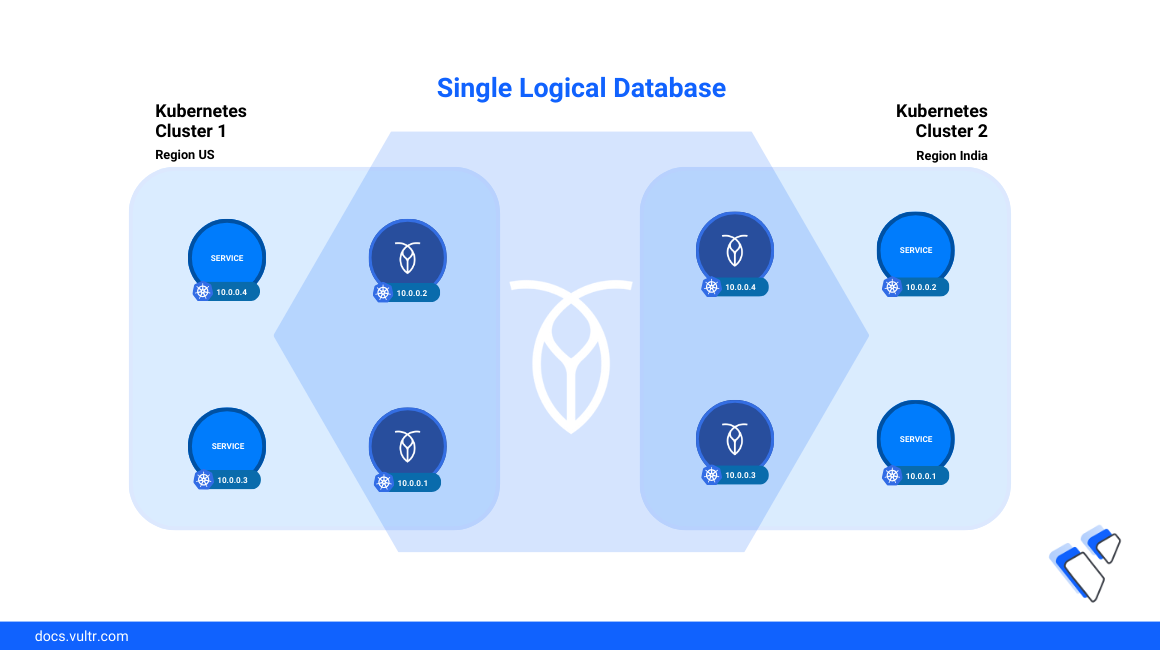
CockroachDB is a distributed SQL database system designed to support data-intensive applications in production environments by replicating data to multiple nodes within a cluster. In case a single cluster node fails, CockroachDB elects new nodes with high availability and enhanced scaling to balance the database load. In addition, the Cockroach DB automated repair feature detects data inconsistencies and automatically corrects any corrupted databases to keep the cluster applications running.
This guide explains how to deploy CockroachDB on a Vultr Kubernetes Engine (VKE) cluster to enable scalability, fault tolerance, and management using the cluster SQL client or graphical interface.
Prerequisites
Before you begin:
- Deploy a Vultr Kubernetes Engine (VKE) cluster with at least
3nodes,8 GBRAM and4 VcPUsin a supported Vultr Block Storage location. - Deploy a Vultr Ubuntu instance to use as a management workstation.
- Access the workstation as a non-root user with sudo privileges.
- Install and configure Kubectl to access the VKE cluster.
Install the CockroachDB Operator
A CockroachDB Kubernetes operator manages the deployment process with the automation of tasks such as scaling and maintenance of Cockroach DB instances on each node within the cluster. Follow the steps below to install the CockroachDB operator and necessary dependencies in a new cockroach-operator-system namespace to run a CockroachDB cluster.
Install the latest Cockroach DB Operator Custom Resource Definitions (CRDs).
CONSOLEThe above command installs the CockroachDB Operator CRDs version
v2.12.0. Visit the operator tags page to verify the latest version.Install the CockroachDB Operator.
CONSOLEOutput:
Wait for at least
2minutes for the deployment process to complete. Then, view all pods in the CockroachDB Operator namespacecockroach-operator-system.CONSOLEVerify that all pods are ready and running similar to the output below:
Create a CockroachDB Cluster
To create a CockroachDB cluster, specify the necessary storage volumes, CPU count, and memory limits to use with the database nodes. In a production environment, define a PVC resource to use Vultr Block Storage volumes with at least 60 GB storage, 2 vCPUs, and 8 GB memory. Follow the steps below to deploy a CockroachDB cluster with the minimum production values.
Create a new directory
cockroadbdb-clusterto store the cluster manifest files.CONSOLEChange to the directory.
CONSOLECreate a new CoackroachDB cluster resource file
cluster.yamlto define the operator functions.CONSOLEAdd the following contents to the file.
YAMLSave and close the file.
The above cluster configuration creates a CockroachDB cluster with
60 GBstorage per Vultr Block Storage volume, and a limit of2 vCPUs,8 GiBmemory for each database node within the cluster.Apply the configuration to create the CockroachDB cluster.
CONSOLEOutput:
Wait at least
3minutes for the CoackroachDB cluster and Vultr Block Storage volumes creation process to complete. Then, view the CockroachDB cluster resource to verify its run-time status.CONSOLEOutput:
View the cluster Pods to verify that all CockroachDB resources are ready and running.
CONSOLEYour output should look like the one below:
Access the CockroachDB Cluster
CockroachDB is accessible within the cluster using the internal cockroachdb-public service address. To externally access the cluster, create a new internal cockroach binary pod to use the SQL client, and set up a new load balancer resource to access the graphical database console as described in the steps below.
List all cluster services to verify the available CockroachDB resources.
CONSOLEYour output should look like the one below:
As displayed in the output above, pods within the same namespace communicate to CockroachDB resources using the
cockroachdb-publicservice internal cluster IP address.Create a new
cockroachdbbinary pod to access the CockroachDB SQL client.CONSOLEView the cluster pods to verify that the
cockroachdb-client-secureSQL client is ready and running.CONSOLEOutput:
Access the pod shell using the
cockroachdb-publicservice as the host gateway to access CockroachDB.CONSOLEOutput:
Create a sample CockroachDB database.
SQLOutput:
Create a new CockroachDB database user with a strong password.
SQLOutput:
Grant administrative database privileges to the user.
SQLExit the pod shell.
SQLCreate a new load balancer resource using the
cockroachdb-publicservice to expose the CockroachDB graphical console with an external IP Address.CONSOLEWait for at least
3minutes to attach a Vultr LoadBalancer to the service. Then, view the cluster services to verify the assigned public IP Address.CONSOLEYour output should look like the one below:
Access the CockroachDB port
8080using your external service IP Address in a new web browser session. Replace192.168.0.34with your actual load balancer IP address.Log in to the database console using the
example_adminuser and password you created earlier in the SQL client.Verify the CockroachDB cluster status, nodes, and databases in the graphical management console to integrate other cluster applications.
Conclusion
You have installed CockroachDB on a Vultr Kubernetes Engine (VKE) cluster and accessed the database using a graphical management console. Depending on your cluster applications, you can integrate internal and external applications to the database with automatic failover capabilities to ensure high application availability in case a cluster node fails. For more information about CockroachDB, visit the official documentation.


0 Comments
Be the first to comment and share your perspective with the community.