How to Deploy ERPNext - Open-Source ERP and CRM Platform
Updated on 04 August, 2026
Deploy ERPNext on a Linux server using Docker Compose with MariaDB, Redis, Traefik, automatic HTTPS, and persistent storage.
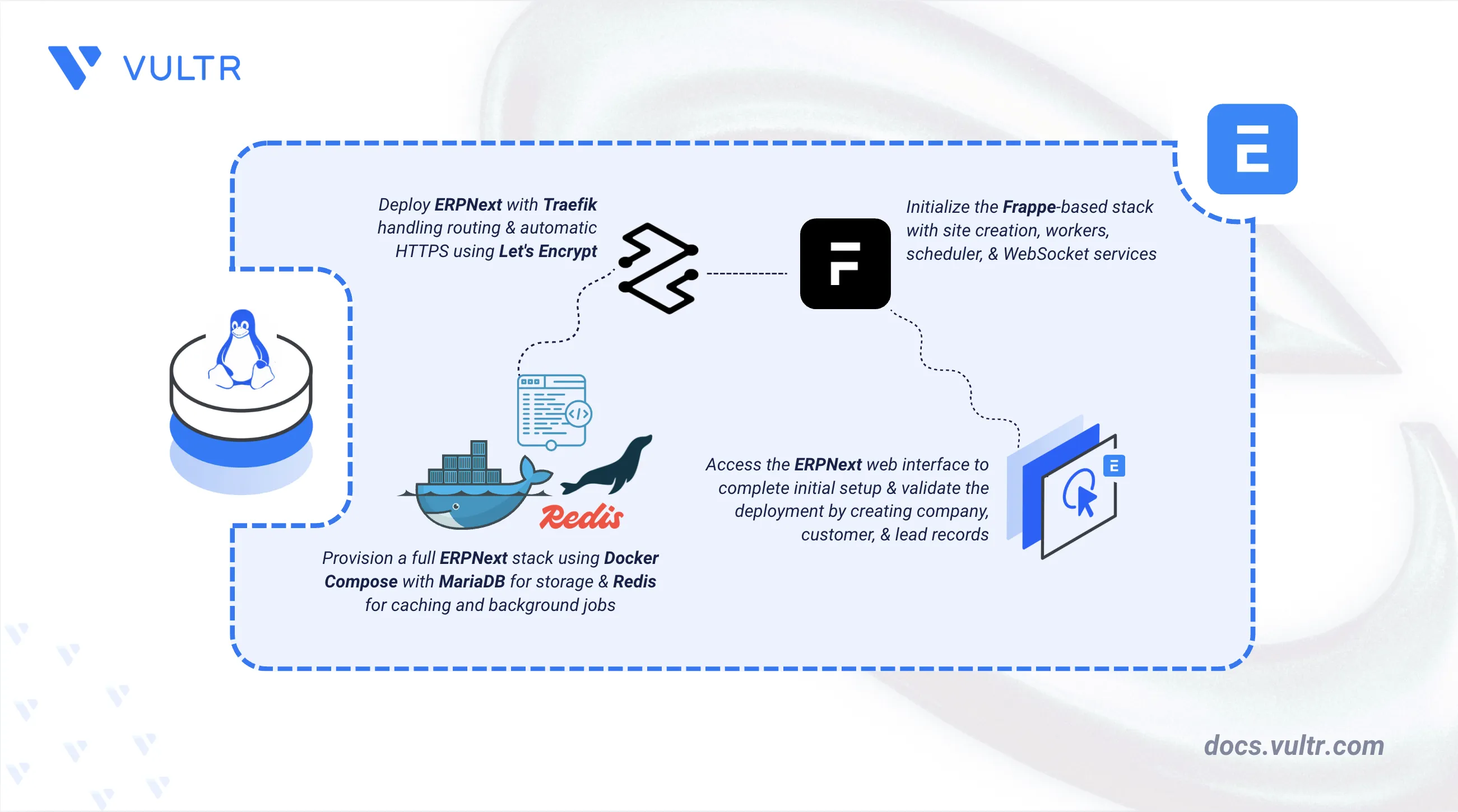
How to Deploy ERPNext - Open-Source ERP and CRM Platform header image

ERPNext is an open-source enterprise resource planning (ERP) and customer relationship management (CRM) platform built on the Frappe framework. It includes modules for accounting, sales, purchasing, inventory, projects, human resources, and customer management, making it suitable for small to medium-sized businesses.

This article explains how to deploy ERPNext on a Linux server using Docker Compose with MariaDB for the database, Redis for caching and background job processing, and Traefik for automatic HTTPS. It covers directory setup, environment configuration, service deployment, and demonstrates the application by creating a company and customer records.

Prerequisites

Before you begin, you need to:

Set Up the Directory Structure, Configuration, and Environment Variables

ERPNext requires a project directory containing configuration files, environment variables, and database initialization scripts. The Docker Compose deployment uses these files to configure MariaDB, Redis, and the Frappe/ERPNext services.

  1. Create the project directory with all required subdirectories.

    console
    $ mkdir -p ~/erpnext/mariadb-init
    
    • mariadb-init/: Contains SQL initialization scripts that MariaDB executes on first startup to create the ERPNext database user.
  2. Navigate to the project directory.

    console
    $ cd ~/erpnext
    
  3. Create the environment file.

    console
    $ nano .env
    

    Add the following configuration:

    ini
    # Domain and HTTPS configuration
    DOMAIN=erpnext.example.com
    LETSENCRYPT_EMAIL=admin@example.com
    
    # ERPNext version
    ERPNEXT_VERSION=v16.17.0
    
    # MariaDB credentials
    MYSQL_ROOT_PASSWORD=STRONG_ROOT_PASSWORD
    
    # ERPNext site credentials
    ADMIN_PASSWORD=STRONG_ADMIN_PASSWORD
    ERPNEXT_DB_NAME=erpnext
    ERPNEXT_DB_USER=erpnext
    ERPNEXT_DB_PASSWORD=STRONG_DB_PASSWORD
    

    Replace:

    • erpnext.example.com with your domain name.
    • admin@example.com with your email address for Let's Encrypt notifications.
    • STRONG_ROOT_PASSWORD, STRONG_ADMIN_PASSWORD, and STRONG_DB_PASSWORD with secure passwords.

    Save and close the file.

  4. Create the MariaDB initialization script. This script creates the database user required by ERPNext.

    console
    $ nano mariadb-init/01-erpnext-user.sql
    

    Add the following content, replacing STRONG_DB_PASSWORD with the same value used for ERPNEXT_DB_PASSWORD in the .env file:

    sql
    CREATE USER IF NOT EXISTS 'erpnext'@'%' IDENTIFIED BY 'STRONG_DB_PASSWORD';
    GRANT ALL PRIVILEGES ON *.* TO 'erpnext'@'%';
    FLUSH PRIVILEGES;
    

    Save and close the file.

Deploy with Docker Compose

Docker Compose orchestrates the ERPNext stack including MariaDB, Redis, Frappe backend services, background workers, websocket server, and Traefik reverse proxy. A one-time configurator container initializes shared settings, and a site creation container sets up the ERPNext application.

  1. Create the Docker Compose file.

    console
    $ nano docker-compose.yml
    
  2. Add the following configuration.

    yaml
    services:
      traefik:
        image: traefik:v3.7.0
        container_name: traefik
        command:
          - "--providers.docker=true"
          - "--providers.docker.exposedbydefault=false"
          - "--entrypoints.web.address=:80"
          - "--entrypoints.websecure.address=:443"
          - "--entrypoints.web.http.redirections.entrypoint.to=websecure"
          - "--entrypoints.web.http.redirections.entrypoint.scheme=https"
          - "--certificatesresolvers.letsencrypt.acme.httpchallenge=true"
          - "--certificatesresolvers.letsencrypt.acme.httpchallenge.entrypoint=web"
          - "--certificatesresolvers.letsencrypt.acme.email=${LETSENCRYPT_EMAIL}"
          - "--certificatesresolvers.letsencrypt.acme.storage=/letsencrypt/acme.json"
        ports:
          - "80:80"
          - "443:443"
        volumes:
          - "/var/run/docker.sock:/var/run/docker.sock:ro"
          - "./letsencrypt:/letsencrypt"
        restart: unless-stopped
    
      db:
        image: mariadb:10.6
        container_name: erpnext-db
        command:
          - --character-set-server=utf8mb4
          - --collation-server=utf8mb4_unicode_ci
          - --skip-name-resolve
        environment:
          MYSQL_ROOT_PASSWORD: ${MYSQL_ROOT_PASSWORD}
        healthcheck:
          test: ["CMD", "healthcheck.sh", "--connect", "--innodb_initialized"]
          interval: 5s
          timeout: 5s
          retries: 20
        volumes:
          - ./db-data:/var/lib/mysql
          - ./mariadb-init:/docker-entrypoint-initdb.d:ro
        restart: unless-stopped
    
      redis-cache:
        image: redis:7-alpine
        container_name: erpnext-redis-cache
        restart: unless-stopped
    
      redis-queue:
        image: redis:7-alpine
        container_name: erpnext-redis-queue
        volumes:
          - ./redis-queue-data:/data
        restart: unless-stopped
    
      configurator:
        image: frappe/erpnext:${ERPNEXT_VERSION}
        container_name: erpnext-configurator
        entrypoint: >
          bash -c '
          bench set-config -g db_host db &&
          bench set-config -g db_port 3306 &&
          bench set-config -g redis_cache redis://redis-cache:6379 &&
          bench set-config -g redis_queue redis://redis-queue:6379 &&
          bench set-config -g redis_socketio redis://redis-queue:6379 &&
          bench set-config -g socketio_port 9000
          '
        depends_on:
          db:
            condition: service_healthy
        volumes:
          - ./sites:/home/frappe/frappe-bench/sites
        restart: "no"
    
      create-site:
        image: frappe/erpnext:${ERPNEXT_VERSION}
        container_name: erpnext-create-site
        entrypoint: >
          bash -c '
          if [ ! -f sites/${DOMAIN}/site_config.json ]; then
            bench new-site ${DOMAIN} \
              --db-host db \
              --db-port 3306 \
              --db-name ${ERPNEXT_DB_NAME} \
              --db-user ${ERPNEXT_DB_USER} \
              --db-password ${ERPNEXT_DB_PASSWORD} \
              --db-root-username root \
              --db-root-password ${MYSQL_ROOT_PASSWORD} \
              --mariadb-user-host-login-scope "%" \
              --admin-password ${ADMIN_PASSWORD} \
              --install-app erpnext;
          fi
          '
        environment:
          DOMAIN: ${DOMAIN}
          MYSQL_ROOT_PASSWORD: ${MYSQL_ROOT_PASSWORD}
          ADMIN_PASSWORD: ${ADMIN_PASSWORD}
          ERPNEXT_DB_NAME: ${ERPNEXT_DB_NAME}
          ERPNEXT_DB_USER: ${ERPNEXT_DB_USER}
          ERPNEXT_DB_PASSWORD: ${ERPNEXT_DB_PASSWORD}
        depends_on:
          configurator:
            condition: service_completed_successfully
        volumes:
          - ./sites:/home/frappe/frappe-bench/sites
        restart: "no"
    
      backend:
        image: frappe/erpnext:${ERPNEXT_VERSION}
        container_name: erpnext-backend
        depends_on:
          create-site:
            condition: service_completed_successfully
        volumes:
          - ./sites:/home/frappe/frappe-bench/sites
        restart: unless-stopped
    
      queue-short:
        image: frappe/erpnext:${ERPNEXT_VERSION}
        container_name: erpnext-queue-short
        command: ["bench", "worker", "--queue", "short,default"]
        depends_on:
          create-site:
            condition: service_completed_successfully
        volumes:
          - ./sites:/home/frappe/frappe-bench/sites
        restart: unless-stopped
    
      queue-long:
        image: frappe/erpnext:${ERPNEXT_VERSION}
        container_name: erpnext-queue-long
        command: ["bench", "worker", "--queue", "long,default,short"]
        depends_on:
          create-site:
            condition: service_completed_successfully
        volumes:
          - ./sites:/home/frappe/frappe-bench/sites
        restart: unless-stopped
    
      scheduler:
        image: frappe/erpnext:${ERPNEXT_VERSION}
        container_name: erpnext-scheduler
        command: ["bench", "schedule"]
        depends_on:
          create-site:
            condition: service_completed_successfully
        volumes:
          - ./sites:/home/frappe/frappe-bench/sites
        restart: unless-stopped
    
      websocket:
        image: frappe/erpnext:${ERPNEXT_VERSION}
        container_name: erpnext-websocket
        command: ["node", "/home/frappe/frappe-bench/apps/frappe/socketio.js"]
        depends_on:
          create-site:
            condition: service_completed_successfully
        volumes:
          - ./sites:/home/frappe/frappe-bench/sites
        restart: unless-stopped
    
      frontend:
        image: frappe/erpnext:${ERPNEXT_VERSION}
        container_name: erpnext-frontend
        command: ["nginx-entrypoint.sh"]
        environment:
          BACKEND: backend:8000
          SOCKETIO: websocket:9000
          FRAPPE_SITE_NAME_HEADER: ${DOMAIN}
          CLIENT_MAX_BODY_SIZE: 50m
          PROXY_READ_TIMEOUT: "120"
          UPSTREAM_REAL_IP_ADDRESS: 127.0.0.1
          UPSTREAM_REAL_IP_HEADER: X-Forwarded-For
          UPSTREAM_REAL_IP_RECURSIVE: "off"
        depends_on:
          backend:
            condition: service_started
          websocket:
            condition: service_started
        labels:
          - "traefik.enable=true"
          - "traefik.http.routers.erpnext.rule=Host(`${DOMAIN}`)"
          - "traefik.http.routers.erpnext.entrypoints=websecure"
          - "traefik.http.routers.erpnext.tls.certresolver=letsencrypt"
          - "traefik.http.services.erpnext.loadbalancer.server.port=8080"
        restart: unless-stopped
    

    Save and close the file.

    In the above manifest:

    • services: Launches eleven containers managed by Docker Compose:
      • traefik: Serves as the reverse proxy and TLS termination point with automatic Let's Encrypt certificate provisioning.
      • db: MariaDB 10.6 database that stores ERPNext application data.
      • redis-cache: Redis instance for caching frequently accessed data.
      • redis-queue: Redis instance for background job queues with persistent storage.
      • configurator: One-time container that writes shared settings to common_site_config.json.
      • create-site: One-time container that initializes the ERPNext site and installs the application.
      • backend: Frappe application server that handles API requests.
      • queue-short and queue-long: Background workers that process asynchronous jobs.
      • scheduler: Runs scheduled tasks and cron jobs.
      • websocket: Node.js server for real-time updates and notifications.
      • frontend: Nginx server that serves static assets and proxies requests to the backend.
    • healthcheck (db): Ensures dependent services wait until MariaDB is fully initialized.
    • depends_on: Controls startup order so configurator runs before site creation, and site creation completes before application services start.
    • labels (frontend): Registers the frontend container with Traefik for HTTPS routing.
    • volumes: Provides persistent storage for TLS certificates, database files, Redis data, and ERPNext site files.
    • restart: unless-stopped: Enables automatic recovery after failures or server reboots.
  3. Create the sites directory and seed it with the default configuration files baked into the ERPNext image. Docker only auto-populates a named volume from an image's existing directory contents; a bind mount like ./sites stays empty unless you copy those files in yourself.

    console
    $ mkdir -p sites
    $ docker run --rm -v $(pwd)/sites:/bootstrap-sites frappe/erpnext:v16.17.0 bash -c "cp -a /home/frappe/frappe-bench/sites/. /bootstrap-sites/"
    
  4. The frappe user inside the ERPNext containers runs as UID 1000. Set matching ownership on the sites directory so the containers can write to it.

    console
    $ sudo chown -R 1000:1000 sites
    
  5. Build and start all services in detached mode.

    console
    $ docker compose up -d
    

    The site creation process takes several minutes as ERPNext installs database schemas and application modules.

  6. Monitor the site creation progress.

    console
    $ docker compose logs -f create-site
    

    Wait until the installation completes. The output shows a progress bar for each stage, starting with Installing frappe... and Updating DocTypes for frappe, then Installing erpnext... and Updating DocTypes for erpnext, each reaching 100%.

    Press Ctrl+C to exit the log viewer after installation completes.

  7. Verify all services are running.

    console
    $ docker compose ps -a
    

    The output displays ten running containers and two completed initialization containers. All containers should show Up except erpnext-configurator and erpnext-create-site, which show Exited (0) after completing their initialization tasks.

  8. Verify the site directory was created.

    console
    $ docker compose exec backend ls sites
    

    The output lists apps.json, apps.txt, assets, common_site_config.json, and a directory matching your domain, confirming the ERPNext site was initialized with its configuration files and site directory.

Access and Configure ERPNext

After deployment, access the ERPNext web interface to complete the initial setup wizard and configure the application.

  1. Open a web browser and navigate to https://erpnext.example.com. Replace erpnext.example.com with your configured domain.

    ERPNext login page

  2. Log in with the administrator credentials.

    • Username: Administrator
    • Password: The value of ADMIN_PASSWORD from the .env file.
  3. Complete the setup wizard by configuring language, country, timezone, and currency settings.

  4. Create your company profile by entering the company name, abbreviation, and default currency.

    After completing the wizard, the ERPNext dashboard displays with access to all ERP modules.

Verify the ERPNext Application

Creating basic records confirms that ERPNext modules are functioning correctly and the database is properly connected.

  1. Create a customer record. Click the search bar, type Customer, and select New Customer. Enter the customer name and type, then click Save.

  2. Create a lead record. Click the search bar, type Lead, and select New Lead. Enter the lead name and source, then click Save.

  3. Verify the records appear in the respective lists by searching for Customer List and Lead List.

Conclusion

You have deployed ERPNext on a Linux server using Docker Compose with MariaDB for the database, Redis for caching and job queues, and Traefik for automatic HTTPS. The deployment includes background workers for asynchronous processing and a websocket server for real-time updates. For advanced configuration, module customization, and production hardening, refer to the official ERPNext documentation.

Comments