How to Deploy Gitea – Self-Hosted Git Platform
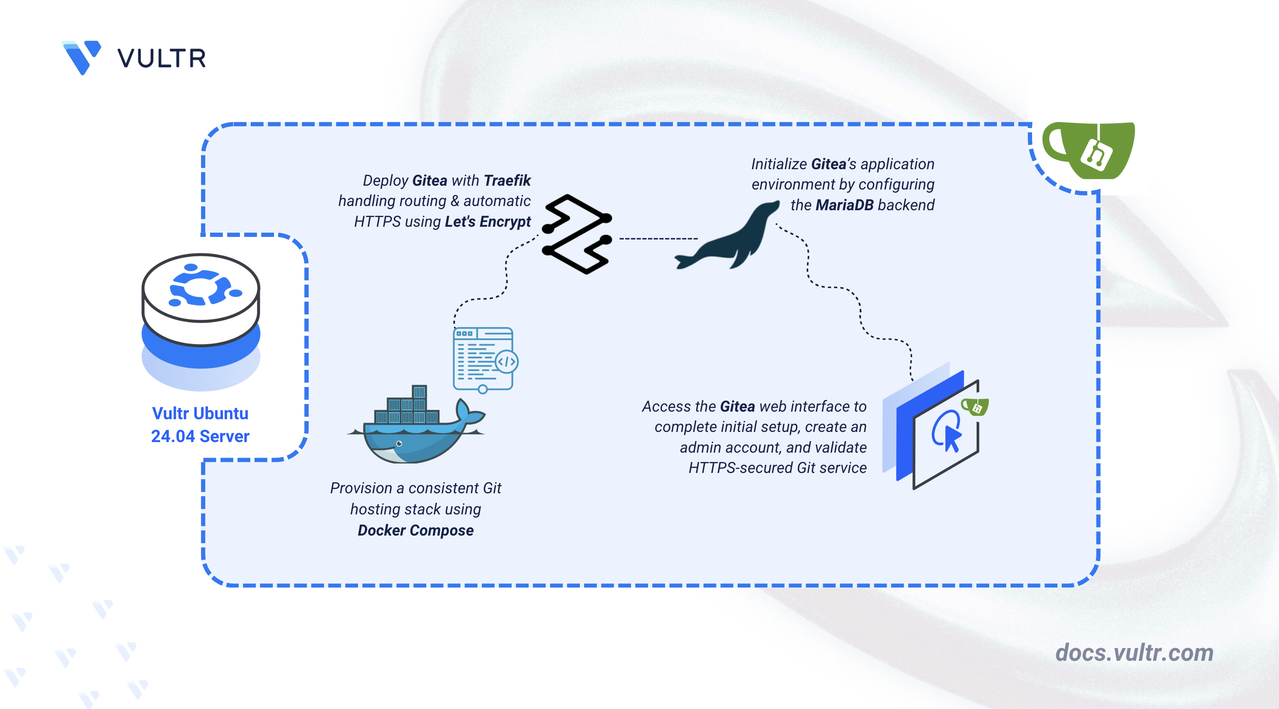
Gitea is a lightweight, self-hosted Git service that offers features such as repository hosting, pull requests, issues, SSH/HTTPS access, a built-in web editor, and CI integrations. You can run Gitea on any Linux server and access it securely via web browser.
This article demonstrates how to deploy Gitea on Ubuntu 24.04 using Docker Compose and secure it with HTTPS via a Traefik reverse proxy.
Prerequisites
Before you begin:
- Have access to an Ubuntu 24.04 server as a non-root user with sudo privileges.
- Install Docker and Docker Compose.
- Configure a domain name, such as
gitea.example.com, to point to your server’s public IP address.
Set Up the Directory Structure and Env Variables
Set up the project directory to store persistent Gitea, MariaDB, and Let's Encrypt files.
Create folders to store Gitea data, database files, and Let's Encrypt certificates.
CONSOLEdata- Gitea repositories, configs, SSH keys.db- MariaDB database files.letsencrypt- Traefik ACME certificates.
Navigate to the root Gitea directory.
CONSOLECreate a
.envfile to store environment variables.CONSOLEAdd these values:
INIIn the above file, replace:
STRONG_APP_PASSWORDwith a secure password for the Gitea DB user.STRONG_MYSQL_ROOT_PASSWORDwith a secure password for the MySQL root user.gitea.example.comwith your domain.admin@example.comwith your email.
Save and close the file.
Deploy with Docker Compose
Deploy Gitea with Docker Compose, Traefik as reverse proxy, and MariaDB for storage.
Add your user account to the docker user group.
CONSOLEApply new group membership.
CONSOLECreate and edit a Docker Compose manifest file.
CONSOLEAdd the following contents:
YAMLSave and close the file.
This Docker Compose file deploys Gitea behind Traefik, enabling secure HTTPS access using Let’s Encrypt. Each service has a specific purpose:
gitea service
- Runs the Gitea application container, providing the Git hosting interface.
- Stores repositories, SSH keys, and config in the
./datadirectory. - Connects to MariaDB using database credentials from your
.envfile. - Advertises itself to Traefik using labels so Traefik can route traffic for your domain to the Gitea web interface over HTTPS.
- Exposes its internal port 3000 for the web UI.
db service (MariaDB)
- Stores all Gitea metadata such as users, repositories, issues, and pull requests.
- Uses the
./dbdirectory for persistent data. - Initializes the database using values provided in the
.envfile.
traefik service
- Listens on ports 80 and 443 and handles all incoming traffic.
- Automatically provisions and renews SSL certificates via Let’s Encrypt using the ACME HTTP-01 challenge.
- Reads labels from the Gitea container to route traffic to it securely.
- Stores certificate data in the
./letsencryptdirectory.
Start all services in detached mode.
CONSOLECheck container status.
CONSOLEYou should see
gitea,gitea-db, andtraefiklisted as "Up".Note
For more information on managing a Docker Compose stack, see the How To Use Docker Compose article.
Access and Configure Gitea
Open your browser and visit your Gitea domain
https://gitea.example.com.You should see the Initial Configuration page. Leave the Database settings to their default values.
Scroll down to the Optional Settings section, and expand the Administrator Account Settings. Fill in the values to create an Administrator user.
Click the Install Gitea button to finish the installation process. After installation, the dashboard loads. You now have a fully functional and secure Gitea installation.
Conclusion
By following this article, you successfully deployed Gitea on Ubuntu 24.04 using Docker Compose and secured it with Traefik. Your Git service now supports HTTPS, automatic TLS renewal, repository hosting, and all Gitea’s built-in features. For more details, visit the Gitea documentation.




0 Comments
Be the first to comment and share your perspective with the community.