How to Deploy Navidrome – Self-Hosted Music Streaming Server
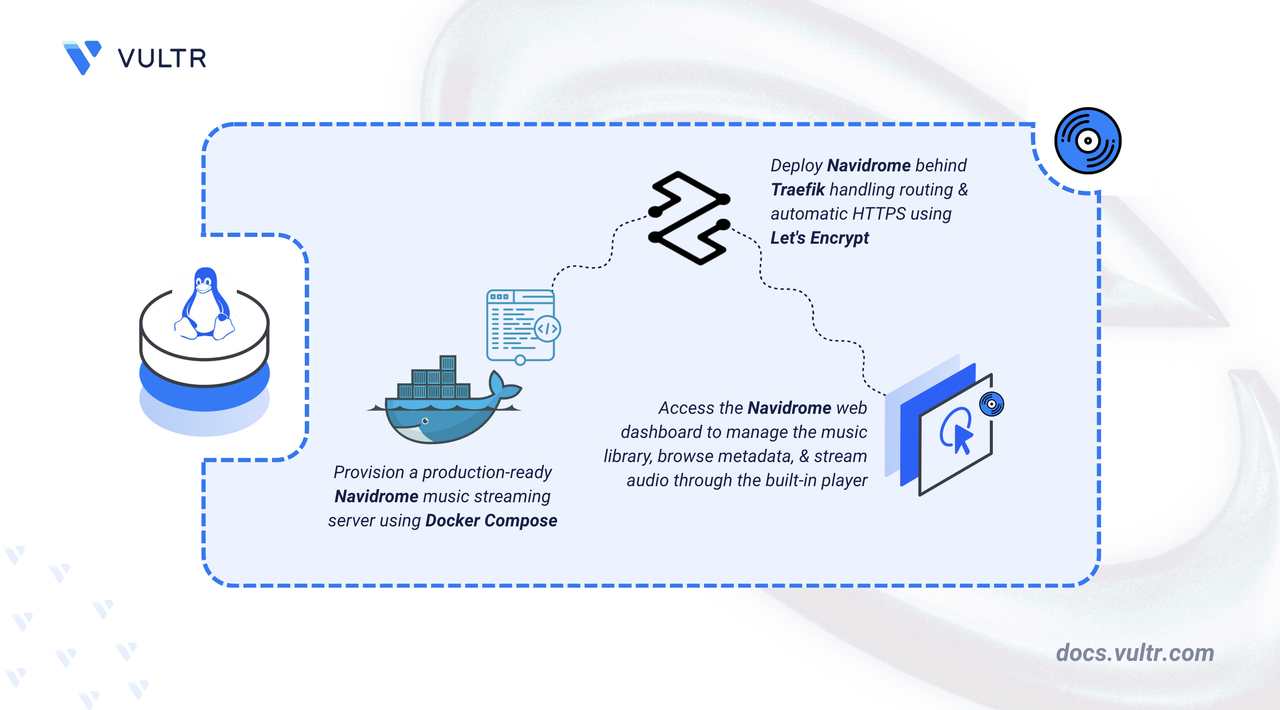
Navidrome is an open-source music streaming server that lets you browse and listen to your music collection in a web browser. It runs as a lightweight service on a self-managed server and provides features such as library organization, metadata handling, and audio streaming to compatible clients.
This article demonstrates how to deploy Navidrome on a Linux server using Docker Compose. It covers service configuration, storage setup, and initial access to the Navidrome dashboard.
Prerequisites
Before you begin, you need to:
- Have access to a Linux-based server (with at least 2 CPU cores and 4 GB of RAM) as a non-root user with sudo privileges.
- Install Docker and Docker Compose.
- Configure a domain name, such as
navidrome.example.com, to point to your server’s public IP address.
Set Up the Directory Structure, Configuration, and Environment Variables
Navidrome needs directories to store application data and music files, along with environment variables that define paths, timezone, and domain settings. This section prepares the directory structure and the .env file used by Docker Compose.
Create the project directory and required subdirectories.
CONSOLEdatastores the Navidrome database, cache, and application metadata.musicstores your music library files that Navidrome scans and streams.
Navigate to the project directory.
CONSOLECreate a
.envfile to store environment variables.CONSOLEAdd the following variables.
INIReplace:
Asia/Kolkatawith your preferred timezone.navidrome.example.comwith your actual domain name pointing to this server.admin@example.comwith your email address.
Save and close the file.
Deploy Navidrome with Docker Compose
The Docker Compose configuration defines two services - Navidrome, which handles music streaming, and Traefik, which acts as a reverse proxy. Traefik terminates HTTPS traffic using a Let's Encrypt certificate and routes incoming requests to Navidrome based on the domain name defined in the .env file.
Add your user to the Docker group.
CONSOLEApply the group membership change.
CONSOLECreate a Docker Compose file.
CONSOLEAdd the following configuration.
YAMLSave and close the file.
The above Docker Compose configuration includes the following services.
navidrome service
- Runs Navidrome using the
deluan/navidromeimage. - Reads music files from the
./musicdirectory mounted inside the container. - Stores application data in the
./datadirectory to preserve the database and settings. - Uses environment variables from the
.envfile to set paths, log level, and timezone. - Exposes the web interface internally on port 4533 for Traefik to route traffic.
traefik service
- Runs Traefik as a reverse proxy and HTTPS router.
- Exposes ports 80 and 443 on the host.
- Automatically redirects HTTP traffic to HTTPS.
- Requests and renews TLS certificates using Let’s Encrypt.
- Routes requests for the configured domain to the Navidrome container using Docker labels.
- Runs Navidrome using the
Start the services.
CONSOLEVerify that both containers are running.
CONSOLEThe output lists the
navidromeandtraefikservices with the status set toUp.Note
For more information about managing Docker Compose applications, refer to the How to Use Docker Compose documentation.
Access and Configure Navidrome
Open your web browser and navigate to your domain over HTTPS, such as
https://navidrome.example.com.Enter a username and password, then click Create Admin to create the administrator account. Navidrome stores the credentials in the persistent data directory.
After the administrator account is created, Navidrome opens the main dashboard. If no music files are present in the configured music directory, the interface displays an empty library.
Add Music to the Library and Test Streaming
Navidrome scans the configured music directory and indexes supported audio files automatically. The following steps add a sample file and verify that streaming works through the web interface.
Download a public-domain audio file directly into the Navidrome music directory.
CONSOLEEnsure the file is readable by the container.
CONSOLENote
Navidrome monitors the music directory. After the file is added, the library updates automatically.
Wait for the automatic scan to complete, then verify that the album appears in the library.
Select the track and start playback in the built-in audio player to confirm that streaming works.
Conclusion
You have successfully deployed Navidrome using Docker Compose and secure access through Traefik with automatic HTTPS. The configuration persists application data and music files on the host, allowing the service to index and stream your collection through a web browser. For additional configuration options and advanced features, refer to the official Navidrome documentation.


0 Comments
Be the first to comment and share your perspective with the community.