How to Deploy ownCloud – File Sharing Platform
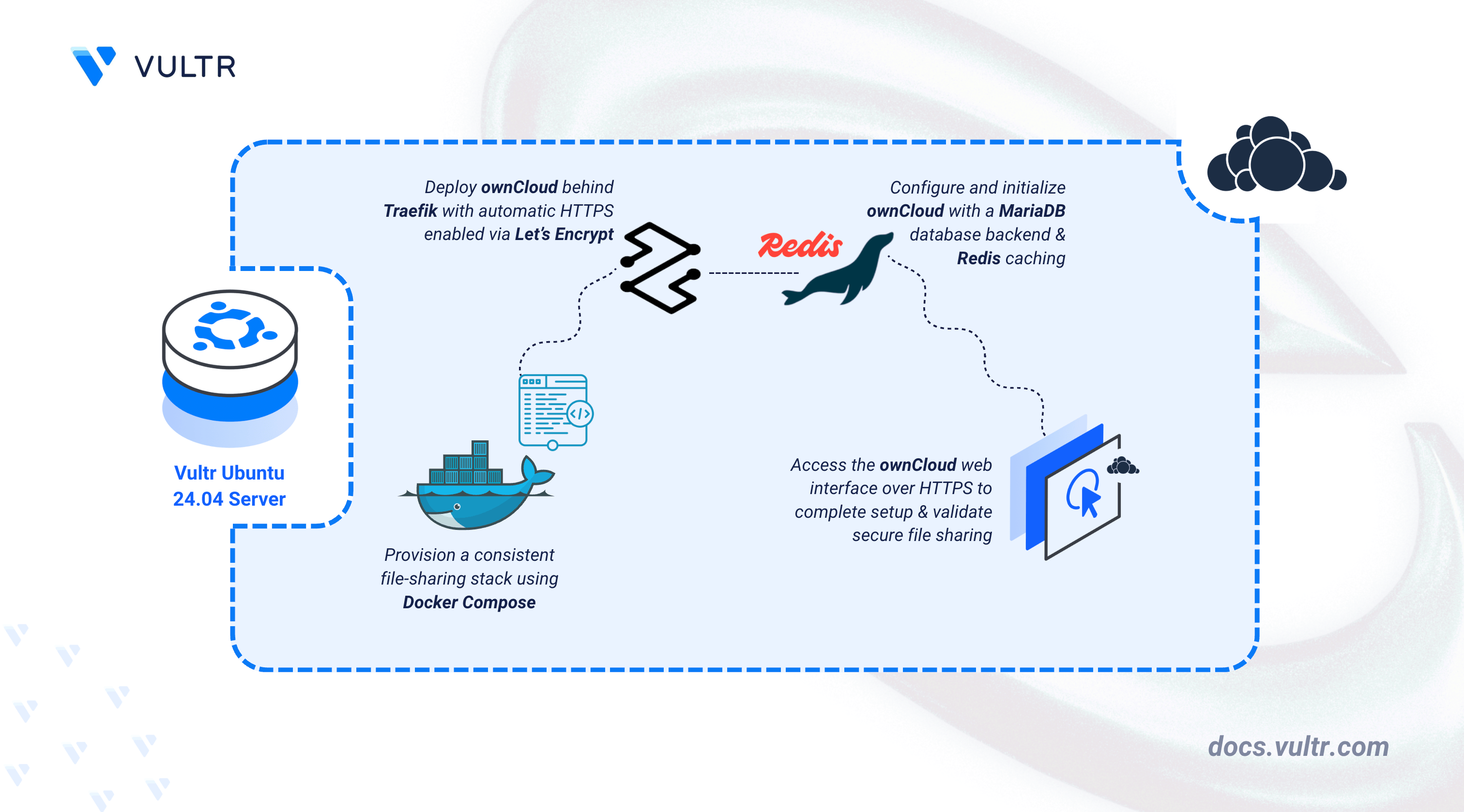
ownCloud is an open-source file-sharing platform that allows you to securely store, share, and access your files from anywhere. It serves as a private alternative to services like Dropbox or Google Drive, providing you with full control over your data.
This article demonstrates how to deploy ownCloud on Ubuntu 24.04 using Docker Compose.
Prerequisites
Before you begin:
- Access an Ubuntu 24.04 server as a non-root user with sudo privileges.
- Install Docker and Docker Compose.
- Configure a domain name, such as
owncloud.example.com, pointing to your server’s public IP address.
Set Up the Directory Structure and Environment Variables
ownCloud requires persistent storage for user files and the database, as well as configuration for the domain and administrative credentials. This section prepares the necessary directory structure and sets the required environment variables.
Create the project folders.
CONSOLEfiles- Stores the actual user data and uploaded files.mysql- Persistent storage for the MariaDB database.redis- Data persistence for Redis cache.letsencrypt- Stores Traefik ACME certificates.
Navigate to the root ownCloud directory.
CONSOLECreate an
.envfile to store your configuration.CONSOLEAdd the following values:
INIReplace the placeholders with your own values:
owncloud.example.com– Your actual domain name.STRONG_ADMIN_PASSWORD– The password you will use to log in to the web interface.STRONG_DB_PASSWORD– Secure password for the ownCloud database user.admin@example.com– Your email for SSL certificate notifications.
Save and close the file.
Deploy with Docker Compose
This section deploys the full ownCloud stack behind Traefik. The configuration includes services for the application, database, and cache.
Add your user account to the docker user group.
CONSOLEApply the new group membership.
CONSOLECreate the Docker Compose manifest file.
CONSOLEAdd the following contents:
YAMLSave and close the file.
This Docker Compose file deploys ownCloud behind Traefik, uses MariaDB for storage and Redis for caching. Each service has a specific purpose:
owncloud service
- Runs the official
owncloud/serverimage. - Connects to the
mariadbservice for database storage andredisfor caching session data and managing file locks. - Uses environment variables to automatically configure the database connection and create the initial administrator account.
- Persists user files and configuration in the
./filesdirectory (mounted to/mnt/data). - Exposes port 8080 internally, which Traefik routes to via the labels section.
mariadb service
- Runs MariaDB 10.11 as the database backend.
- Initializes the
ownclouddatabase and user credentials defined in your.envfile. - Stores database files in the
./mysqldirectory. - Includes a health check to ensure the database is ready before the ownCloud application starts.
redis service
- Runs a Redis server to handle caching, which significantly improves ownCloud's performance and responsiveness.
- Stores cache data in the
./redisdirectory.
traefik service
- Listens on ports 80 and 443 to handle incoming web traffic.
- Automatically requests and renews SSL certificates from Let’s Encrypt for your
${OWNCLOUD_DOMAIN}. - Redirects all insecure HTTP traffic to HTTPS.
- Runs the official
Start all services in detached mode.
CONSOLECheck the container status.
CONSOLENote
For more information on managing a Docker Compose stack, see the How To Use Docker Compose article.
Access ownCloud
Open your web browser and visit your domain
https://owncloud.example.com.The login screen appears. Enter the
ADMIN_USERNAMEandADMIN_PASSWORDyou configured in your.envfile.Upon successful login, the ownCloud dashboard loads. You can now begin uploading files, creating users, and installing apps from the marketplace.
Conclusion
By following this article, you successfully deployed ownCloud on Ubuntu 24.04 using Docker Compose. Your file-sharing platform is now accessible over HTTPS and ready for use. For more information, refer to the ownCloud Documentation.


0 Comments
Be the first to comment and share your perspective with the community.