How to Deploy Portkey - Open-Source AI Gateway for LLM Routing
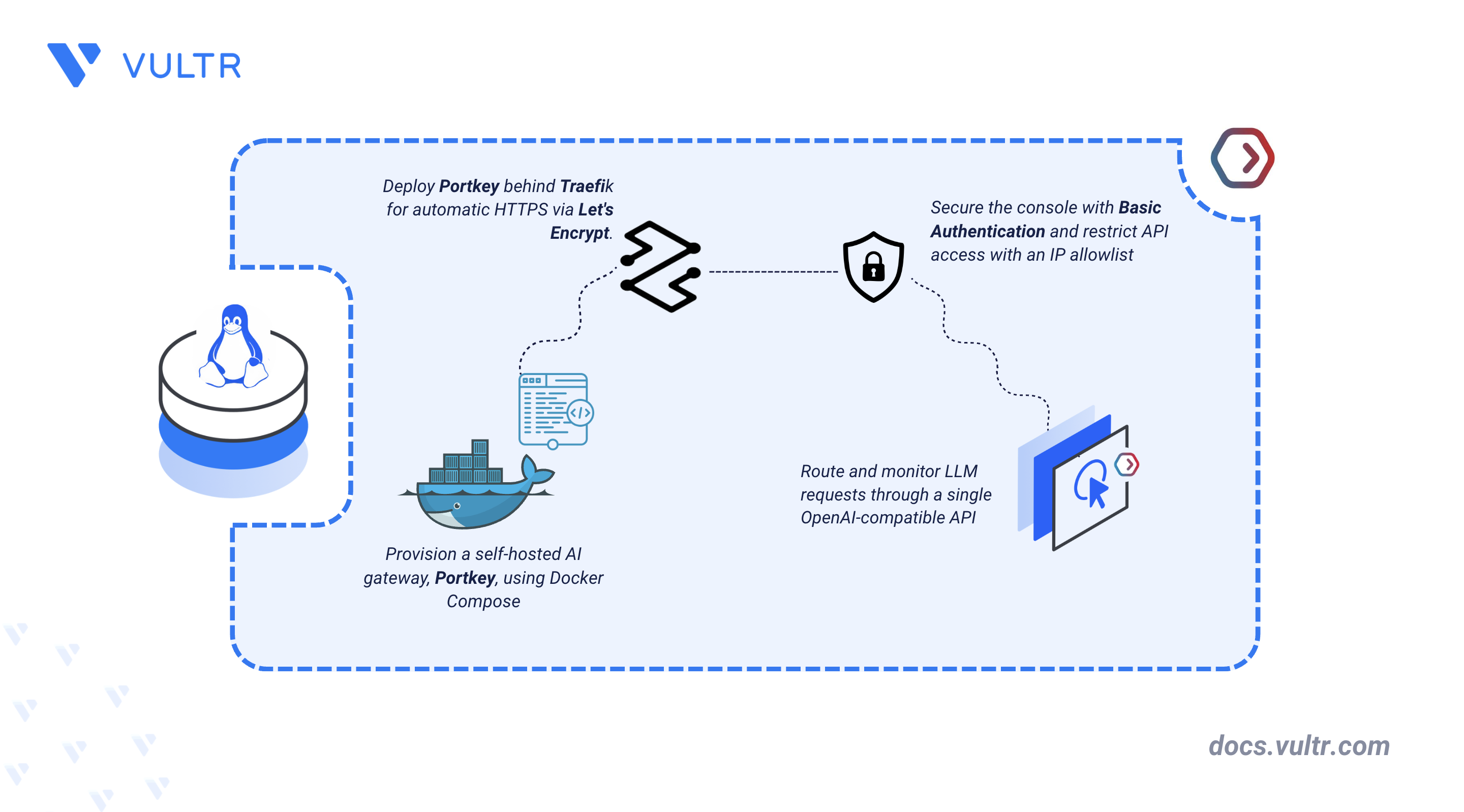
Portkey is an open-source AI gateway that unifies access to 250+ Large Language Models (LLMs) across dozens of providers behind a single, OpenAI-compatible API. Instead of integrating with each provider's SDK, applications send requests through Portkey, which handles routing, load balancing, and automatic fallback to keep AI-powered systems reliable.
This article explains how to deploy Portkey on a Linux server using Docker Compose and secure it with Traefik as a reverse proxy for TLS termination. It also covers protecting access with a combination of Basic Authentication for the web console and an IP allowlist for the API endpoint.
Prerequisites
Before you begin, you need to:
- Have access to a Linux-based server (with at least 2 CPU cores and 4 GB of RAM) as a non-root user with sudo privileges.
- Install Docker and Docker Compose.
- Create a DNS A record, such as
portkey.example.com, pointing to your server's IP address. - Have an API key from an LLM provider, used to test the gateway after deployment.
Set Up the Directory Structure and Environment Variables
Portkey's gateway container is stateless and does not require persistent storage of its own. The project directory contains the Docker Compose configuration and environment variables used to configure and run the gateway.
Create the project directory.
CONSOLENavigate to the project directory.
CONSOLEFind your server's public IP address, which is used later to restrict API access.
CONSOLECopy this value for use when configuring the
.envfile.Create an environment file to store configuration variables.
CONSOLEAdd the following configuration.
INI- Replace
portkey.example.comwith your domain name. - Replace
admin@example.comwith your email address. - Replace
YOUR_SERVER_IPwith your server's public IP address obtained in the earlier step.
Save and close the file.
- Replace
Install the
htpasswdutility, which is used to generate credentials for the web console.CONSOLEGenerate a username and password for accessing the Portkey console. Replace
portkeyadminwith your preferred username.CONSOLEEnter and confirm a password when prompted. This creates a
.htpasswdfile containing the hashed credentials.
Deploy Portkey with Docker Compose
This section deploys Portkey and Traefik together, with Traefik handling HTTPS certificate issuance through Let's Encrypt. The self-hosted Portkey gateway has no built-in authentication of its own, so this guide adds Basic Authentication and an IP allowlist at the Traefik level to restrict access to the console and the API.
Create the Docker Compose manifest file.
CONSOLEAdd the following configuration.
YAMLSave and close the file.
In the above manifest:
traefik: Serves as the reverse proxy and TLS termination point. It listens on ports 80 and 443, automatically redirects HTTP to HTTPS, and provisions Let's Encrypt certificates.portkey: Runs the officialportkeyai/gatewayimage on internal port 8787. Separate Traefik routers apply Basic Authentication to the/publicconsole and an IP allowlist to the API, avoiding conflicts with providerAuthorizationheaders. The stateless gateway requires no environment variables, volumes, or database.
Start the services in detached mode.
CONSOLEVerify that all containers are running.
CONSOLEThe output displays two running containers with Traefik listening on ports 80 and 443.
Note
For more information on managing a Docker Compose stack, see the How to Use Docker Compose article.
Access the Portkey Gateway Console
Traefik routes all HTTPS traffic on the configured domain to the Portkey container, applying Basic Authentication to the console and an IP allowlist to the API.
Confirm that the API responds from your server. Replace
portkey.example.comwith your configured domain.CONSOLEA response other than
403confirms that the request reached the gateway and was not blocked by the IP allowlist. A403response means the server's IP does not match the value configured inSERVER_IPin the.envfile.Open a web browser and navigate to
https://portkey.example.com/public/, replacingportkey.example.comwith your configured domain.A browser prompt requests a username and password. Enter the credentials created earlier with
htpasswd.The Portkey Console displays a test request panel and options to configure routing rules such as load balancing, fallbacks, and retries.
Test the Portkey Gateway Console
Validate the deployment by sending a live chat completion request through the gateway using an LLM provider API key.
Send a test chat completion request through the gateway. Replace
portkey.example.comwith your configured domain,your_providerwith your LLM provider, andyour_api_keyandyour_modelwith your provider's key and model name.CONSOLEA successful response returns a
chat.completionobject containing the model's reply, confirming that the gateway routed the request to the provider and back.Open the Portkey Console at
https://portkey.example.com/public/, replacingportkey.example.comwith your configured domain and review the request under the Logs section, confirming the gateway recorded the completed request.
Conclusion
You have deployed Portkey on a Linux server using Docker Compose, with Traefik as a reverse proxy for TLS termination. The deployment routes requests to language model providers through a single, OpenAI-compatible endpoint, with the web console protected by Basic Authentication and the API restricted through an IP allowlist. For more information, see the official Portkey documentation.
Tags:Open Source


0 Comments
Be the first to comment and share your perspective with the community.