How to Deploy Redis® – In-Memory Data Store
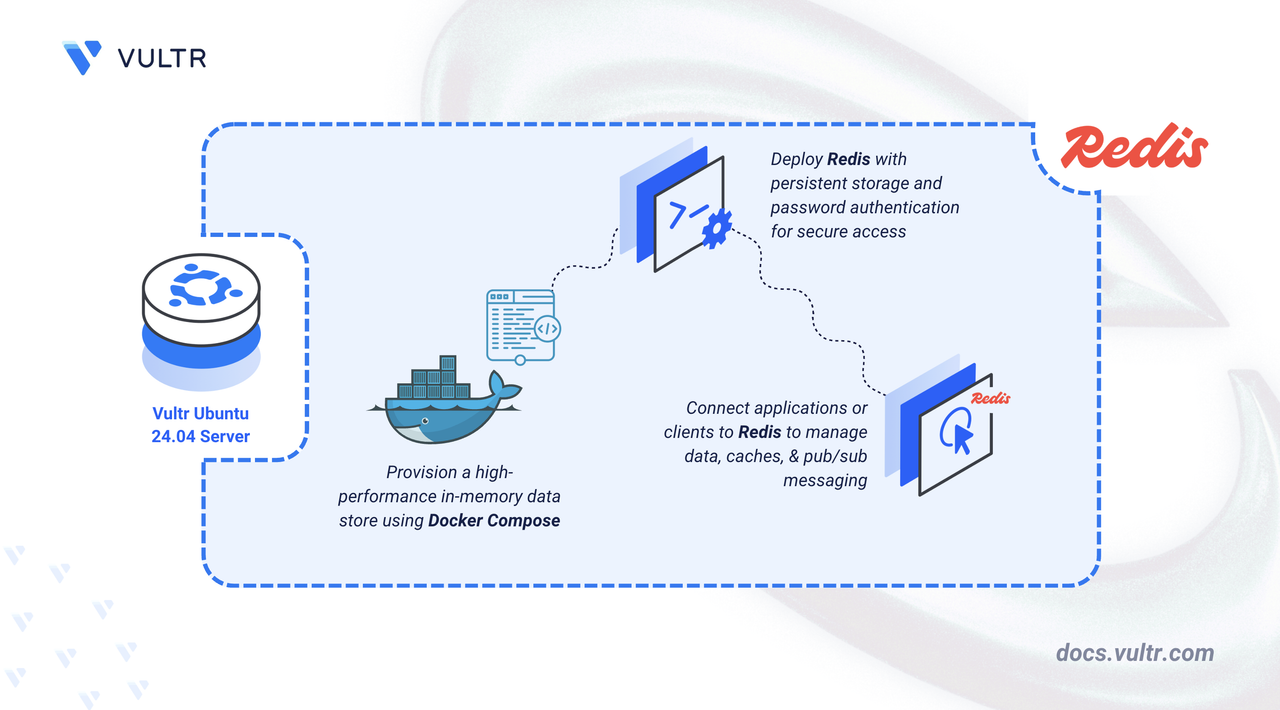
Redis® is an in-memory data store designed for low-latency access, supporting strings, lists, sets, sorted sets, streams, and pub/sub messaging. It is commonly used as a cache layer, message broker, and lightweight in-memory key-value database for high-throughput applications.
This article explains how to deploy Redis® with Docker Compose, enable data persistence, and secure it with a password.
Prerequisites
Before you begin, you need to:
- Have access to an Ubuntu 24.04-based server as a non-root user with
sudoprivileges. - Install Docker and Docker Compose.
Set Up the Directory Structure and Environment Variables
In this section, you create a project directory for Redis® and define environment variables in a .env file that Docker Compose loads automatically.
Create the project directory.
CONSOLENavigate into the project directory.
CONSOLECreate a
.envfile to store the environment variables.CONSOLEAdd the following variables:
INIReplace:
STRONG_REDIS_PASSWORDwith a secure alphanumeric password.REDIS_PORTwith your preferred port (default:6379).
Save and close the file.
Create a Redis® configuration file.
CONSOLEAdd the following Redis settings:
INISave and close the file.
Prepare the Host System for Redis®
In this section, you configure the host system to support reliable Redis® operations. Redis® requires memory overcommit to be enabled. Without this setting, background save operations or replication may fail, and the container may exit unexpectedly.
Open the /etc/sysctl.conf file.
CONSOLEAdd the following line to enable memory overcommit.
INISave and close the file.
Apply the updated kernel parameters.
CONSOLEOutput:
This output confirms that the memory overcommit setting is active on your system.
Deploy with Docker Compose
In this section, you create the Docker Compose manifest that deploys Redis® with data persistence, loads your custom configuration file, and secures the server using a password defined in your .env file.
Create the Docker Compose manifest.
CONSOLEAdd the following content:
YAMLSave and close the file.
In this manifest:
- services: Defines the containers managed by Docker Compose:
- redis: Runs the Redis® server with persistence enabled and password authentication enforced.
- image: Specifies the Redis® 7.2 container image.
- container_name: Assigns a fixed container name for easier management.
- command: Starts Redis® using your custom configuration file and applies the password using the
--requirepassdirective. - ports: Maps the container’s default Redis® port (
6379) to the host using the value from your.envfile. - volumes:
./datapersists Redis® data across container restarts../conf/redis.confinjects your custom Redis® configuration file into the container.
- environment: Exposes the Redis® password to the container runtime.
- healthcheck: Monitors container health by running a password-authenticated
PINGevery 10 seconds. - restart: unless-stopped: Ensures Redis® automatically restarts unless manually stopped.
- services: Defines the containers managed by Docker Compose:
Start the Redis® service.
CONSOLEVerify that Redis® is running.
CONSOLEEnsure that the output shows the Redis® container is healthy and running.
View logs if needed.
CONSOLEFor more information on managing a Docker Compose stack, see the How To Use Docker Compose article.
Verify Redis® Connectivity
In this section, you verify that your Redis® instance is reachable and accepting authenticated commands.
Install the Redis® CLI tool on the host.
CONSOLETest the connection by sending an authenticated
PINGcommand.CONSOLEReplace:
REDIS_HOSTwith the IP address of your server.REDIS_PORTwith the Redis® service port you configured.REDIS_PASSWORDwith the password you set for authentication.
Output:
This confirms that Redis® is running, reachable, and correctly secured with your password.
Conclusion
You successfully deployed Redis® using Docker Compose with data persistence and password authentication. You configured the required environment variables, applied the necessary host settings, and launched Redis® with a custom configuration file. After verifying the container’s health and testing connectivity, the Redis® instance was fully operational and ready to use.
Tags:Redis®


0 Comments
Be the first to comment and share your perspective with the community.