How to Install MariaDB on Ubuntu 20.04
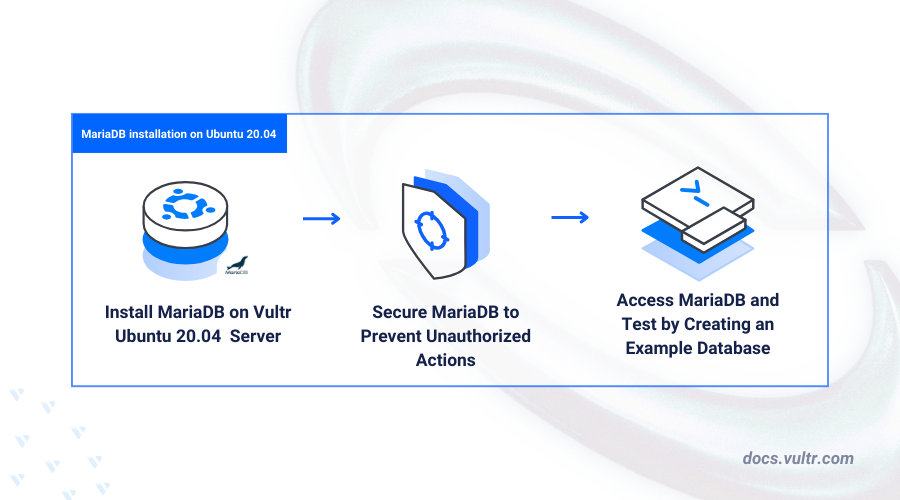
MariaDB is a free and open-source relational database system that serves as a highly compatible replacement for MySQL, offering enhanced performance, stability, and versatility. It retains MySQL’s SQL syntax, allowing seamless database creation and management.
This article covers installing MariaDB on Ubuntu 20.04 and configuring it for production use, so you can efficiently manage databases on your server.
Prerequisites
Before you begin:
Have an Ubuntu 20.04 server.
Access the server using SSH as a non-root user with sudo privileges.
Install MariaDB on Ubuntu 20.04
MariaDB can be installed directly from Ubuntu 20.04’s default APT repositories. After installation, you can check the system service to ensure that MariaDB is running correctly on your server.
Update the server package index.
CONSOLEInstall MariaDB.
CONSOLEView the installed MariaDB version on your server.
CONSOLEOutput:
Enable the MariaDB system service to start at boot time.
CONSOLEStart MariaDB on your server.
CONSOLEView the MariaDB service status to verify that it's running on your server.
CONSOLEOutput:
Secure the MariaDB Server
MariaDB operates using the root account by default, which initially has no password set. This setup limits access to system users with elevated privileges. To enhance security, it's recommended to set a root password, eliminate anonymous users, and restrict remote access for the root account.
Run the following command to start the MariaDB security script.
CONSOLEPress Enter to select
noneas the current root password.Enter N and press Enter to use set password for root user.
Enter Y and press Enter to delete anonymous users on the MariaDB server.
Enter Y and press Enter to disable remote access to the database server root user.
Enter Y and press Enter to delete the test database.
Enter Y to refresh your MariaDB privilege tables and apply your new configuration changes.
Log in to the MySQL database server as
root.CONSOLESet a strong password for the root user.
SQLExit the MariaDB database console.
SQLRestart MariaDB on your server.
CONSOLE
Access MariaDB
MariaDB works seamlessly with graphical tools like PhpMyAdmin, providing a user-friendly way to manage databases. You can also interact with the database server directly through the terminal using the mariadb or mysql command-line tools. These tools let you access the MariaDB console and create or manage databases efficiently from the server.
Log in to the MariaDB database server.
CONSOLEEnter the database root user password you set earlier when prompted.
Create a new sample database. For example,
exampledb.SQLView all databases on the server and verify that the new database is available.
SQLOutput:
Create a new database user with a strong password. For example,
exampledb_user.SQLGrant the user full privileges to the
exampledbdatabase.SQLRefresh the MariaDB privilege tables to apply the new database changes.
SQLExit the MariaDB database console.
SQL
Conclusion
MariaDB has been successfully installed and set up on your Ubuntu 20.04 server. You can now connect it to your applications and use it as the primary backend database.


0 Comments
Be the first to comment and share your perspective with the community.