How to Install Nagios on Ubuntu 24.04
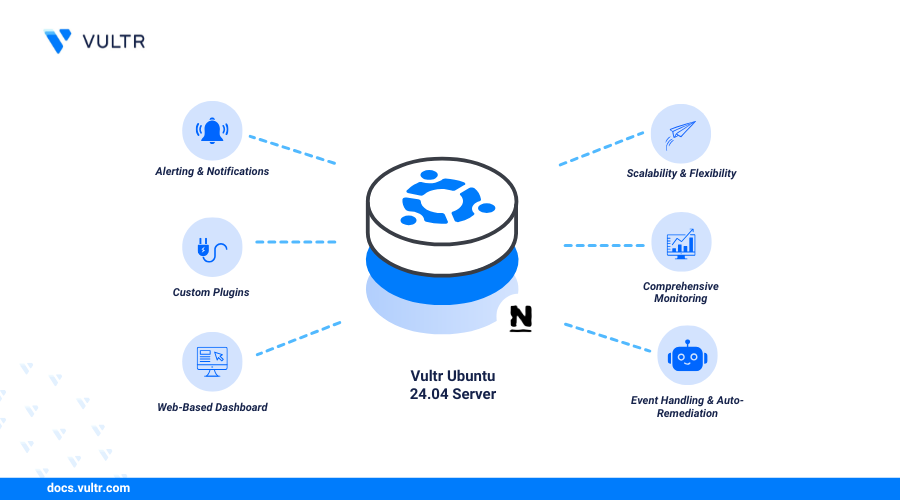
To install Nagios on Ubuntu 24.04, you gain access to Nagios Core, an open-source tool that monitors networks, services, and applications using the Nagios Remote Plugin Executor (NRPE). The NRPE agent utilizes a server/agent architecture to communicate with remote hosts and monitor metrics such as disk usage, CPU load, and network activities. Nagios periodically tracks the resources of remote hosts and displays detailed reports on a web dashboard.
This article explains how to install Nagios on Ubuntu 24.04. You'll also configure Nagios to monitor a remote host.
Prerequisites
Before you begin, you need:
- At least two Ubuntu 24.04 instances to use as the Nagios server, and remote host respectively.
Compile and Install Nagios Core from Source
Nagios is not available in the default package repositories on Ubuntu 24.04. Follow the steps below to compile and install the Nagios Core package on your server.
Ensure you've established an SSH connection on the Nagios server.
Install all required dependency packages.
CONSOLESwitch to the user's home directory.
CONSOLECreate a new
nagios-coreproject directory to store the Nagios Core files.CONSOLESwitch to the
nagios-coredirectory.CONSOLEVisit the Nagios Core repository and download the latest Nagios Core source code.
CONSOLEExtract files from the downloaded archive.
CONSOLEList the files in your working directory.
CONSOLEEnsure a new
nagioscore-nagios...directory exists.Switch to the
nagioscore-nagios...directory depending on your version.CONSOLERun the Nagios Core configuration script to create a new Nagios virtual host for Apache.
CONSOLECompile Nagios Core.
CONSOLECompile and install a new
nagiosgroup and user.CONSOLEAdd the
www-datauser to the Nagios group to allow Apache to serve the web monitoring dashboard.CONSOLE
Install Nagios on Ubuntu 24.04
Follow the steps below to install Nagios on the Nagios server with all necessary components including Apache modules and create user credentials for accessing the Nagios web monitoring dashboard.
Install Nagios.
CONSOLEInitialize all required configuration scripts and the Nagios daemon.
CONSOLEInstall the Nagios command mode package to allow access to external web-based commands.
CONSOLEInstall all Nagios configuration files.
CONSOLEInstall all Apache configuration files.
CONSOLEEnable the Apache rewrite module.
CONSOLEEnable the Apache CGI module.
CONSOLECreate a new
nagiosadminbasic authentication user to access the Nagios web monitoring dashboard and set a strong password when prompted.CONSOLERestart Apache to apply the configuration changes.
CONSOLE
Install Nagios Plugins
Follow the steps below to install Nagios plugins to monitor your Nagios server as a localhost.
Install all required dependency packages for Nagios plugins.
CONSOLESwitch to the user's home directory.
CONSOLEVisit the Nagios plugins releases page to download the latest Nagios plugins package.
CONSOLEExtract files from the downloaded archive.
CONSOLESwitch to the extracted plugins directory.
CONSOLERun the plugins setup script.
CONSOLEConfigure the plugins to run on your server.
CONSOLECompile the plugins.
CONSOLEInstall the compiled plugins.
CONSOLETest the Nagios configuration for errors.
CONSOLEOutput:
Enable Nagios to start at boot.
CONSOLEStart the Nagios service.
CONSOLE
Access the Nagios Web Monitoring dashboard
Follow the steps below to access the Nagios web monitoring dashboard using your Nagios server's public IP address.
View the UFW status and verify that the firewall is active.
CONSOLEIf the status is
inactive, allow SSH connections to the server and start UFW.CONSOLEAllow the HTTP port
80through the firewall.CONSOLEReload UFW to apply the changes.
CONSOLEEnter your server's public IP address in a web browser to access the Nagios dashboard.
Log in to the Nagios dashboard using the
nagiosadminusername and the password you set earlier when installing Nagios.Navigate to Hosts on the left navigation menu.
By default, the Nagios dashboard shows status information for the
localhost. In the next sections, you'll install Nagios plugins on a remote host and configure Nagios server to monitor the remote host.
Install Nagios Plugins on a Remote Host
Nagios monitors remote hosts using an NRPE agent. NRPE listens for connection requests from a Nagios server to monitor a remote host. Follow the steps below to install NRPE and the required plugins on a separate Ubuntu 24.04 remote host.
Establish an SSH connection to the remote host.
Install all required Nagios plugins and the NRPE package.
CONSOLEEnable the NRPE service.
CONSOLEOpen the main NRPE configuration file to modify the list of allowed hosts and executable plugins.
CONSOLEModify the
allowed_hostsdirective and include your Nagios server's public IP address.INIRestart the NRPE service to apply the configuration changes.
CONSOLEThe above remote host's settings allow the Nagios server to connect to the remote host and collect metrics.
Configure the Nagios Server to Monitor Remote Hosts
After adding the NRPE service to a remote host, you should also make some changes to the Nagios server to allow the server to communicate to the remote host. Follow the steps below to configure the Nagios server.
Ensure you're connected to the Nagios server through SSH.
Create a new
serversdirectory.CONSOLECreate a new
/usr/local/nagios/etc/servers/host.cfgconfiguration file to store remote hosts' information.CONSOLEAdd the following configurations to the file. Replace
Vultrwith your remote hostname andremote-host-ipwith the remote host's public IP address.INISave and close the file.
In the above configuration:
max_check_attempts: Sets the maximum number of retries before marking the host as down.check_period: Sets the period to perform host checks.notification_interval: Sets the interval (in minutes) between consecutive notifications.notification_period: Sets the period to send notifications in the Nagios dashboard.
Open the main Nagios configuration file to enable the remote host configuration.
CONSOLEAdd the following directive at the end of the file.
INISave and close the file.
Restart the Nagios service to apply the configuration changes.
CONSOLETest the Nagios configuration for errors.
CONSOLEOutput:
Restart Nagios to apply the configuration changes.
CONSOLEAccess the Nagios web monitoring dashboard.
Navigate to the Hosts section. You should now see your remote host in the list in addition to the
localhost.
Conclusion
You have successfully completed the process to install Nagios on Ubuntu 24.04. Nagios monitors local and remote hosts, providing detailed insights through a rich web-based dashboard. To monitor additional remote hosts, you can install the Nagios NRPE package on those hosts and configure the necessary settings on the Nagios server. For more information and advanced configuration options, please visit the Nagios documentation.

0 Comments
Be the first to comment and share your perspective with the community.