How To Remove All Images in Docker
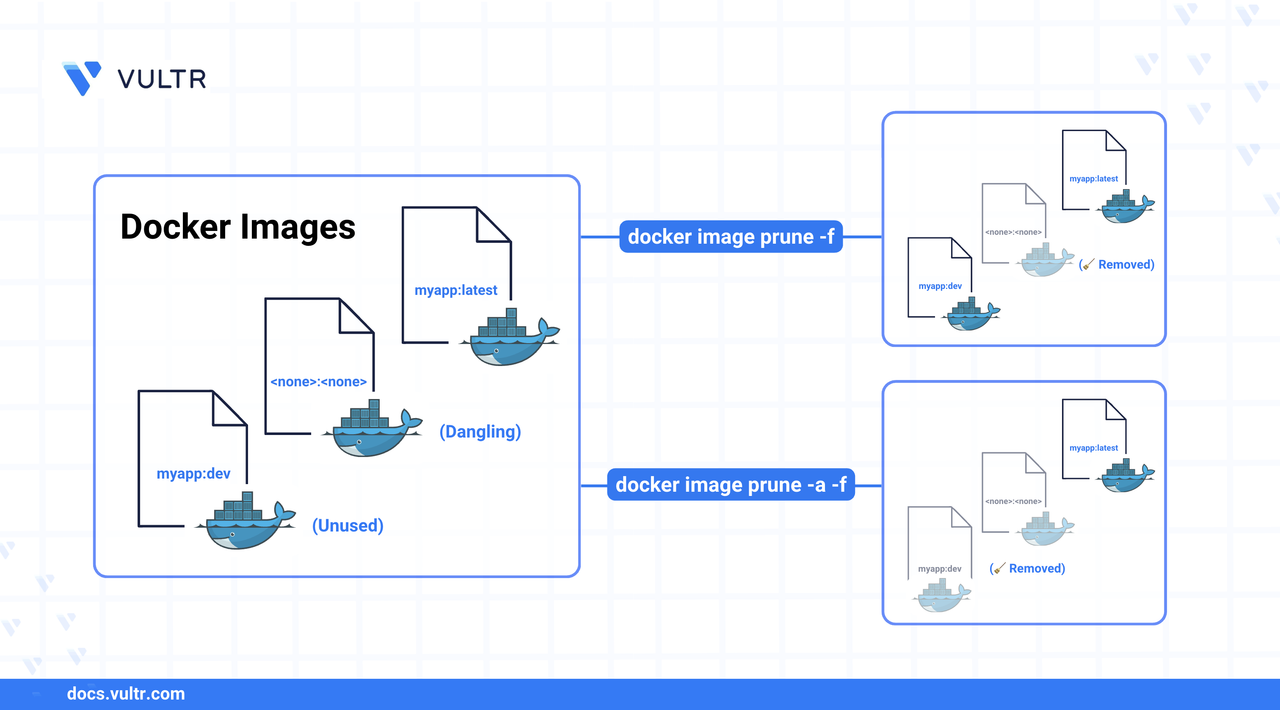
Docker lets you build, ship, and run applications in lightweight containers. However, over time, your system can become clogged with unused images from builds, tests, or outdated versions that consume disk space and make container management harder.
This article shows how to remove all Docker images from your system using the latest Docker CLI commands. It also explains the difference between removing and pruning Docker images, and highlights a few tips to avoid common cleanup mistakes.
The Short Answer
Warning
These commands can remove critical application images and disrupt running or stopped containers. Always verify image usage before deletion.
Commands to Remove Docker Image
Docker offers several commands for removing system resources, which serve different purposes.
docker image remove [IMAGE...]ordocker image rm [IMAGE...]: Deletes one or more images by ID or tag. Useful for manual cleanup.docker image prune: Removes dangling images (images that are both untagged and unused).
Difference Summary
Remove All Docker Images
Before you remove anything, list running containers and images to see the present state.
CONSOLEYou cannot delete an image that’s in use by a container. You need to first:
Stop all containers.
CONSOLERemove all containers.
CONSOLE
Confirm the removal of containers.
CONSOLEThe output should contain no containers.
Now you can remove all images by referencing their image IDs.
CONSOLEOptionally, clean up all the unused Docker resources, including volumes and networks.
CONSOLE
Common Errors and Debugging
Best Practices for Removing Images in Docker
Ensure to tag critical images to avoid accidental deletion.
Schedule cleanup jobs using
cronor automation tools.Use the command below to check space usage:
CONSOLEUse labels and metadata to organize images and automate cleanup logic in CI/CD pipelines.
Before running
docker system prune, consider exporting important volumes or configurations.
Conclusion
In this article, you learned how to remove all Docker images from your system using Docker CLI commands. You also explored the differences between docker image remove and docker image prune, and reviewed tips for avoiding common cleanup mistakes. For more information, refer to the official docker image documentation.
Tags:Docker


0 Comments
Be the first to comment and share your perspective with the community.