How To Manage Docker Images
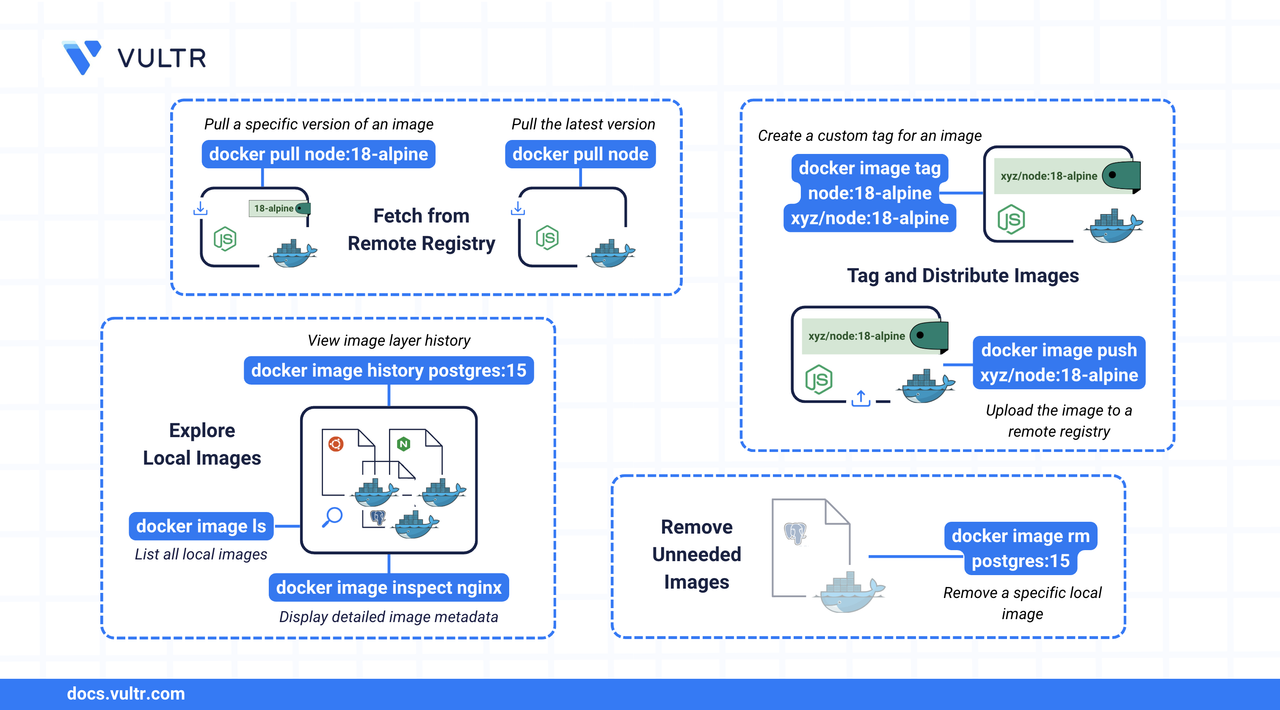
A Docker image is a self-contained package that includes everything needed to run a software application, such as the code, runtime, libraries, environment variables, and configuration files. Images are built in layers, with each layer representing a specific change. This layered architecture makes images efficient to store and distribute.
This article shows you how to manage Docker images using the Docker CLI commands. You will learn how to pull, push, tag, remove, and inspect images. You will also see how to check an image's layers.
The Short Answer
The later sections of this article cover each command in detail
Pull Container Images Using docker image pull
Docker images are stored in registries, such as Docker Hub, which host prebuilt images for popular operating systems, frameworks, and applications.
The docker image pull command downloads an image from a remote registry to your local machine. This makes the image available for creating and running containers on your system.
Command Syntax
NAME[:TAG]– The name of the image and an optional tag (for example,nginx:latest).[OPTIONS]– Common options that modify the command behavior, like--all-tagsto pull all versions.
Command Usage
Pull the latest
nginximage.CONSOLEThe command above pulls the nginx image from the registry with the latest tag.
Pull all tags of an
nginx.CONSOLEThe command above pulls Docker images for every available tag of
nginxfrom the registry.
Push Container Images Using docker image push
The docker image push command uploads a local image to a remote registry. Before pushing, you must properly tag the image using the correct format. Tags help identify and version images in the registry. The standard tagging format is [registry-hostname[:port]]/repository[:tag].
Command Syntax
NAME[:TAG]- The target repository and tag.OPTIONS- Common options that modify the command behavior, like--quietto reduce output.
Command Usage
Tag the local image.
CONSOLEThis command does not change the original
app:latestimage. It simply creates a new tag,myuser/app:v1, pointing to the same image ID.Note
Replace
myuserwith your Docker registry username.Push it to a remote registry.
CONSOLENote
You must run
docker loginand authenticate before pushing to your Docker repository.
Remove Container Images Using docker image rm
The docker image rm command deletes one or more Docker images from your local system. This is useful for freeing up disk space or removing unused or outdated image versions from your development environment.
Command Syntax
IMAGE...- The image name, tag, or ID.OPTIONS- Common options that modify the command behavior, like--forceto forcibly remove an image even if it's in use.
Command Usage
List the images and locate the name and ID of the image you want to remove. You can then pass the ID or name to
docker image rmCONSOLERemove the
nginximage.CONSOLEThis command removes the
nginximage from your system. By default, it removes thelatesttag, but you can specify a different tag if needed.You can specify multiple images to remove them.
CONSOLEThis command removes the
mysqlandalpineimages with thelatesttag from your system.
Note
You can also use the docker image prune command to remove all the unused dangling (untagged and not referenced by any containers) images.
Inspect Container Images using docker image inspect
The docker image inspect command allows you to inspect an image and see how it was constructed (its layers). This command works on images, containers, secrets, and other Docker objects.
Command Syntax
OPTIONS- Common options that modify the command behavior, like--formatto set the output format.[OBJECT]- The name or ID of the object, in this case, the image name or image ID of the image you want to inspect.
Command Usage
Inspect the
nginximage.CONSOLEInspect the image by its image ID.
CONSOLE
Both commands return the image details in a JSON output.
Check Image History Using docker image history
The docker image history command lists the commands that created the image's layers. This command gives you an insight into what the image is built from.
Command Syntax
[OPTIONS]- Modify the command behavior, like--no-trunc, which gives you complete information on the output fields.[IMAGE]- Is the image ID or image name.
Command Usage
Check the history of
alpineimage.CONSOLEThe command shows the layers of the
alpineimage.See the complete data of the output fields.
CONSOLEThe command shows the complete data of every output field.
Conclusion
In this article, you learned how to pull, push, tag, remove, and inspect Docker images using the Docker CLI commands. You also learned how to check the layers of an Image. For more information, refer to the Docker documentation.
Tags:Docker


0 Comments
Be the first to comment and share your perspective with the community.