How to Deploy AdGuard – Network Traffic Filtering
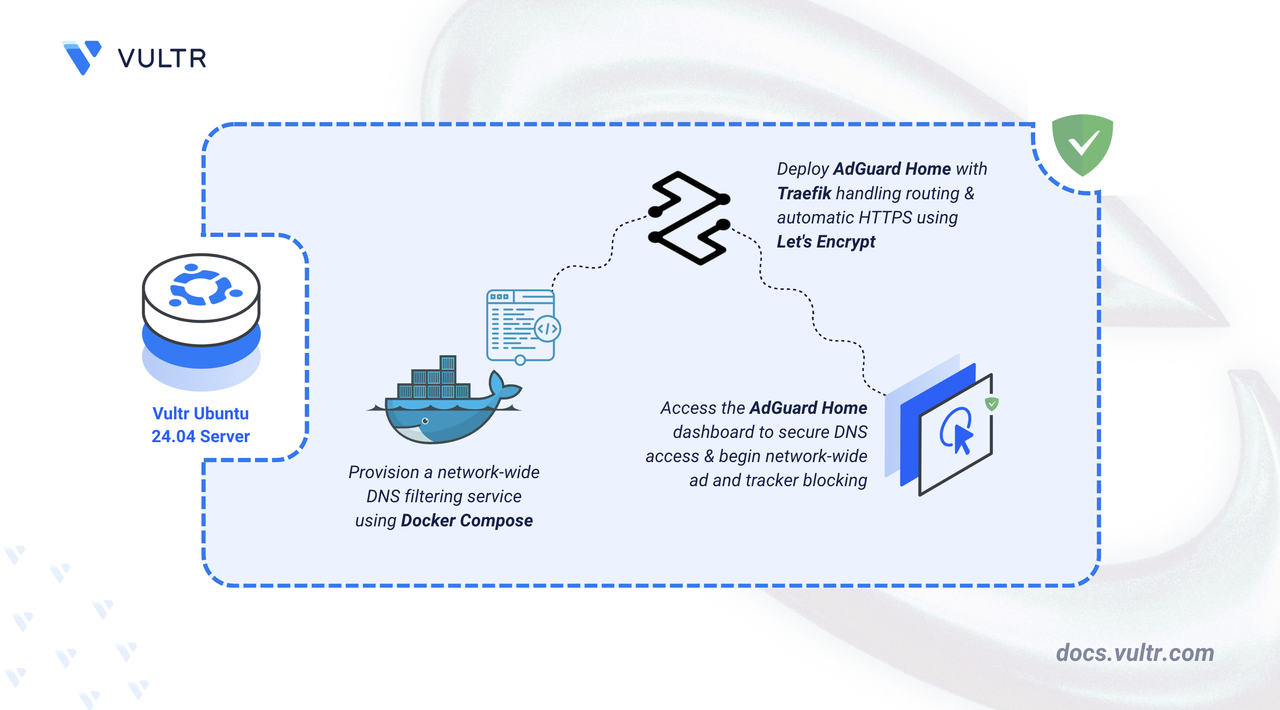
AdGuard Home is a network-wide software for blocking ads and tracking. It acts as a DNS server that filters traffic before it reaches your devices. AdGuard Home is a single, self-contained application that many users find easier to configure. It includes built-in support for encrypted DNS (DoH/DoT) and parental controls.
This article shows you how to deploy AdGuard Home on Ubuntu 24.04 using Docker Compose. It uses Traefik to provide a secure HTTPS connection for the dashboard.
Prerequisites
Before you begin:
- Have access to an Ubuntu 24.04 server as a non-root user with sudo privileges.
- Install Docker and Docker Compose.
- Configure a domain name, such as
adguard.example.com, to point to your server’s public IP address.
Freeing Port 53
DNS servers communicate using port 53. By default, Ubuntu 24.04 runs its own internal DNS service called systemd-resolved on this port. You must disable this internal service so that AdGuard Home can take control of port 53.
Stop the
systemd-resolvedservice.CONSOLEDisable the service so it does not start again when you reboot.
CONSOLERemove the existing DNS configuration file.
CONSOLETo ensure the server itself can still connect to the internet to download updates, you need to configure the server to use a public DNS provider. Create a new DNS configuration file.
CONSOLEThis configuration tells your server to send its own DNS queries to
1.1.1.1, a public DNS server provided by Cloudflare.
Set Up the Directory Structure and Environment Variables
AdGuard Home requires persistent folders for configuration and data, along with environment variables that specify your domain and other settings. This section prepares both the directory structure and the .env file.
Create the required directories for AdGuard Home.
CONSOLEwork– Stores the database and DNS query logs.conf– Stores configuration files, settings, users, and passwords.letsencrypt– Stores TLS certificates generated by Traefik.
Go to the project directory.
CONSOLECreate a file named
.env.CONSOLEAdd the following text. Replace
adguard.example.comwith your actual domain,admin@example.comwith your email address, andUTCwith your Timezone.INISave and close the file.
Deploy with Docker Compose
A Docker Compose file is a blueprint that tells Docker how to run your services. This section covers creating a Docker Compose manifest to orchestrate the deployment. The configuration file defines the AdGuard Home and Traefik services, maps the necessary ports for DNS and web traffic, and establishes a shared network for internal communication.
Add your user to the docker group.
CONSOLEUpdate your group membership.
CONSOLECreate the
docker-compose.ymlfile.CONSOLEPaste the following content into the file:
YAMLSave and close the file.
This Docker Compose configuration deploys AdGuard Home behind Traefik, enabling secure HTTPS access to the web dashboard while exposing DNS ports for network-wide ad blocking and filtering. Each service has a dedicated function in the deployment:
adguard service (AdGuard Home)
- Runs the official
adguard/adguardhomecontainer, providing DNS-level ad blocking, content filtering, and parental control features. - Exposes ports 53/tcp and 53/udp so your devices can use AdGuard Home as their DNS resolver.
- Temporarily exposes port 3000, which is required only for the initial setup wizard. After completing setup, you can remove this port.
- Stores persistent data in the
./workand./confdirectories, preserving your configuration across container restarts. - Includes Traefik labels that route HTTPS traffic for your domain (
${DOMAIN}) to the AdGuard Home dashboard. - Internally serves its web interface on port 80, which Traefik accesses for secure frontend delivery.
traefik service
- Handles all external web traffic on ports 80 and 443.
- Automatically provisions and renews TLS certificates using Let’s Encrypt via the ACME HTTP-01 challenge.
- Redirects all HTTP requests to HTTPS for secure access.
- Identifies and routes incoming requests to AdGuard Home using Docker labels.
- Stores certificate data persistently in the
./letsencryptdirectory.
- Runs the official
Start the services.
CONSOLECheck if the containers are running.
CONSOLENote
For more information on managing a Docker Compose stack, see the How To Use Docker Compose article.
Initial Configuration
AdGuard Home has an initial setup wizard that you must complete before the dashboard becomes active.
Open your web browser and go to your server's IP address on port 3000, such as
http://SERVER_IP:3000.Click "Get Started".
You will see two settings: "Admin Web Interface" and "DNS Server". Make sure they are set to the following values:
- Admin Web Interface:
- Listen interface: Leave as
All interfaces. - Port: Change this to
80. This is the internal container port that Traefik will route to.
- Listen interface: Leave as
- DNS Server:
- Listen interface: Leave as
All interfaces. - Port: Leave as 53.
- Listen interface: Leave as
Click Next.
- Admin Web Interface:
Enter your desired Username and a strong Password. Click Next.
You'll land on the Configure your devices page, where you'll see the configuration settings for various types of devices. Click Next.
The setup finishes. Click Open Dashboard. The page will not load because you're trying to access it via
http://SERVER_IP:3000, but AdGuard has now moved to port 80 inside the container, accessible only via your domain through Traefik.To access the dashboard, open a new tab and navigate to
https://adguard.example.com. You should now see the HTTPS-secured login screen.
Security Configuration
By default, AdGuard Home might accept DNS queries from anyone. You must restrict this.
- Log in to your dashboard.
- Go to Settings > DNS Settings.
- Scroll down to Access Settings.
- In the Allowed clients section, enter the IP addresses of the devices you wish to use with AdGuard Home.
- Click Save.
Warning
Configure your firewall to allow traffic to port 53 from your client's IP. If you do not restrict access in the AdGuard settings or your firewall, your server is accessible to the entire internet.
Client Configuration & Testing
Now you can test if the server is working.
Run this command from your local computer to query the DNS records of a known ad domain
flurry.com. ReplaceSERVER_IPwith your server's public IP address.CONSOLEIf the answer section returns
0.0.0.0, AdGuard Home is successfully blocking ad domains on your network.Run this command to verify that normal websites are still resolving correctly.
CONSOLEYou should see the domain A records of
vultr.comin the output.
Conclusion
You have successfully deployed AdGuard Home on Ubuntu 24.04 using Docker Compose and secured the web dashboard with HTTPS through Traefik. Your server is now capable of blocking ads, trackers, and unwanted content at the DNS level for every device that uses it. For more information, refer to AdGuard Knowledge Base.




0 Comments
Be the first to comment and share your perspective with the community.