How to Deploy Authelia – Open-Source Authentication and Authorization Gateway
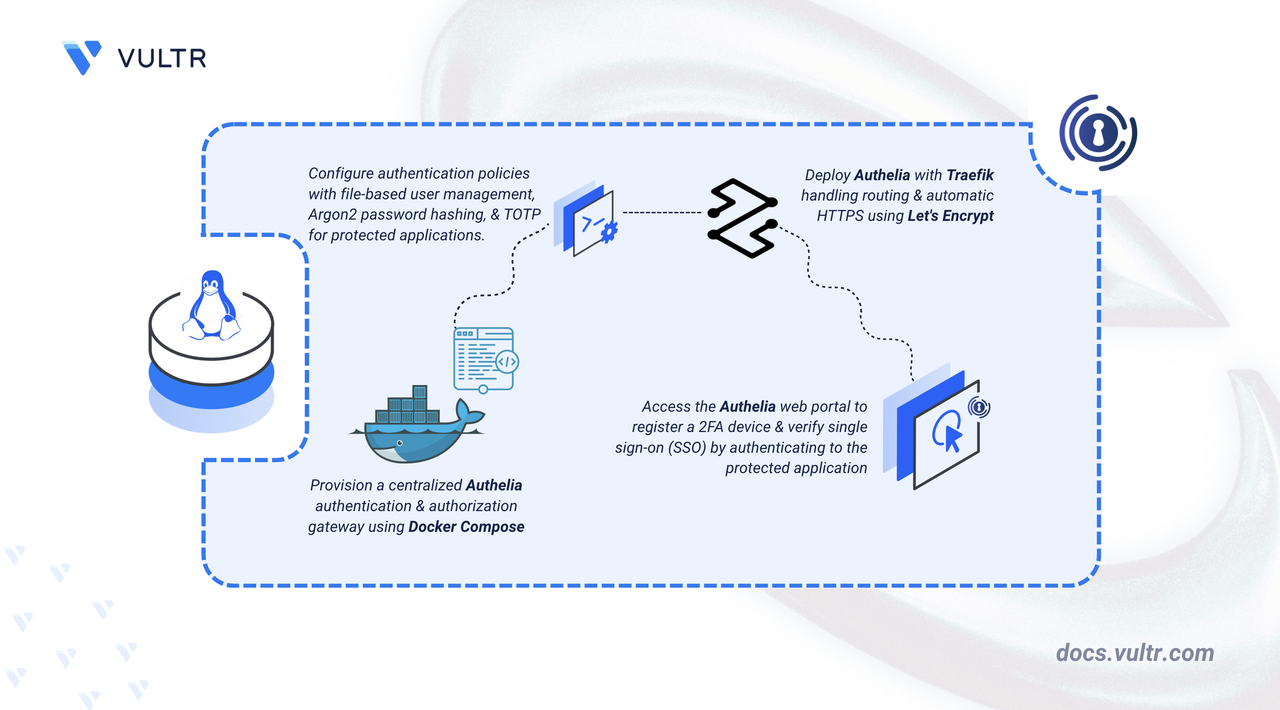
Authelia is an open-source authentication and authorization server that provides two-factor authentication (2FA) and single sign-on (SSO) for web applications through a login portal. It acts as a companion for reverse proxies like Traefik, NGINX, and Caddy by allowing, denying, or redirecting requests based on access control policies. With a container size under 20 megabytes and memory usage typically under 30 megabytes, Authelia is one of the most lightweight authentication solutions available.
This article explains how to deploy Authelia on a Linux server using Docker Compose with Traefik as the reverse proxy. It covers directory setup, Authelia configuration, automatic HTTPS with Let's Encrypt, and protecting a sample web application with authentication policies.
Prerequisites
Before you begin, you need to:
- Have access to a Linux-based server (with at least 2 CPU cores and 4 GB of RAM) as a non-root user with sudo privileges.
- Install Docker and Docker Compose.
- Configure DNS A records pointing to your server's IP address for the following subdomains:
auth.example.com(Authelia portal),app.example.com(protected application), andtraefik.example.com(Traefik dashboard).
Set Up the Directory Structure, Configuration, and Environment Variables
Authelia requires a project directory that holds its configuration file, user database, and secrets for JSON Web Token (JWT) management, session handling, and storage encryption.
Create the project directory with subdirectories for Authelia configuration, secrets, and logs.
CONSOLEconfig: Holds the main configuration file (configuration.yml) and the user database (users.yml).secrets: Stores sensitive values such as JWT, session, and storage encryption secrets.logs: Stores Authelia application logs.
Navigate to the project directory.
CONSOLECreate the environment file.
CONSOLEAdd the following configuration:
INIReplace:
example.comwith your registered domain (the parent domain for all subdomains).admin@example.comwith your email address for Let's Encrypt certificate notifications.
Save and close the file.
Set ownership on the secrets directory and generate the Authelia secrets. The Authelia container runs as UID 8000 and needs write access to the secrets directory.
CONSOLEchown 8000:8000: Sets ownership to the Authelia container user.chmod 0700: Restricts access to the secrets directory to the owner only.authelia crypto rand: Generates cryptographically secure random strings of 64 characters for each secret file.
Create the Authelia configuration file.
CONSOLEAdd the following configuration. Replace all instances of
example.comwith your actual domain.YAMLSave and close the file.
server: Configures Authelia to listen on port 9091.authentication_backend: Uses a file-based user database with Argon2id password hashing.access_control: Denies all requests by default. Theapp.example.comsubdomain requires 2FA, andtraefik.example.comrequires single-factor authentication.session.cookies: Scopes session cookies to the parent domainexample.com, enabling SSO across all subdomains.storage: Uses a local SQLite database for simplicity.notifier: Writes notification emails such as 2FA setup links to a local file. Replace this with Simple Mail Transfer Protocol (SMTP) configuration for production use.
Generate a secure password hash. Replace
your-secure-passwordwith your desired password.CONSOLECopy the output hash for use in the next step.
Create the user database file.
CONSOLEAdd the following configuration:
YAMLReplace:
authuser@example.comwith your email address.- The
passwordvalue with your generated hash.
Save and close the file.
Deploy with Docker Compose
The Docker Compose manifest defines Traefik as the reverse proxy, Authelia as the authentication gateway, and a sample whoami application to demonstrate authentication enforcement. This configuration is based on the official Authelia Docker examples.
Create the Docker Compose manifest.
CONSOLEAdd the following configuration:
YAMLSave and close the file.
In the above manifest:
- services: Launches three containers managed by Docker Compose:
- traefik: Functions as the reverse proxy and TLS termination point with automatic Let's Encrypt certificates.
- authelia: Runs the authentication gateway on port 9091.
- whoami: A lightweight service that displays HTTP request headers for testing authentication.
- command (Traefik): Configures Traefik's core behavior including Docker discovery, HTTP/HTTPS entry points, automatic HTTP-to-HTTPS redirection, and Let's Encrypt certificate generation.
- environment (Authelia): The
X_AUTHELIA_CONFIG_FILTERS: "template"setting enables the template filter that loads secrets from files. - labels (Authelia): The
forwardAuthlabels instruct Traefik to check every request against Authelia before forwarding it to backend services. - labels (whoami): The
authelia@dockermiddleware attaches authentication to the whoami service. - volumes: The
letsencryptdirectory stores TLS certificates persistently. The Docker socket enables Traefik to discover and route to containers automatically. - restart: unless-stopped: Ensures containers recover automatically after failures or restarts.
- services: Launches three containers managed by Docker Compose:
Launch the containers.
CONSOLEVerify all three services are running.
CONSOLEThe output displays three running containers: Traefik, Authelia, and whoami with Traefik listening on ports 80 and 443.
Check the service logs for any errors.
CONSOLEFor more information on managing a Docker Compose stack, see the How to Use Docker Compose article.
Access and Configure Authelia
Authelia serves a web portal for user authentication. The first login requires setting up a Time-based One-Time Password (TOTP) device for 2FA using the filesystem notifier to retrieve verification codes.
Open a web browser and navigate to
https://auth.example.com, replacingexample.comwith your configured domain.Sign in with the default credentials:
- Username:
authuser - Password: The password you set when generating the hash earlier.
- Username:
After a successful login, Authelia displays the portal page with a prompt to register your first 2FA device. Click Register device to begin the TOTP setup process.
Authelia displays an Identity Verification dialog requesting a One-Time Code. Since the notifier uses a filesystem backend, retrieve the code from the server.
CONSOLEAfter verification, Authelia displays a QR code. Scan it with a TOTP authenticator app such as Google Authenticator, Authy, or Microsoft Authenticator. Enter the 6-digit code from the app to complete the registration.
Test Authentication and Single Sign-On
The whoami container displays HTTP request headers and connection details, allowing you to verify that Authelia correctly enforces authentication and injects identity headers.
Open a web browser and navigate to
https://app.example.com, replacingexample.comwith your configured domain.Authelia redirects to the login portal at
https://auth.example.com. Enter your username and password. Sinceapp.example.comuses atwo_factorpolicy, Authelia prompts for a TOTP code after the password step. Enter the 6-digit code from your authenticator app to gain access.After successful authentication, the browser displays the
whoamioutput. Verify that Authelia injects identity headers into the proxied request by looking for the following headers:These headers allow backend applications to identify the authenticated user without implementing their own authentication logic.
Test SSO functionality by opening a new tab and navigating to
https://traefik.example.com, replacingexample.comwith your configured domain. Since the session cookie scopes to the parent domain, Authelia recognizes your existing session. The Traefik dashboard requires onlyone_factorauthentication, so Authelia grants access immediately without prompting for credentials again.To protect additional web applications, add the Authelia middleware label to any new service in your
docker-compose.yaml:YAMLThen add a corresponding rule in the
access_controlsection ofconfig/configuration.yml:YAMLRun
docker compose up -dto apply the changes.
Conclusion
You have successfully deployed Authelia with Traefik as the reverse proxy on a Linux server using Docker Compose. The setup provides centralized 2FA and SSO for web applications behind the proxy. For more information on extending this configuration with SMTP notifications, Lightweight Directory Access Protocol (LDAP) user backends, or OpenID Connect 1.0, visit the official Authelia documentation.

0 Comments
Be the first to comment and share your perspective with the community.