How to Deploy CyberChef – Open-Source Data Transformation Platform
CyberChef is an open-source, browser-based application for performing data transformations and cyber operations. It supports encoding schemes like Base64 and hexadecimal, encryption algorithms including AES, DES, and Blowfish, hash generation, data compression, character encoding conversion, and network parsing for IPv6 and X.509 certificates. Operations chain together as "recipes" that can be saved and shared.
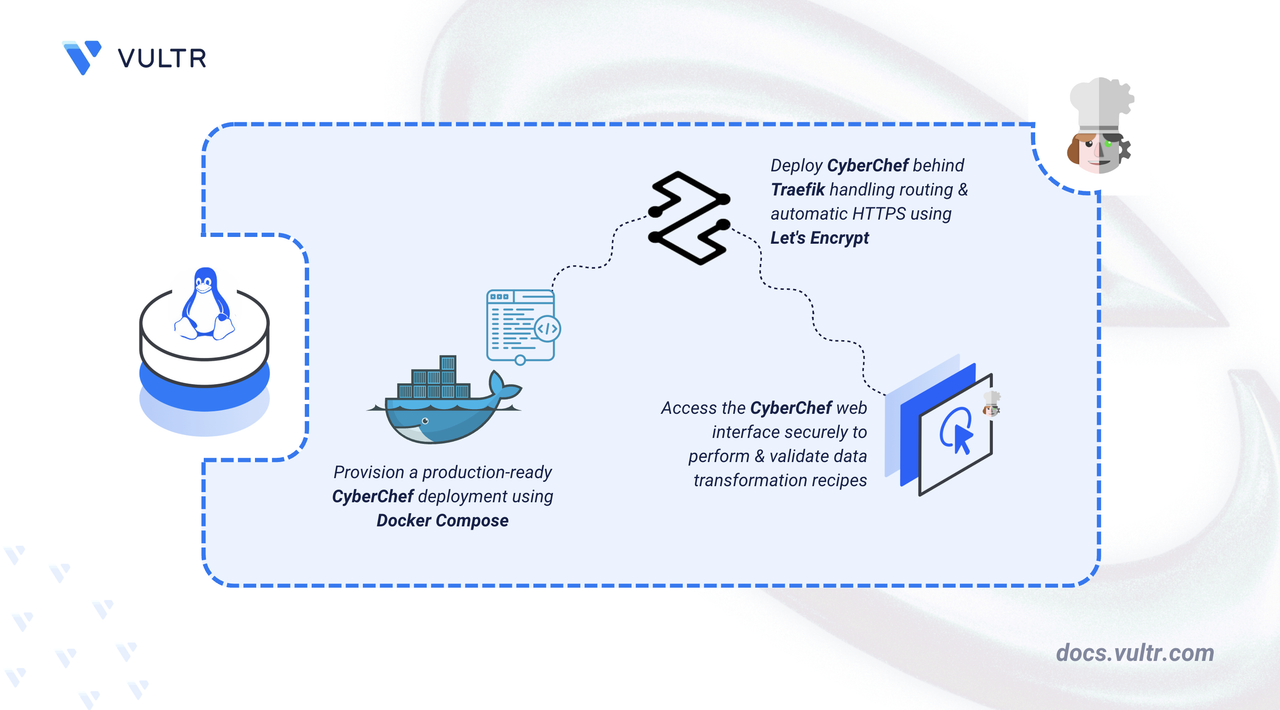
This article explains how to deploy CyberChef on a Linux server using Docker Compose. It covers directory setup, environment configuration, Traefik reverse proxy integration for automatic HTTPS, and demonstrates the application with a sample data transformation.
Prerequisites
Before you begin, you need to:
- Have access to a Linux-based server (with at least 2 CPU cores and 4 GB of RAM) as a non-root user with sudo privileges.
- Install Docker and Docker Compose.
- Create a DNS A record pointing to your server's IP address (for example,
cyberchef.example.com).
Set Up the Directory Structure, Configuration, and Environment Variables
CyberChef runs as a stateless container that serves static web assets. Traefik handles TLS termination and automatic certificate provisioning through Let's Encrypt.
Create the project directory and navigate into it.
CONSOLECyberChef is stateless and requires no persistent data directories. The only volume used is for Traefik's TLS certificates.
Create a
.envfile to store environment variables.CONSOLEAdd the following configuration:
INIReplace:
cyberchef.example.comwith your registered domain name.admin@example.comwith your email address for Let's Encrypt notifications.
Save and close the file.
Deploy with Docker Compose
Traefik automatically discovers the CyberChef container through Docker labels and routes HTTPS traffic based on the configured domain. Let's Encrypt certificates are provisioned and renewed automatically.
Create the Docker Compose file.
CONSOLEAdd the following manifest:
YAMLSave and close the file.
In the above manifest:
- services: Launches two containers managed by Docker Compose:
- traefik: Functions as the reverse proxy and TLS termination point.
- cyberchef: Hosts the data transformation web application.
- image: Defines which container image each service uses.
- container_name: Sets a predictable name for each container, simplifying log inspection and management commands.
- command (Traefik): Establishes Traefik's operational parameters—Docker provider integration, HTTP and HTTPS entry points, automatic redirection from HTTP to HTTPS, and Let's Encrypt certificate acquisition.
- ports (Traefik): Maps host ports
80and443to Traefik, allowing it to receive incoming web traffic. - expose (CyberChef): Opens port
80internally so Traefik can forward requests without exposing the port directly to the host network. - volumes:
- The
letsencryptnamed volume retains TLS certificates between container restarts. - The Docker socket mount (
/var/run/docker.sock) enables Traefik to detect and configure routes for running containers automatically.
- The
- labels (CyberChef): Instructs Traefik to route HTTPS requests matching the configured domain to the CyberChef container.
- restart: unless-stopped: Configures both containers to restart automatically after crashes or server reboots, unless explicitly stopped.
- services: Launches two containers managed by Docker Compose:
Start the containers in detached mode.
CONSOLEVerify that both containers are running.
CONSOLEOutput:
View the logs for the services.
CONSOLEFor more information on managing Docker Compose stack, see the How To Use Docker Compose article.
Access CyberChef
CyberChef is a client-side application with no authentication or persistent state. All operations execute in the browser, and recipes can be exported as URLs or JSON files.
Open your web browser and navigate to CyberChef at
https://cyberchef.example.com, replacingcyberchef.example.comwith your configured domain name.Verify the interface loads with four panels.
The interface contains:
- Operations (left): Searchable list of available transformations.
- Recipe (center): Workspace where operations chain together.
- Input (top-right): Text or file data to transform.
- Output (bottom-right): Transformation results.
Run a Sample Data Transformation
CyberChef processes data by applying operations sequentially. The following example decodes a Base64-encoded string.
Paste the following Base64 string into the Input panel.
INISearch for
From Base64in the Operations panel and drag it into the Recipe area.Click Bake to execute the transformation.
Output:
The decoded output confirms that CyberChef processes transformations correctly.
Conclusion
You have successfully deployed CyberChef on your server using Docker Compose with Traefik for automatic HTTPS. The setup provides secure browser access to a powerful data transformation toolkit without requiring authentication or server-side storage. CyberChef supports hundreds of operations for encoding, encryption, compression, and analysis that execute entirely in the browser. For more information, refer to the official CyberChef documentation.


0 Comments
Be the first to comment and share your perspective with the community.